Module 08: Alerts & Notifications
Checking the dashboards every hour is no way to work. In this module you will learn what alerts the platform raises, where to see them, and how to set up automations so that you are told by email or Microsoft Teams when a delivery fails or data fails its quality checks.
Learning Objectives
By the end of this module you will be able to:
- Describe the types of alert the platform raises
- Find the alerts for a dataset in the portal
- Create an automation that emails you when something goes wrong
- Choose between email and Teams notifications
- Check that your automations are running, and switch them off when needed
Prerequisites
- You have completed Module 06
- The Automations extension is installed in your tenant (menu item Operations, Automations). If you cannot see it, ask your administrator
Notifications in OpenDataDSL are sent by automations: rules that do something, such as sending an email, when something happens to an item. Every notification in this module is an automation.
Step 1: Know the Types of Alert
| Alert type | Raised when |
|---|---|
| DatasetAlert | A dataset is late or of bad quality, or someone posts a message about a dataset |
| MetricAlert | A metric your company defines breaches a threshold |
| SystemAlert | The platform finds incorrect configuration or a general issue |
| ServiceAlert | A specific platform service raises an issue |
As a business user you will mostly meet DatasetAlerts.
Step 2: See the Alerts
- In the dataset list of dataset monitoring, the Alerts icon on each dataset shows how many alerts were raised
- Select a dataset and open its Alerts tab to read the alerts for the selected date
- For process failures, the Executions dashboard lets you filter on Failed executions and drill into each one to see where it went wrong
Step 3: Decide What You Want to Hear About
| You want to know when | Automate on | When |
|---|---|---|
| A data loading process fails | The process | has failed |
| A curve or timeseries fails its validation checks | The curve or timeseries | fails validation |
| A curve you depend on is updated | The curve | is updated |
| A dataset is late or missing | The dataset | late, missing |
The first three can be created from the Automations extension's New tab, as below. Which services and actions it offers depends on your platform; see Creating an automation.
The platform raises a late or missing event for a dataset at the same time as the alert. An automation on those events notifies you straight away. If the New tab does not offer datasets in your tenant, ask your data team to set this automation up for you: it is a short configuration for them.
Step 4: Create an Email Notification
This example emails you when a data loading process fails.
- Open Operations, Automations, then select the New tab
- Choose the item: set Service to processes, type part of the process name and select Find, then select the process. Show what it can do lists the automations that already exist for it, so check that yours is not there already
- Choose what it does: type
emailin Filter, choose has failed in When, and select the sentence of Send an email
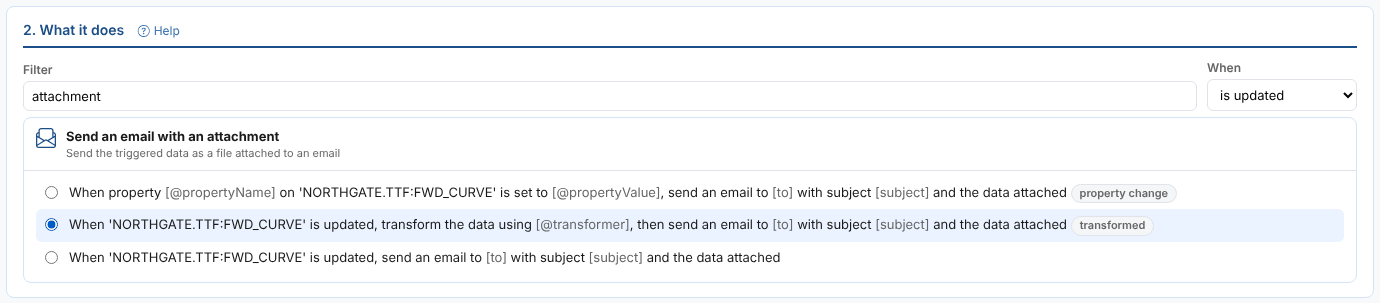
- Fill in the settings:
| Field | Example | Notes |
|---|---|---|
| to | your.name@yourcompany.com | Separate several addresses with ,, ; or a space |
| subject | Load failed: my gas prices | The email subject |
| Enabled | ticked | Untick to create it switched off |
- Select Create automation. The message confirms it, and you become its owner
In the editor, Run now runs the saved automation straight away, so you can check the email arrives. A test run really sends: the email goes out, and for other targets the message goes on the queue or the process runs.
Step 5: Notify a Teams Channel
The Send a Teams message target posts to a Microsoft Teams channel. It needs two settings:
- url: the channel's incoming webhook address, set up in Teams
- template: a message template stored on the platform
Your company can create its own target with the channel address already filled in, so you only pick the target and never handle the webhook address. Look for it on the Targets tab, or ask your administrator.
Step 6: Keep an Eye on Your Automations
| Where | What you see |
|---|---|
| Overview tab | How many automations ran in the last day and week, how many were not successful, and the latest failures |
| Automations tab | Every automation. Tick Mine only to see your own. Use the On switch to turn one off or on |
| Activity tab | Every run, with its status and the target's message, filterable by period, status, target and item |
An automation runs as its owner, and saving an automation, including switching it on or off, makes you its owner. Check with a colleague before changing an automation they created.
If you might need an automation again, switch it off instead of deleting it. A deleted automation cannot be brought back.
Exercise
- Open a monitored dataset and read its Alerts tab
- Create an automation that emails you when one of your company's loading processes fails. Use a process in your test environment if you have one
- Open the new automation in the editor and use Run now to check the email arrives
- On the Activity tab, find the test run and read its message
- Switch the automation off and on again from the Automations tab
Summary
| Task | Where |
|---|---|
| See alerts | Dataset monitoring: Alerts icon and Alerts tab |
| Investigate failed loads | Executions dashboard, filtered on Failed |
| Create a notification | Operations, Automations, New: item, what it does, settings |
Send an email: to and subject | |
| Teams | Send a Teams message, or your company's own Teams target |
| Check it works | Run now, then the Activity tab |
Further reading: Alerts, Automations extension, Monitoring automations, Email target, Teams target
You have completed the User track. Return to the User training home to revisit any module, or explore the Technical track to see how the data you use is set up.