Monitoring automations
Every time an automation runs, the platform writes an entry in the automation log: when it ran, for which item, which target, whether it worked and the target's message. The Overview and Activity tabs and the four insight reports are built on that log, so you can see at a glance whether the automations are doing their job and find the ones that are not.
Priya starts each day on the Overview.
The Overview tab
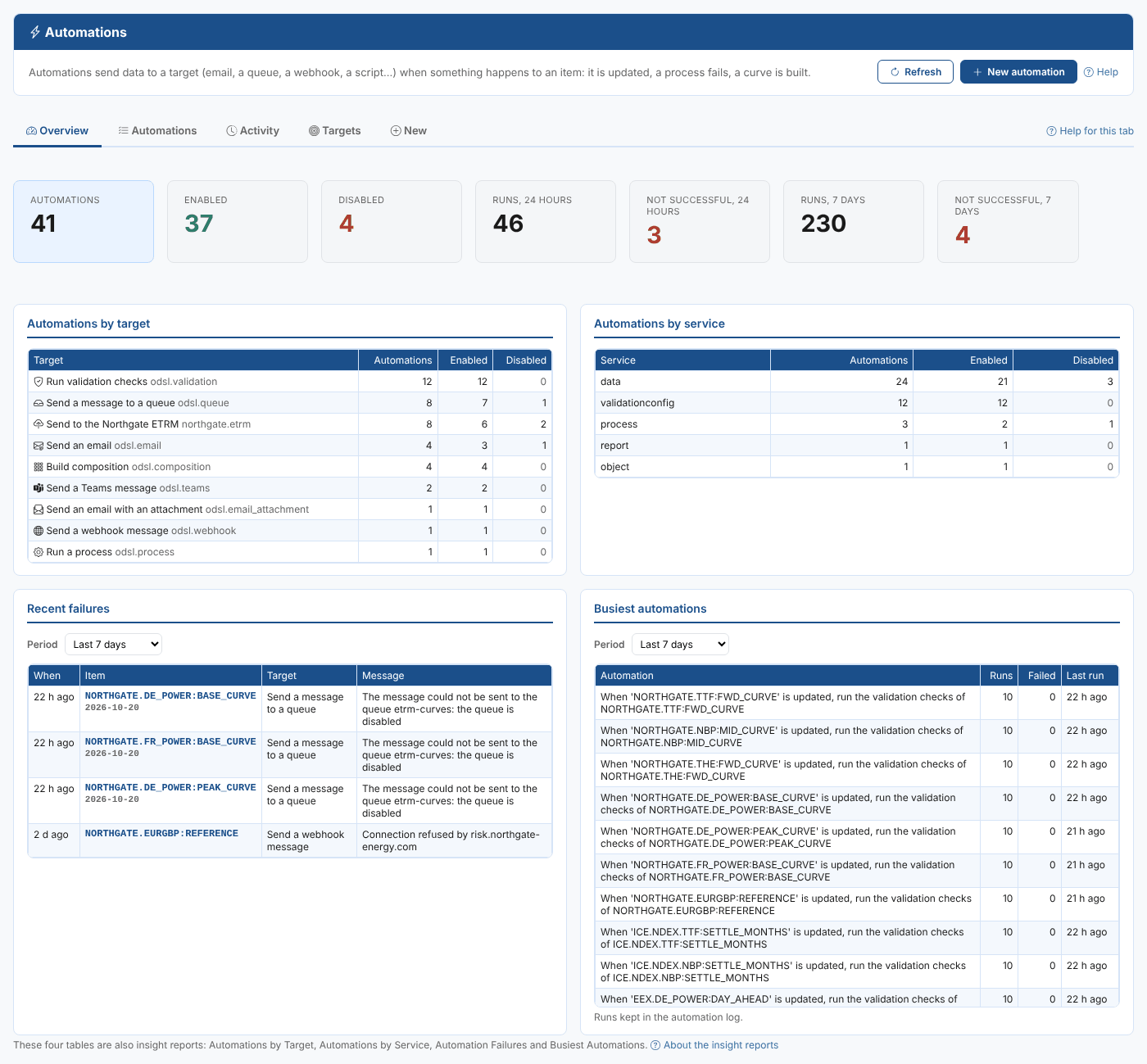
The cards at the top:
| Card | What it counts |
|---|---|
| Automations | The automations of your company in this environment. An automation with more than one trigger counts once for each |
| Enabled and Disabled | How many are switched on and off |
| Runs, 24 hours and Runs, 7 days | Entries in the automation log in the last 24 hours and 7 days |
| Not successful, 24 hours and Not successful, 7 days | The runs in those periods whose status is anything but success. Red when there are any |
Under the cards are four reports, two to a row. Each is also an insight report.
Automations by target and by service
Automations by target counts the automations sending to each target, and how many of them are enabled and disabled. Automations by service does the same by the service of the item that triggers them (data, process, report, object, validationconfig and so on).
Select a row to open the Automations tab with that target or service as its filter.
At Northgate, twelve automations run validation checks (kept by the Validation extension), eight send forward curves to the queue etrm-curves and eight load them into the ETRM through the company's own target.
Automation failures
Recent failures lists the latest runs that were not successful, newest first: when, the item (with the ondate for curves), the target and the target's message. Select a row to see the whole log entry.
On Wednesday Priya sees three failures from yesterday evening: the queue etrm-curves was disabled, so the German and French power curves did not reach the ETRM.
Busiest automations
Busiest automations lists the automations that ran most often, with their runs, how many of those failed, and when they last ran. Select a row to open the automation in the editor.
An automation that runs far more often than expected usually has a trigger that is too wide, such as an automation on any item, or an item that is saved many times a day.
Choosing a period
Recent failures and Busiest automations each have a Period:
| Period | Runs included |
|---|---|
| Last 24 hours | Since this time yesterday |
| Last 7 days | The default |
| Last 30 days and Last 90 days | |
| All | Every run the automation log holds |
| Between dates | From the start of the From date to the end of the To date. Leave one empty for an open range |
Changing the period reloads only that report. The period is kept while the page is open, including when you select Refresh. On Busiest automations the run and failure counts are for the period.
The Activity tab
The Activity tab is the automation log itself, newest first, 50 runs a page.
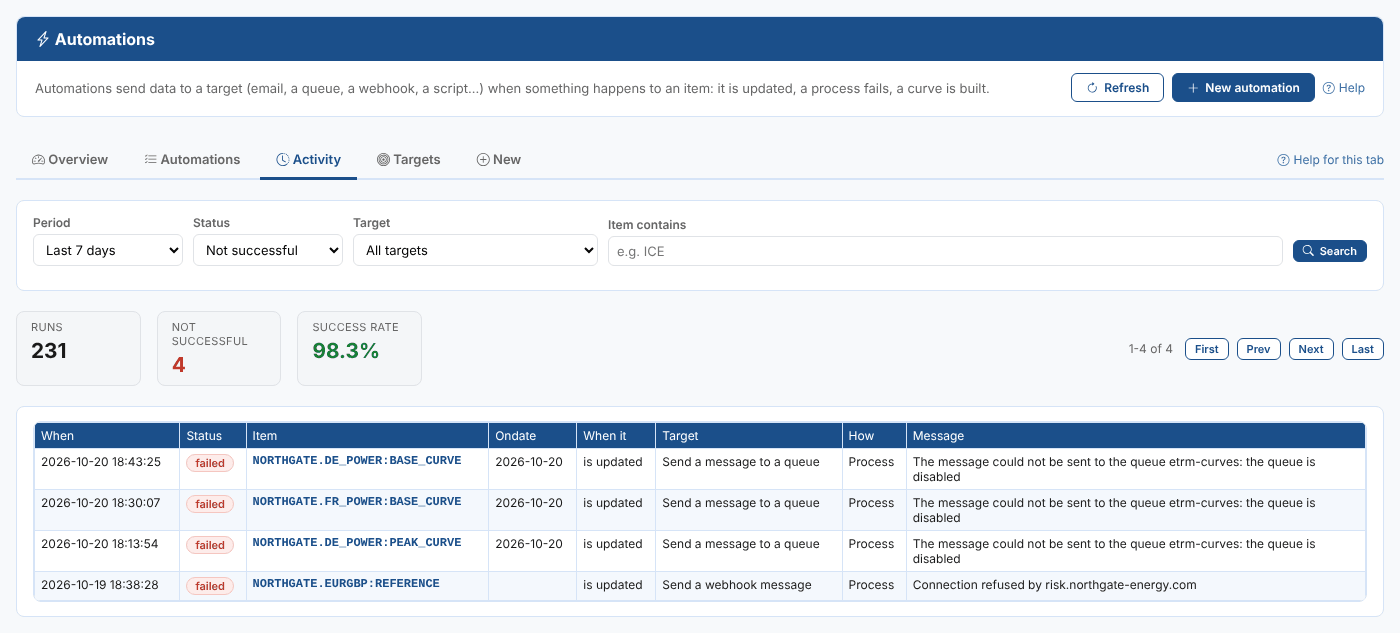
| Filter | What it does |
|---|---|
| Period | Last 24 hours, last 7 days (the default), last 30 days, all, or between dates |
| Status | Any, successful, not successful (any status but success) or failed |
| Target | Only runs of one target |
| Item contains | Only runs for items whose id contains the text, in any case. Press Enter or select Search |
The cards show the Runs in the period (for the target and item filters, whatever the status), how many were Not successful, and the Success rate.
To see the runs of one automation, select the clock button on its row in the Automations tab, or All runs in its editor. A blue bar names the automation; select All automations to remove that filter.
| Column | What it shows |
|---|---|
| When | When the automation ran |
| Status | success, failed, or a status the target returned |
| Item | The item that triggered it. For an automation on any item, the actual item |
| Ondate | For curves, the ondate of the curve that was sent |
| When it | The action that triggered it |
| Target | The target |
| How | Process when the platform's automation process ran it, Direct when it ran straight away in the request that changed the item (with the application that made the request), Test run for a test run |
| Message | The target's message: what it sent, or why it failed |
Reading a run
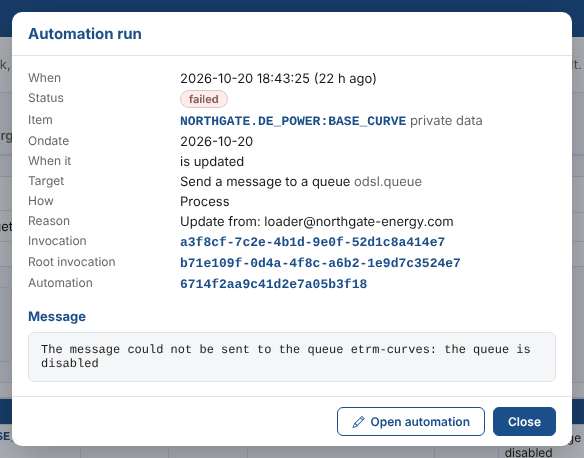
Select a row to see the whole log entry, including the reason (who or what changed the item), the invocation ids (to find the request in the platform's logs) and the automation id. Open automation opens it in the editor.
Insight reports
The four reports of the Overview are also insight reports, in the Automations category of Insights:
| Insight | What it shows |
|---|---|
| Automations by Target | Automations per target, enabled and disabled |
| Automations by Service | Automations per service, enabled and disabled |
| Automation Failures | Up to 100 runs that were not successful in the period, with their status and full message |
| Busiest Automations | Up to 50 automations that ran most often in the period, with their target |
Each has Refresh, CSV (the table as a CSV file) and Help. Automation Failures and Busiest Automations have the same Period as the Overview.
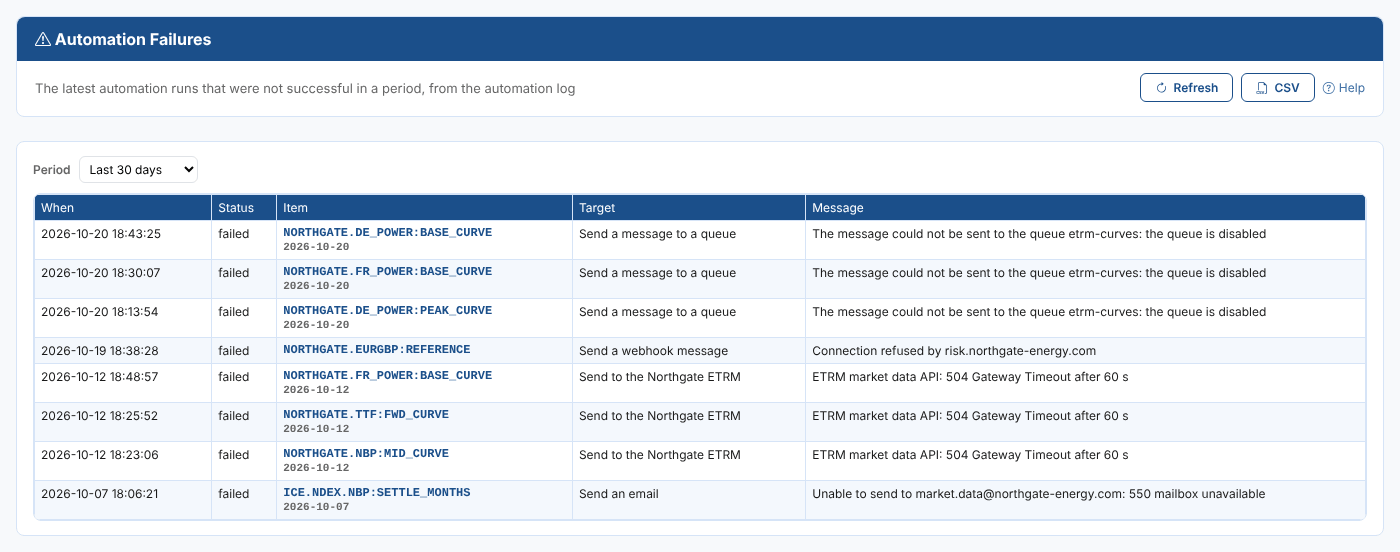
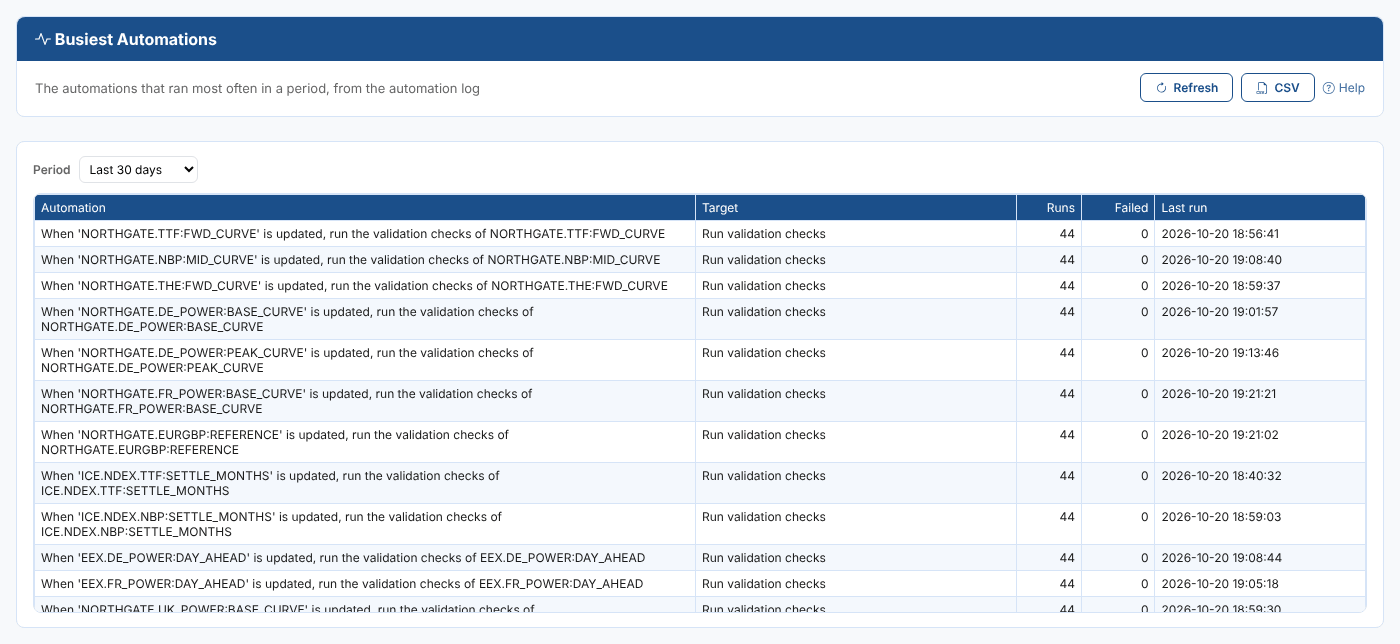
The insights are handy for people who need to keep an eye on the automations but do not change them, such as a support team.