What is the Automations extension?
Automations quietly do a lot of work: they send settlement prices to the people who need them, push curves to the trading system, build smart curves and compositions, run validation checks and tell a channel when a process fails. Over time a company ends up with dozens or hundreds of them, set up by different people from different screens. The Automations extension puts them all in one place, and answers questions like:
- Which automations do we have, what do they do, and who owns them?
- Which automations failed last night, and why?
- Which automations send to the queue we are about to retire?
- Can I switch off all the automations for a curve while it is being rebuilt, and switch them back on afterwards?
- Does this automation still work? Can I try it now, for yesterday's curve?
- How do I set up a new automation for a curve without knowing the platform's automation format?
Throughout these pages we follow Northgate Energy, a fictional gas and power trader. Its market data team looks after about forty automations: emails when the ICE Endex settlement prices arrive, the forward curves sent to the ETRM through the queue etrm-curves, Teams messages when a process fails, and the automations other extensions keep, such as validation checks and Composer compositions. Priya Shah, a market data analyst, uses the extension every morning.
Key ideas
| Idea | What it means |
|---|---|
| Automation | A rule that sends something to a target when something happens to an item. It reads as a sentence, for example When 'NORTHGATE.TTF:FWD_CURVE' is updated, send a message to the queue etrm-curves. |
| Trigger | The item (a curve, a timeseries, a process, a report, a master data record...), its service and source, and what happens to it: it is created, updated, deleted, has failed, is successful and so on. An automation can be for one item or for any item of a service. |
| Target | What the automation does: send an email, send a message to a queue, post to Teams or a webhook, run a process, build a curve, or one of your company's own targets. |
| Settings | What the target needs, such as the email address and subject, or the queue name. Some automations also transform the data with a mustache script first, or only fire when a property has a given value. |
| Owner | The person the automation runs as. It can only read and send what its owner can. |
| Automation log | One entry for every time an automation ran, with its status and message. |
What you get
| Screen | Where | What it does |
|---|---|---|
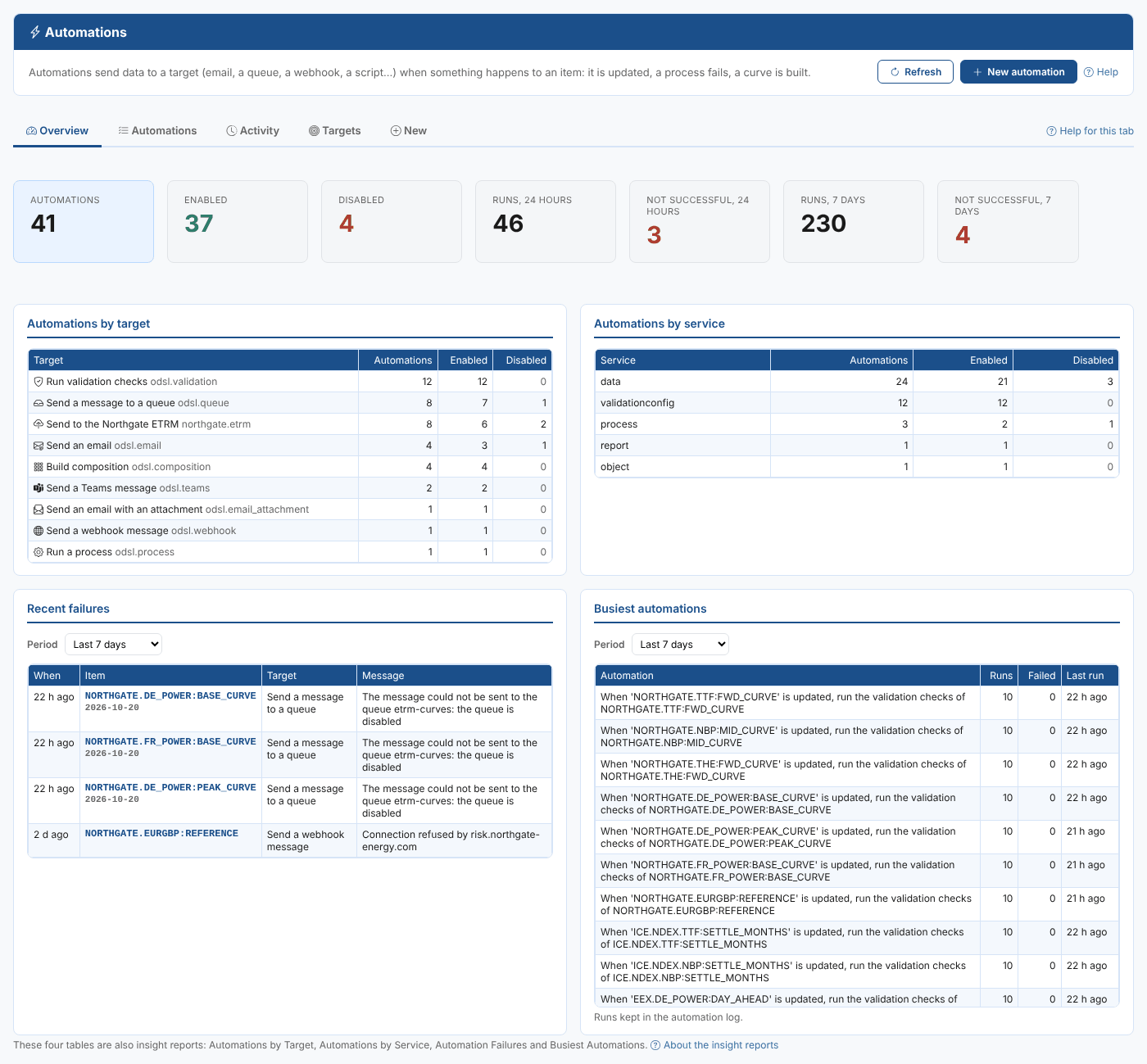
| Overview tab | Operations, Automations | How many automations you have, how they ran in the last day and week, the latest failures and the busiest automations |
| Automations tab | Same screen | Every automation, with filters, on and off switches, bulk changes, export and the editor |
| Activity tab | Same screen | The automation log: every run, by period, status, target or item |
| Targets tab | Same screen | What each automation target does and how many automations use it |
| New tab | Same screen | Create an automation for any item from what the platform offers for it |
| Insight reports | Insights | Automations by Target, Automations by Service, Automation Failures and Busiest Automations |
Every screen has a Help link that opens the matching page of this guide.
The extension shows the automations of the environment you are signed in to. Production and each test environment have their own automations.
Where next
- Finding and changing automations: search, switch on and off, change settings, test and delete.
- Creating an automation: a walk-through for one curve.
- Monitoring automations: the Overview and Activity tabs and the insight reports.
- Automation targets: what each target does.
- Automations reference: ownership, test runs, the log and troubleshooting.
- Automation basics: how automations work on the platform.