Creating an automation
The New tab creates an automation in three steps: choose the item, choose what the automation does, and fill in its settings. You do not need to know the platform's automation format: the platform lists everything it can do for the item, written as sentences, and you pick one.
Northgate's risk team wants the TTF forward curve as a CSV file by email every time the market data team saves it. Priya sets this up.
Open Operations, Automations, then select the New tab (or New automation at the top of any tab).
1. Choose the item
| Field | Example | Notes |
|---|---|---|
| Service | Data (curves, timeseries, event lists) | What kind of item triggers the automation: data, master data, reports, processes, scripts or groups |
| Source | Private (your company) | Only for services with a source. Public for OpenDataDSL's public items (ids starting with #), Common for shared dataset data such as ICE.NDEX.TTF:SETTLE_MONTHS |
| Item id | NORTHGATE.TTF:FWD_CURVE | The id of the item. Type part of it and select Find to search |
| Any item of this service | not ticked | Tick it for an automation on every item of the service, see Automations for any item |
Find searches the ids of the service's items. For data, the part before the colon is the master data record (NORTHGATE.TTF) and the part after it the data on that record (FWD_CURVE), so you can type either or both, in any case: northgate.ttf, FWD_CURVE or NORTHGATE.TTF:FWD. The search looks in private, public and common data, and the results show where each item is. Select a result to choose it; the source is set for you.
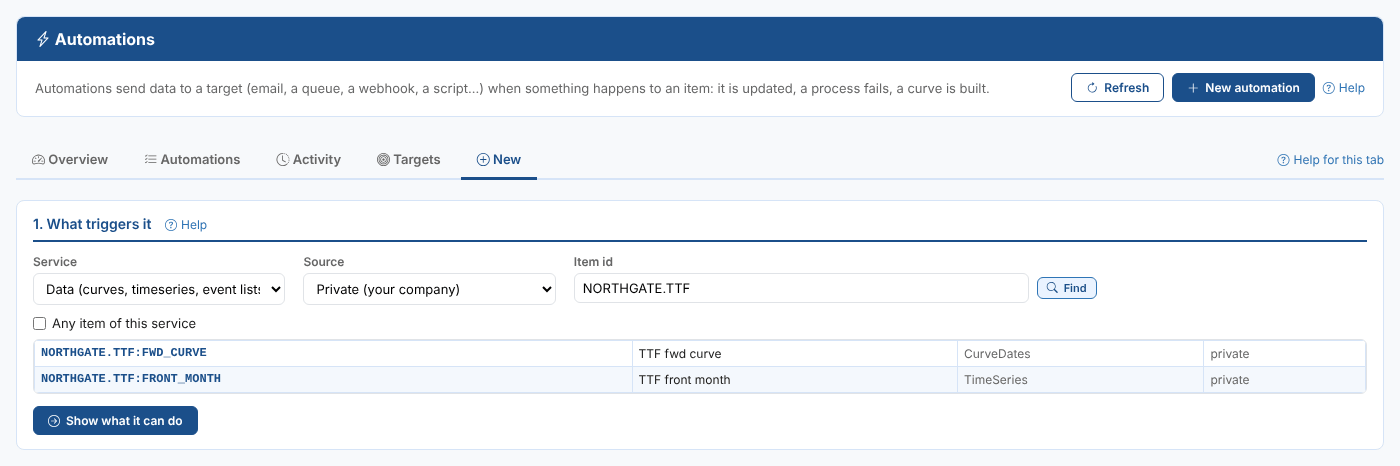
Priya types NORTHGATE.TTF, selects Find and chooses NORTHGATE.TTF:FWD_CURVE. Choosing a result also selects Show what it can do. If you typed a full id yourself, select Show what it can do.
The page then lists the automations Already set up for this item, each with an Edit button, so you can check whether what you need exists already. The TTF forward curve is already sent to the queue and the ETRM, and builds two compositions.
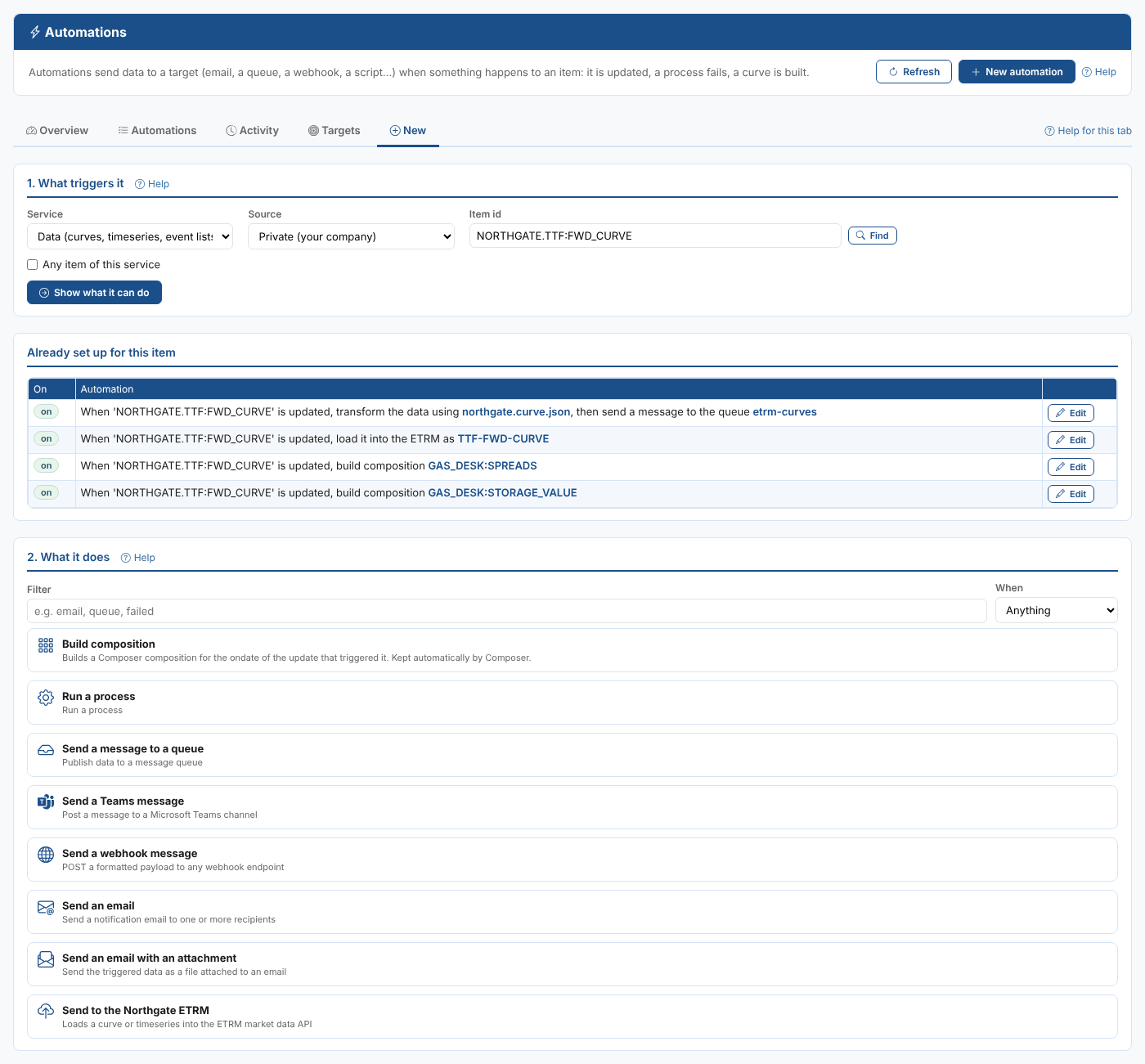
2. Choose what it does
What it does lists every target that can be used for the item, each with its description. Select a target to open it and see its automations as sentences, one for each action and variant. Use the filters to narrow them down:
| Filter | What it does |
|---|---|
| Filter | Only targets and sentences containing all the words you type, such as email, queue or failed |
| When | Only one action, such as is updated |
Which actions are offered depends on the service: data can be created, updated and deleted (and pass or fail validation, for curves and timeseries); a process can also be run, be successful, have a warning or fail. See Automation basics for every service and action. A target can also limit the services and actions it works with.
Each target can offer up to four variants of a sentence:
| Variant | Sentence | Use it to |
|---|---|---|
| Plain | When 'X' is updated, send an email to [to]... | Send the item as it is |
| transformed | When 'X' is updated, transform the data using [@transformer], then send... | Turn the item into another format first, with a mustache script, such as a CSV file or a message for another system |
| property change | When property [@propertyName] on 'X' is set to [@propertyValue], ... | Only fire when an update sets a property to a value (* for any change). Only for is updated |
| property set | When 'anything' is created with property [@propertyName] set to [@propertyValue], ... | Only fire for items created or deleted with a property value |
A target can switch off the transformed and property variants. The Targets tab shows which variants each target offers.
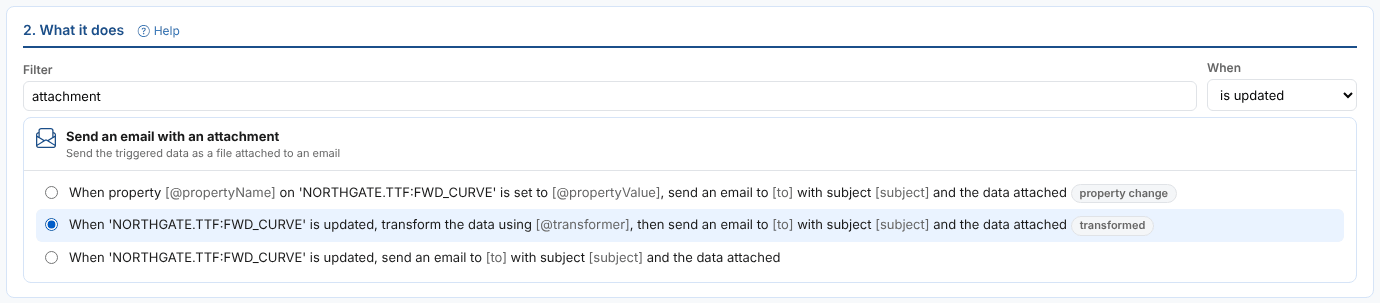
Priya types attachment in Filter, chooses is updated in When and selects the transformed sentence of Send an email with an attachment.
3. Fill in the settings
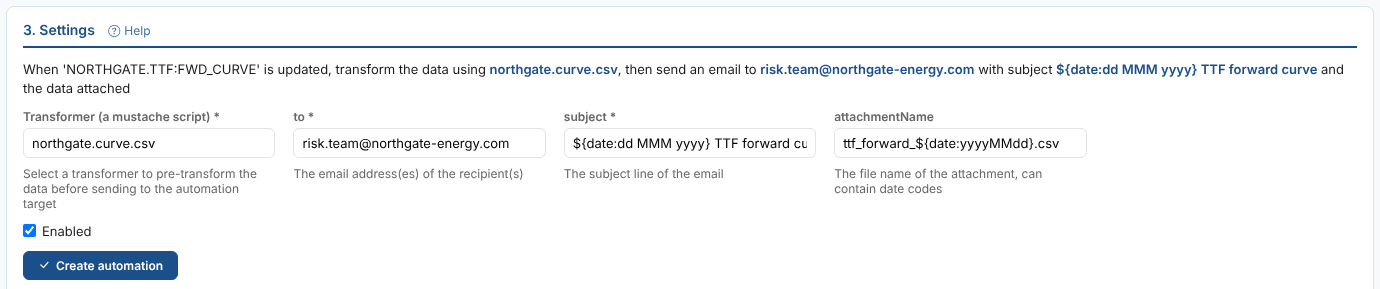
Settings shows the chosen sentence and a field for each setting. Settings in the sentence are required (marked *); the target may have others. The sentence fills in as you type.
| Field | Example | Notes |
|---|---|---|
| Transformer (a mustache script) | northgate.curve.csv | The mustache script that turns the curve's JSON into the attachment, here a CSV file of the contracts. Start typing to pick from your mustache scripts |
| to | risk.team@northgate-energy.com | The recipients, separated by ,, ; or a space |
| subject | ${date:dd MMM yyyy} TTF forward curve | The email subject. Date codes are filled in with the curve's ondate |
| attachmentName | ttf_forward_${date:yyyyMMdd}.csv | The file name of the attachment |
| Enabled | ticked | Untick it to create the automation switched off |
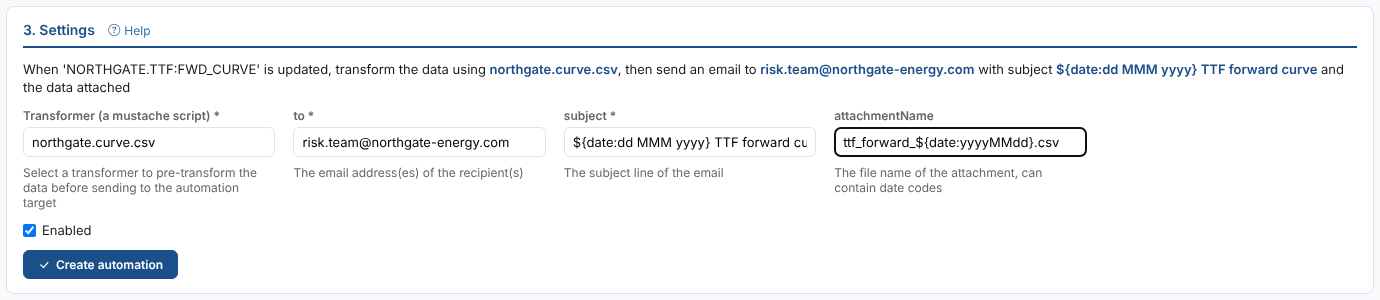
Select Create automation. The message under the button confirms it, with an Open it link to the editor, and the automation is added to Already set up for this item. You are its owner.
Open the new automation and use Run now to send yesterday's curve straight away, to check the email arrives as expected. The test run really sends it.
See Automation targets for the settings of the other targets.
Automations for any item
Tick Any item of this service for an automation that fires for every item of the service, for example to email the reference data team whenever a master data record is created. The sentences then read When 'anything' is created....
- is created automations are always for any item, even when you chose one: an item that does not exist yet cannot be named.
- Combine an any-item automation with a property set variant to only fire for some items, for example records created with property
typeset toCOUNTERPARTY. - Automations on any item cannot be test run.
An automation on any item can fire very often: an update to any curve sends a message. Use it for rare actions, such as creating or deleting, or with a property condition.