Example: clean spark spread
The clean spark spread is what a gas-fired power plant earns for each MWh of power it generates, after buying the gas it burns and the carbon allowances for the CO2 it emits. Traders and analysts watch it by tenor to see when gas plants are in the money.
This example builds it two ways: from the Clean spark spread template in the library, and column by column, so you can see how each part works.
The calculation
For each tenor:
clean spark spread = power - gas / efficiency - carbon x emission factor / efficiency
| Part | Meaning | Typical value |
|---|---|---|
| Power | The power price, EUR/MWh | German baseload |
| Gas | The gas price, EUR/MWh (thermal) | TTF |
| Carbon | The carbon price, EUR per tonne of CO2 | EUA |
| Efficiency | MWh of power made from 1 MWh of gas | 0.49 to 0.58 for a modern CCGT |
| Emission factor | Tonnes of CO2 from burning 1 MWh of gas | 0.202 |
Dividing by the efficiency turns the cost per MWh of gas into the cost per MWh of power. At 55% efficiency, one MWh of power burns 1.82 MWh of gas and emits 0.202 / 0.55 = 0.37 tonnes of CO2.
From the library template
- In Composer, open the Library tab and select Clean spark spread (Power category).
- Select Use template.
- Give it a name, choose the analytics area to store it in, and fill in the inputs:
| Input | What to enter |
|---|---|
| Power curve | Your baseload or peak power curve, per MWh |
| Gas curve | Your gas curve, per MWh, in the same currency as power |
| Carbon curve | Your EUA curve, per tonne |
| Plant efficiency | 0.55, or the efficiency of the plant you have in mind (default 0.49) |
| Emission factor | 0.202 |
The composition is created, saved and opened. It has six columns:
| Column | Kind | Value |
|---|---|---|
| Power | Data | The power curve |
| Gas | Data | The gas curve |
| Carbon | Data | The carbon curve, on the right axis |
| Fuel cost per MWh | Expression | GAS / 0.55 |
| Carbon cost per MWh | Expression | CARBON * 0.202 / 0.55 |
| Clean spark spread | Expression | POWER - FUEL - CO2, as columns |
It shows 6 months, 4 quarters and 2 years. Change the tenors under Properties, Worksheet.
If your gas curve is in a different currency or unit to power, for example pence per therm, set the Gas column's Currency to EUR and Units to MWH under Conversion, and Composer converts it for every tenor.
Building it yourself
The same result with four columns. Start a New composition, choose a blank Curve worksheet, and add:
- A data column with id
POWER, caption DE baseload: your German baseload curve. - A data column with id
GAS, caption TTF: your TTF curve. - A data column with id
CO2, caption EUA: your EUA curve. Set its line style to Dash. - An expression column with id
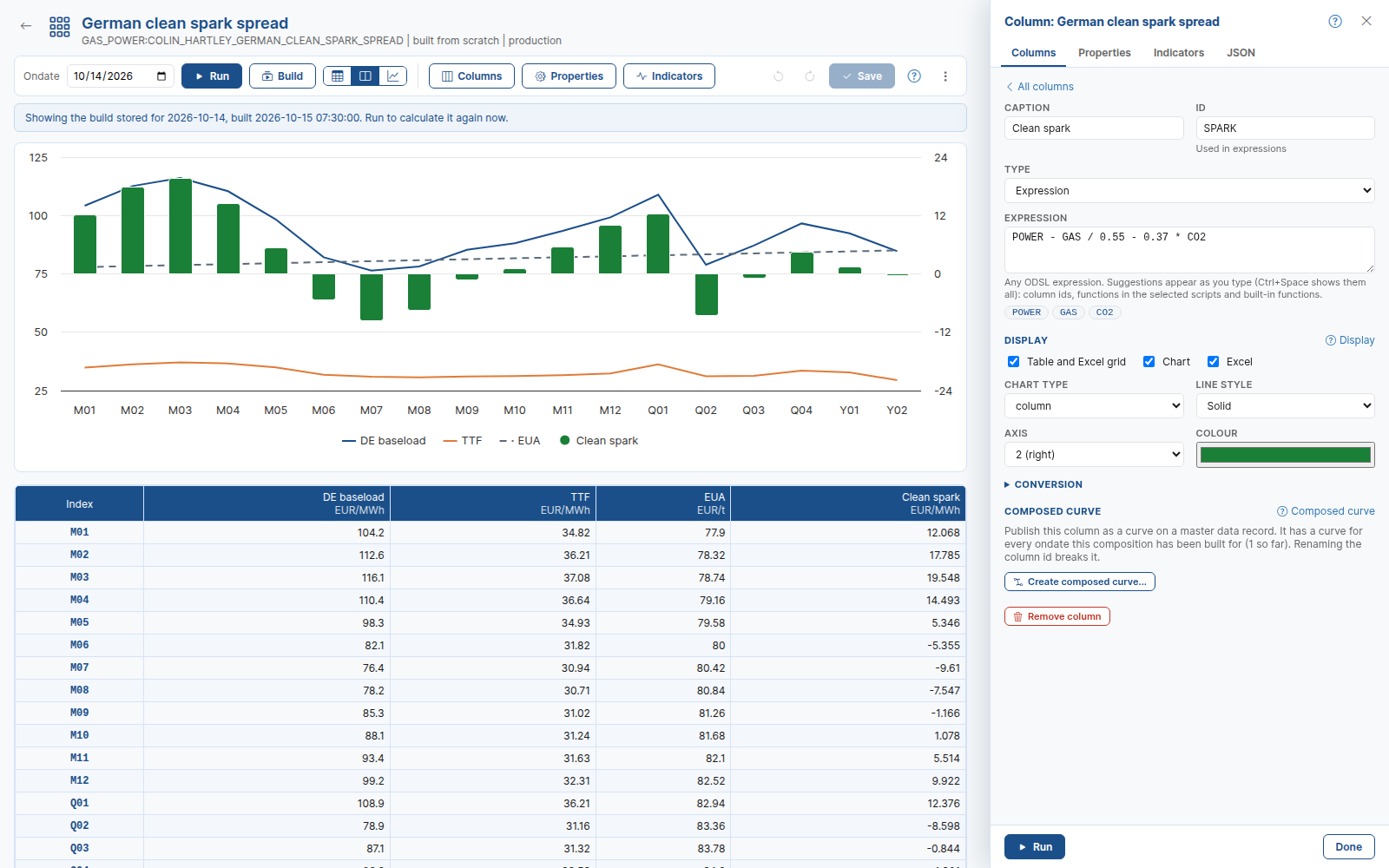
SPARK, caption Clean spark:
POWER - GAS / 0.55 - 0.37 * CO2
Set its Chart type to column and its Axis to 2 (right), so the spread shows as bars on its own scale under the three prices.
Select Run. Each tenor shows the three prices and the spread. In the screenshot above the spread is positive through the winter months and the first quarter, when power is dear, and negative from April to July, when gas plants would lose money running baseload.
Expressions use the column ids, not the captions. Start typing in the expression and Composer suggests the ids, functions and your own script functions.
Making it work for you
Once it is saved, the composition keeps itself up to date and can feed the rest of the platform.
Build it every day
Select Build to store it for a range of past ondates, for example the last three months of business days, to fill in the history. From then on it is rebuilt automatically whenever the power, gas or carbon curve is updated. See Builds, composed curves and automation.
Publish the spread as a curve
Open the Clean spark column and select Create composed curve... to publish it as a curve of its own, for example GAS_POWER:DE_CLEAN_SPARK. It can be read like any other curve, in scripts, other compositions, reports and Excel, and you can add automations to it, for example to email the curve when it changes.
Watch it in the gallery
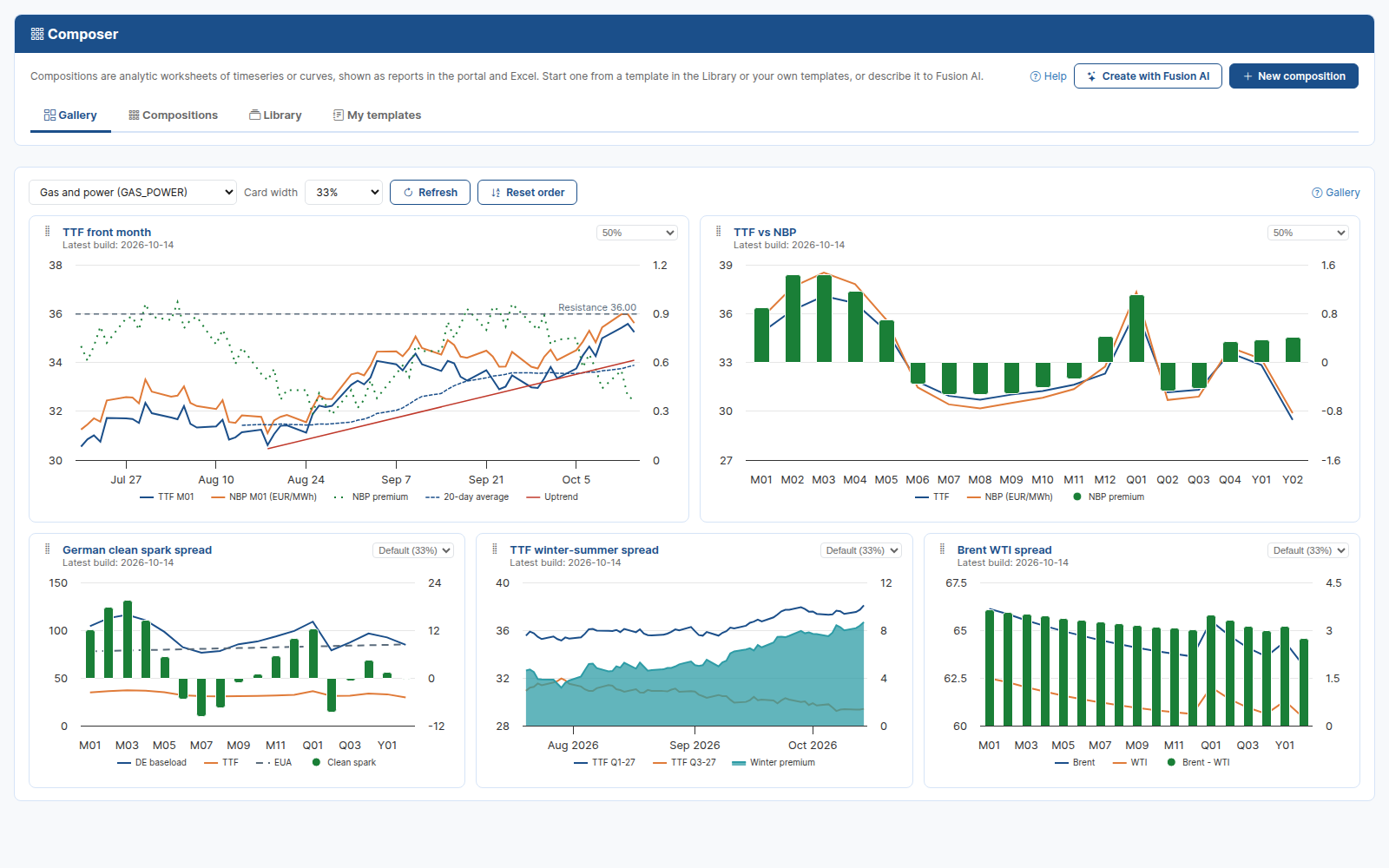
The composition appears in the Gallery for its analytics area, alongside your other compositions, with the chart of its latest build.
Track it over time
To see how the spread for one tenor has moved, create a timeseries composition with a data column for GAS_POWER:DE_CLEAN_SPARK:M01 (the composed curve's front month as a daily history), and add a 20-day moving average or a trend line under Indicators. See Chart indicators.