Writing and changing documents
Editing a document
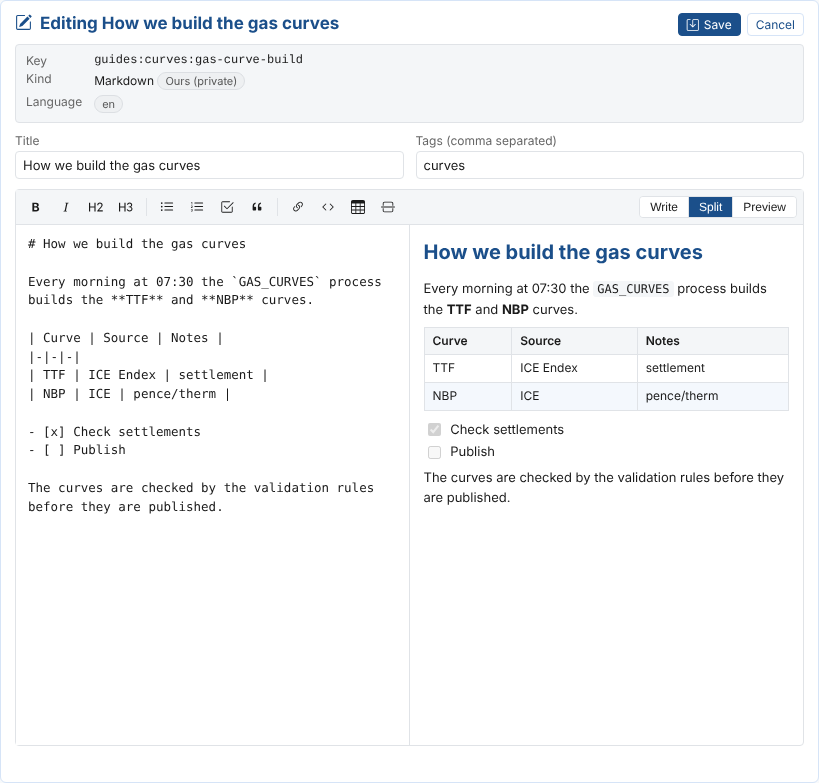
Open the document and choose Edit. You can change its Title (shown in lists instead of its name) and its Tags (separated by commas), and then, depending on its kind:
- Markdown: the editor shows the markdown on the left and a live preview on the right. The toolbar adds bold and italic text, headings, bulleted, numbered and task lists, quotes, links, code, a table and a divider. Write, Split and Preview choose what you see. Press Enter at the end of a list item to start the next one, and Tab to indent it.
- Web page link: the address of the page, and optionally a CSS selector for the part of the page to show (for example
article). - JSON: the JSON itself, checked when you save (Tidy lays it out neatly), and optionally the template that formats it.
Choose Save, or press Ctrl+S. Every save keeps the previous text as an older version. If you open another document, change the documentation or leave the page with changes that are not saved, the screen asks first.
New documents
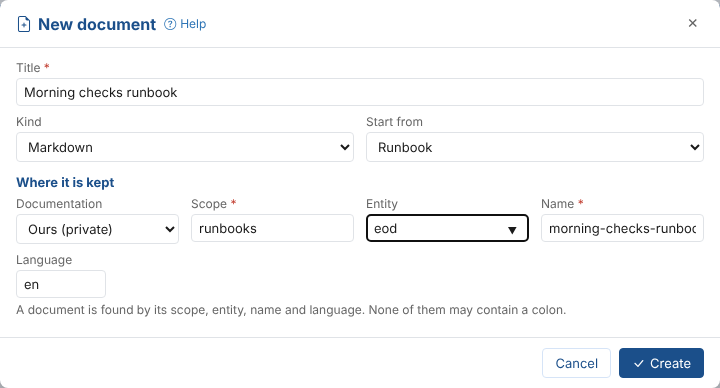
Choose New document and fill in:
| Field | What to enter |
|---|---|
| Title | What the document is called, for example Morning checks runbook |
| Kind | Markdown, web page link or JSON with a template |
| Start from | For markdown: a blank page, or a starter with headings for notes, meeting notes, requirements, a design, a runbook or evidence |
| Documentation | Where to keep it: normally Ours (private) |
| Scope | The topic, for example runbooks. The scopes already in use are offered |
| Entity | Optional: what it is about within the scope, for example eod. The entities already in the scope are offered |
| Name | Filled in from the title; change it if you like |
| Language | en unless you are writing in another language |
None of scope, entity and name may contain a colon, and the screen tells you when a document with the same key and language is already there. Create opens the new document in the editor; it is kept once you save it.
To write a document that shows as a documentation link on a master data record, use the scope object and the record's id as the entity, for example object : ICE.NDEX.TTF : about. The Data Explorer then lists it on the record's Documentation tab.
Copy, move and translate
Copy or move saves the open document under another key, language or documentation:
- Copy makes a new document from this one. To start a translation, copy it with another language (for example
de), then edit the copy. Both language versions then show under Language when you open either of them. - Move or rename saves the document under the new key, then deletes the original and all its versions.
If a document is already there with that key and language, the screen asks before saving over it (as a new version of that document).
Versions
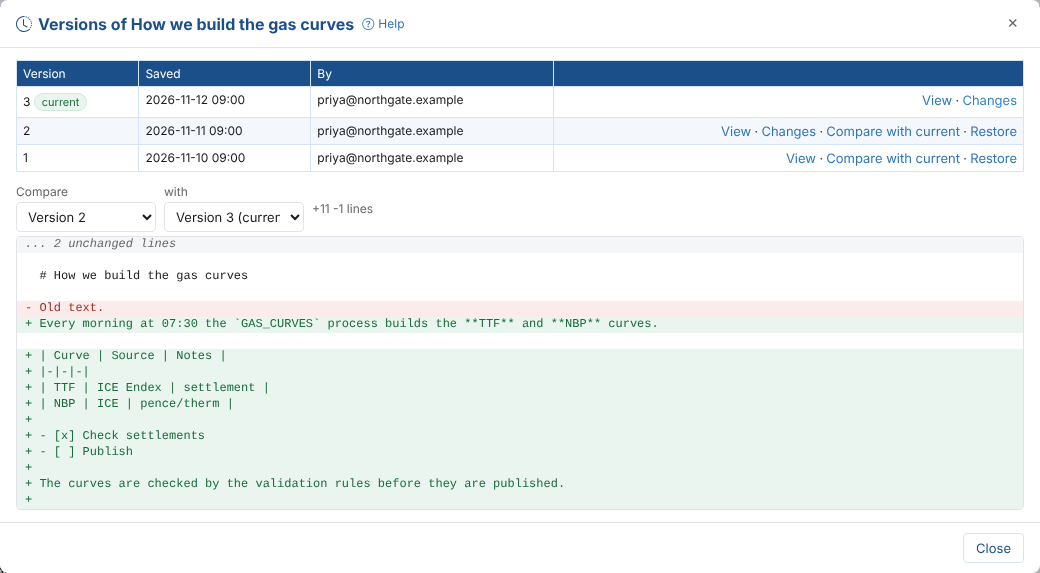
Versions lists every saved version of the document, newest first, with when it was saved and by whom.
| Action | What it does |
|---|---|
| View | Shows that version |
| Changes | Compares the version with the one before it: lines added are green, lines removed red |
| Compare with current | Compares an older version with the current one. You can also pick any two versions with Compare and with |
| Restore | Saves the old version as a new version. The versions in between are kept |
Deleting
The delete button removes the document. When it has more than one version you choose:
- Only the latest version: the previous version becomes the current one again. Use this to undo the last save.
- The document and all its versions: the document is gone.
Deleting or moving a document about a platform record does not remove the documentation link from the record.