Finding and reading
Open Manage > Documentation. The screen lists your own documentation, grouped by scope.
Finding a document
| Filter | What it does |
|---|---|
| Documentation | Ours (private) is your own documentation. Common and Public are shared with every client, for example the public guides to OpenDataDSL data |
| Find | Shows the documents whose title, name, scope, entity or tags contain the text |
| Search the text too | Looks for the text inside the documents as well. The search runs on the platform, so it finds words anywhere in a document |
| Scope, Kind, Language | Narrow the list to one scope, one kind of document (markdown, web page link or JSON) or one language |
Priya wants to know which documents mention the Molecule user. She ticks Search the text too and types molecule_user: only the onboarding design document contains it.
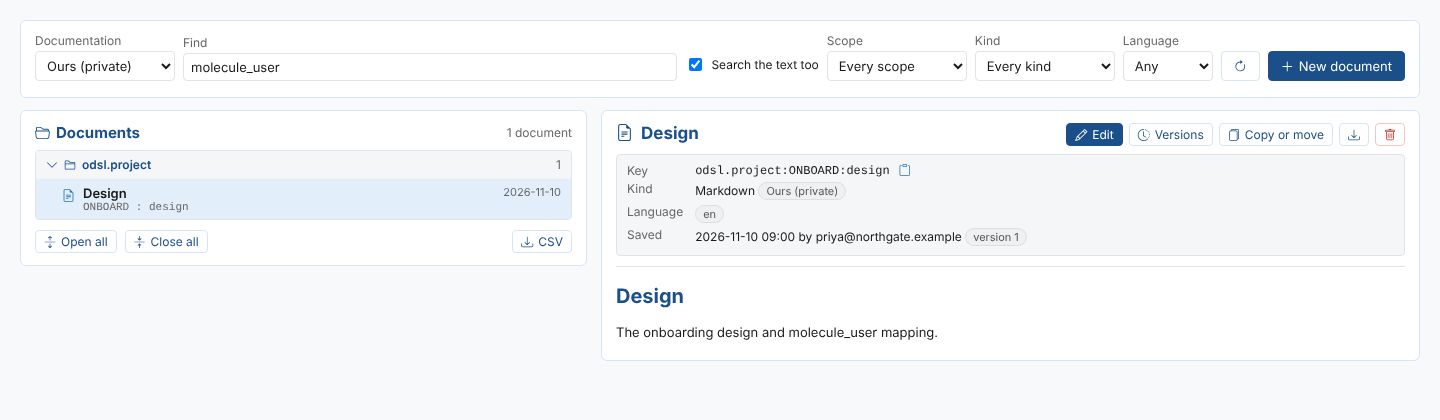
Click a scope to close or open its group. With many scopes, the groups start closed; Open all and Close all open or close every group. CSV downloads the documents in the list, with their key, language, title, tags, version and when they were saved.
Scopes shown with a link icon, such as object, are platform services: their documents are about a record, for example the master data record ICE.NDEX.TTF, and show as a documentation link on that record in the Data Explorer.
Reading a document
Click a document to open it on the right. Above the document you see:
| Detail | What it shows |
|---|---|
| Key | The document's scope:entity:name. The clipboard button copies it, for example to read the document in a script |
| Kind | Markdown, web page link or JSON, and which documentation it is kept in |
| Language | The languages the document is written in. Click another language to read that version |
| Tags | The document's tags |
| Saved | When it was last saved, by whom, and its version number |
| Record | For a document about a platform record, the record it is linked to |
How the document is shown depends on its kind:
- Markdown documents are shown formatted, with headings, tables, task lists and links.
- Web page links show the address of the page and the part of it that is shown. Show the page as the platform shows it asks the platform to read the page, keep only that part and remove its links and scripts.
- JSON documents show the JSON and the name of the template that formats it. Show it with its template shows the formatted result.
The download button saves a markdown document as a .md file, and any other document as a .json file.
Opening the screen from a link
The Home page task Find documentation opens the screen. Extensions and links can also open it on a particular document or search. See Reference.