Your own tasks
Your home page shows My tasks: the tasks you chose. Until you choose, it shows the tasks most people start with. Every task is always one click away under All tasks, and you can add tasks of your own.
Your choice is kept with your user, so it follows you to any computer.
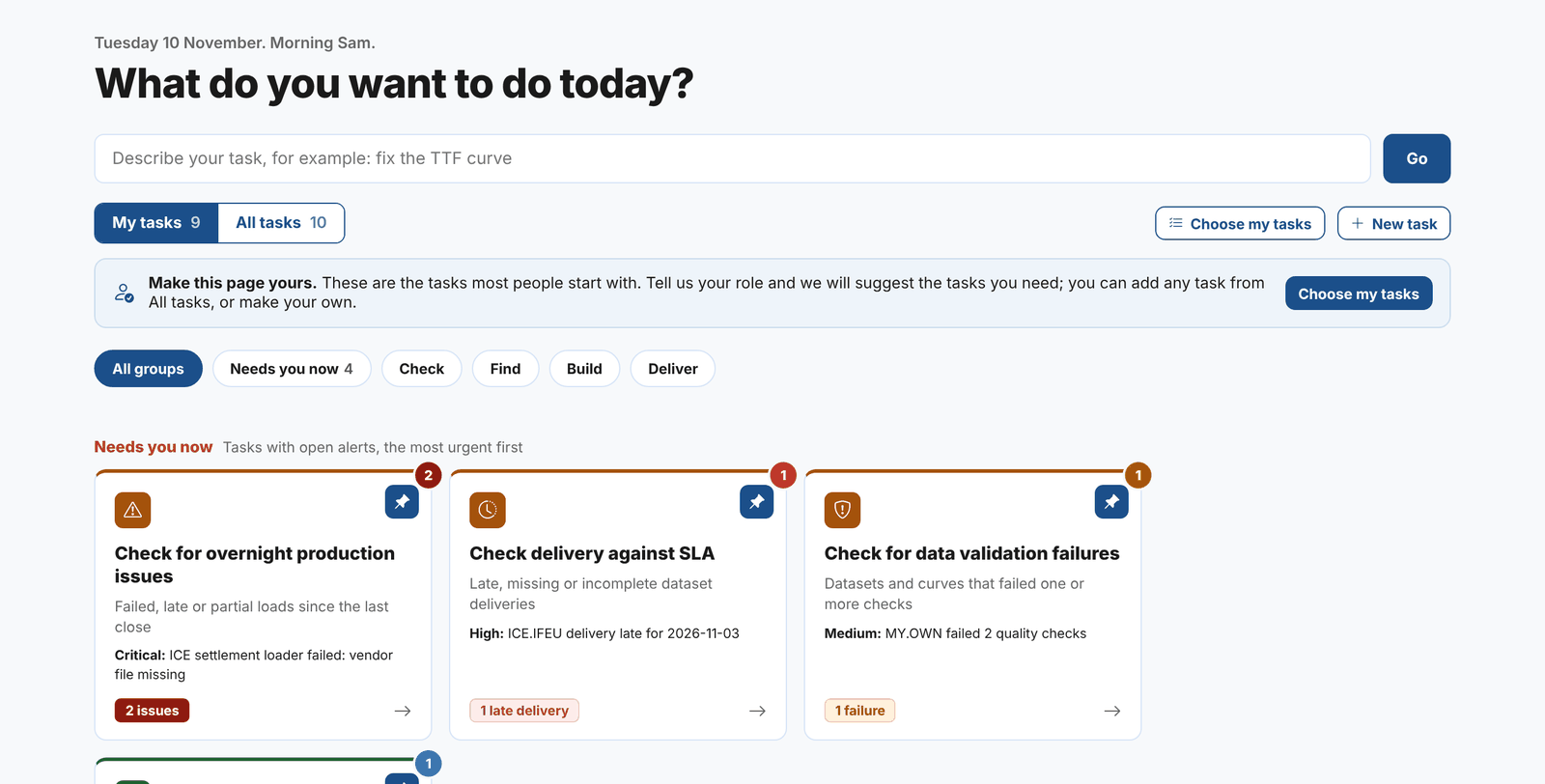
Choosing your tasks the first time
Press Choose my tasks (in the banner, or next to New task).
-
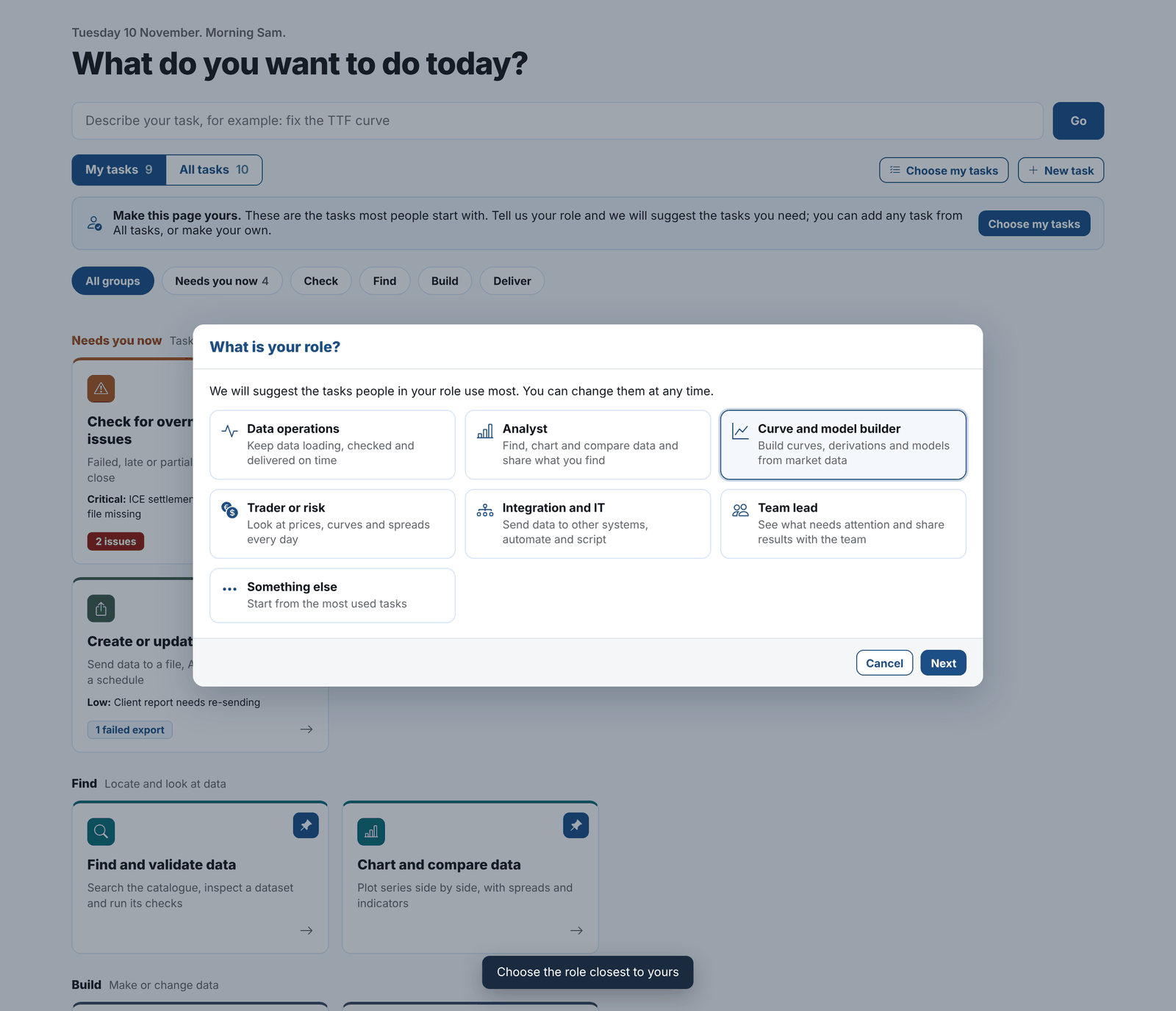
Pick your role. Choose the one closest to the work you do: Data operations, Analyst, Curve and model builder, Trader or risk, Integration and IT, Team lead, or Something else.
-
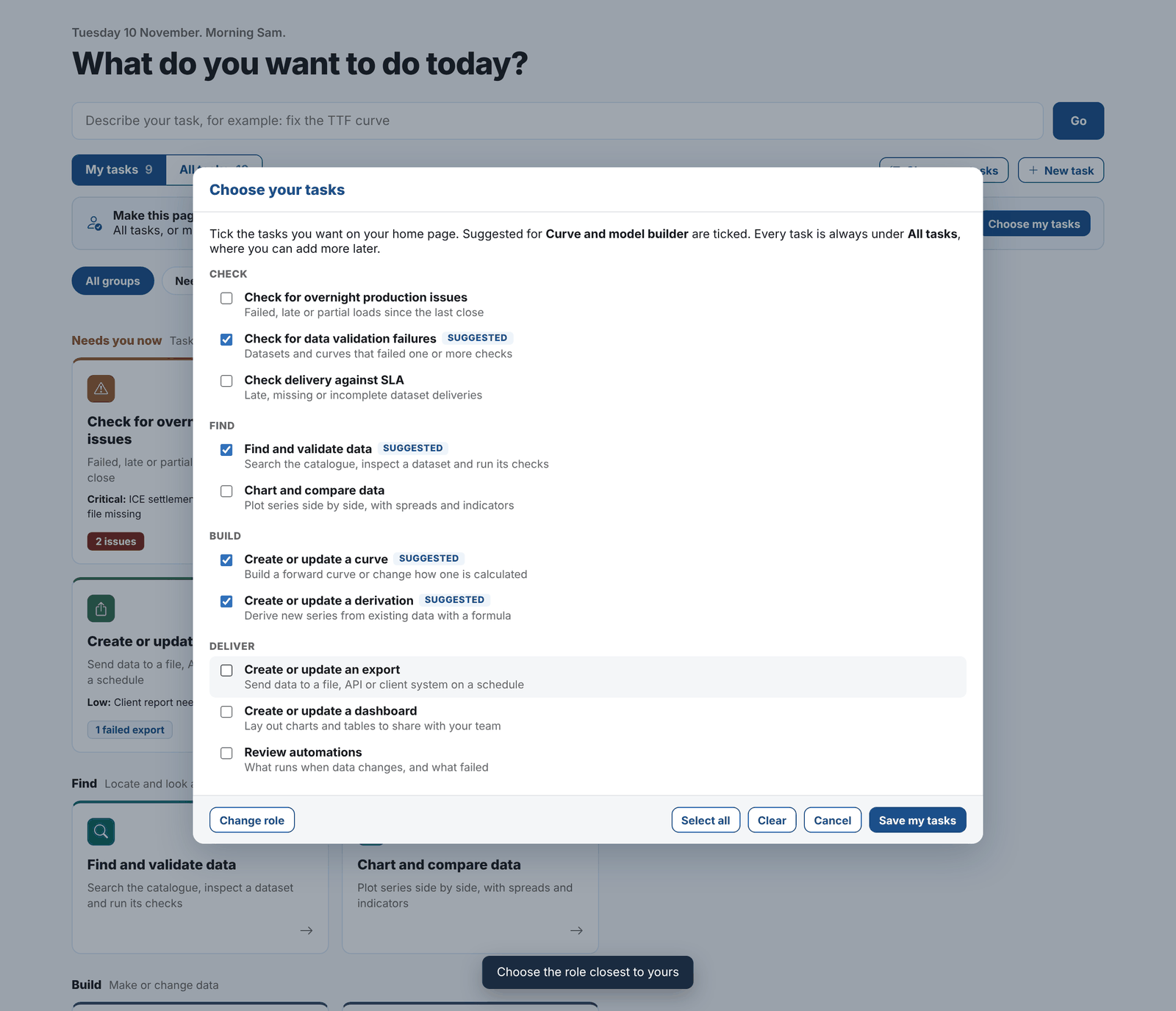
Tick your tasks. The tasks suggested for your role are already ticked and marked Suggested. Tick or untick any of them; Select all and Clear help with long lists.
-
Press Save my tasks. Your home page now shows only those tasks.
To change them later, press Edit my tasks. It opens the list with your tasks ticked; Change role suggests the tasks for another role.
Adding a task from All tasks before you have chosen also starts here: you pick your role, and the task you added is ticked for you.
All tasks
All tasks shows every task your team has, whether it is on your page or not, in the same groups.
- + on a task adds it to My tasks.
- The pin on a task that is already yours removes it from My tasks (it stays under All tasks).
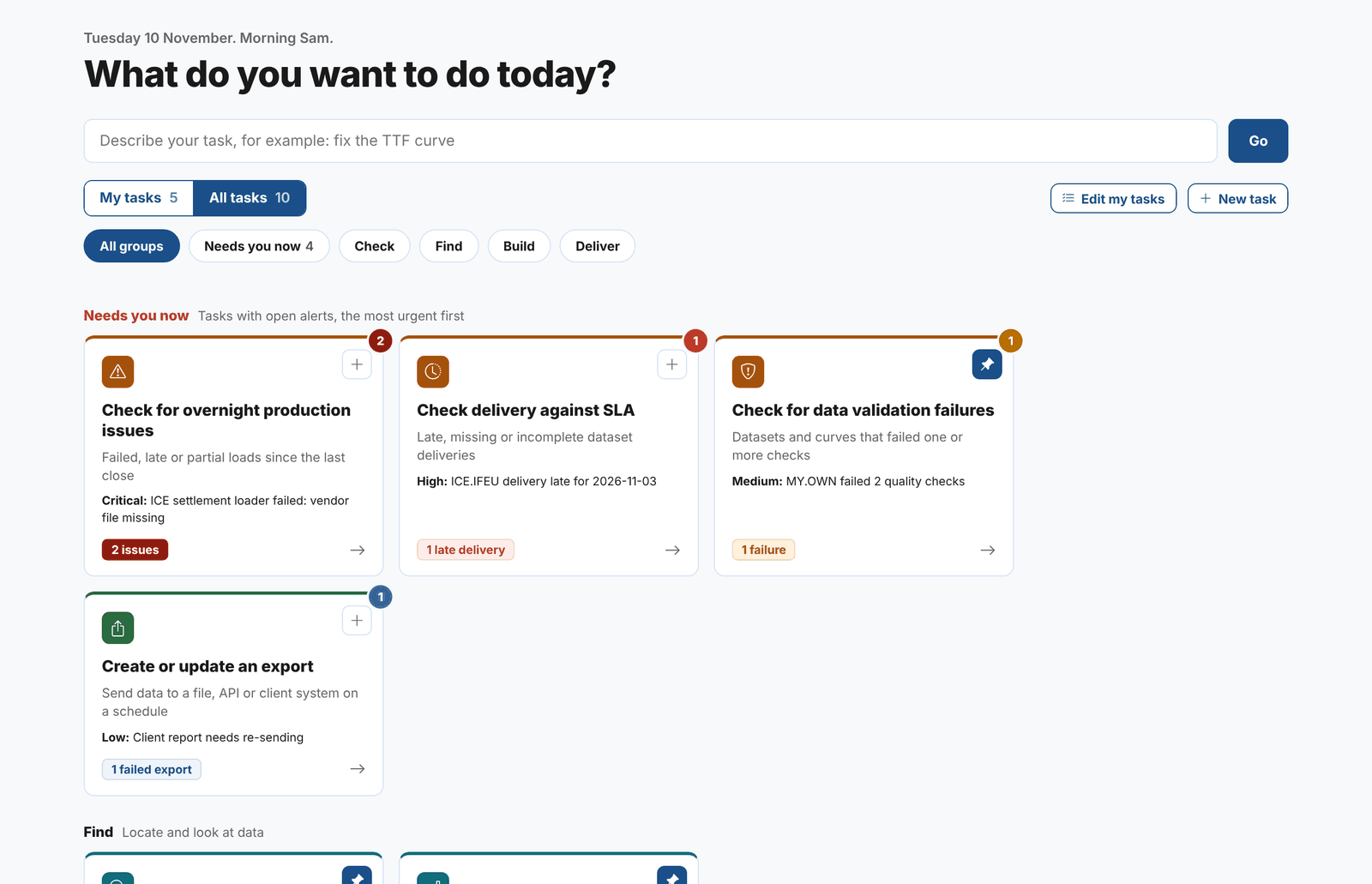
The search box always looks through every task, so you can type what you need, find a task that is not on your page and add it from the results.
On My tasks, See all tasks at the bottom says how many more there are.
New tasks
When an extension installed for your team adds tasks after you chose yours, a banner says how many. Show them opens All tasks with the new ones marked New; Dismiss hides the banner.
Making a task of your own
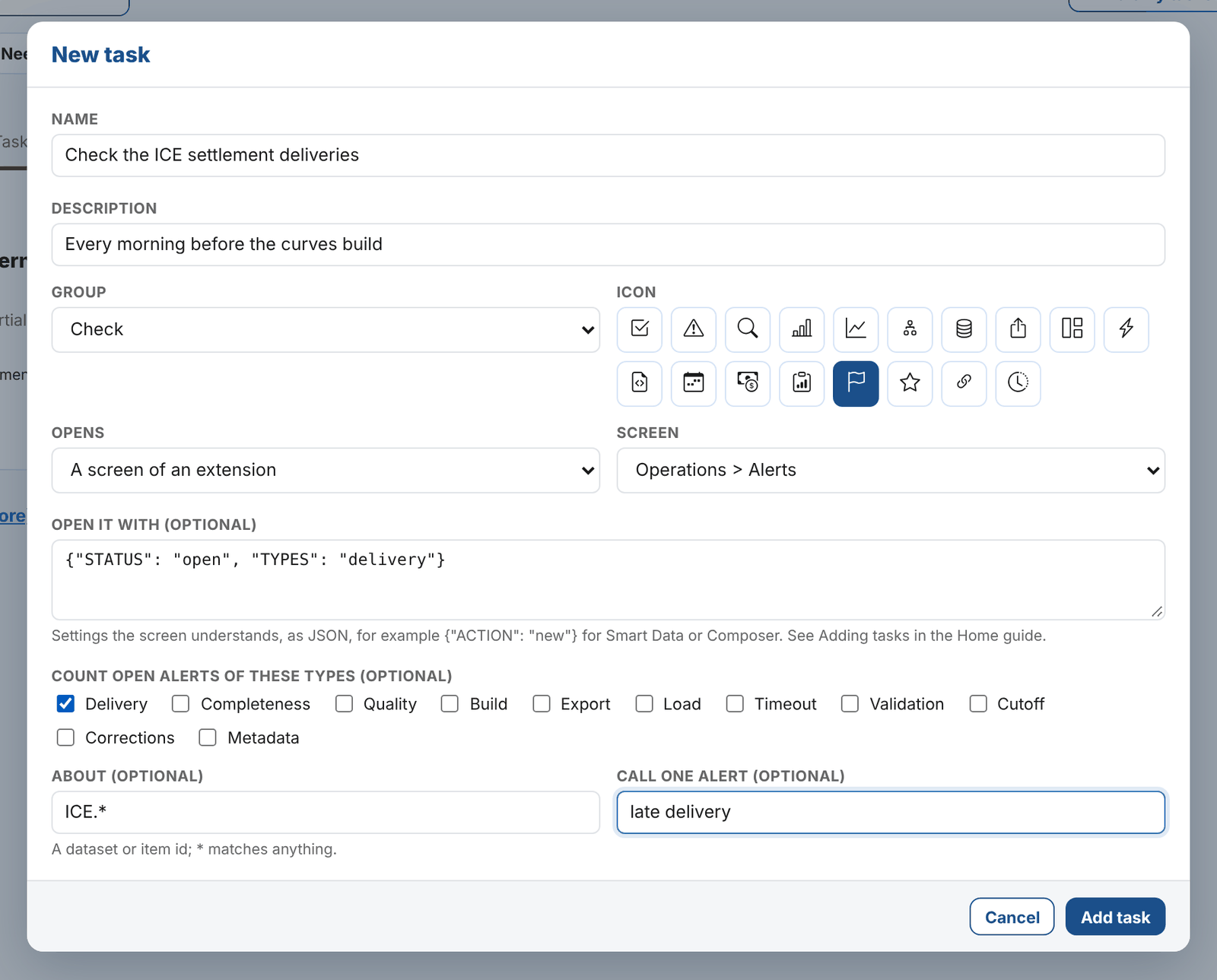
Press New task.
| Field | What to enter |
|---|---|
| Name | What the task is, for example Check the ICE settlement deliveries |
| Description | One line on what you do |
| Group and Icon | Where it sits on the page, and how it looks |
| Opens | A screen of an extension (any menu item of the installed extensions), A portal screen (Data, Master Data, Events or Groups), or A web page (an https:// address) |
| Open it with | Optional settings for an extension screen, as JSON, for example {"ACTION": "new"} to open Smart Data's New dialog. The screens and their settings are listed in Opening a view with context |
| Count open alerts of these types | Optional: the task counts your open alerts of these types and moves to Needs you now when there are any |
| About | Optional: only alerts about this dataset or item, * matching anything (ICE.*) |
| Call one alert | Optional: the word used to count them, for example late delivery gives 2 late deliveries |
Your tasks are marked Yours and only you see them. The pencil on one of your tasks edits it; Delete task in the editor removes it.
Your tasks and your list are kept in your user settings (the setting called Home), not in your team's tasks. Tasks for the whole team are added by extensions or by an admin: see Adding tasks.