Using the Home page
Open the Home page from Information > Tasks. Once the portal shows extension views as its home screen, it is also the first page you see when you sign in.
The page
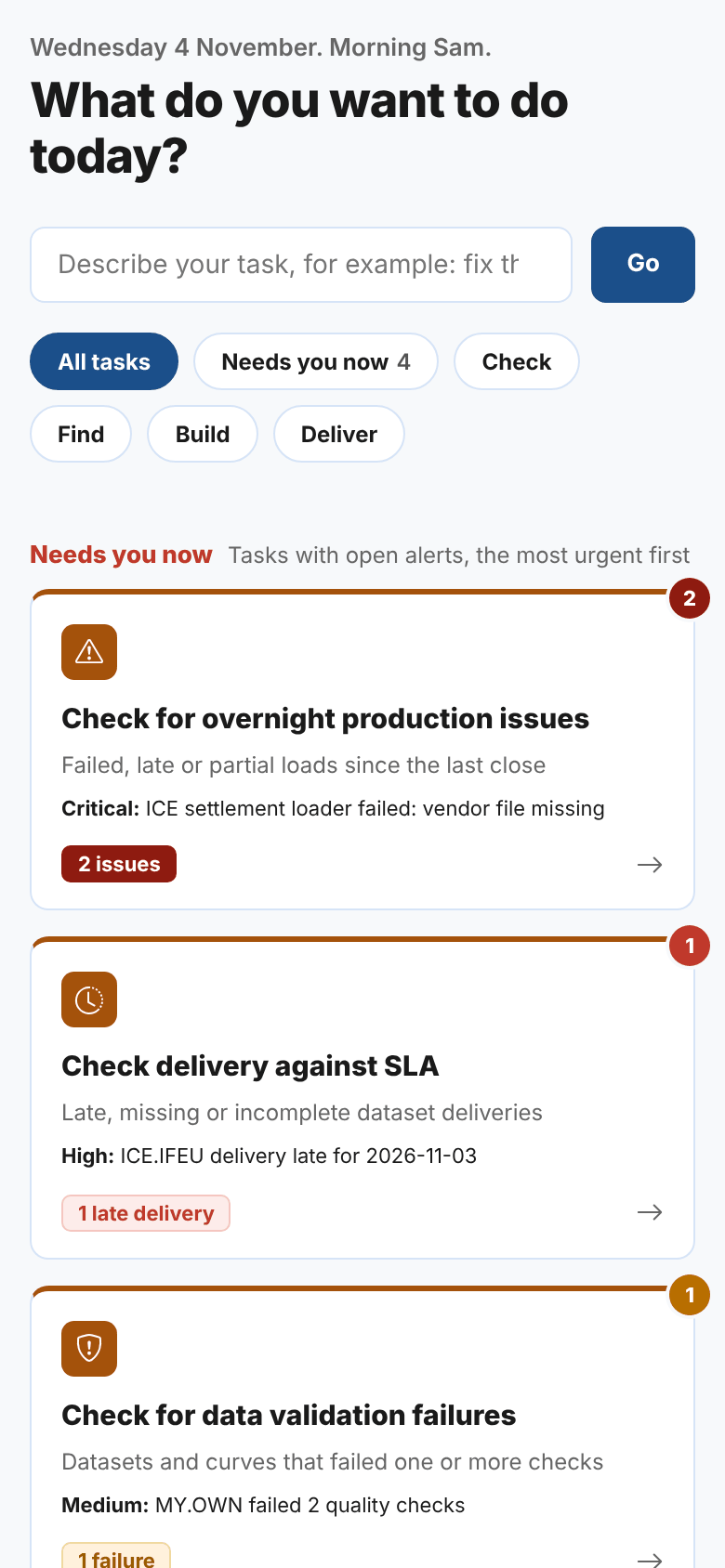
The page opens with the date and a greeting, the question What do you want to do today?, a box to describe what you want to do, and a row of buttons for the groups.
Below them are the tasks, in their groups: Check, Find, Build and Deliver, then any groups your extensions add. Within a group the most important tasks come first.
Needs you now
A task with open alerts moves out of its group to the top of the page, under Needs you now.
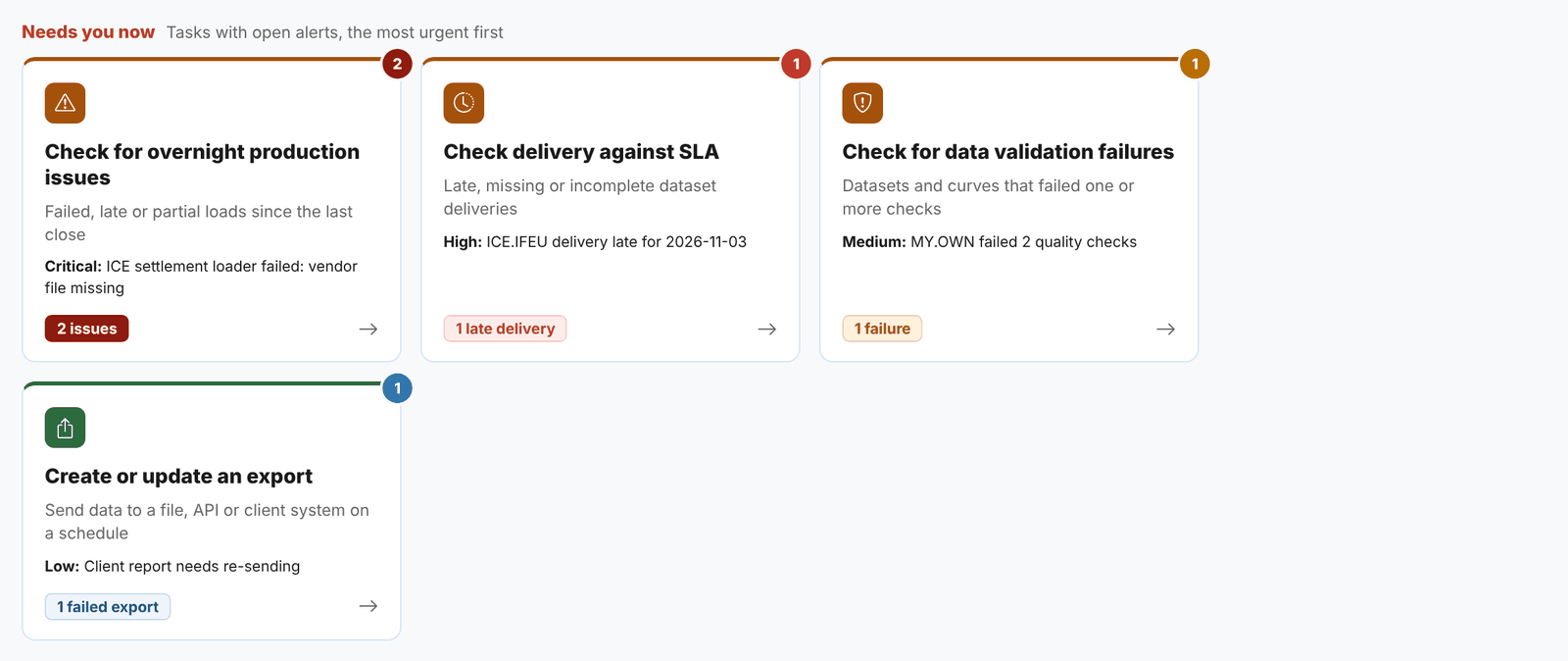
- The badge in the corner shows how many alerts are open. Its colour is the priority of the most urgent one: dark red for critical, red for high, amber for medium, blue for low.
- The tile names the most urgent alert, for example Critical: ICE settlement loader failed: vendor file missing.
- The label at the bottom counts the alerts in the task's own words: 2 issues, 1 late delivery, 1 failed export.
The most urgent task comes first: the highest alert priority, then the most open alerts.
A task that watches alerts and has none open says so, for example All on time or Builds OK, so you can see at a glance that it was checked.
The page checks the alerts again every 2 minutes while it is showing, and when you come back to it. When an alert is closed, its task goes back to its group.
The counts come from your open alerts, and the shared alerts about the common and public datasets your team follows. If your alerts cannot be read (for example, the Alerts extension is not installed), the tasks show without counts and the page says so under the group buttons.
Choosing a group
The buttons under the search box show one group at a time. All tasks shows everything again. Needs you now shows only the tasks with open alerts, with the number of them on the button.
Searching for a task
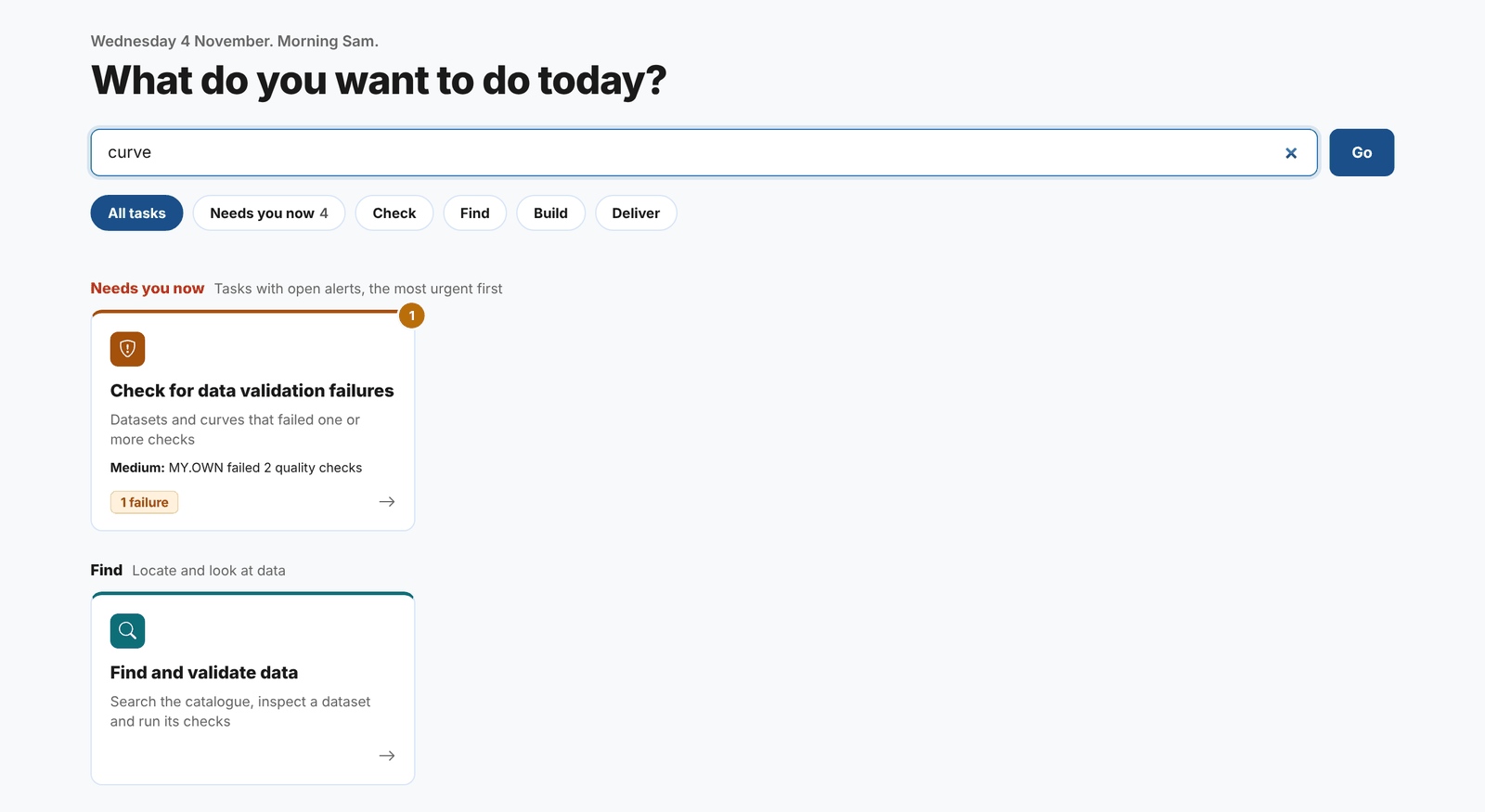
Type what you want to do in the box. The tasks are narrowed as you type: every word you type must appear in the task's name, its description, the group, or the extra words the task is known by. For example, curve finds Create or update a curve, and cron finds Review automations even though it is under See all tasks.
Asking Fusion AI
When nothing matches, press Go and Fusion AI picks up to three tasks that fit what you wrote.
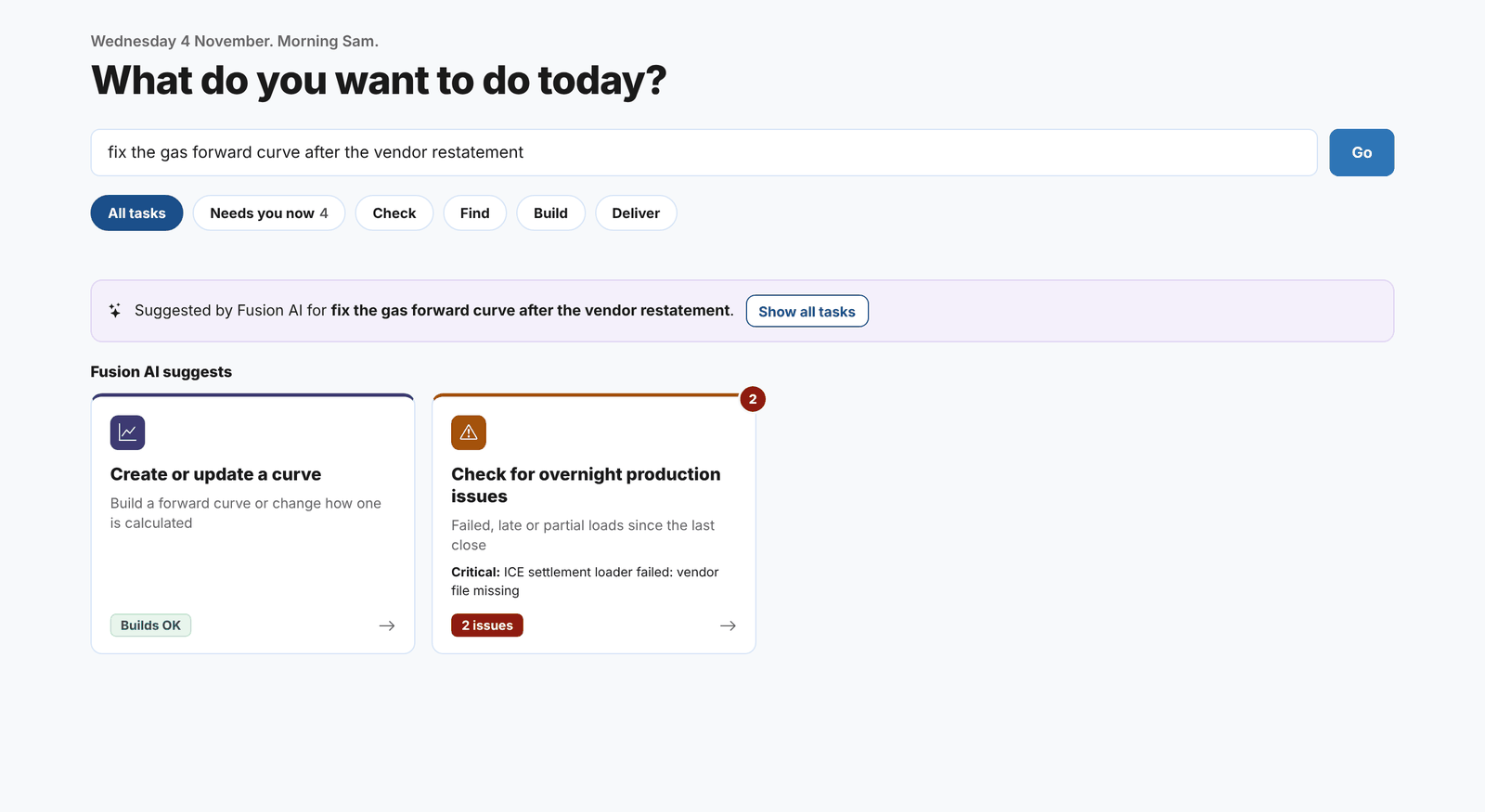
Show all tasks clears the search. The question is saved in your Fusion AI chat history, under the Home category, and uses Fusion AI tokens like any other question.
See all tasks
Some tasks are not shown straight away, to keep the page short. See all tasks at the bottom shows them, with the number that are hidden; Show fewer tasks hides them again. A hidden task with open alerts is always shown under Needs you now.
Opening a task
Choose a task to open the screen that does the job:
- Most tasks open an extension's screen, such as Alerts, Validation or Export.
- Some open a screen of the portal, such as Data.
- An extension can also open a web page, in a new browser tab.
The task opens in the portal like any menu item, with the menu showing where you are. If you cannot use the screen it opens, for example its extension is not installed in this environment or you do not have access to it, the page tells you instead.
Press / anywhere on the page to jump to the search box.
On a phone
The page works at phone width: the tasks stack in one column, with the tasks that need you first.