Build an extension with Fusion AI
The Build an extension playbook (#extension-builder) in the Fusion AI playbook library builds a complete extension from a description of the tabs you want. It writes every page, any insight reports and the manifest, shows you all of it, and saves nothing until you approve.
You need the Fusion AI extension, with access to its Playbooks and Tasks tabs. If playbooks are new to you, read What are AI Playbooks? first.
What the playbook does
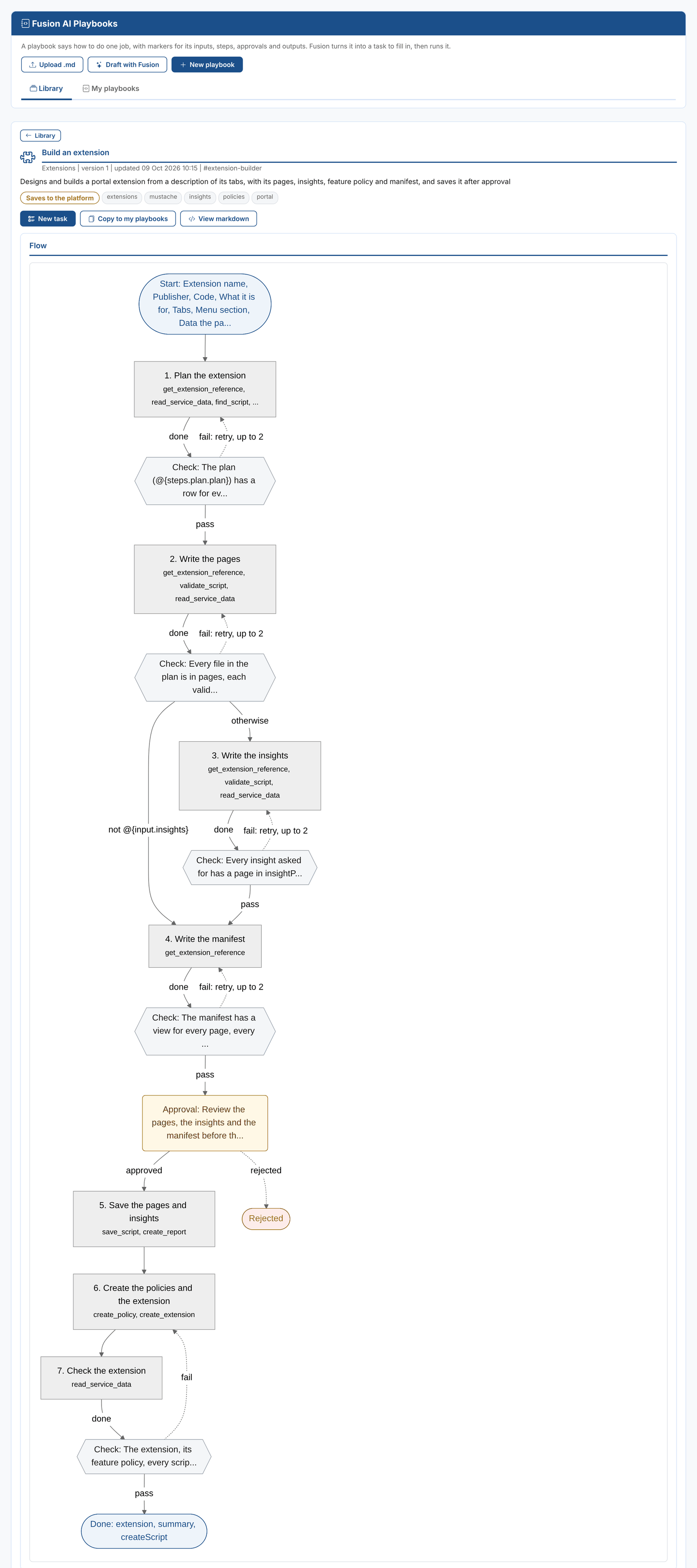
| Step | What happens |
|---|---|
| 1. Plan the extension | Fusion reads the extension reference, looks at the data the pages will use so it uses real field names, checks the extension id is free, and plans every file: the style and helper partials, one page per tab, one page per insight. A check makes sure every tab you asked for is in the plan. |
| 2. Write the pages | Fusion writes the partials and the pages in the house style, and validates every file. A check makes sure each page validates, includes the shared partials in the right order, escapes the values it shows, and does what its row in the plan says. |
| 3. Write the insights | Only when you asked for insights: one insight report page each, with KPIs, tabs and a list. |
| 4. Write the manifest | The extension, its views and its resources, plus the equivalent create-extension.odsl script. A check makes sure every page, insight and policy is listed. |
| Approval | The run stops. You review the plan, the pages, the insights and the manifest. |
| 5. Save the pages and insights | The scripts are saved and the insight reports created. |
| 6. Create the policies and the extension | The feature policy for the people you named, any data policies, then the extension. |
| 7. Check the extension | Fusion reads everything back and checks that every script the extension lists was saved. If anything is missing, it goes back to step 6. |
When the run finishes, the extension is in your tenant's portal menu for the people you shared it with.
Starting the task
There are two ways to start:
- From the library: open Information > Fusion AI > Playbooks, find Build an extension in the Library tab, and select New task. Then open the task on the Tasks tab.
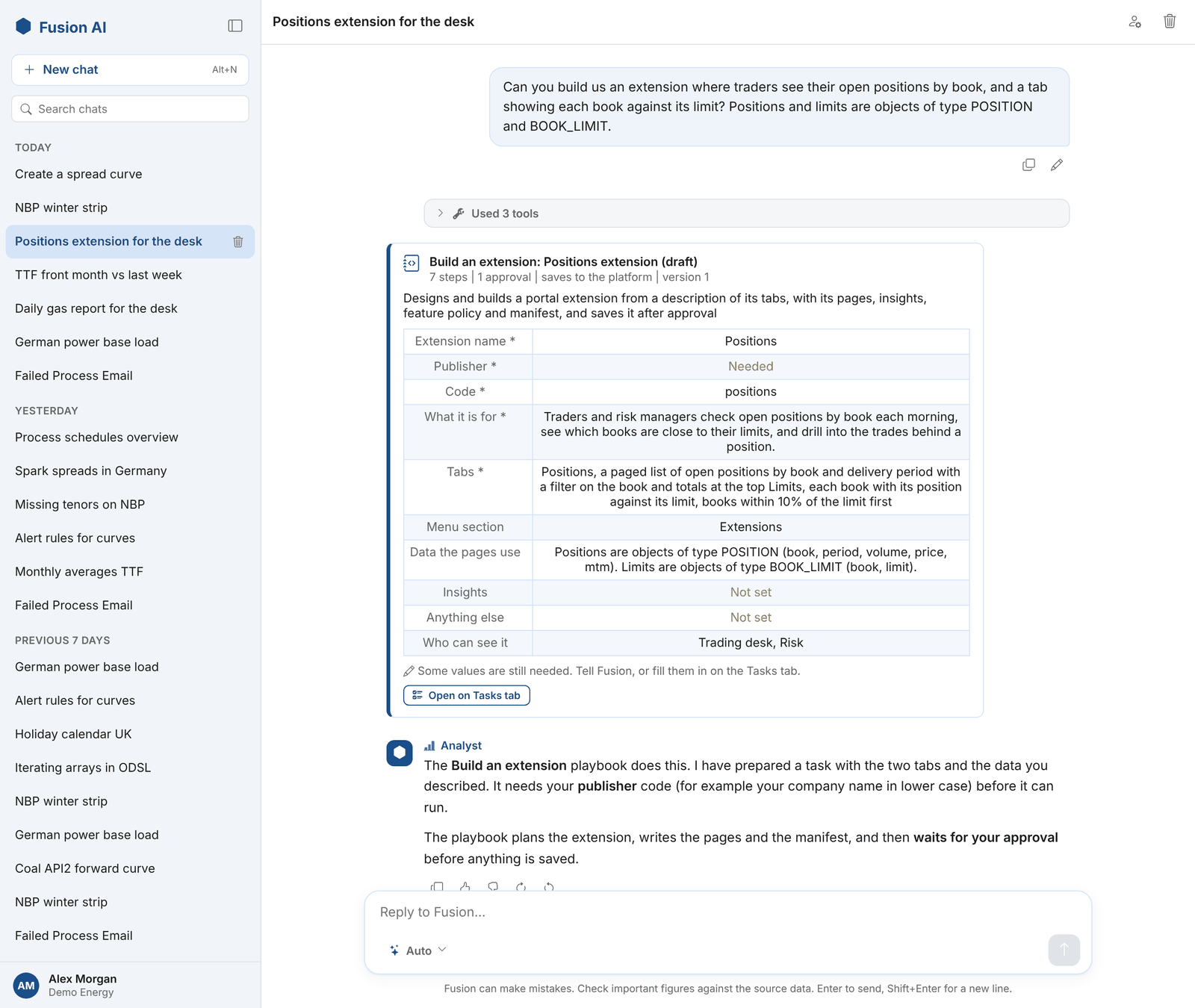
- From the chat: describe what you want in the Studio. Fusion finds the playbook and prepares a task from what you said, shown as a card. Anything still needed is marked; tell Fusion, or select Open on Tasks tab to fill it in.
Filling in the form
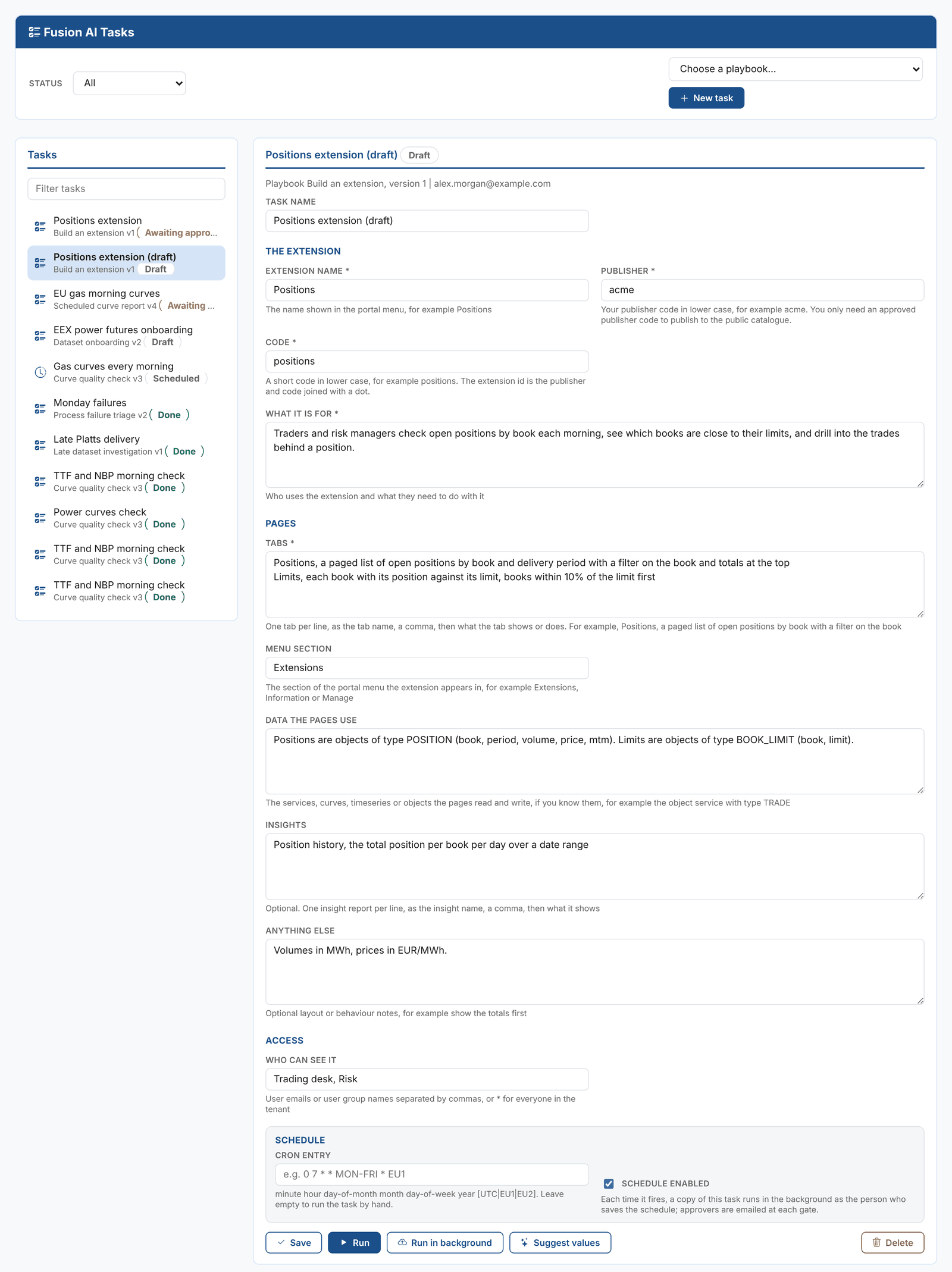
| Field | What to enter |
|---|---|
| Extension name | The name in the portal menu, for example Positions |
| Publisher | Your company's publisher code in lower case, for example acme. See Private and public extensions. |
| Code | A short code in lower case, for example positions. The extension id is the publisher and code joined with a dot: acme.positions. |
| What it is for | Who uses the extension and what they need to do with it |
| Tabs | One tab per line: the tab name, a comma, then what the tab shows or does |
| Menu section | The section of the portal menu, for example Extensions (the default), Information or Manage |
| Data the pages use | The services, curves, timeseries or object types the pages read and write, if you know them |
| Insights | Optional. One insight report per line: the name, a comma, then what it shows |
| Anything else | Optional layout or behaviour notes, such as units or what to show first |
| Who can see it | User emails or user group names, separated by commas, or * for everyone in the tenant |
Suggest values asks Fusion to fill in the form from a hint, looking up real names on the platform.
Describing the tabs well
The tabs are the most important part of the form. For each tab, say what is listed, how it is filtered and sorted, and what a user does there:
Positions, a paged list of open positions by book and delivery period with a filter on the book and totals at the top
Limits, each book with its position against its limit, books within 10% of the limit first
Trades, the trades behind a position: select a book and period to see them, newest first, with a CSV export
Name the data when you know it: "positions are objects of type POSITION with book, period, volume, price and mtm" saves Fusion a search and gets the field names right first time.
Running it
Select Run to follow the run on the page, or Run in background to carry on with other work; the run emails you at the approval. Planning and writing the pages takes a few minutes. Each step shows its result, its checks and the tokens it used:
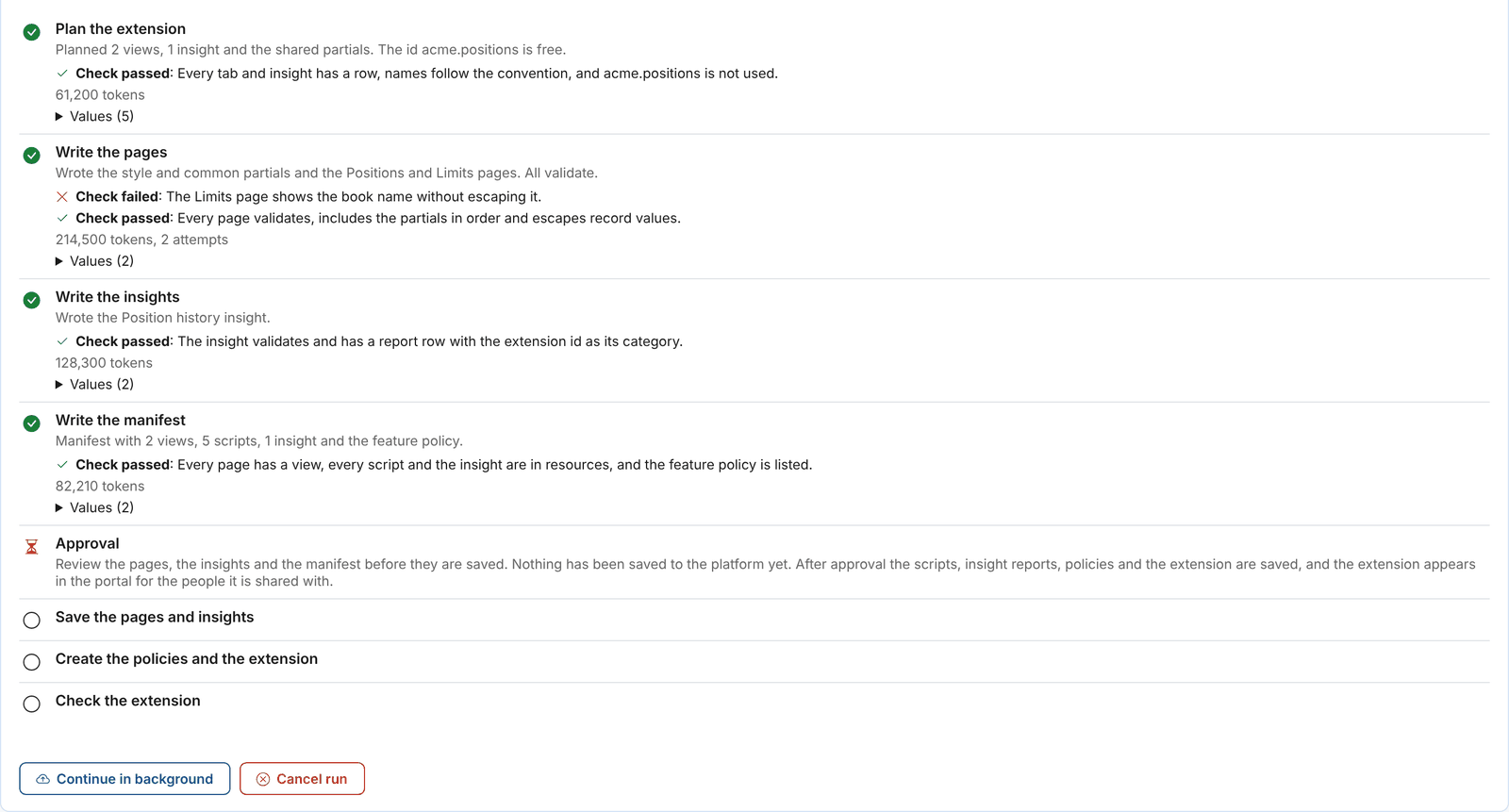
A failed check is normal: the step runs again, told what was wrong. In the example above, the first version of the pages showed a book name without escaping it, so Fusion rewrote them.
Reviewing and approving
At the approval, the panel shows everything that will be saved:
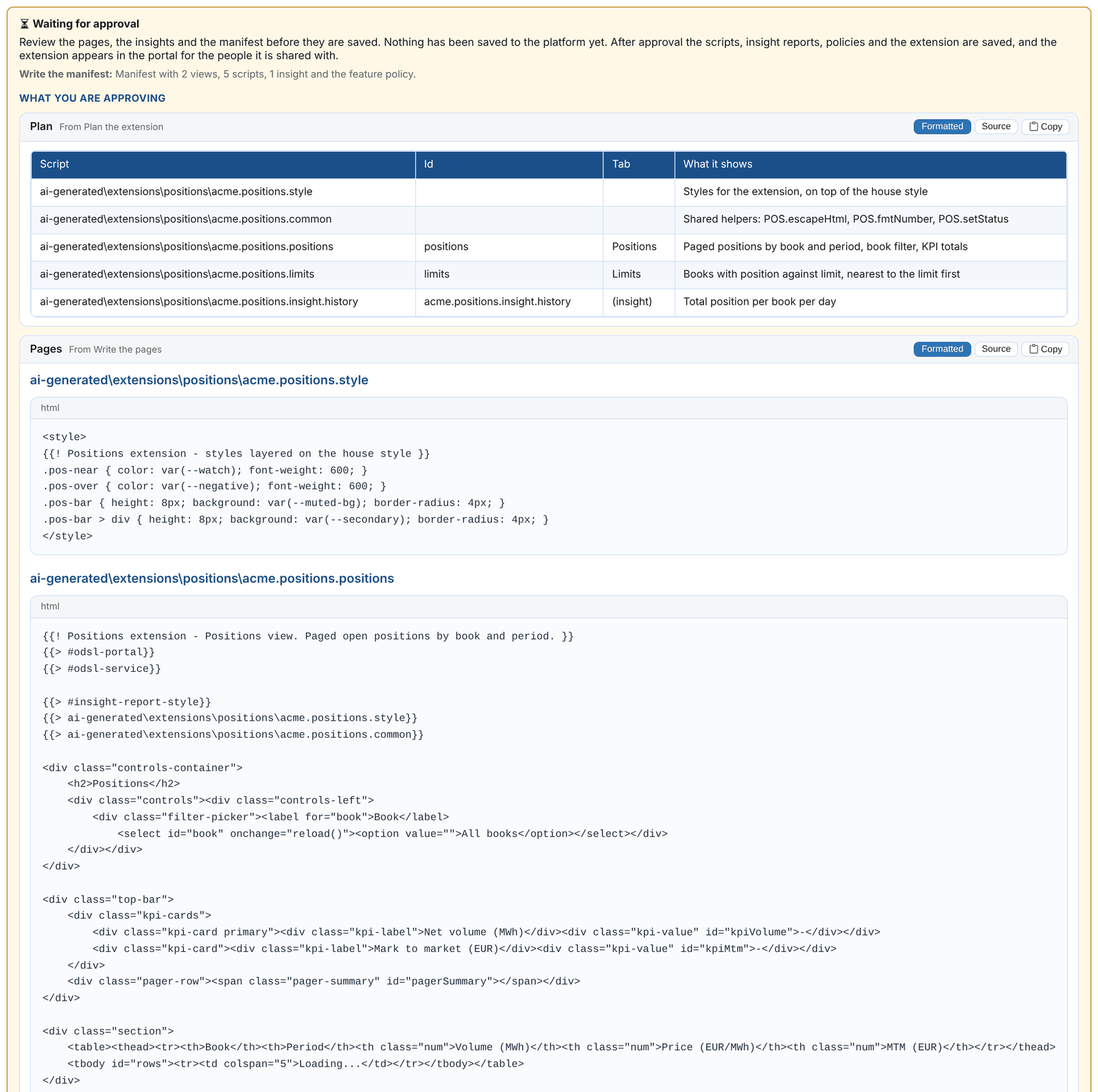
- Plan: every file, its view or insight id, its tab and what it shows
- Pages: every page and partial in full, under its script name
- Insight pages: the insight reports in full
- Manifest: the extension as it will be saved, with its views and resources
- Policies: any data policies it will create
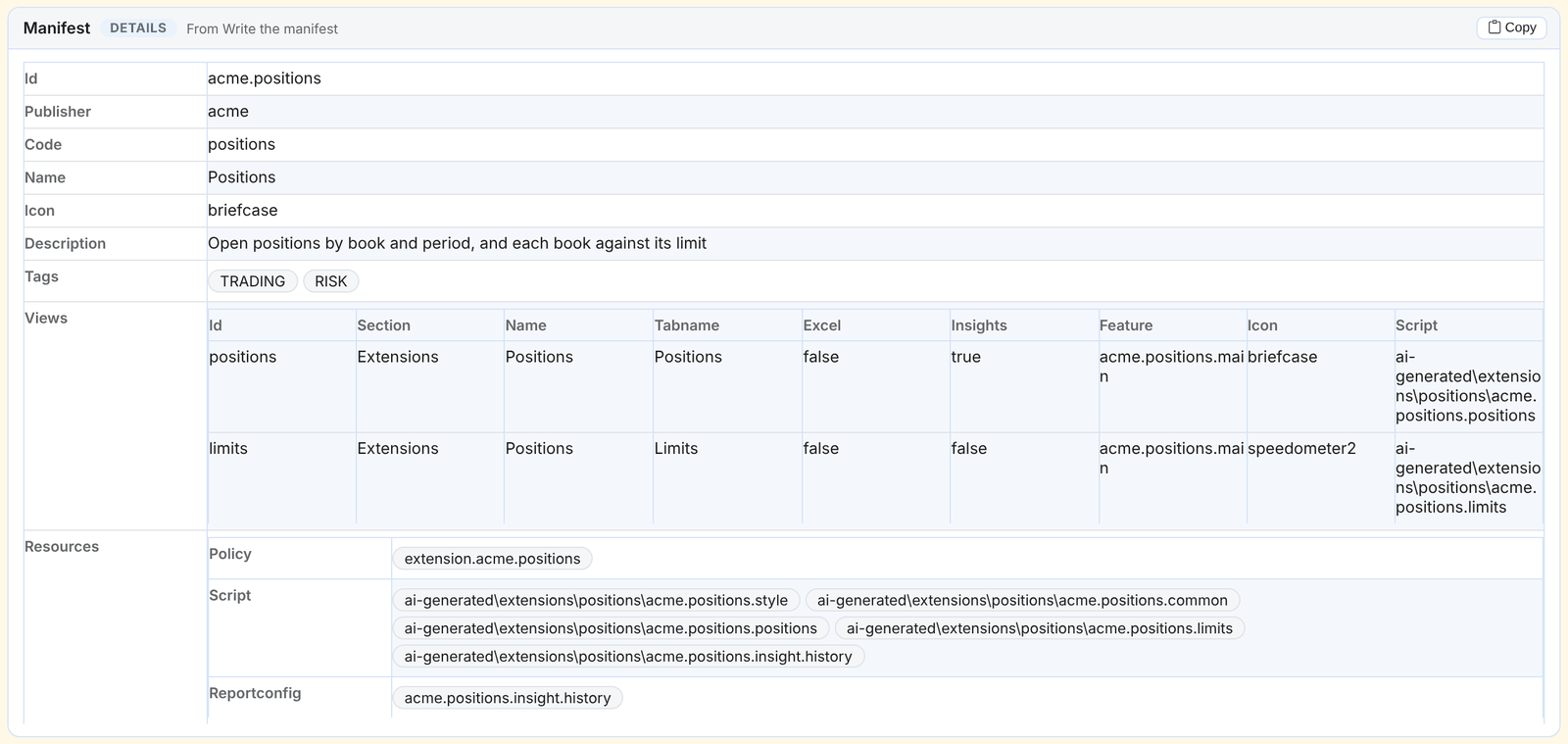
Below them, After you approve, Fusion will lists the steps that run next, with the values they use.
Check that:
- Every tab you asked for has a view, in the right section and with the right tab name
- The pages read the data you expect, with the filters and sorting you described
- The feature policy covers the right people
Then select Approve, with a comment if you wish. If something is wrong, select Reject with a comment saying why, then Clone the task, adjust the form (usually the tab descriptions or the data), and run it again.
After the run
The run's outputs are:
| Output | What it is |
|---|---|
| extension | The extension id |
| summary | Where to find the extension in the portal, who can see it, and the files that make it up |
| createScript | The equivalent create-extension.odsl script |
Open the extension from the portal menu. It is private to your tenant and visible to the people in its feature policy. The run's full conversation is in the Agent Logs insight.
Changing the extension
- Small changes to one page: ask Fusion in the Studio, for example "On the Positions tab of acme.positions, add a total row and sort by MTM". Fusion reads the page, changes it, and saves it with your agreement. A saved page takes effect straight away.
- Bigger changes: clone the task, change the tab descriptions, and run it again. The pages are saved again under the same names, and the extension is updated.
- By hand: the pages are ordinary scripts named
ai-generated\extensions\followed by the code and the file name, for exampleai-generated\extensions\positions\acme.positions.positions. Open them in VS Code with the OpenDataDSL extension, edit and save them.
Keeping it in source control
Save the createScript output as create-extension.odsl alongside copies of the pages. Running it recreates the policies and the extension, for example in another environment. See Saving, installing and publishing.
Making the playbook your own
Copy Build an extension to My playbooks to change how it builds extensions for your company, for example:
- Your own naming convention for scripts and features
- Your company's colours and layout rules, added to the conventions in the guidance text
- A fixed publisher code, so it is not on the form
- Approvers for the gate, such as your platform team
- A step that emails the summary to the people who can see the extension
See Creating playbooks.