Studio
Information > Fusion AI > Studio is where you chat with Fusion. A new chat opens with a greeting, the message box in the centre and some suggestions to start from.
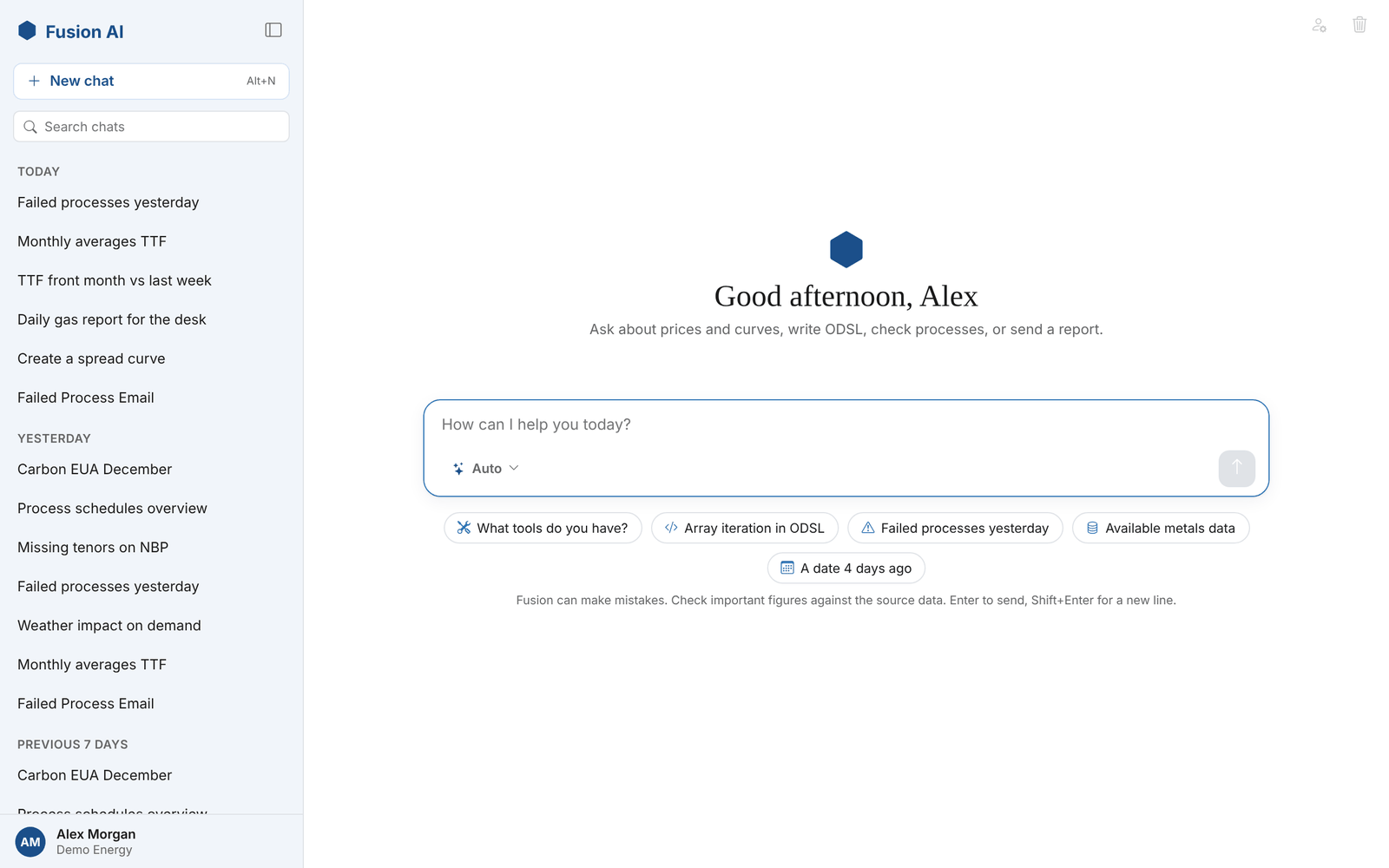
Type your question and press Enter to send it. Shift+Enter starts a new line, and the box grows as you type. Select a suggestion to send it straight away.
Asking questions
Ask the way you would ask a colleague. Fusion looks up the data it needs, so name things the way your team does:
How has the TTF front month moved over the last week? Compare it with NBP.
Show me all the failed processes for yesterday, with the reason for each.
Write an ODSL script that loads the EEX Phelix futures file and saves it as a dataset.
Which of our gas curves had missing tenors yesterday?
Build a SMART curve for the TTF minus NBP spread.
Fusion answers in formatted text, with tables for figures and code blocks for scripts. Each code block has a language label and a Copy button, and wide tables scroll.
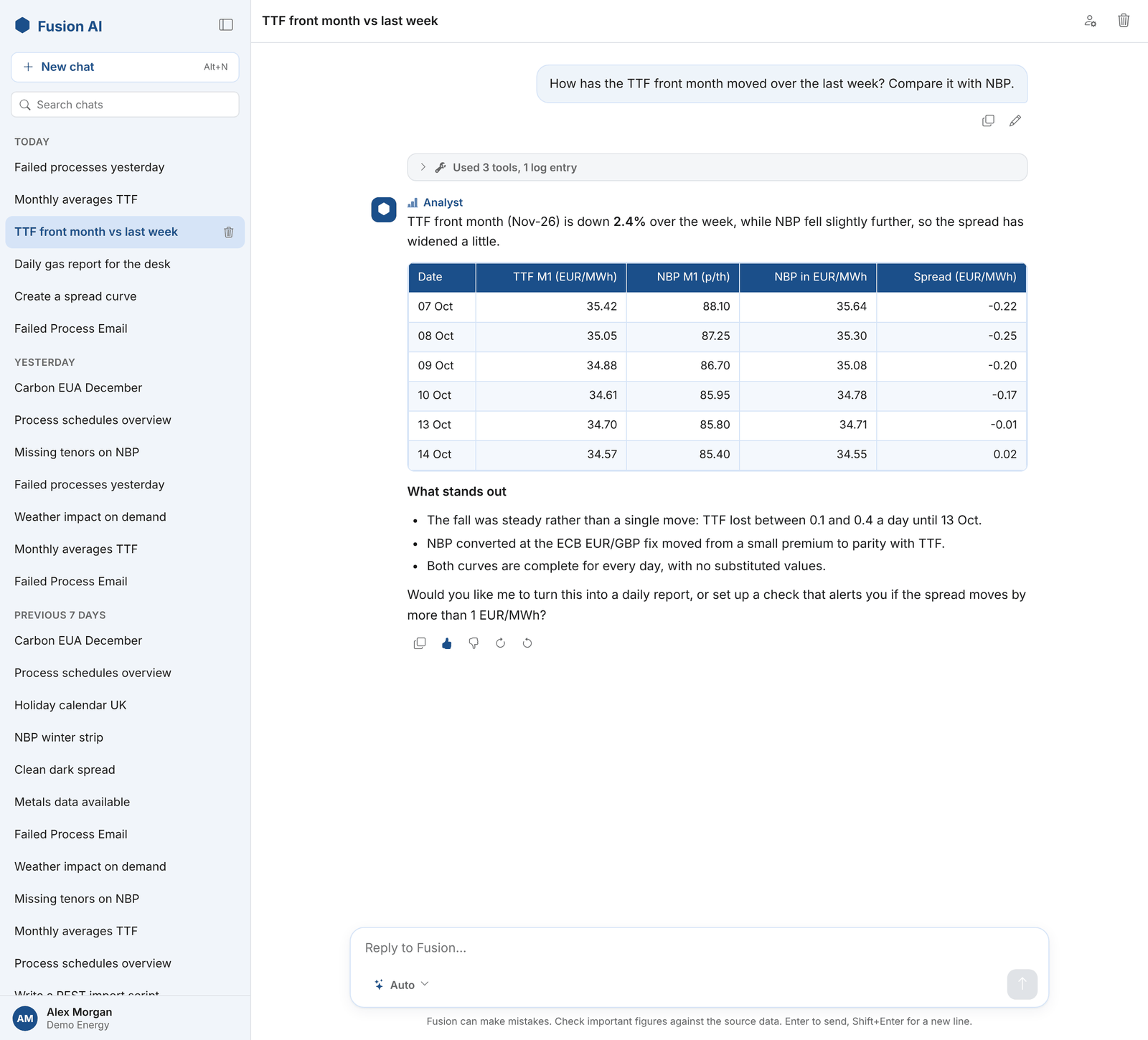
Follow-up questions keep the context of the conversation, so you can ask "and for the second month?" or "now email that to the gas desk".
Fusion can make mistakes. Check important figures against the source data, especially before you send them on.
Choosing an assistant
The button in the message box shows the assistant that answers. Auto, the default, lets Fusion pick the best assistant for each question. To use a particular one, select the button and choose it:
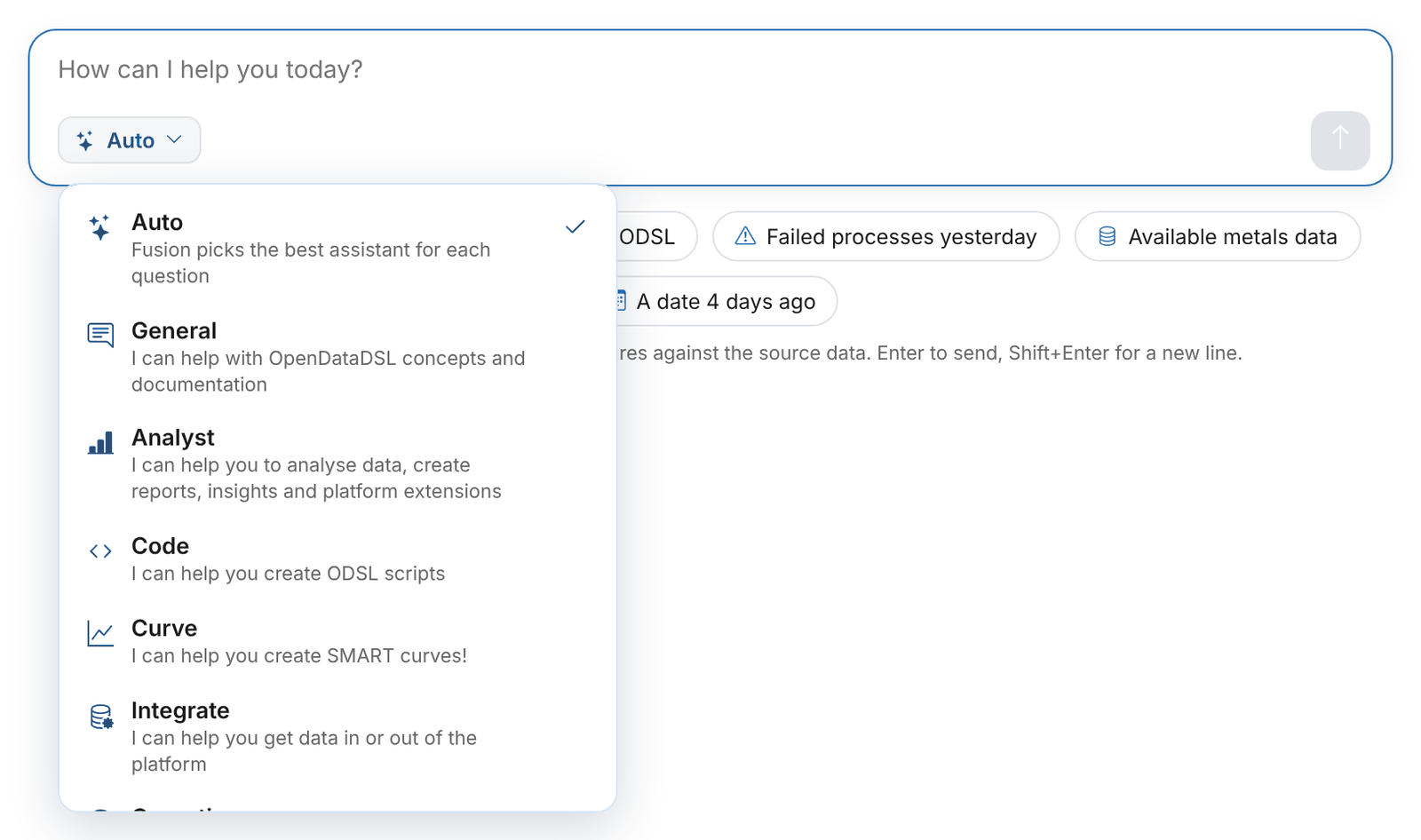
| Assistant | Best for |
|---|---|
| General | OpenDataDSL concepts and documentation |
| Analyst | Analysing data, and creating reports, insights and extensions |
| Code | Writing and checking ODSL scripts |
| Curve | SMART curves and curve building |
| Integrate | Getting data in or out of the platform |
| Operations | Monitoring processes and data, and investigating issues |
Your tenant's custom assistants appear in the same list. An assistant can have its own suggested questions, which are shown on a new chat when it is selected.
The name of the assistant that answered is shown above each answer.
Tool activity
While Fusion works, the tools it calls and its log lines appear live in a Working block, with a line saying what it is doing now:
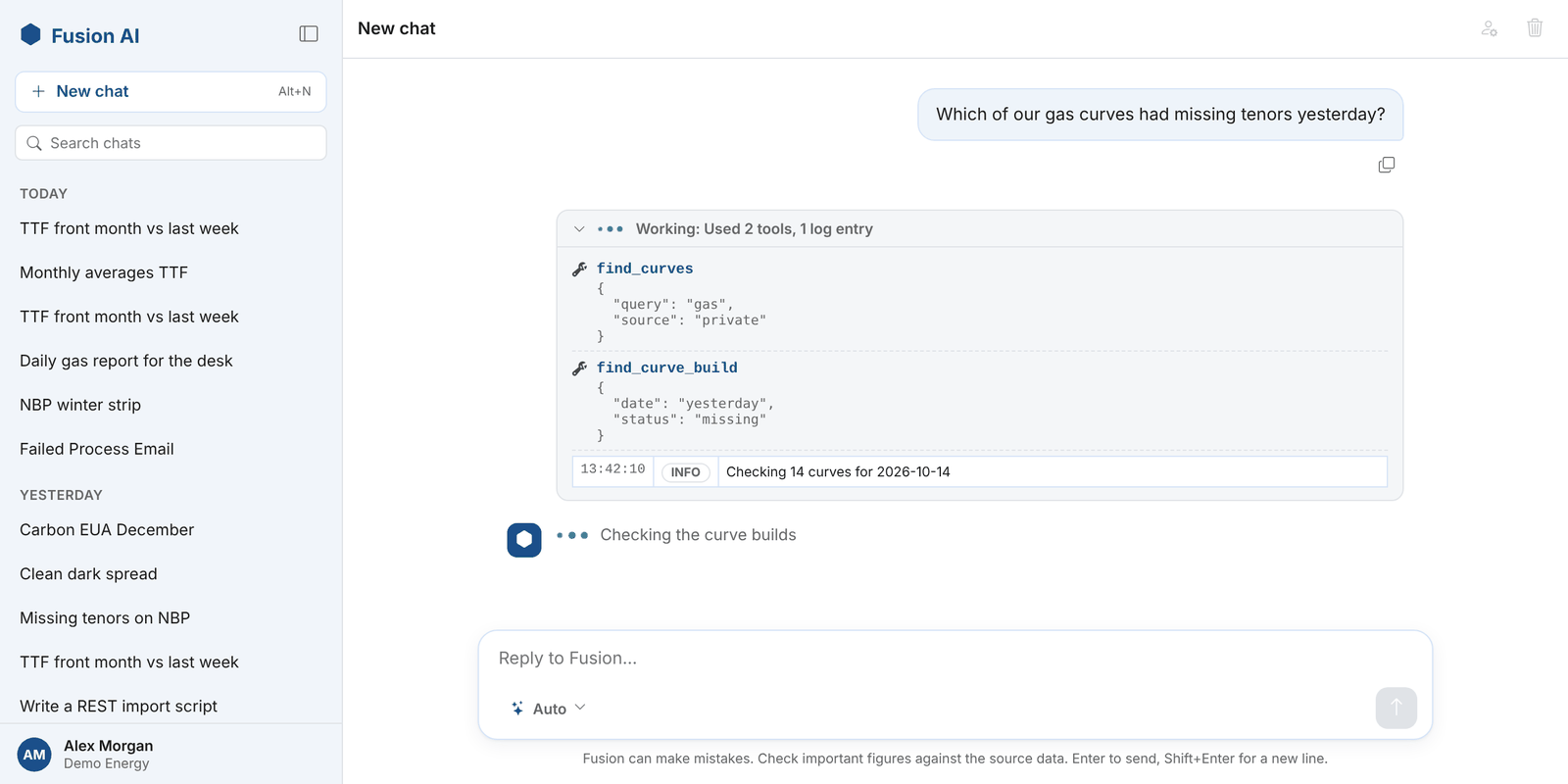
When the answer arrives, the block folds into a summary such as Used 3 tools, 1 log entry. Select it to see each tool and the values Fusion passed to it. This is a good way to check where an answer came from: which curve, which dates, which dataset.
Actions on an answer
Under each answer:
| Action | What it does |
|---|---|
| Copy | Copies the answer as markdown |
| Thumbs up or Thumbs down | Rates the answer, with an optional comment. Feedback is collected in the Fusion AI Feedback insight. |
| Retry | Asks the last question again (latest answer only) |
| Remove | Removes the last question and answer from the conversation (latest answer only) |
Under your latest question, Edit puts it back in the message box to change and send again.
Conversations
Every conversation is saved and listed in the sidebar, newest first, grouped into Today, Yesterday, Previous 7 days, Previous 30 days and Older. Fusion names each conversation after its first question.
- Search chats filters the list by name.
- New chat, or Alt+N, starts a new conversation.
- Select a conversation to open it and carry on where you left off.
- To delete a conversation, hover over it in the sidebar and select the bin, or use the bin at the top of an open conversation.
- The button at the top of the sidebar closes it, to give the chat the full width. The Studio remembers your choice.
Save as agent
The Save as agent button at the top of a conversation saves its questions, in order, as an agent. The agent can then be run again at any time, on a schedule or from an automation. Use it once a conversation does something you want repeated, such as a morning summary.
Running a playbook from the chat
Ask Fusion to run a playbook and it finds the one that fits, fills in a task from what you have said, and shows it as a card:
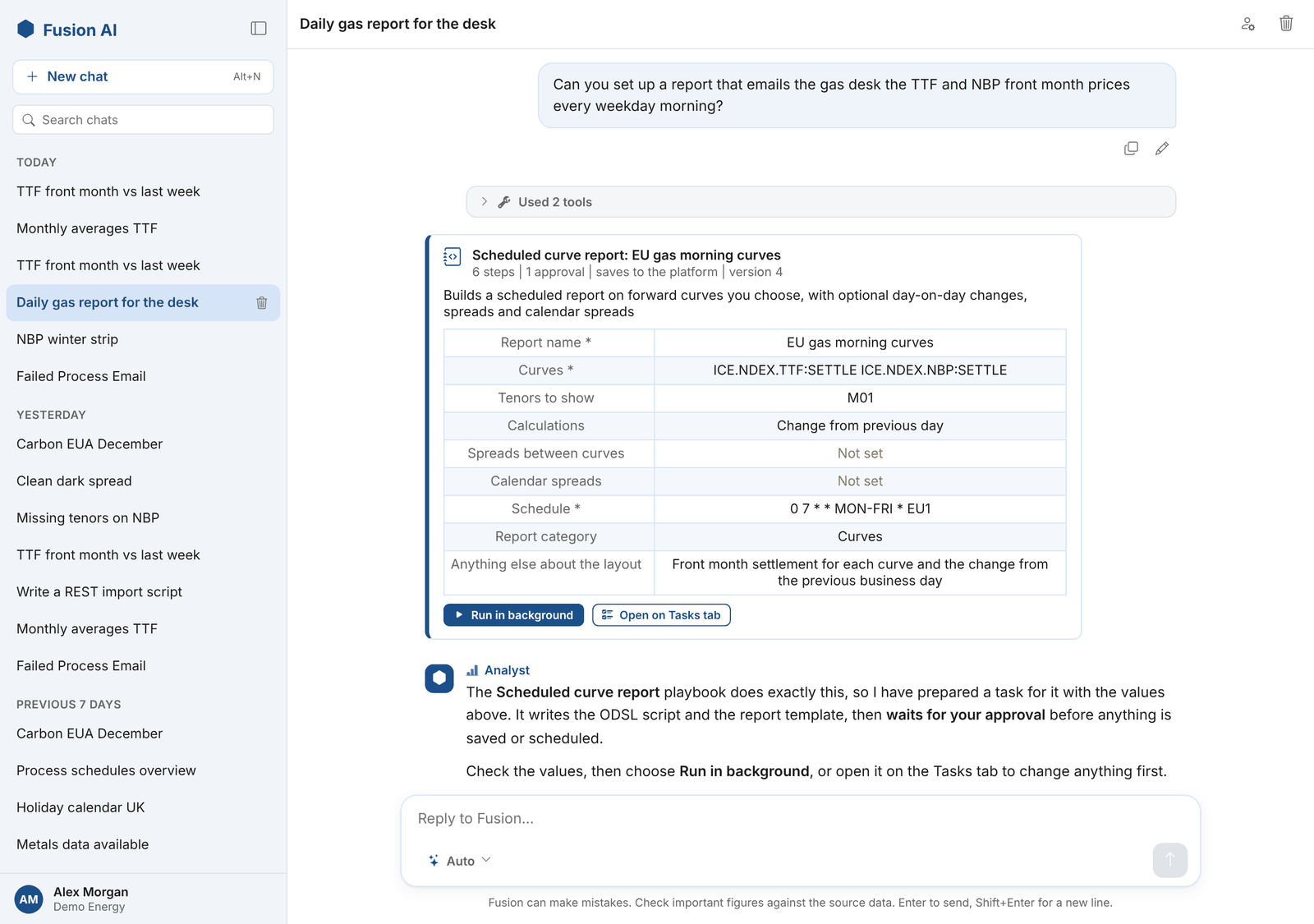
Check the values, then select Run in background, or Open on Tasks tab to change them first. Fusion never starts a run itself. See The library, extensions and chat.
Fusion in other extensions
Other extensions can include the same chat, set up for their subject: for example an EPR assistant fixed to its own assistant, with its own name, suggestions and conversations. These work the same way as the Studio. See Administration.