Insights
The Fusion AI extension installs five insights, listed with your other insights. This page covers four of them; the fifth, Fusion AI Billing, has its own page: Billing, budgets and limits.
| Insight | Use it to |
|---|---|
| Agent Logs | Read any Fusion conversation in full, including agent runs and playbook runs |
| Feedback | See how users rate Fusion's answers, and why |
| Playbook Runs | Follow playbook use, success rates and failures |
| Token Usage | See who uses Fusion, how much, and on what |
All of them show only your own tenant's data. Lists are paged, with First, Prev, Next and Last buttons, and selecting a row opens its detail below the list.
Agent Logs
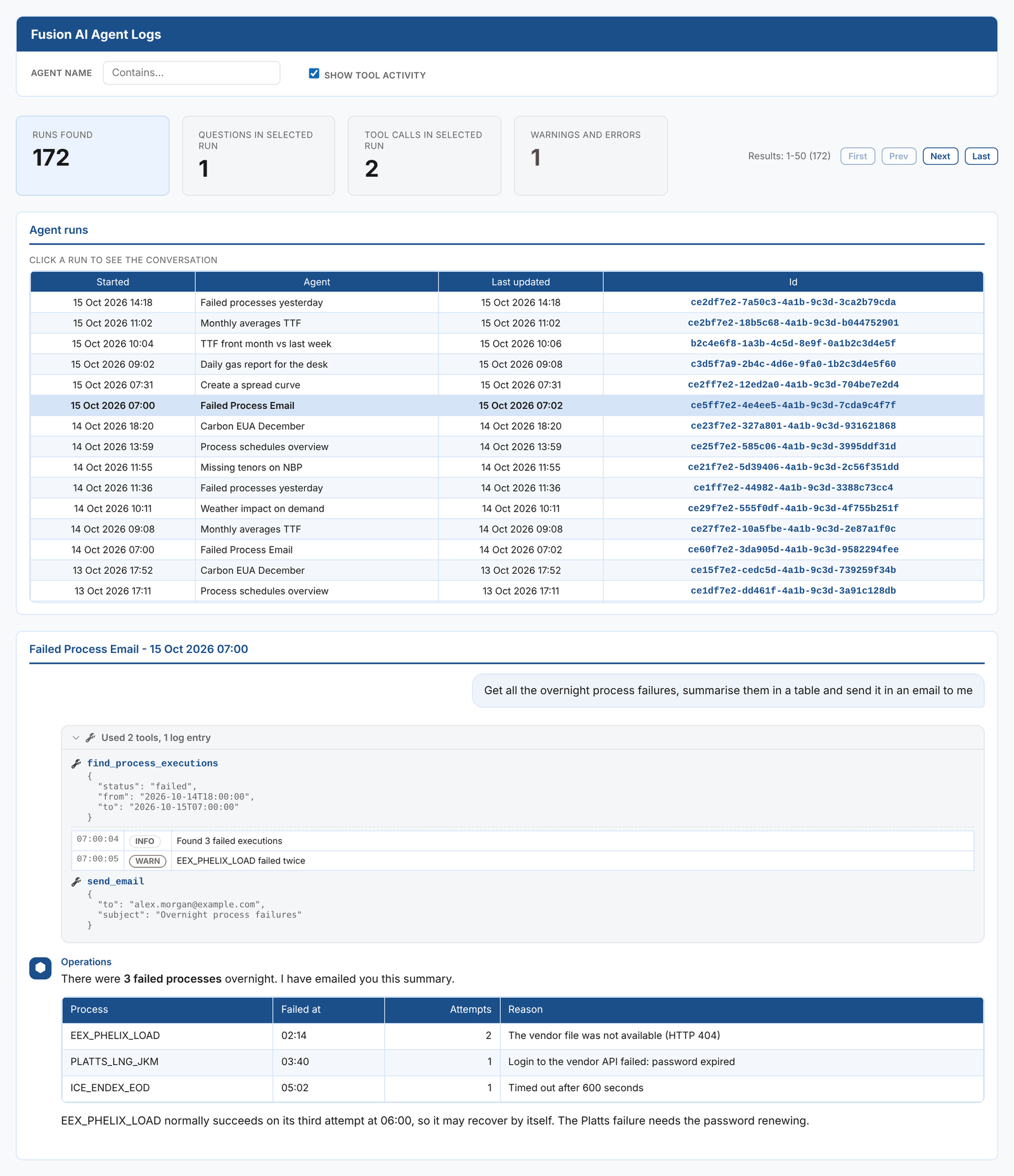
Fusion AI Agent Logs lists Fusion conversations, newest first: agent runs, Studio chats and playbook runs (each run is one conversation). Select a run to read the whole conversation.
| Control or KPI | Meaning |
|---|---|
| Agent name | Filters the list by name, for example the name of an agent |
| Show tool activity | Shows or hides the tools used and the log lines in the conversation |
| Runs found | The number of conversations that match |
| Questions in selected run | How many questions the selected conversation asked |
| Tool calls in selected run | How many tools Fusion called |
| Warnings and errors | Warning and error log lines in the selected conversation. Look here first when an agent did not do what you expected. |
Feedback
Fusion AI Feedback collects the thumbs up and thumbs down your users give to Fusion's answers in the Studio, with their comments.
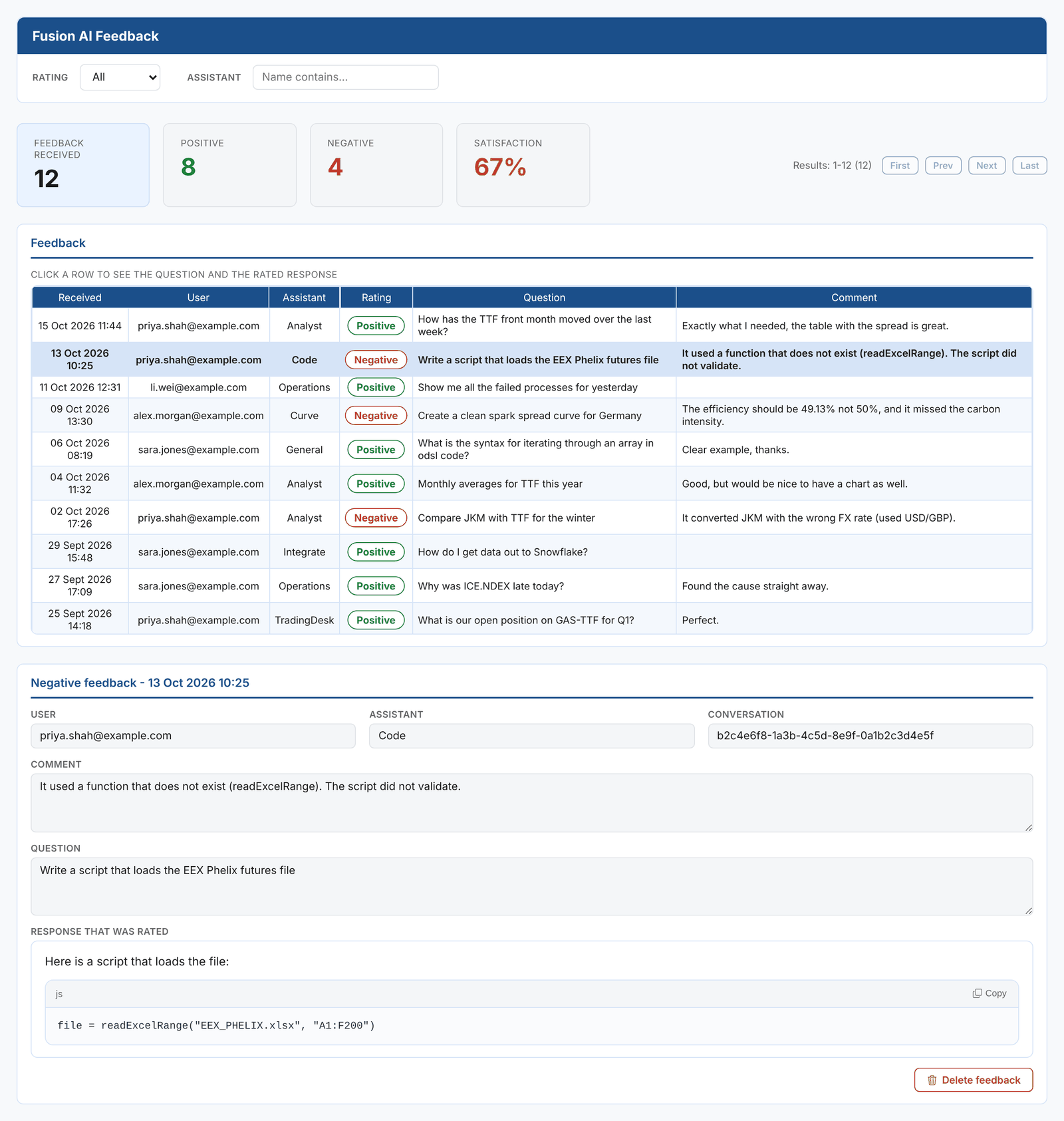
- Filter by Rating (positive or negative) and by Assistant.
- The KPIs show the feedback received, positive and negative counts, and Satisfaction, the share that is positive.
- Select a row to see the user, the assistant, the conversation id, the comment, the question and the answer that was rated, in full.
- Delete feedback removes an entry, for example once the problem it reports is fixed.
Negative feedback with a comment is the best guide to improving your custom assistants and tool descriptions. Open the conversation in Agent Logs to see which tools Fusion used for the answer.
Playbook Runs
Fusion AI Playbook Runs shows how your playbooks are used and how well they work.
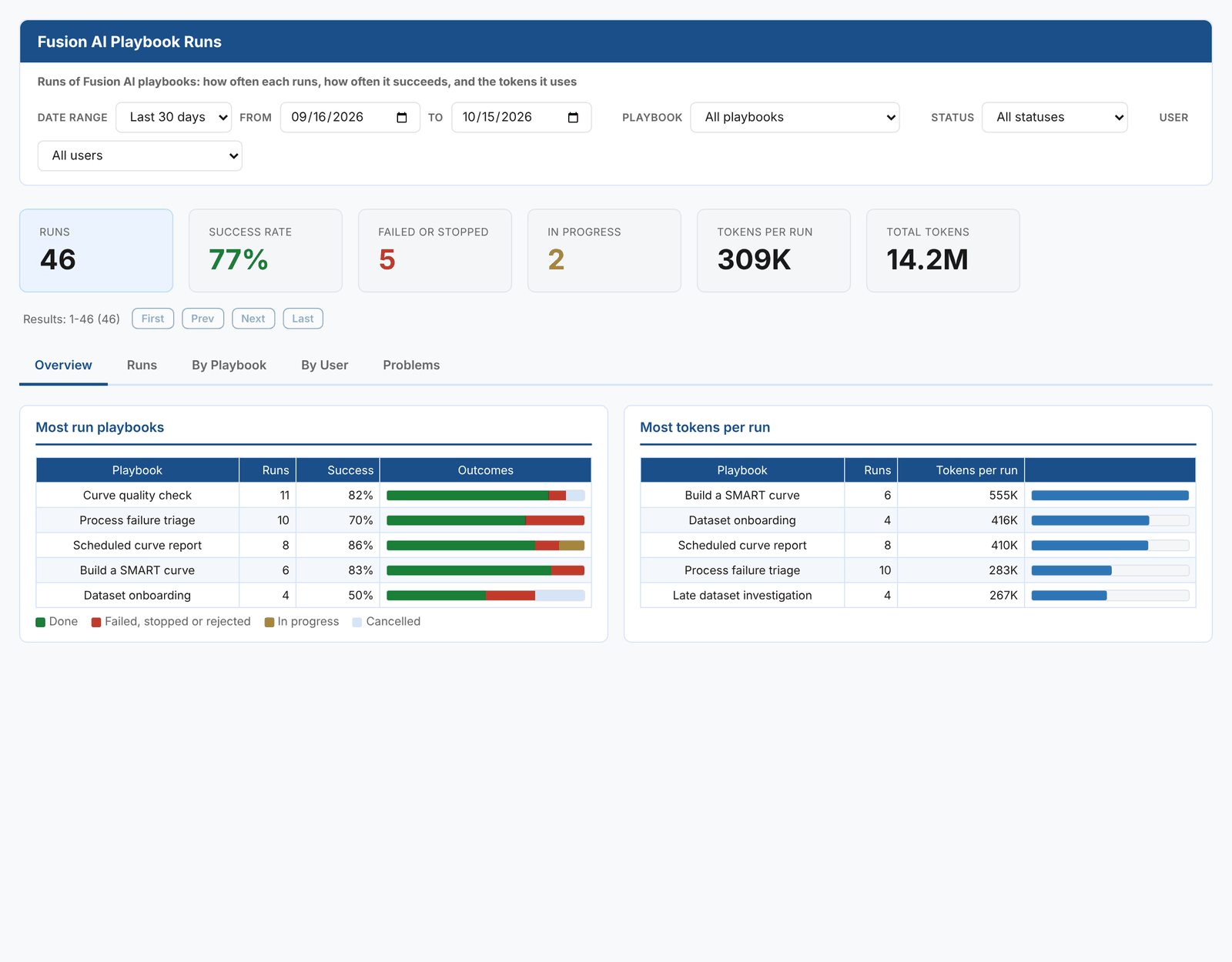
Filter by Date range, Playbook, Status and User. The KPIs are:
| KPI | Meaning |
|---|---|
| Runs | Runs started in the date range |
| Success rate | Runs done, as a share of finished runs (done, failed, rejected, cancelled or stopped) |
| Failed or stopped | Runs that failed or stopped at a limit |
| In progress | Runs still running or waiting for approval |
| Tokens per run | The average tokens a run used |
| Total tokens | All tokens used by the runs |
| Tab | Shows |
|---|---|
| Overview | The most run playbooks with their outcomes, and the playbooks that use the most tokens per run |
| Runs | Every run, newest first: when it started, the playbook and task, who started it, the mode (interactive, background or scheduled), status, steps completed, tokens and duration |
| By Playbook | Runs, outcomes and tokens per playbook |
| By User | Runs, outcomes and tokens per user |
| Problems | The latest failed and stopped runs, with the step that stopped them and the reason |
Select a run to see each step's status, attempts, tokens and result, the checks with their reasons, the approvals with who decided and their comments, and the outputs.
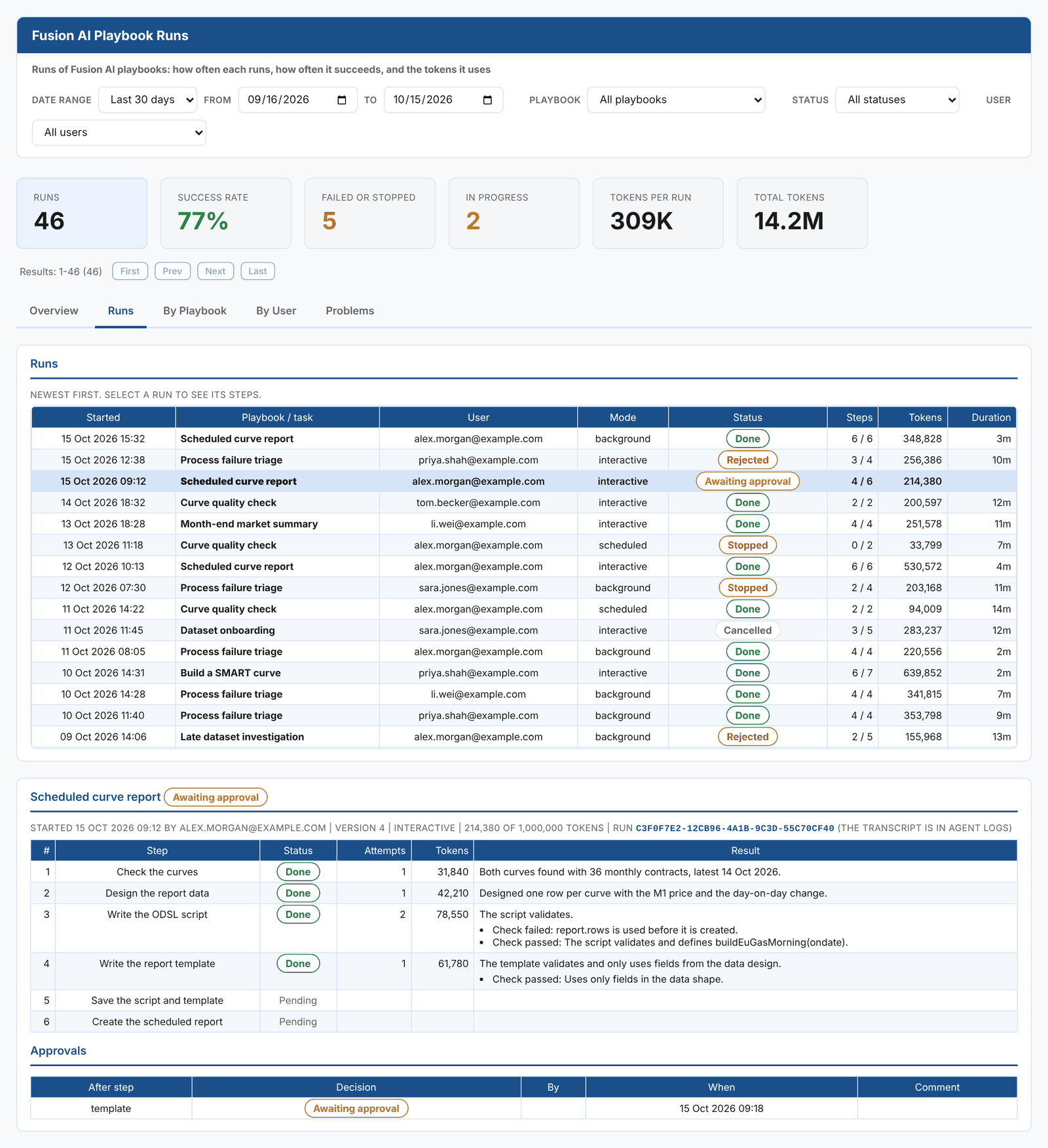
A playbook with a low success rate usually has a step whose instructions or checks are too loose or too strict. The Problems tab shows which step fails and why; open the run's conversation in Agent Logs (it has the same id) to see exactly what Fusion did.
Token Usage
Fusion AI Token Usage shows the tokens Fusion uses, by user, day and conversation. Every Fusion conversation counts: Studio chats, agent runs, playbook runs and the chat in other extensions.
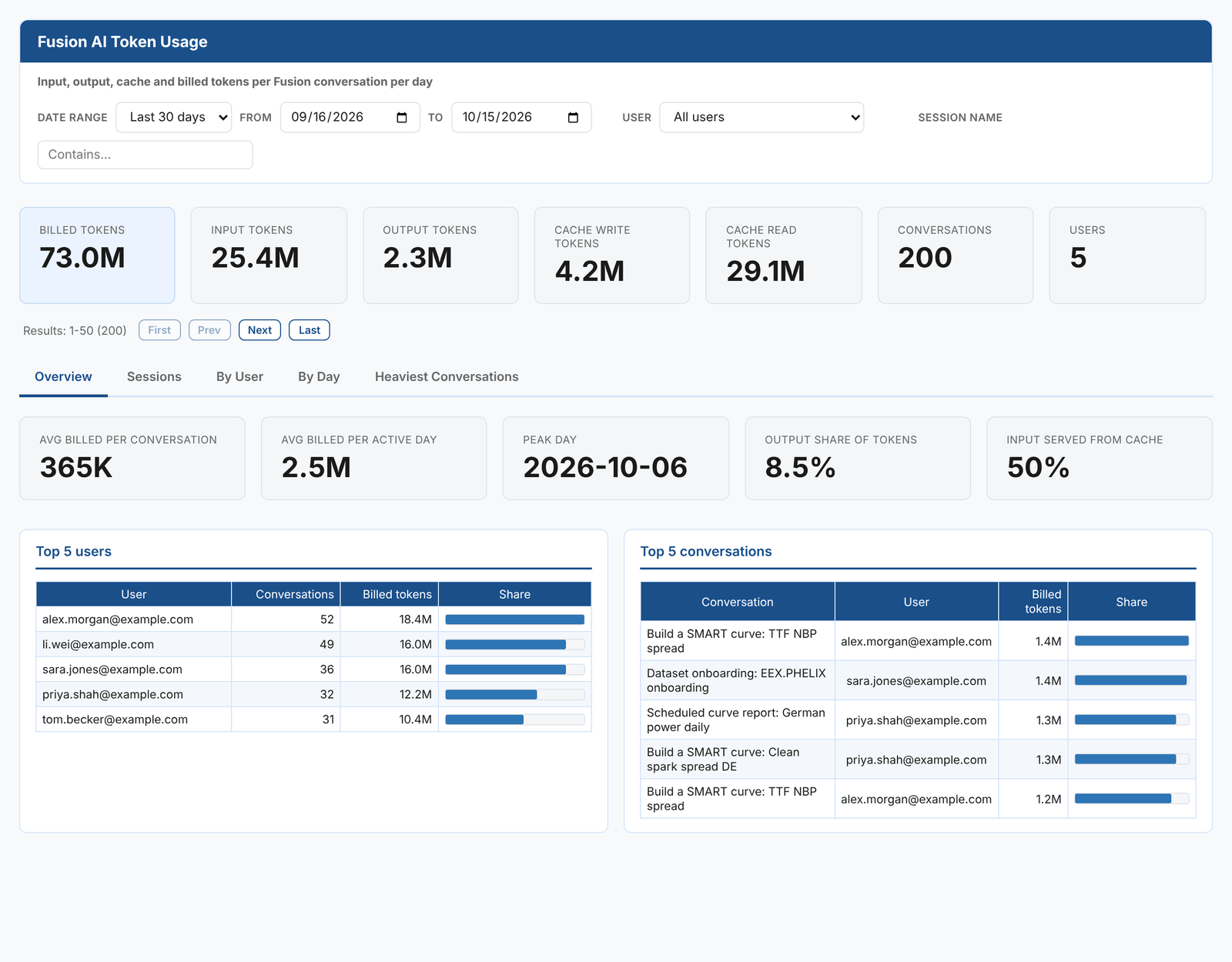
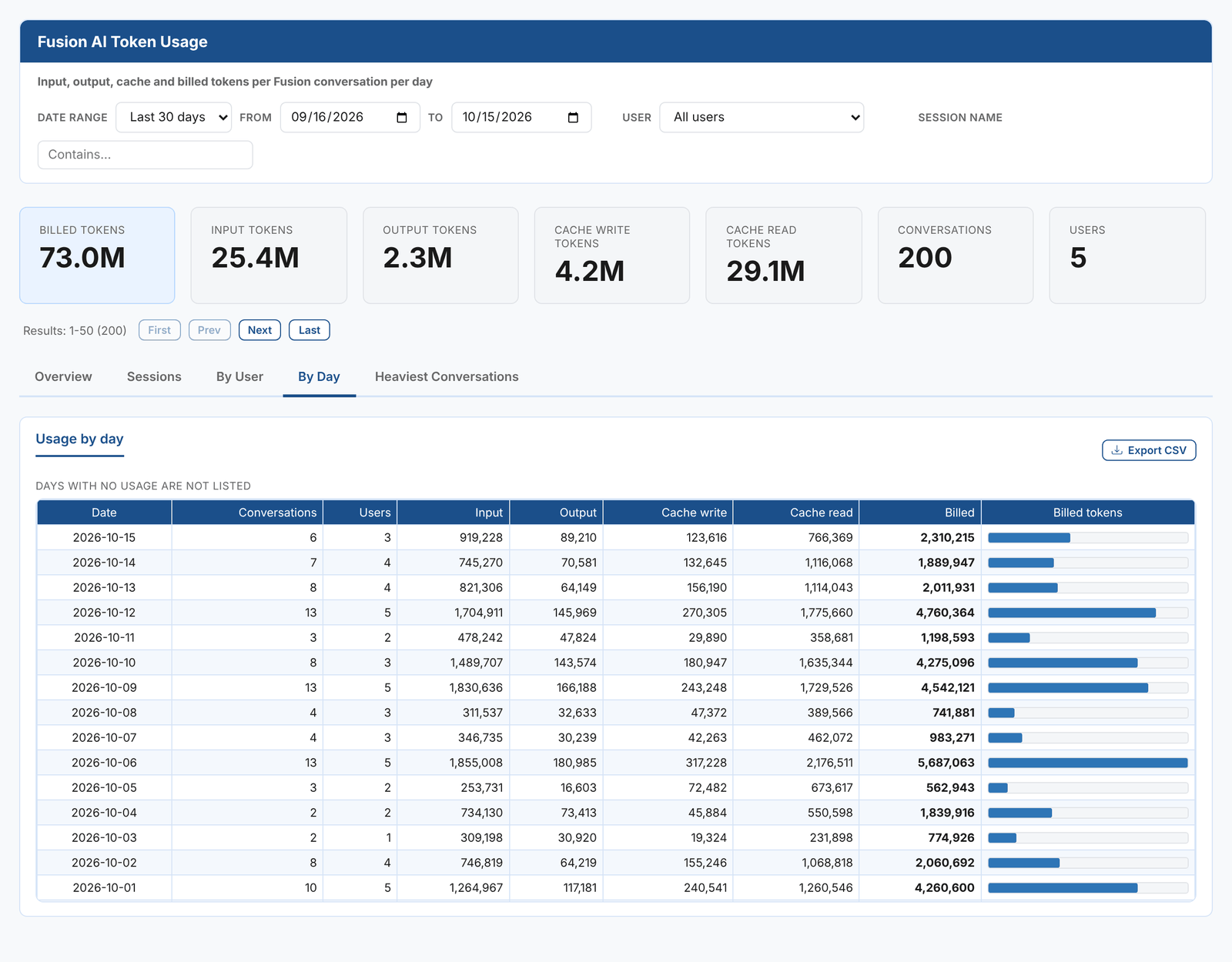
Filter by Date range, User and Session name. The KPIs show the billed, input, output, cache write and cache read tokens, the number of conversations and the number of users, then averages per conversation and per active day, the peak day, the share of tokens that are output and the share of input served from the cache.
| Tab | Shows |
|---|---|
| Overview | The top 5 users and the top 5 conversations |
| Sessions | One row per conversation per day, newest first. Select one to see its usage by day and the questions asked. |
| By User | Conversations, active days and tokens per user |
| By Day | Conversations, users and tokens per day |
| Heaviest Conversations | The conversations that used the most billed tokens |
Token types
| Tokens | Meaning |
|---|---|
| Input | The question, the conversation so far, and the tool results Fusion read |
| Output | What Fusion wrote: answers, scripts and tool calls |
| Cache write | Input stored in the prompt cache so later calls can reuse it |
| Cache read | Input read back from the prompt cache, much cheaper than new input |
| Billed | The tokens you are billed for, weighted by token type and model. See Billing, budgets and limits. |
Long conversations cost more per question, because each question sends the conversation so far. Start a New chat when you change subject.