Reconciling a day
Test the model
In the Manage view, choose the Model and the trade date (Ondate) and select Test Model. The log shows the trades being read from each event list, and the chart shows the result for all sources together (All) and for each source:
- Matched (green): confirmed trades
- Partial (amber): trades that need a look
- Unmatched (red): ETRM trades with no match at that source
- Unmatched Matchers (blue): the source's records with no ETRM trade
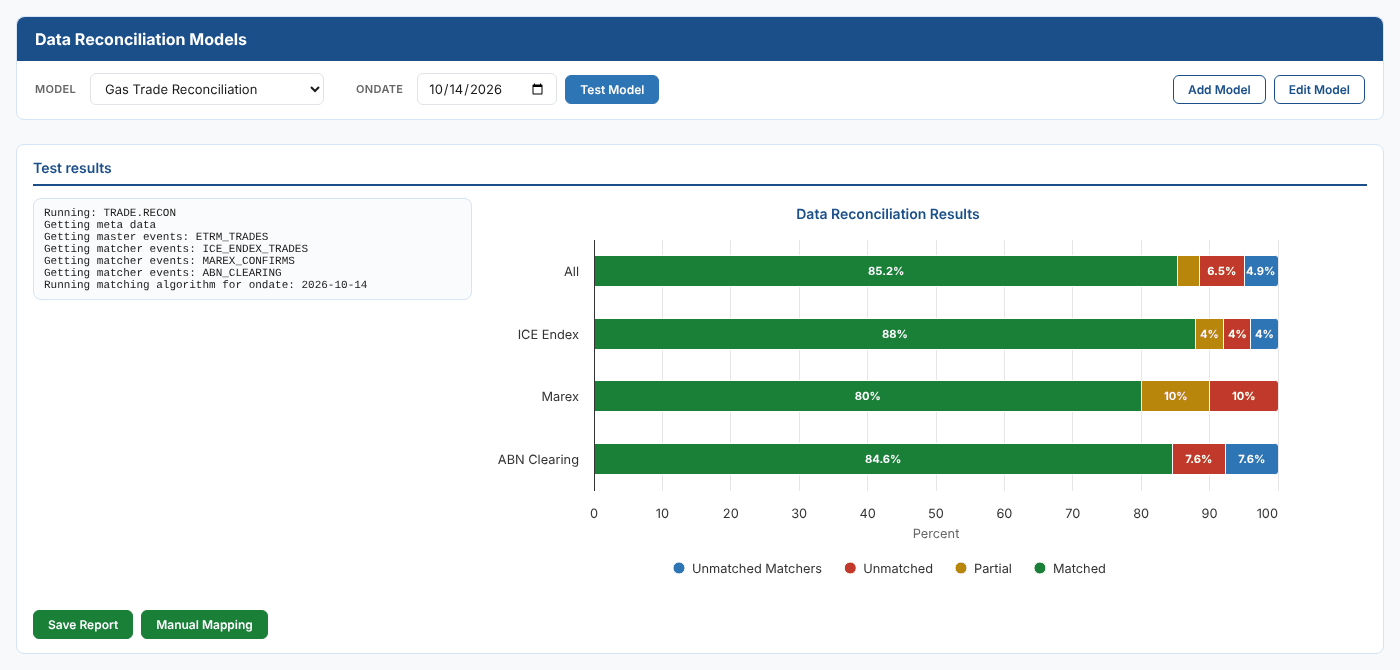
Select any part of a bar to list the trades behind it (see Dashboard and analysis).
Select Save Report to store the result for that date. The dashboard and the Data Analysis insight use the saved result.
Testing saves nothing. Only Save Report stores the result, and saving again for the same date replaces it.
Resolve breaks with manual mapping
When there are partial matches, Manual Mapping steps through them, one source at a time.
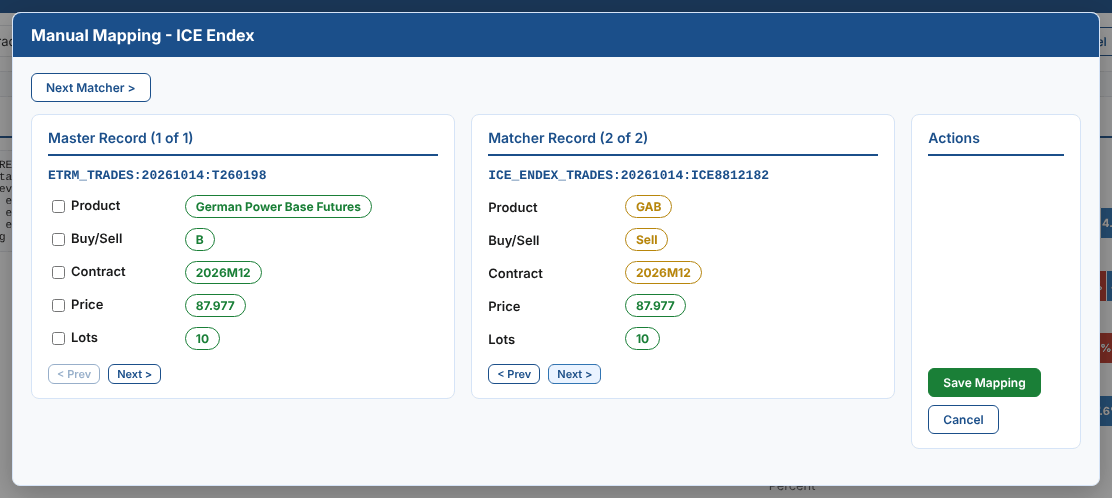
| Part | What it shows |
|---|---|
| Master Record | The ETRM trade, with its value for each rule. Next and Prev step through the partly matched trades |
| Matcher Record | A candidate record from the source. Values that agree with the ETRM trade are green, values that do not are amber. Next and Prev step through the candidates |
| Rule tick boxes | Tick a rule to step only through the trades where that rule found nothing |
| Next Matcher | Move on to the next source with breaks |
Save Mapping records the amber values as meaning the same thing: it saves a mapping, used by string_map rules, for each rule that does not agree, then runs the reconciliation again with the new mappings.
Use it for naming differences, such as a new ETRM product name for an instrument the exchange already lists, or a broker's code for a product. Do not use it to accept a real difference in the trade.
In the example above the exchange reports a Sell for an ETRM Buy. That is a booking error to correct in the ETRM, or to raise with the exchange, not a mapping. Saving it would teach the reconciliation that a buy and a sell are the same.
Select Cancel to close the screen without saving.
Review the mappings
The Mappings view lists every saved mapping: its model, matcher, rule, and the ETRM (Master) and source (Matcher) values.
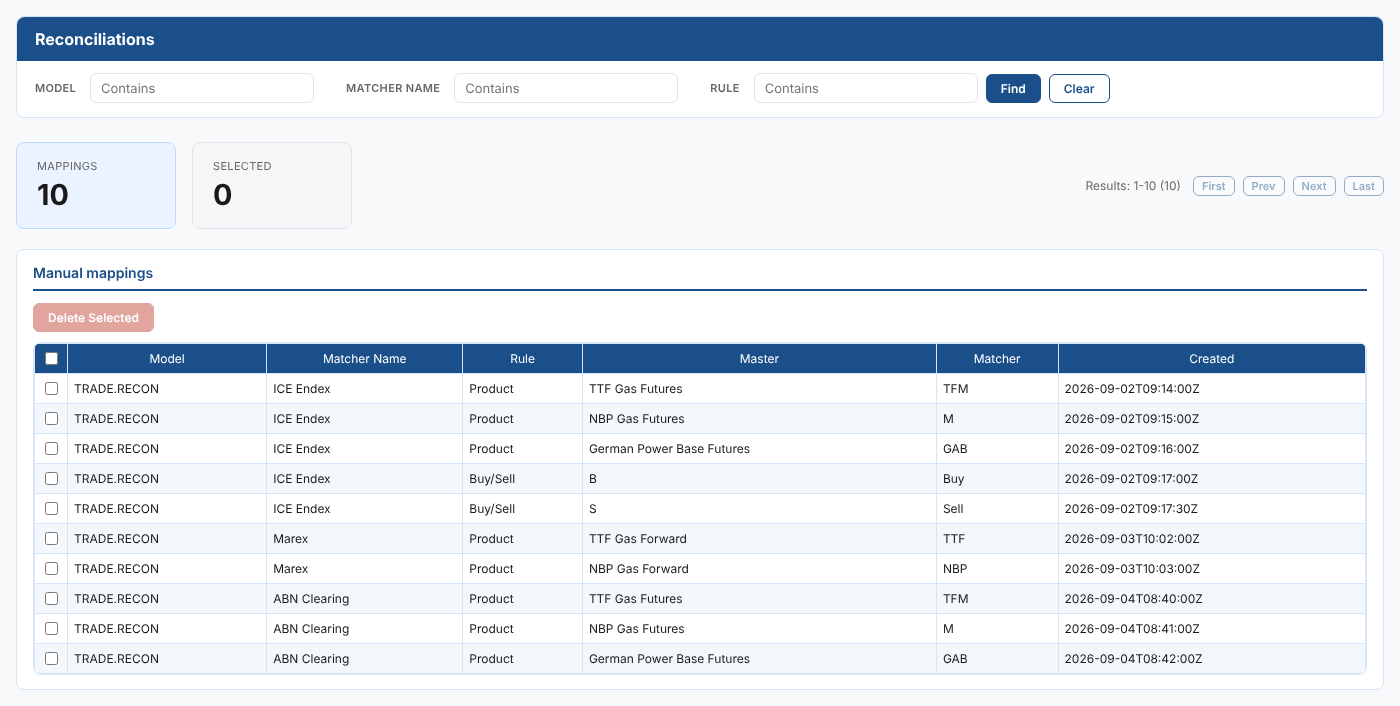
- Filter by Model, Matcher Name or Rule: each filter finds the text anywhere in the value, ignoring case
- Select a column heading to sort by it; select it again to reverse the order
- Tick mappings, or tick the box in the heading for the whole page, and select Delete Selected to remove mappings saved by mistake
The next reconciliation uses the mappings as they are. Test the model again to see the effect of a change.