Bulk changes
Bulk changes sets up or changes the validation of many curves or timeseries in one go: pick the data items, set up the checks once, preview what will happen to each item, then apply. Open it from Information > Validation (the Bulk changes button at the top, or on the Configurations tab).
Choose the Kind first: curves or timeseries. A bulk change is for one kind at a time, because curve and timeseries checks are different. Changing the kind clears the selection.
1. Pick the data items
| Way | How |
|---|---|
| Find curves or Find timeseries | Opens the data finder, the same one Composer uses. Filter the data, tick as many items as you like, and select Add |
| Paste data ids | Paste ids, one per line or separated by commas, and select Add these ids. Each id is checked: ids that do not exist, or are not the chosen kind, are listed and left out |
The data finder
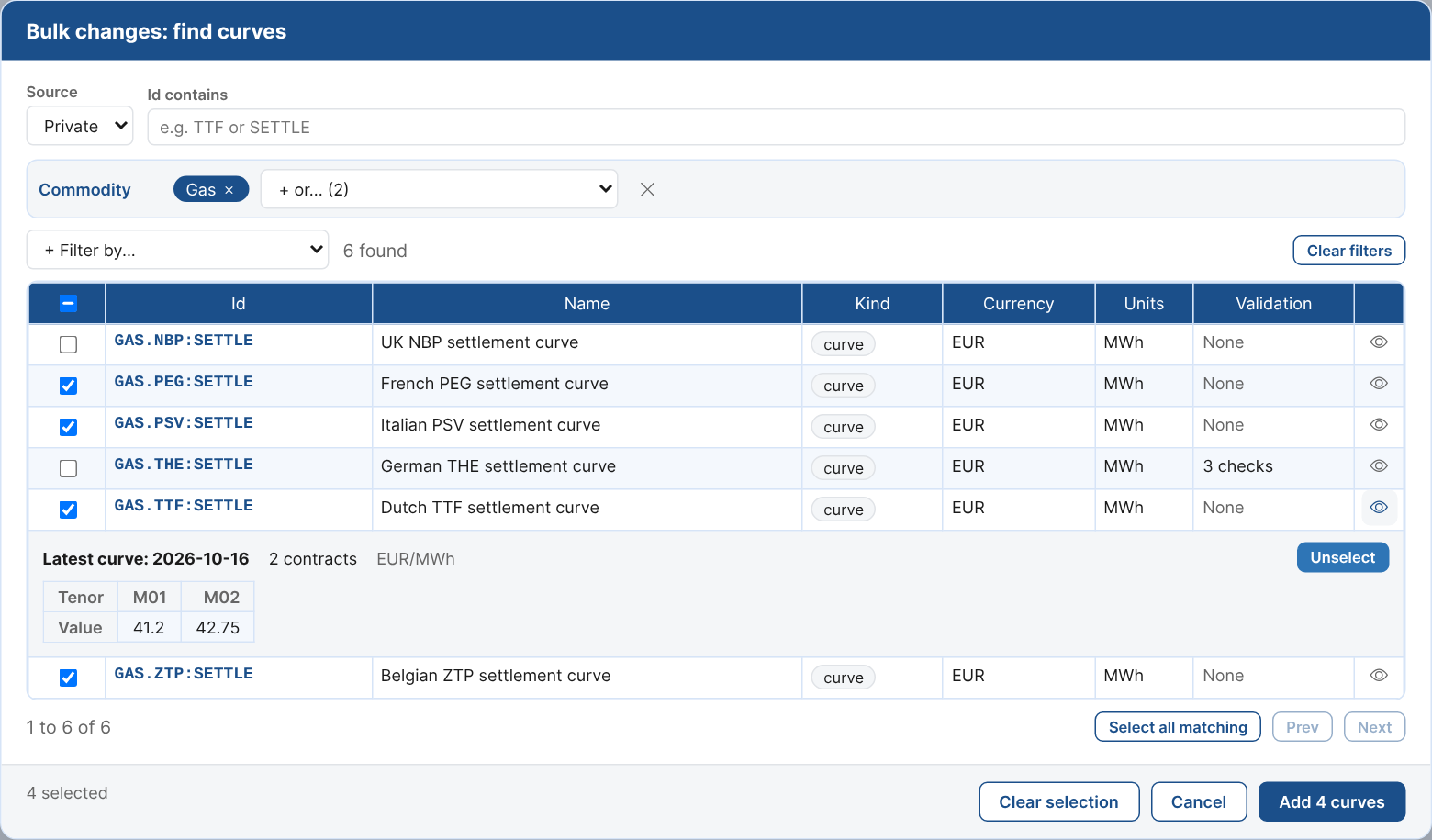
- Source: your private data or public data. Public data ids start with
#. - Id contains: part of the id, in any case, for example
ttfor:SETTLE. - Filter by: choose a dimension, such as Type, Tag, Commodity or Location, then one or more of its values. Several values of one dimension match any of them; different dimensions must all match. Each list only offers the values left by the filters before it.
- Tick items one at a time (clicking a row ticks it), tick the box in the heading to tick the whole page, or select Select all matching to tick everything the filters find (up to 1000). Ticks are kept when you change the filters or the page, so you can gather items from several searches before adding them.
- The eye shows the latest curve, or the last 10 values of a timeseries, with Select to tick it from there.
- The Validation column shows which items already have validation, and how many checks.
- Add adds the ticked items to the selection. Items already selected are shown ticked and greyed out.
The finder only lists the kind you chose: for curves, the curves themselves (including smart, event and composed curves), not the curves stored for each ondate; for timeseries, stored, smart, event and composed timeseries. The source and filters are remembered for next time.
Selected lists what you picked; remove items with their x, or Clear them all.
2. Set up the checks
Set up the checks and settings as you would for one item: see Checks and settings. Each item keeps its own name.
To start from a configuration you already have, type its data id under Start from the configuration of and select Copy its checks: its checks, scripts and settings are copied into the editor.
Suggest checks from the data
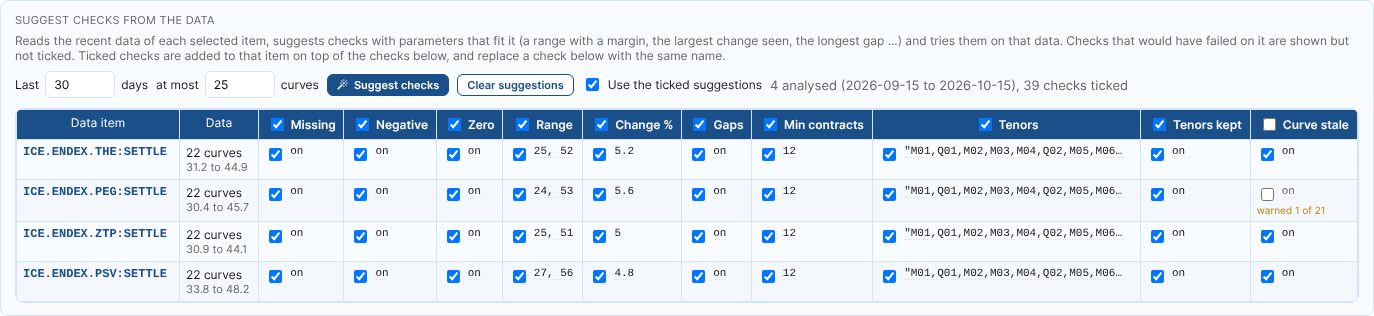
Instead of choosing every limit yourself, let the data suggest them. Under Suggest checks from the data, choose how many days to look back (30 by default; for curves, also the most curves to read, 25 by default) and select Suggest checks. For each selected item the platform:
- Reads its data for the period: the observations of a timeseries, or the curves of the ondates in the period (the most recent ones).
- Suggests checks from the function library with parameters that fit the data.
- Tries the suggested checks on that same data, without storing anything. A check that would have failed or warned on it is shown but not ticked, with how often and an example.
| Check | Suggested when | Parameters |
|---|---|---|
| Missing | Always | |
| Negative | No value was negative | |
| Zero | No value was zero | |
| Range | Always | The lowest and highest values, with a margin of a quarter of their spread (at least 10% of the largest value), rounded outwards; not below zero for data that was never negative |
| Change % or Change | At least 3 moves | The largest move times 1.5. In percent when every value was positive, otherwise as an amount. For curves: the move of each tenor from one curve to the next |
| Outliers | Timeseries with at least 15 values | The largest number of standard deviations from the mean of the earlier values, plus a quarter (at least 3) |
| Stale | Timeseries whose value stayed the same for at most 5 observations in a row | That run length (at least 3) |
| Gap | Timeseries | The longest gap in days, plus one day (at least 5 days for daily data, so weekends and holidays pass) |
| Gaps, Tenors kept, Curve stale, Arbitrage | Curves (Arbitrage when there are months and quarters) | |
| Min contracts | Curves | The fewest contracts on a curve |
| Tenors | Curves | The relative tenors (M01, Q01 ...) on every curve |
The suggestions show in a table with a row per item and a column per check. Tick or untick a check for one item, or for every item with the box in the column heading. Select the parameters of a check to change its expression or severity. Hover over a check to see why it was suggested.
Ticked checks are added to that item, on top of the checks set up below, and replace a check below with the same name. Each item gets its own parameters. The reason is kept in the check's description. Untick Use the ticked suggestions to ignore them; changing the kind clears them.
3. Preview and apply
The preview shows how many checks of each item were suggested from the data.
Choose what happens to items that already have validation:
| Choice | Existing checks | Checks in step 2 |
|---|---|---|
| Add the checks; a check with the same name is replaced | kept, unless one has the same name as a new one | added, or replace the check with the same name |
| Add only the checks that are not there yet | kept as they are | added when no check has the same name |
| Replace all the checks | removed | become the checks |
| Remove the checks with these names | the ones with the same names as in step 2 are removed | only their names are used |
| Only set up data items that have no validation yet | items with validation are left alone | used for new items only |
Names are compared without regard to case.
Items without validation are set up with the checks and settings of step 2 (except with Remove the checks with these names, which only changes existing validation). Items that already have validation keep their settings unless you tick Also apply the settings and scripts to existing validation. Without it, the scripts of step 2 are still added, so the new checks can find their functions.
Select Preview. It reads the current validation of every item and lists what will happen:
| Action | Meaning |
|---|---|
| Set up | The item gets new validation |
| Change | Its checks or settings change, for example "1 added, 1 replaced" |
| No change | Nothing would change, or the item is skipped, with the reason |
The counts are shown next to the buttons. Check them, then select Apply and confirm. The result of each item is shown in the same table. Every change keeps a version of the previous configuration.
Applying bulk changes does not run the checks. They run the next time each item is saved or built. To run them now, use Run on the Configurations tab, or Run and save on the Validation tab of an item.
Examples
| You want to | Do this |
|---|---|
| Check every ICE settlement curve for missing values and gaps | Kind Curves, Find curves, filter by the exchange (or type ICE.) and Select all matching, add Missing (tenor) and Gaps (curve), choose Add the checks, apply |
| Make the same change to all your power curves as you made to one | Select the curves, Copy its checks from the one you changed, choose Replace all the checks, tick Also apply the settings, apply |
| Stop the Stale check everywhere | Select the items, add a check named Stale (any expression), choose Remove the checks with these names, apply |
| Set up new timeseries without touching the ones already set up | Select them all, choose Only set up data items that have no validation yet, apply |