The Alerts screen
Open Operations > Alerts. The screen shows the open alerts your team is concerned about, newest first, with figures at the top. In the examples on these pages, Priya Shah and Tom Clarke of Northgate Energy follow the ICE Endex and EEX settlement data.
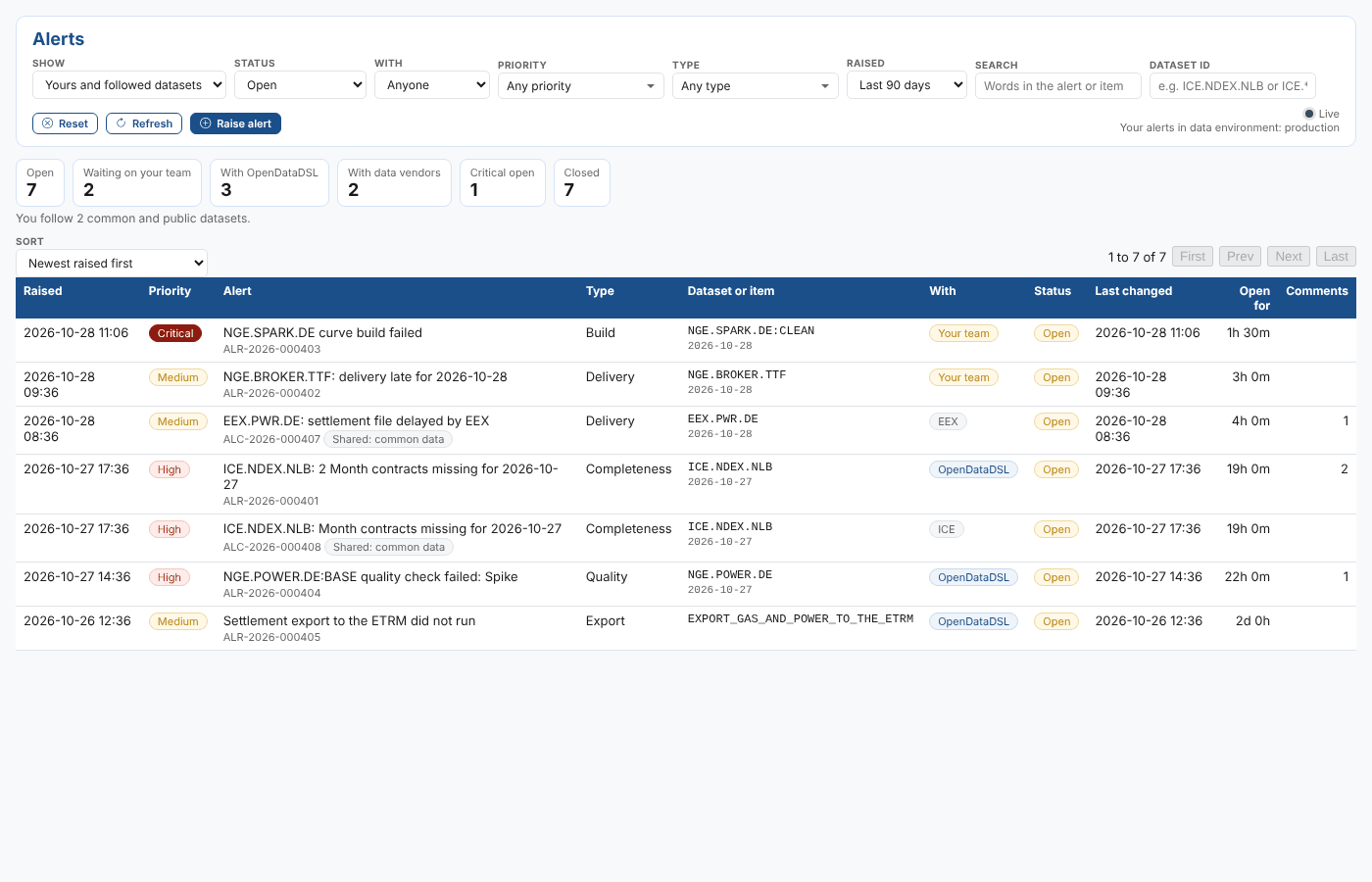
Which alerts are shown
The Show filter decides which alerts you see:
| Show | Alerts |
|---|---|
| Yours and followed datasets (the default) | Your alerts, and the shared alerts about the common and public datasets you follow |
| Only your alerts | Your alerts |
| Yours and all shared alerts | Your alerts, and every shared alert |
The datasets you follow are the common and public datasets your company has added to its own datasets (they are in your dataset list with source common or public). The line under the figures says how many you follow.
Your alerts are those of the data environment you are working in, shown at the top right (for example production). Switch environment in the portal to see the alerts of another one. Shared alerts are the same in every environment.
Filters
| Filter | What it does |
|---|---|
| Status | Open (the default), Closed, or Open and closed |
| With | Alerts waiting on Your team, OpenDataDSL or A data vendor |
| Priority | One or more priorities |
| Type | One or more types, such as Delivery or Quality |
| Raised | When the alert was raised: the last 7, 30 or 90 days (the default), 12 months, any time, or a custom range |
| Search | Words in the alert's id, title, message, description, key or resolution, or in the id of what it is about. Every word must match, in any case |
| Dataset id | One dataset, such as ICE.NDEX.NLB, or a pattern with *, such as ICE.* |
Reset puts the filters back to their defaults. Refresh reads everything again, including the datasets you follow.
Figures
| Figure | What it counts |
|---|---|
| Open | Open alerts |
| Waiting on your team | Open alerts that are with your team |
| With OpenDataDSL | Open alerts OpenDataDSL is working on |
| With data vendors | Open alerts waiting on a data vendor |
| Critical open | Open alerts with Critical priority |
| Closed | Closed alerts |
The figures use every filter except Status and With, so you always see both open and closed counts. Select Waiting on your team, With OpenDataDSL or With data vendors to list those alerts.
The list
| Column | Meaning |
|---|---|
| Raised | When the alert was raised |
| Priority | Critical, High, Medium or Low |
| Alert | The title, the id, a Shared label on shared alerts, and how many times it occurred when more than once |
| Type | The kind of problem |
| Dataset or item | What the alert is about, and the date for a dataset delivery or curve build |
| With | Who has to act next |
| Status | Open or Closed |
| Last changed | When anything last happened to the alert |
| Open for | How long it has been open (until it closed, for a closed alert) |
| Comments | The number of comments |
Change the order with Sort: newest or oldest raised first, most recently occurred, or most recently changed. Select a row to open the alert.
One alert
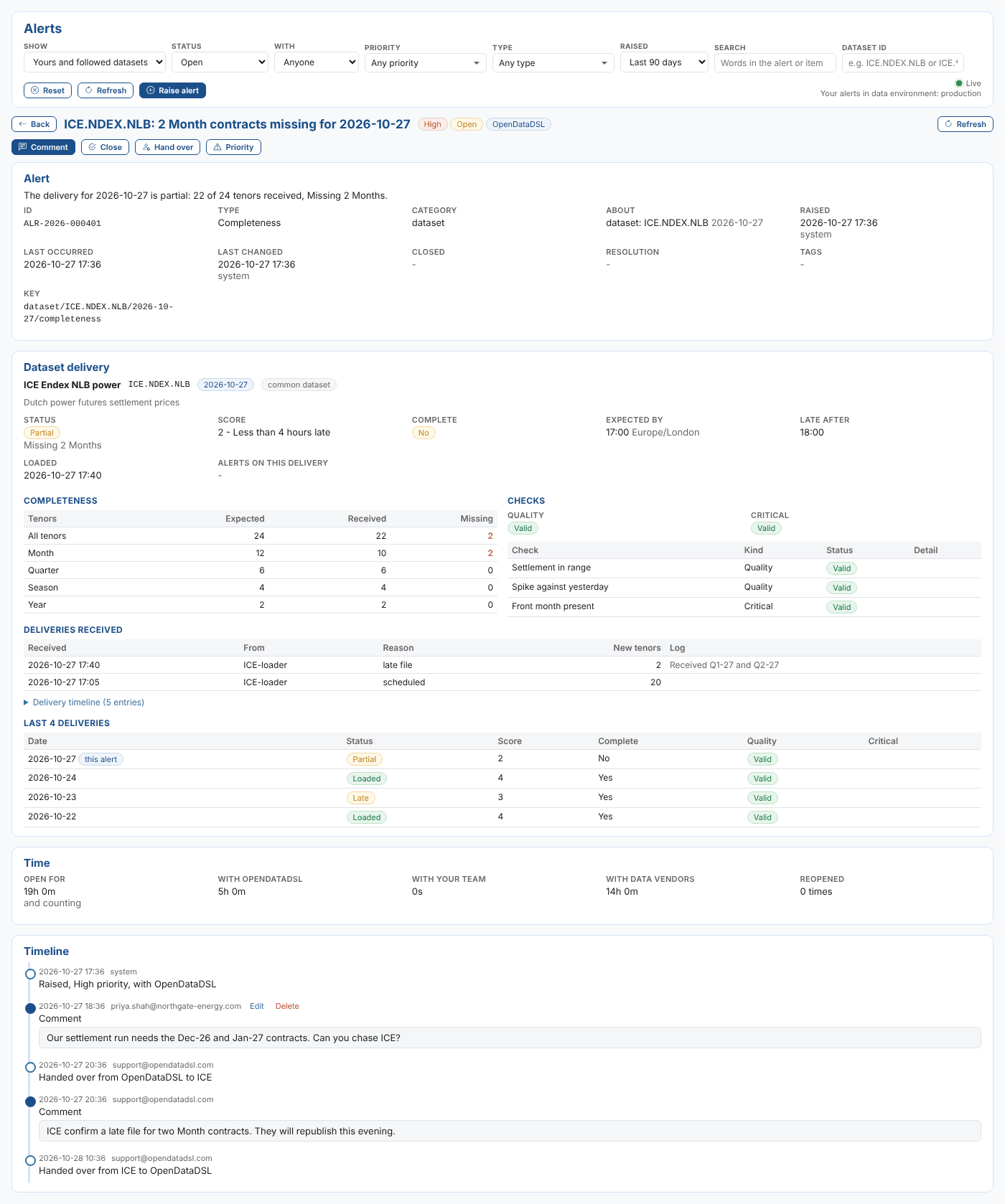
| Part | What it shows |
|---|---|
| Header | Title, priority, status, who it is with, and the action buttons (see Working with alerts) |
| Alert | The message and the facts: id, type, category, what it is about, when it was raised and by whom, last occurred, last changed, closed, resolution, tags and key |
| Dataset delivery | For an alert about a dataset delivery: the delivery behind it (see below) |
| Time | How long it has been open, and the time with OpenDataDSL, your team and data vendors. For an open alert the time with the current party is still counting |
| Timeline | Everything that happened, oldest first. Comments show their text; comments only your team and OpenDataDSL can see are marked |
Dataset delivery
For an alert about a dataset, the screen reads the delivery of that dataset for the alert's date, so you do not have to open the dataset to see what happened.
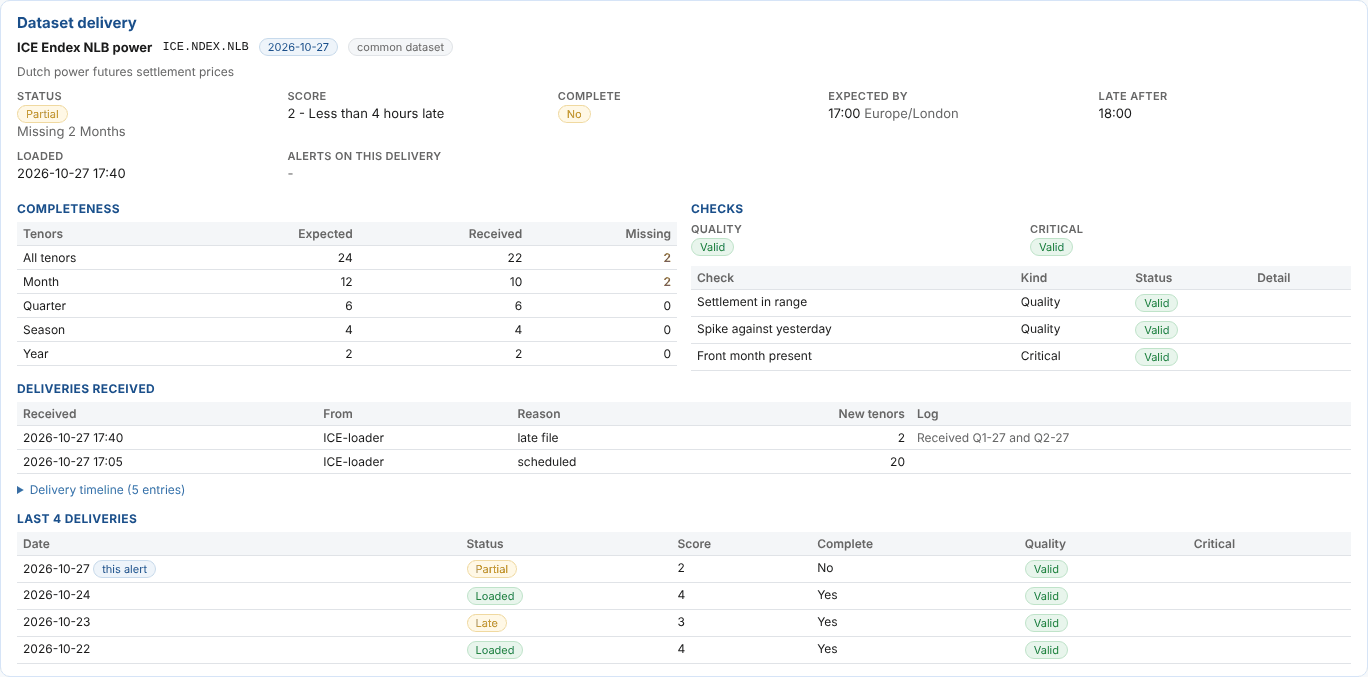
| Part | What it shows |
|---|---|
| Status | The delivery status (Loaded, Partial, Late, Missing and so on) with its detail, the score, whether it is complete, the expected and late times, and when it was loaded |
| Completeness | For each type of tenor, how many were expected, how many arrived and how many are missing. Missing tenors are in red |
| Checks | The quality and critical check results |
| Deliveries received | Each delivery that arrived, newest first: when, from where, why, and how many new tenors |
| Delivery timeline | The delivery's own log, newest first (select it to open) |
| Last deliveries | The last deliveries of the dataset, with this alert's date marked, so you can see whether the problem is new |
For a common dataset you follow, the delivery status comes from the common data and the check results from your own. If you cannot read dataset deliveries, the card says so and the rest of the alert is still shown.
Live updates
The Live mark at the top right means changes to your alerts appear as they happen: changed rows flash, the figures and list are read again, and an open alert shows what changed and by whom. If a dialog is open when the alert changes, a note asks you to refresh before you save.
Changes to shared alerts are not sent as they happen: the screen reads them again every 5 minutes. When the screen is not live (for example after a network problem) it reads everything every minute and says so.