Working with alerts
Open an alert on the Alerts screen to work on it. The buttons depend on the alert:
| Button | Your alerts | Shared alerts |
|---|---|---|
| Comment | Yes | Yes, seen only by your team and OpenDataDSL |
| Close | Open alerts | No |
| Reopen | Closed in the last 7 days | No |
| Hand over | Open alerts | No |
| Priority | Yes | No |
Every change is added to the timeline with your name and the time.
Raise an alert
Raise an alert to ask OpenDataDSL for help with your data, or to keep track of a problem your team is working on.
- Select Raise alert.
- Fill in the form and select Raise.
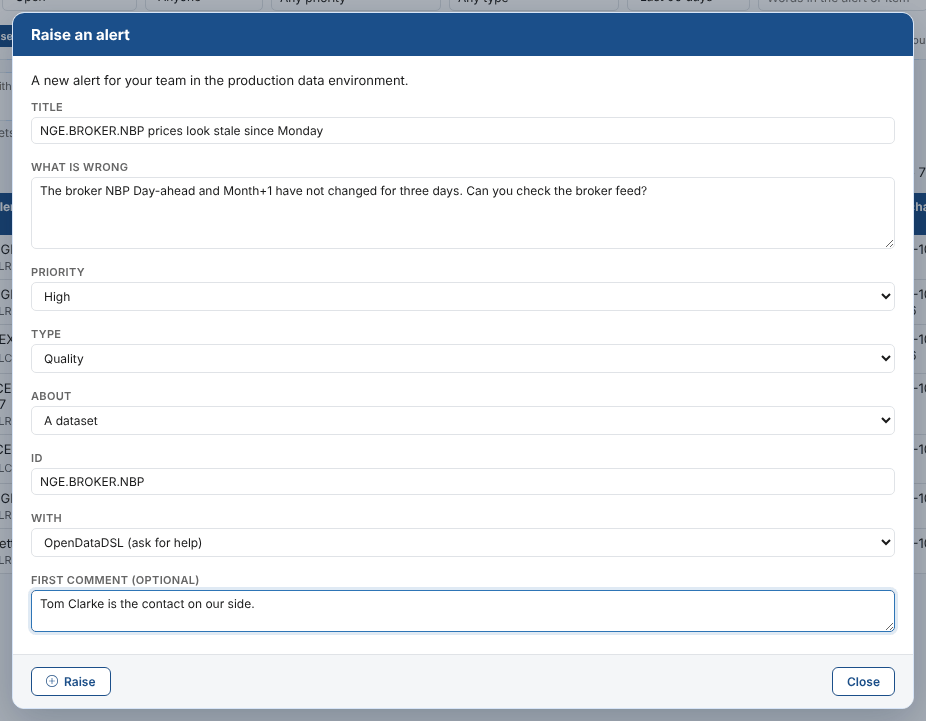
| Field | Example | Notes |
|---|---|---|
| Title | NGE.BROKER.NBP prices look stale since Monday | Required. Shown in the list |
| What is wrong | The broker NBP Day-ahead and Month+1 have not changed for three days | The message. The title is used when left empty |
| Priority | High | Critical, High, Medium (the default) or Low |
| Type | Quality | Optional |
| About | A dataset | A dataset, a curve, a timeseries or other data, a process, or nothing in particular |
| Id | NGE.BROKER.NBP | The id of the dataset, curve or other item. Required when About is set |
| With | OpenDataDSL (ask for help) | OpenDataDSL to ask for help, or Your team to track it yourselves |
| First comment | Tom Clarke is the contact on our side | Optional |
The alert is raised in the data environment you are working in and opens straight away.
Raise one alert per problem. If the same thing happens again while the alert is open, comment on it rather than raising another one. Scripts can use a key to do this for them: see Alerts in ODSL.
Comment
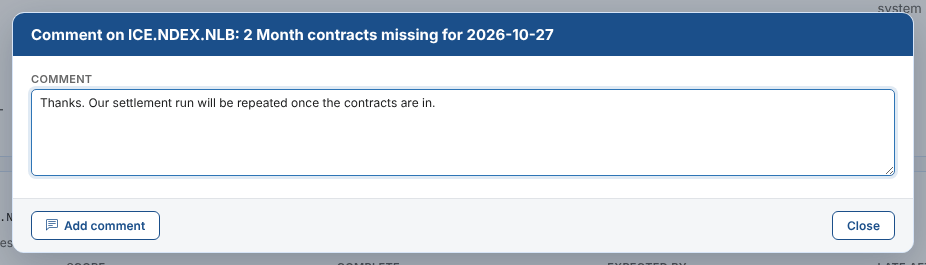
Select Comment, write the comment and select Add comment. Use comments to say what you have found, what you need, or what has been done.
You can edit or delete your own comments with the Edit and Delete links next to them. An administrator of your company can change your team's comments too. The earlier text of an edited comment is kept in the alert's history; a deleted comment shows as deleted, with who deleted it.
Hand over
Hand over changes who the alert is with.
| The alert is with | Hand over does | Comment |
|---|---|---|
| OpenDataDSL or a data vendor | Take it on: the alert is with your team, for example while you check your own data | Optional |
| Your team | Hand to OpenDataDSL when you need their help | Required: say what you need |
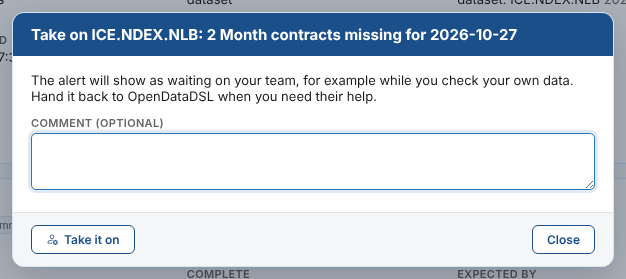
The screen hands alerts between your team and OpenDataDSL. OpenDataDSL hands an alert to a data vendor, such as ICE or EEX, when the vendor has to fix it, and back when the vendor has answered.
Change the priority
Select Priority, choose the new priority and, if you like, say why. The change is on the timeline.
Close and reopen
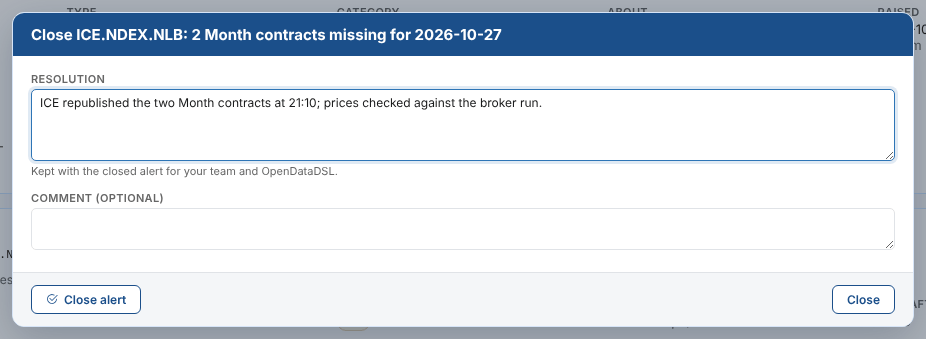
Select Close when the problem is solved. A resolution is required: what was wrong and what was done. You can add a comment too.
Some alerts close themselves. For example, a completeness alert raised by dataset monitoring closes with the resolution Dataset is now complete when the missing data arrives.
A closed alert can be reopened for 7 days with Reopen. After that, raise a new alert. If the platform raises an alert with the same key within those 7 days, the closed alert is reopened instead of a new one being created.
Shared alerts
Shared alerts are about common or public data, such as a settlement file that an exchange publishes late. OpenDataDSL raises and manages them once for everyone who uses the data.
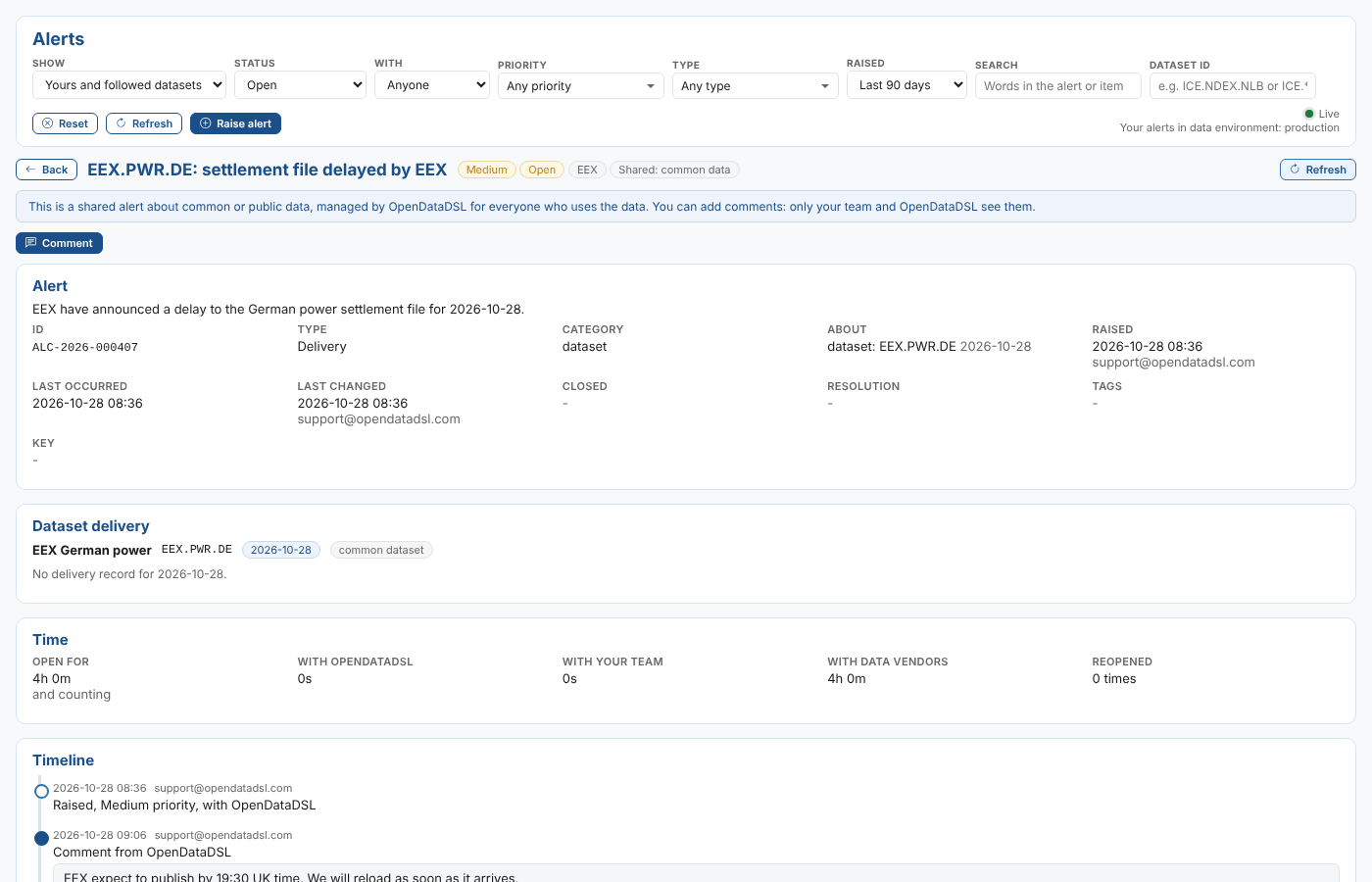
On a shared alert you can:
- read everything OpenDataDSL writes on it
- add comments. They are kept apart from the shared alert: only your team and OpenDataDSL see them, never other companies
- edit and delete your team's comments

Only OpenDataDSL can close, hand over or change the priority of a shared alert. If the problem affects you in a way that needs its own follow-up, raise an alert of your own and mention the shared alert's id in it.