Delivering exports
A scheduled export stores a report for each export date. A delivery sends that report on: when the report is stored, the platform turns it into the format you chose and sends it to an automation target. A delivery is an ordinary automation on the report, so any target your organisation has can receive exports: email, a queue, a webhook, Teams, or a target of your own.
Northgate Energy has two deliveries on its export: a CSV attachment to the ETRM support mailbox, and a JSON file for the ETRM's inbound folder.
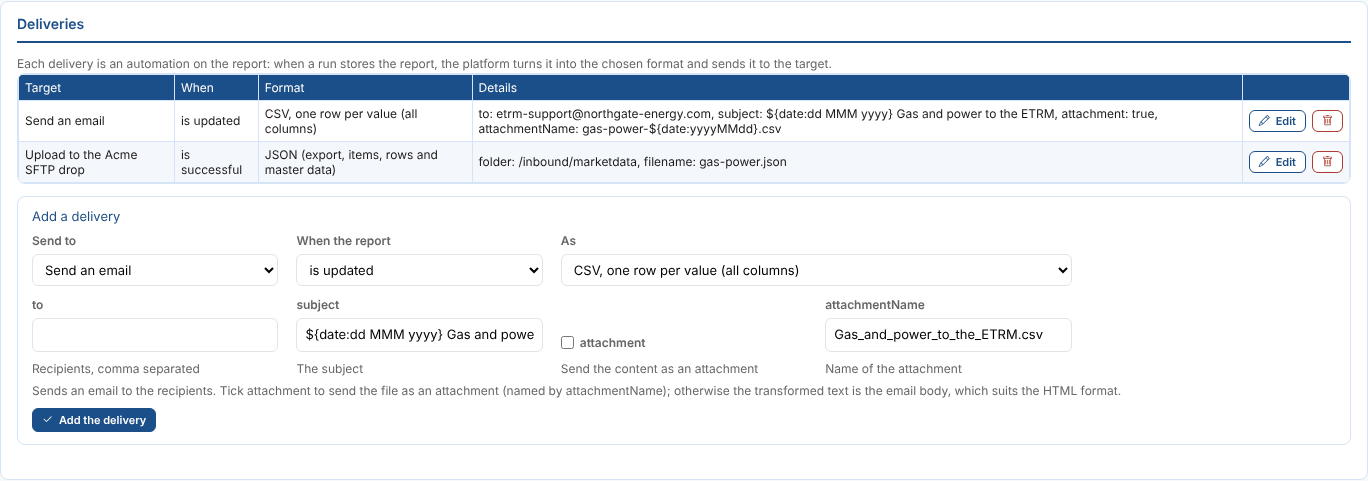
Add a delivery
Deliveries are on the schedule, below Runs, once the schedule is saved. Fill in Add a delivery:
| Field | Example | Notes |
|---|---|---|
| Send to | Send an email | The automation targets that can transform data before sending it |
| When the report | is updated | is updated and is successful both send every report a run stores. has failed is for reports stored with an error, which a scheduled export does not do: to hear about runs that stop, see the tip at the end of this page. |
| As | CSV, one row per value (all columns) | The output format, see below |
| The target's fields | to, subject, attachment, attachmentName | Each target asks for its own. The description under each field says what it is. |

For Send an email:
| Field | Example | Notes |
|---|---|---|
to | etrm-support@northgate-energy.com | One or more addresses, separated by commas. Recipients must be in your organisation's email domain unless your organisation allows others. |
subject | ${date:dd MMM yyyy} Gas and power to the ETRM | ${date:dd MMM yyyy} becomes the export date, here 19 Oct 2026 |
attachment | Ticked | Sends the file as an attachment. Unticked, the transformed text is the body of the email, which suits the HTML format. |
attachmentName | gas-power-${date:yyyyMMdd}.csv | The file name, with the export date if you like |
Select Add the delivery. Edit changes a delivery and the bin button deletes it.
Output formats
| Format | What the target receives |
|---|---|
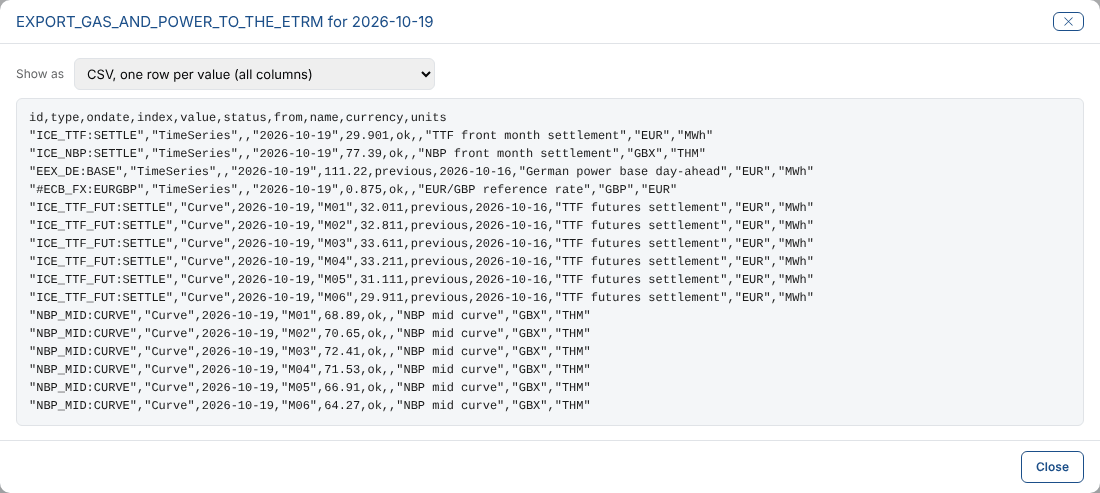
| CSV, one row per value (all columns) | id,type,ondate,index,value,status,from,name,currency,units |
| CSV with id, ondate, index and value | The four columns most systems need, as the platform's generic timeseries CSV template |
| CSV with a column per item | Timeseries rows by time, then curve rows by ondate and tenor, with a column per item. Needs the schedule layout One row per value, plus a column per item table. |
| CSV of the master data | id and a column per property |
| CSV of the events | event, eventid, eventtime and a column per field of the event lists, a row per event. Event times are in UTC. |
| Tab separated, one row per value | As the first CSV, with tabs |
| JSON | The export details, complete, the items with their status and message, the rows, the events (a field per column, numbers as numbers) and the master data objects |
| JSON Lines | One row per line |
| XML | An export element with item, value, event (with a field element per field) and object elements |
| HTML page with the summary and tables | The summary, items, values and events with inline styles, ready to be an email body |
The CSV, tab separated and JSON Lines formats other than CSV of the events write the timeseries and curve values only. For a schedule that exports event lists, send CSV of the events, or JSON, XML or HTML, which have everything. A schedule that only exports event lists offers CSV of the events first.
In every format status is ok, previous (with the date used in from) or missing, as set by your missing data rules. A missing value is empty in CSV and XML and null in JSON. In text values, double quotes become single quotes, backslashes become slashes and line breaks become spaces, so CSV and JSON never break.
For example, the JSON delivery for 19 October starts:
{
  "report": "EXPORT_GAS_AND_POWER_TO_THE_ETRM:2026-10-19",
  "name": "Gas and power to the ETRM",
  "ondate": "2026-10-19",
  "complete": false,
  "items": [
    {"id": "ICE_TTF:SETTLE", "type": "TimeSeries", "name": "TTF front month settlement", "status": "ok", "rows": 1, "from": "", "message": ""},
    {"id": "EEX_DE:BASE", "type": "TimeSeries", "name": "German power base day-ahead", "status": "previous", "rows": 1, "from": "2026-10-16", "message": "No values from 2026-10-19 to 2026-10-19. Used the value of 2026-10-16"}
  ],
  "rows": [
    {"id": "EEX_DE:BASE", "type": "TimeSeries", "ondate": "", "index": "2026-10-19", "value": 111.22, "status": "previous", "from": "2026-10-16", "currency": "EUR", "units": "MWh"}
  ]
}
complete is true only when every item was exported from its own data.
See what a delivery sends
On the schedule, select a date under Stored reports, then choose a format in Show as. The platform renders the stored report with that format, exactly as a delivery would.
How a delivery works
When a run saves the report for an export date, the platform raises the report's automations. A delivery's automation has the report's id in its condition, the target, the target's fields, and an @transformer: the output template, such as odsl-extensions\extensions\export\odsl.export.output.csv. The platform renders the stored report with the template and gives the result to the target.
Because deliveries are ordinary automations, they also show in the portal's Automations panel for the report, and an automation you add there with one of the output templates as its transformer works the same way.
To be told when an export stops because data is missing, add an automation on the export's process failing, for example an email to the data team. The process has the same id as the schedule.