Exporting data
An export reads the values of the items you choose in your browser, builds the tables, and downloads them as a file. Nothing is saved on the platform. To run the same export every day, schedule it.
Open the export
There are two ways in:
| Screen | How to open it | Items |
|---|---|---|
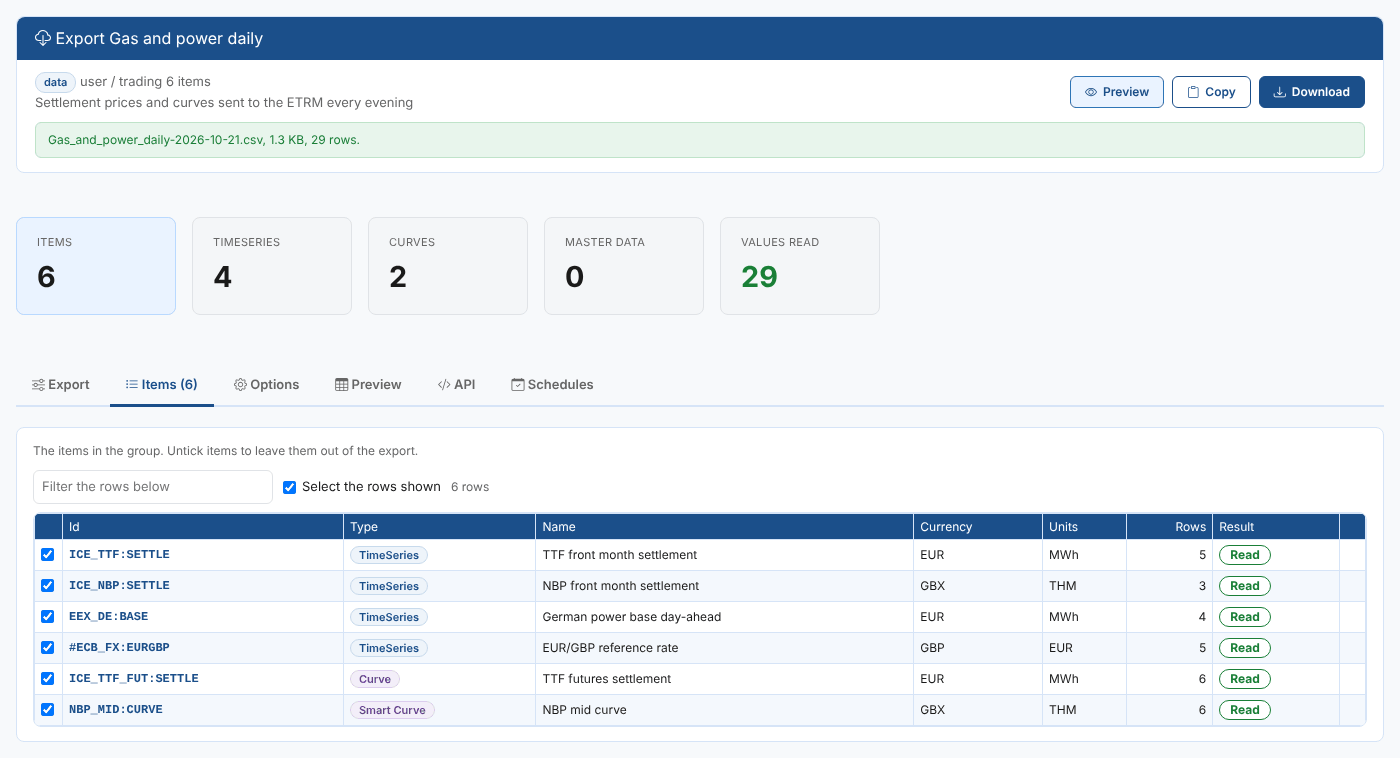
| Export app | Open Groups, select a group, then Apps and Export | The group's items. Untick any you want to leave out. |
| Export data | Operations, then Export data | Whatever you add on the Items tab |
Northgate Energy's market data team opens the group Gas and power daily and its Export app.
What each data type exports
| Type | What is exported |
|---|---|
| TimeSeries, smart timeseries, event timeseries | The values in the date range on the Export tab |
| Curves, smart curves, event curves, composed curves | The contracts of the curve for one ondate, the latest curve, or every curve in the date range (up to the number you set, latest first). With Tenors set, only those contracts. |
A curve saved for one ondate, such as ICE_TTF_FUT:SETTLE:2026-10-16 | That curve's contracts, also cut to the Tenors |
Event lists, such as NGE_TRADES:ETRM | The events whose event time is in the date range, a row each, with a column per field. You can filter the events on any other field and choose the fields to export. |
| Master data objects | Their properties, one column each. Properties inside another property are named with a dot, such as properties.country. |
The type of each item is shown on the Items tab. An item whose type cannot be found when the list loads is shown as Unknown and is read with the date range: what comes back decides how it is exported.
Add items on the Export data screen
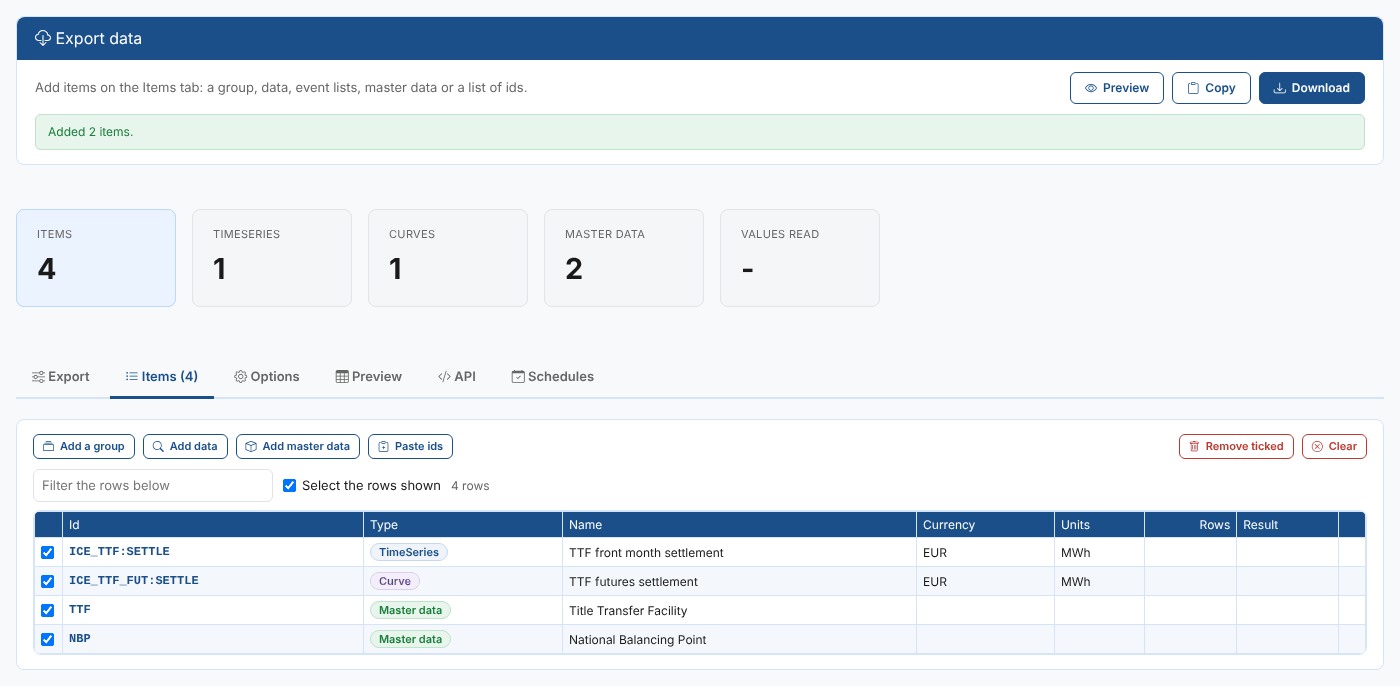
On Export data the list starts empty. Use the buttons on the Items tab:
| Button | What it adds |
|---|---|
| Add a group | The items of any group you can see |
| Add data | Timeseries, curves and event lists whose id contains the text you search for, private, public or both. Choose Event lists to find only those. |
| Add master data | Master data objects whose id contains the text |
| Paste ids | A list of ids, one per line or separated by commas. Choose whether they are data or master data. |
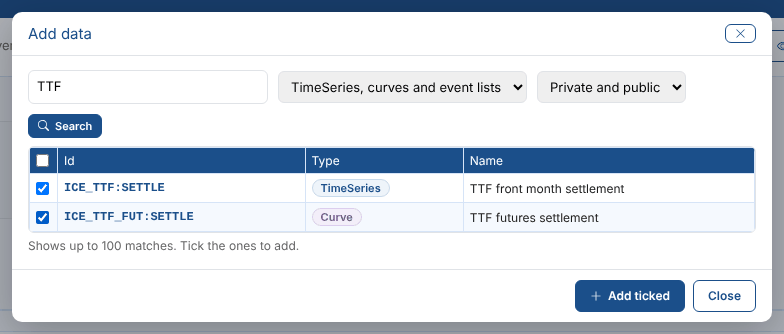
Tick the results you want and select Add ticked. Remove ticked and Clear take items out again. The filter box above the table shows only the rows containing every word you type, and Select the rows shown ticks or unticks just those rows.
Choose the values
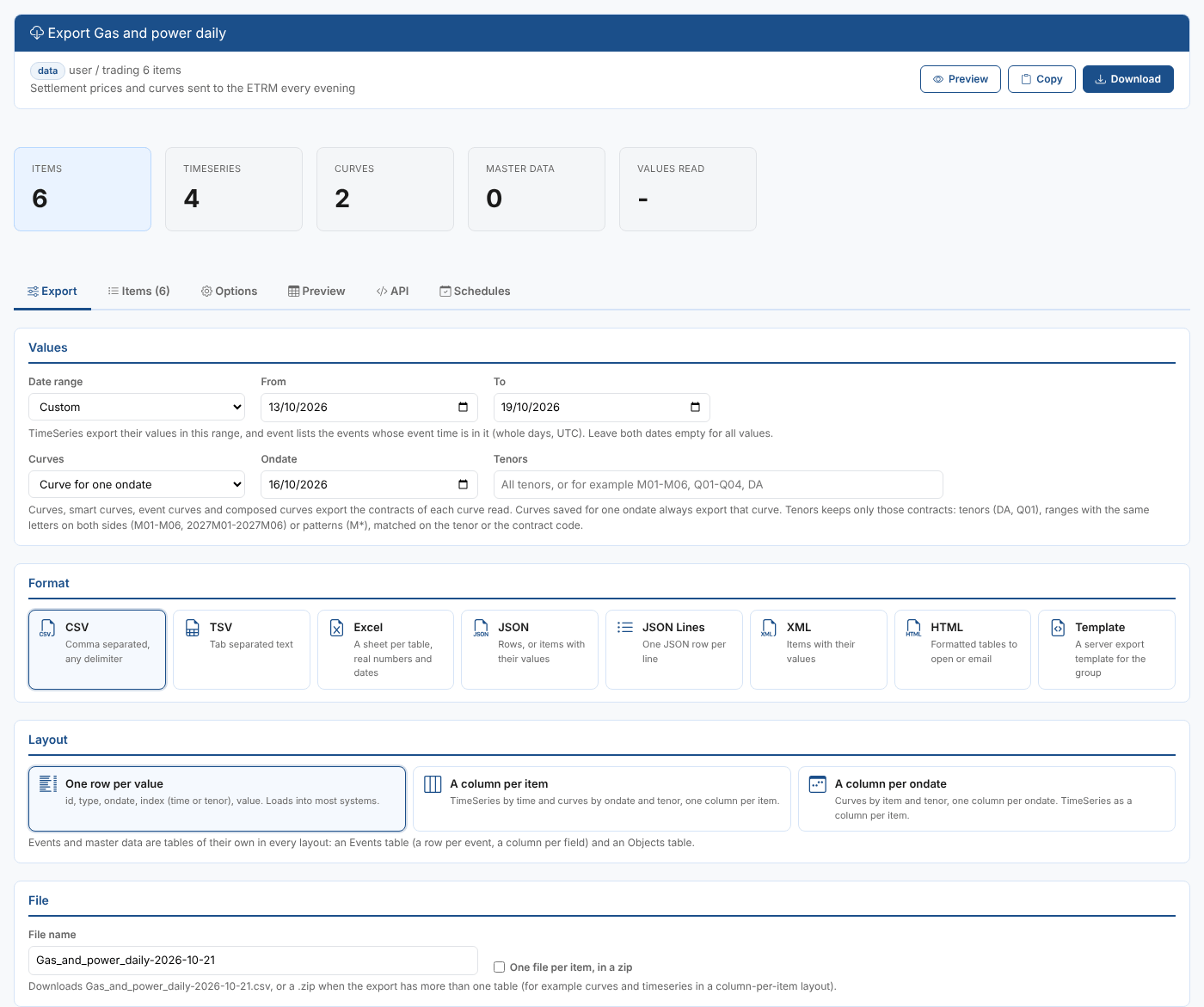
| Field | What it does |
|---|---|
| Date range | The timeseries values and the events to export: a preset such as Last 30 days or Last month, All values, or Custom with your own From and To. Events count by their event time, in whole days in UTC. |
| Curves | Latest curve, Curve for one ondate (with the Ondate), or Every ondate in the date range |
| Most ondates per curve | With every ondate in the range, only the latest this many curves are read for each curve |
| Tenors | Only these contracts of every curve. Leave it empty for all of them. |
Tenors
The ETRM at Northgate Energy only takes the first three months of the TTF futures curve, so the risk team sets Tenors to M01-M03. Separate the tenors with commas or spaces:
| You write | Keeps |
|---|---|
DA, BOM, Q01 | That tenor |
M01-M06 | A range: the same letters on both sides, and every number from the first to the last (M01 to M06) |
2027M01-2027M06 | A range of contract codes |
M* | Every tenor that starts with M. * stands for any text. |
Tenors are matched without regard to case, on the contract's tenor (M01) or its contract code (2026M11). M01-M03, Q01-Q04, DA keeps the first three months, the next four quarters and the day ahead. A range needs the same letters on both sides: 2026M11-2027M02 is not a range, so list the codes: 2026M11, 2026M12, 2027M01, 2027M02.

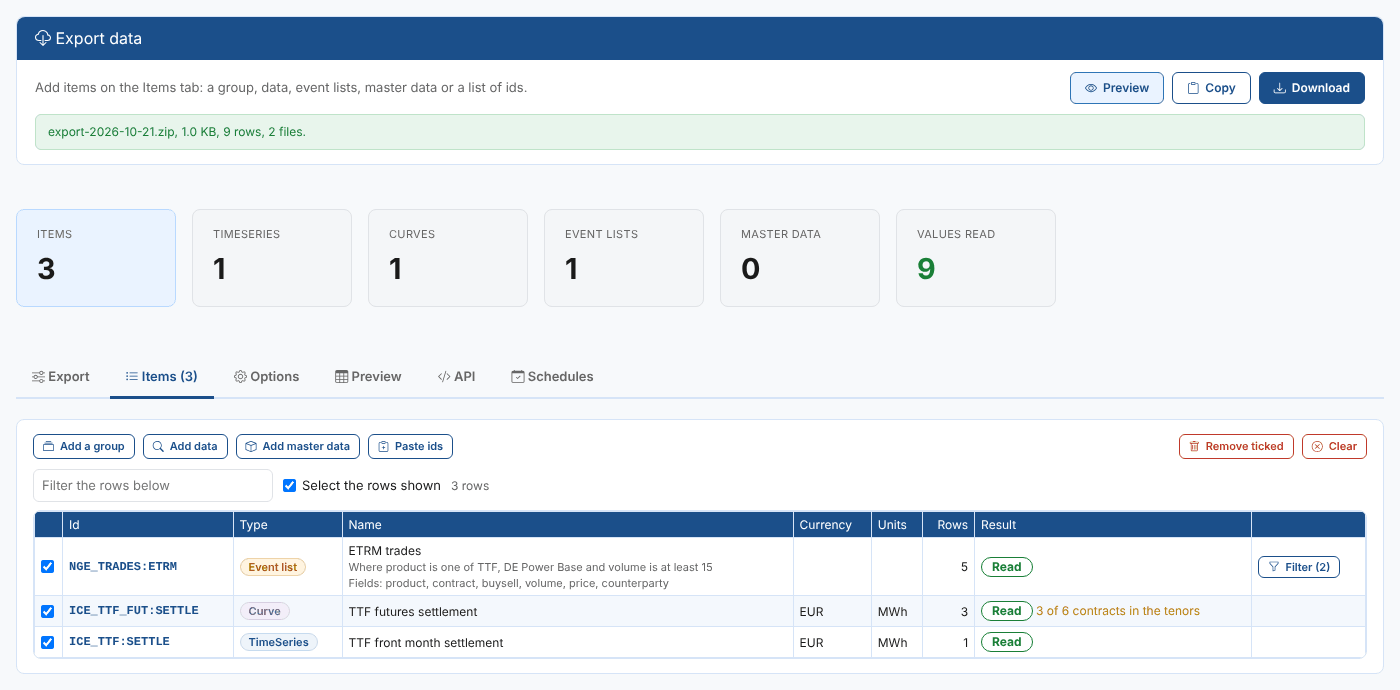
The Items tab shows how many contracts of each curve are in the tenors, for example 3 of 6 contracts in the tenors. Changing the tenors rebuilds the file from the curves already read.
Filter the events
An event list exports every event whose event time is in the date range. To keep only some of them, select Filter on the event list's row of the Items tab.
Northgate's risk system only wants TTF and German power trades of 15 MW or more, with six fields:
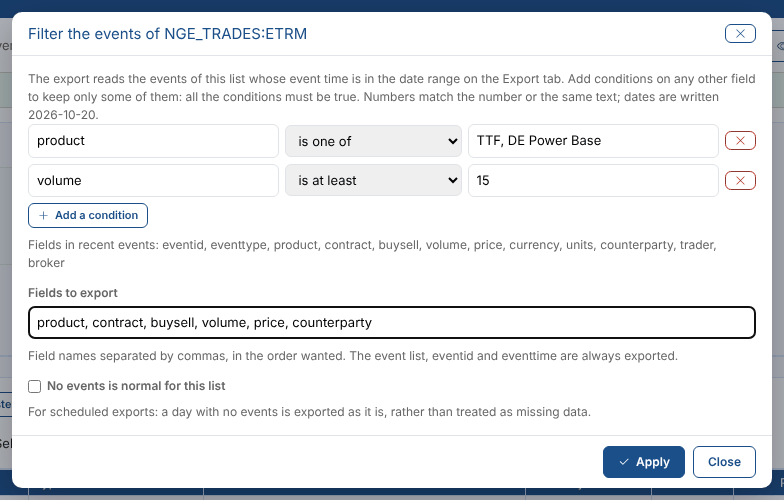
| Field | Example | Notes |
|---|---|---|
| Conditions | product is one of TTF, DE Power Base | Add a condition for each field to check. Every condition must be true. The fields of recent events of the list are listed under the conditions, and offered as you type. |
volume is at least 15 | ||
| Fields to export | product, contract, buysell, volume, price, counterparty | The fields in the order you want them. Leave it empty for every field. The event list, eventid and eventtime are always exported. |
| No events is normal for this list | Not ticked | For scheduled exports: a day with no events is exported as it is, rather than treated as missing data |
The conditions you can use:
| Condition | Matches events where the field |
|---|---|
| is, is not | Has (or does not have) the value |
| is one of, is not one of | Has one of the values, separated by commas |
| contains | Contains the text, in any case |
| is more than, is at least, is less than, is at most | Compares with a number, or a date such as 2026-10-20 |
| has a value, has no value | Is set, or is not |
A number matches the number or the same text, so volume is 15 finds both. The filter is applied by the platform, so only the matching events are read. The Items tab shows the conditions and fields under the event list's name.
Choose the format
| Format | What you get |
|---|---|
| CSV | Comma separated text. The delimiter, dates and decimal separator are set on the Options tab. |
| TSV | Tab separated text |
| Excel | An .xlsx workbook with a sheet per table, a frozen header row, filters, and real numbers and dates |
| JSON | The rows of the layout, or each item with its values (set on the Options tab) |
| JSON Lines | One JSON row per line |
| XML | Each item with its values: timeseries with value elements, curve with ondate and contract elements, events with event and field elements, object with property elements |
| HTML | A page of formatted tables to open in a browser or attach to an email |
| Template | The platform renders the whole group with a server export template. Only for a group with every item ticked. The standard templates export timeseries only. |
When a CSV or TSV export has more than one table, for example timeseries and curves in a column per item layout, or values and events, it downloads as a zip with a file per table. One file per item, in a zip gives a separate file for each item in any format.
Choose the layout
| Layout | Columns |
|---|---|
| One row per value | id, type, ondate, index and value. index is the time of a timeseries value or the tenor of a curve contract. This layout loads into most systems. |
| A column per item | Timeseries by time and curves by ondate and tenor, with a column for each item |
| A column per ondate | Curves by item and tenor, with a column for each ondate. Timeseries as a column per item. |
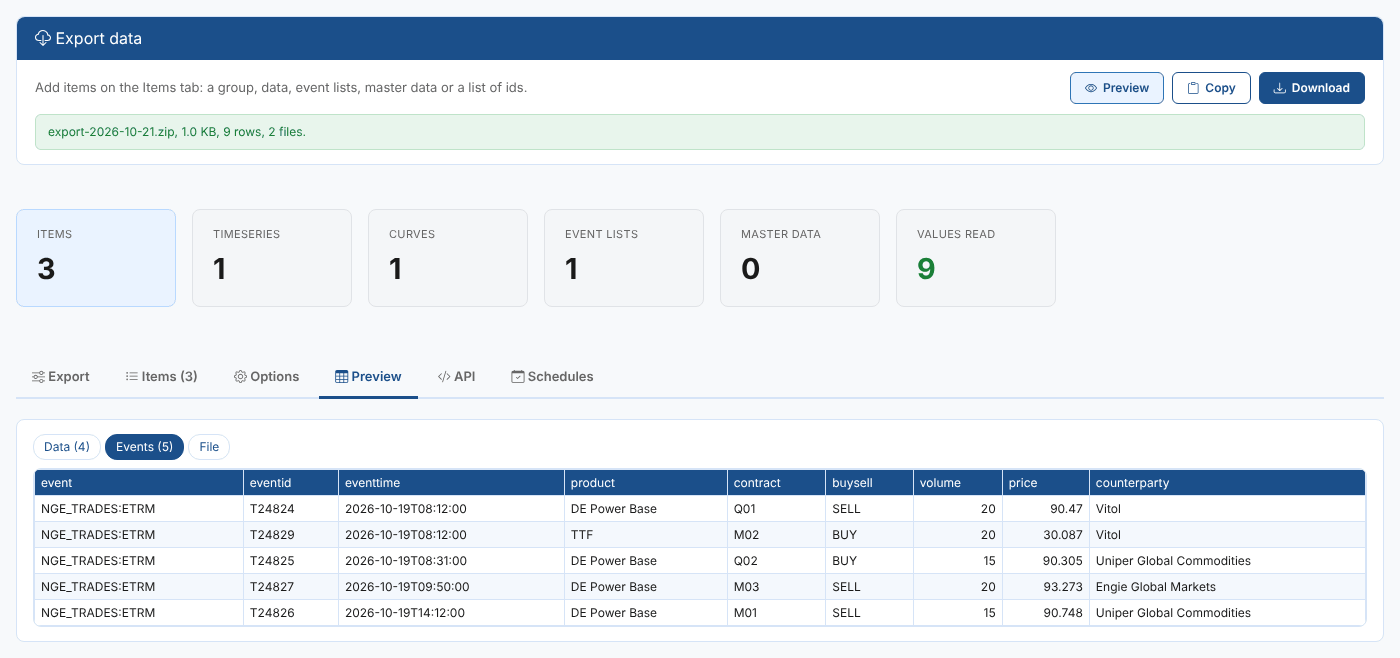
Events and master data are always tables of their own in every layout: an Events table with a row per event and a column per field, and an Objects table with a column per property.
Options
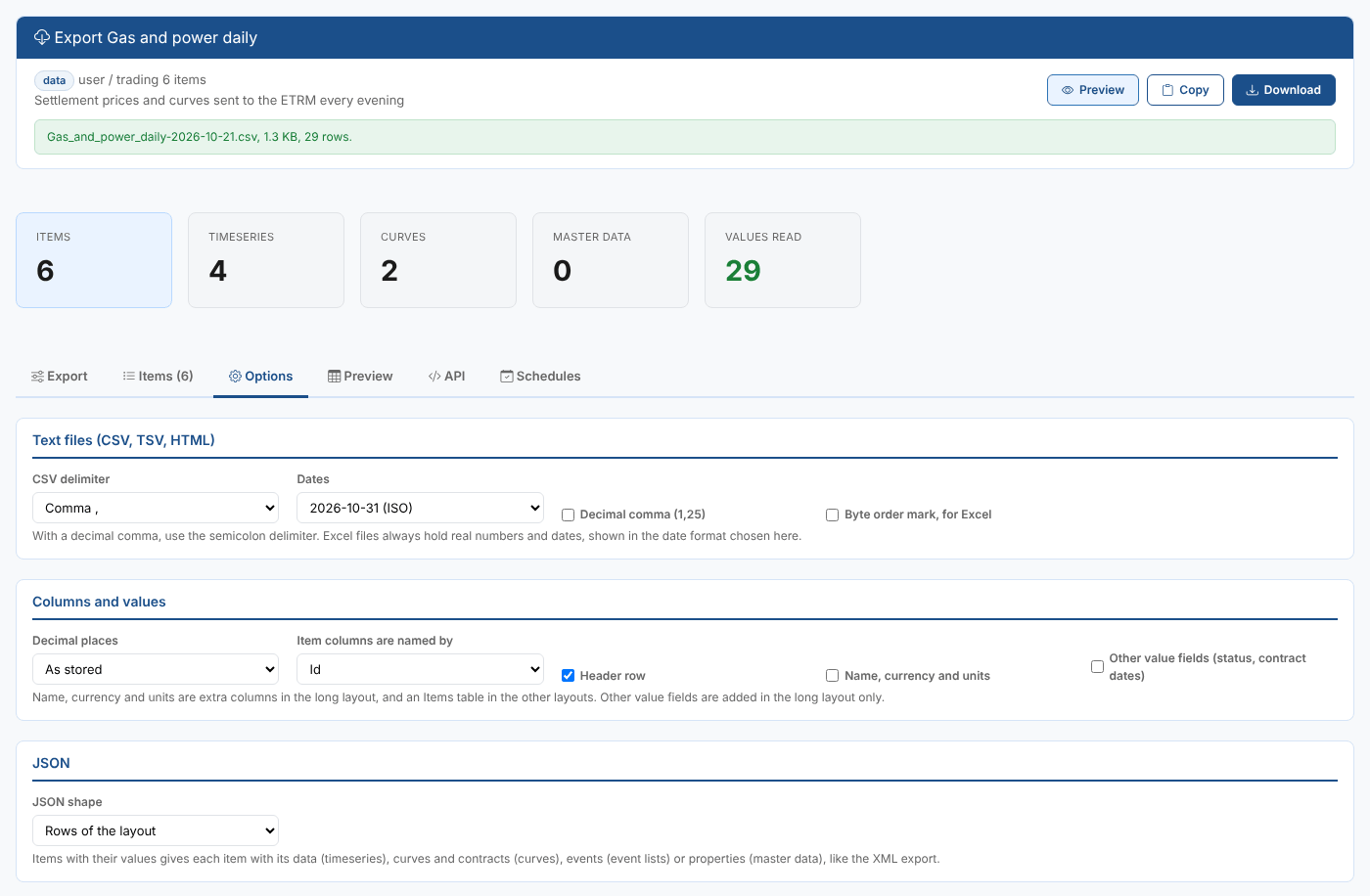
| Option | What it does |
|---|---|
| CSV delimiter | Comma, semicolon, pipe or tab |
| Dates | 2026-10-31, 31/10/2026 or 10/31/2026 in CSV, TSV and HTML. Excel shows real dates in the same format. |
| Decimal comma | Writes 1,25 instead of 1.25. Use it with the semicolon delimiter. |
| Byte order mark, for Excel | Helps Excel open a CSV with accented characters correctly |
| Decimal places | Rounds numbers in every format, or leaves them as stored |
| Item columns are named by | The id or the name of each item, in the column layouts |
| Header row | Leave it out for systems that do not expect one |
| Name, currency and units | Extra columns in the long layout, or an Items table in the column layouts |
| Other value fields | Fields such as a value's status, or a contract's start and end dates and contract code (absolute), in the long layout |
| JSON shape | Rows of the layout, or Items with their values: each item with its values, curves or events |
Preview and download
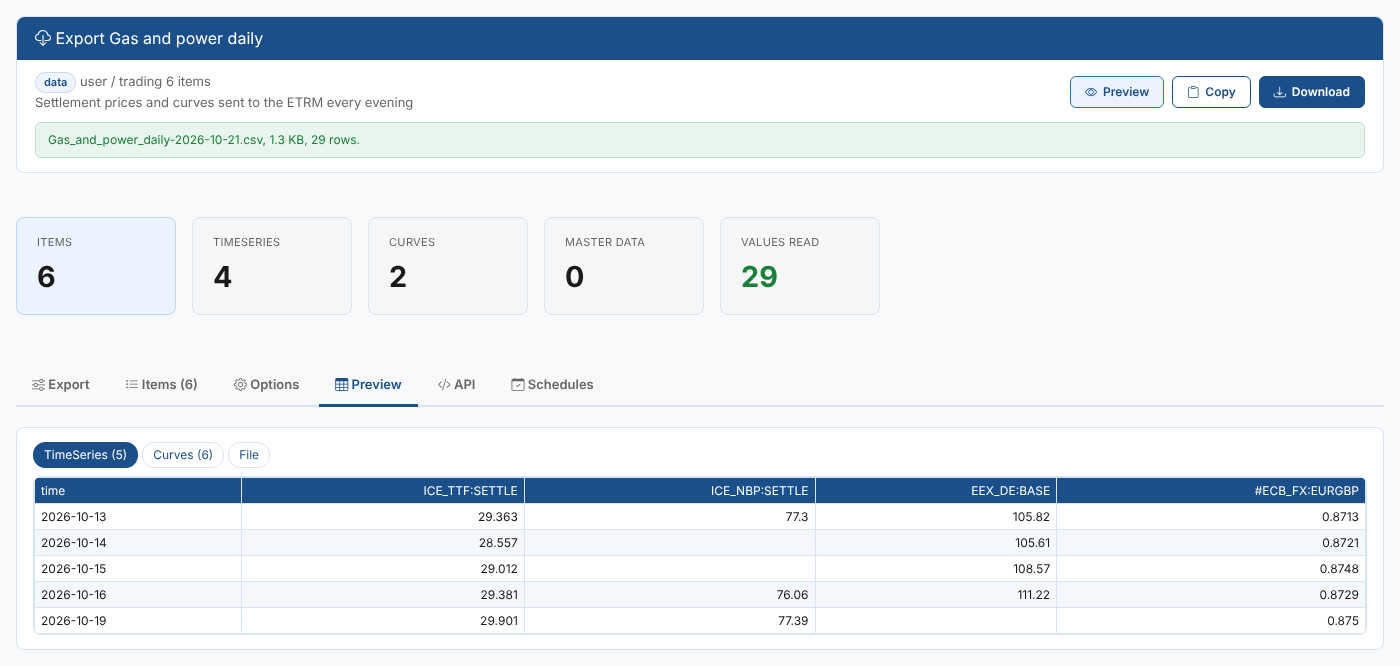
Select Preview to read the values and see each table, and the file text, on the Preview tab. Download saves the file and Copy puts a text format on the clipboard. Changing the format, layout, options, tenors or the fields to export rebuilds the file without reading the values again. Changing the items, dates, curve settings or event conditions reads them again.
Any item that could not be read is shown on the Items tab with the platform's reason, and the rest are still exported.
Your settings are remembered in your browser, so the next export starts the same way.
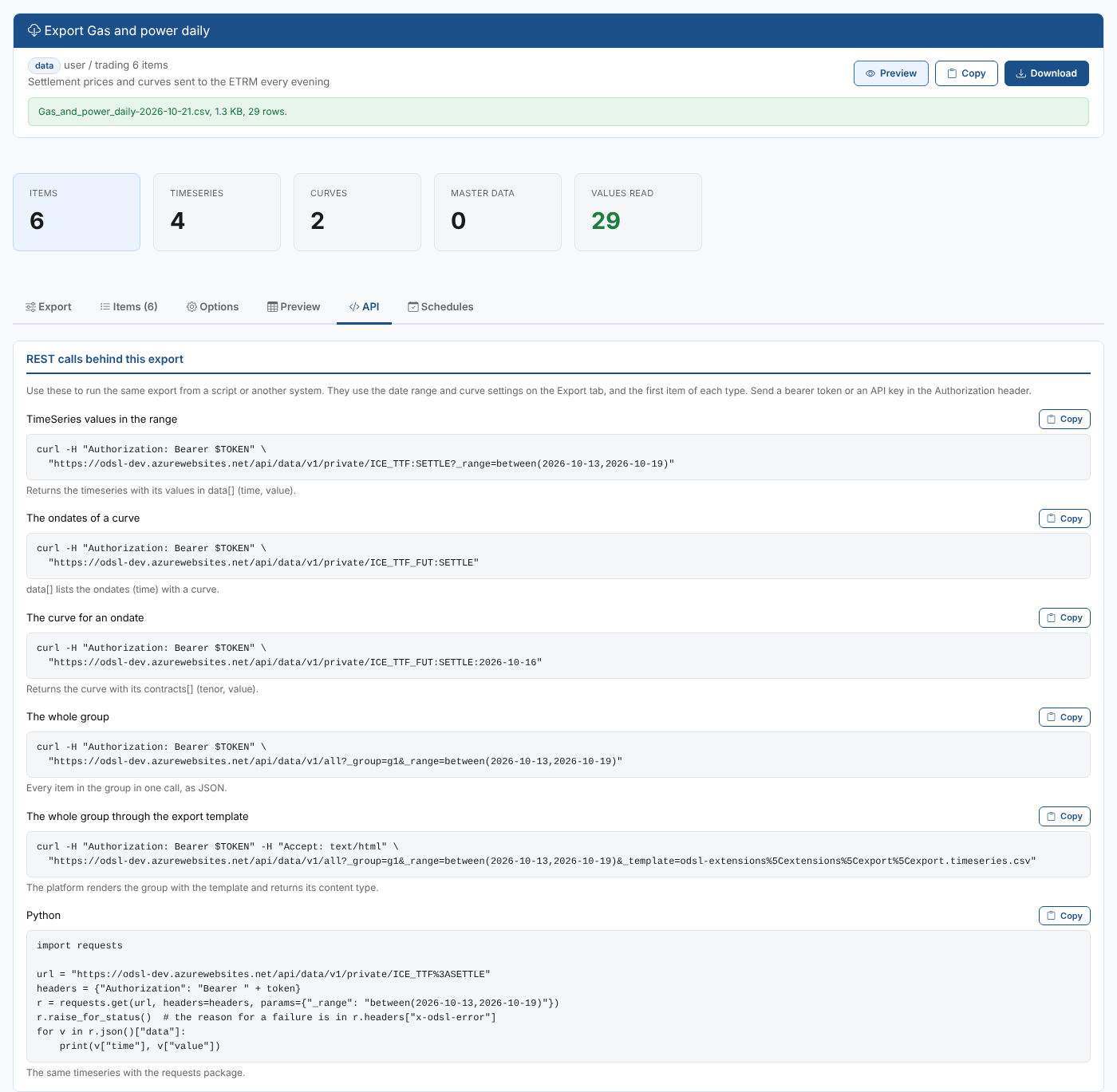
The REST calls behind an export
The API tab shows the calls the export makes, with your current dates and the first item of each type: timeseries values in a range, the ondates of a curve, a curve for an ondate, the events of an event list with its filter, a master data object, and the whole group. The platform always returns every contract of a curve: the tenor filter is applied by the export. Use them to fetch the same data from a script or another system. There is also a Python example.