Scheduling an export
A scheduled export runs on the platform, not in your browser, so it happens whether or not anyone is logged in. Each run reads the items for its export date, applies your missing data rules, and stores the result as a report for that date. Deliveries then send the report wherever it is needed.
Northgate Energy's ETRM loads the day's settlement prices and curves at 21:00 UK time. The market data team schedules the export at 18:00, with retries in case a curve is late.
1. Start from an export
Open the export you want to schedule, as on Exporting data: here the Export app of the group Gas and power daily. The schedule starts from what is on the Export, Items and Options tabs, so set the date range and curve settings there first if you like. Then open the Schedules tab and select Schedule this export.

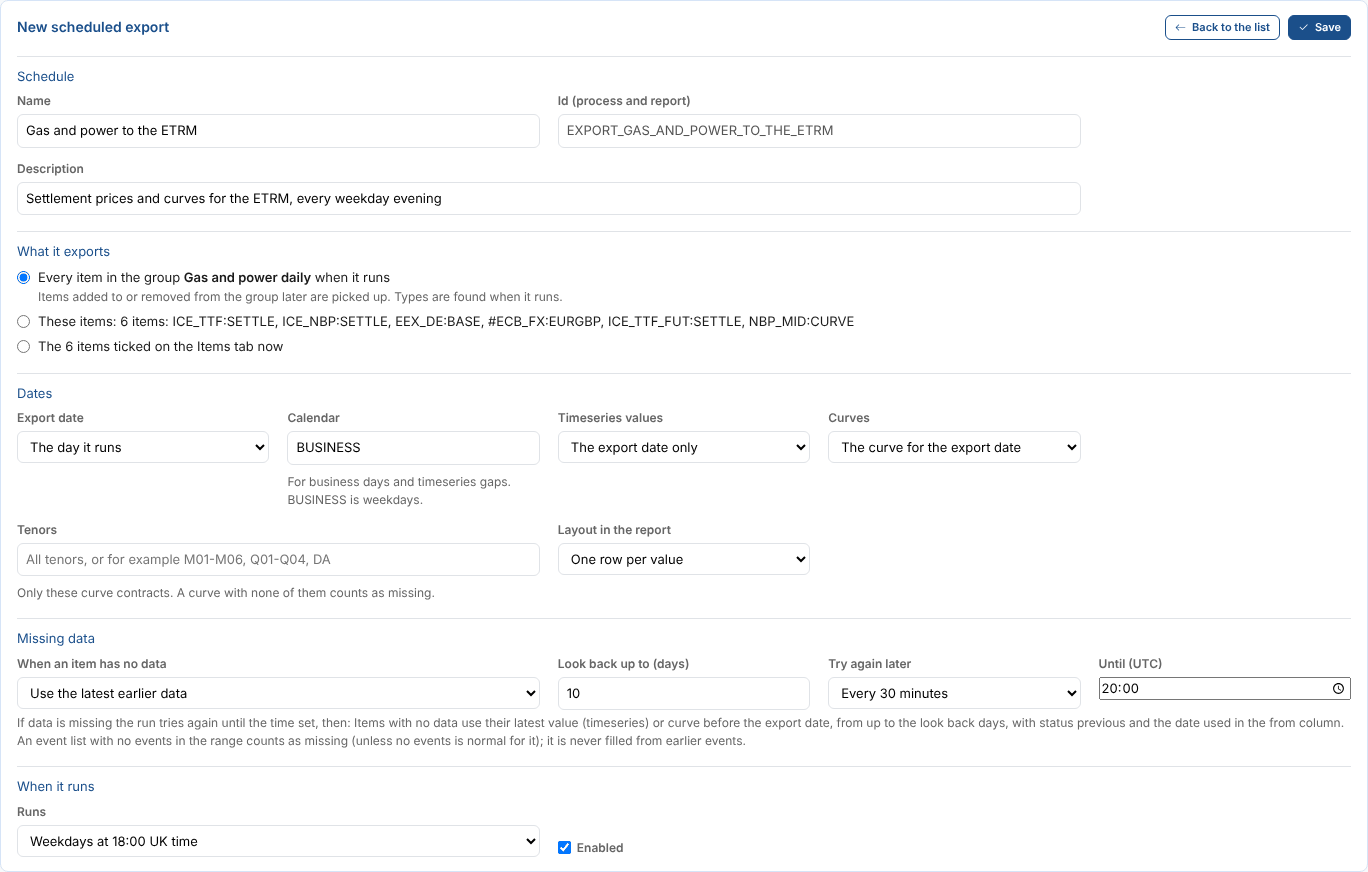
2. Name the schedule
| Field | Example | Notes |
|---|---|---|
| Name | Gas and power to the ETRM | Shown in the list and on the report |
| Id (process and report) | EXPORT_GAS_AND_POWER_TO_THE_ETRM | Made from the name. The process and the report both use it, and it cannot be changed later. |
| Description | Settlement prices and curves for the ETRM, every weekday evening | Shown on the report |
3. Choose what it exports
| Choice | When to use it |
|---|---|
| Every item in the group ... when it runs | The group decides. Items added to or removed from the group later are picked up, and their types are found when the export runs. Only offered when you started from a group. |
| These items | A fixed list, the items ticked when the schedule was made |
| The items ticked on the Items tab now | Replaces the saved list with what is ticked now |
Northgate Energy exports every item in the group, so a new curve only has to be added to the group.
An event list in a fixed list keeps the filter it had on the Items tab: its conditions, the fields to export and whether no events is normal. The list shows its conditions. To change them, change the filter on the Items tab and choose The items ticked on the Items tab now. An event list in a group is exported with every event and field.
4. Choose the dates
| Field | Example | Notes |
|---|---|---|
| Export date | The day it runs | The date each run exports: the day it runs, the business day before, or two business days before. A run early on Tuesday morning with The business day before exports Monday. |
| Calendar | BUSINESS | The calendar for business days, and for gaps in a timeseries range. BUSINESS is weekdays. |
| Timeseries values | The export date only | Or the last days up to the export date, month to date, the previous month, or fixed dates. Event lists export the events whose event time is in the same days (UTC). |
| Curves | The curve for the export date | Or the latest curve on or before the export date, or every curve in the timeseries range |
| Tenors | Empty | Only these contracts of every curve, such as M01-M03, Q01, written as on the Export tab. A curve with none of them counts as missing. |
| Layout in the report | One row per value | Choose One row per value, plus a column per item table if a delivery needs the column per item CSV |
5. Choose what happens when data is missing
Set When an item has no data, Gaps inside a timeseries range and Try again later. These are explained on Handling missing data. Northgate Energy tries again every 30 minutes until 20:00 UTC, then uses the latest earlier data, looking back up to 10 days.
6. Choose when it runs
| Runs | Cron |
|---|---|
| Weekdays at 08:00 UK time | 0 8 * * MON-FRI * EU1 |
| Weekdays at 18:00 UK time | 0 18 * * MON-FRI * EU1 |
| Weekdays at 19:30 UK time | 30 19 * * MON-FRI * EU1 |
| Weekdays at 07:00 Central European time | 0 7 * * MON-FRI * EU2 |
| Every day at 06:00 UTC | 0 6 * * * * UTC |
| Mondays at 08:00 UK time | 0 8 * * MON * EU1 |
| The first of each month at 08:00 UK time | 0 8 1 * * * EU1 |
Or choose Custom cron and write your own: minute, hour, day of the month, month, day of the week, year and time zone (UTC, EU1 for UK time, EU2 for Central European time). See CRON expressions. Not scheduled (run it yourself) keeps the schedule for Run now only. Untick Enabled to pause it.
Select Save. The extension saves the report configuration and the process, and the process is scheduled.
7. Run it and check the report
Below the schedule, Runs has Run now, and Run for this date to export an earlier date, for example to resend a day that went wrong. A run for an earlier date does not retry.
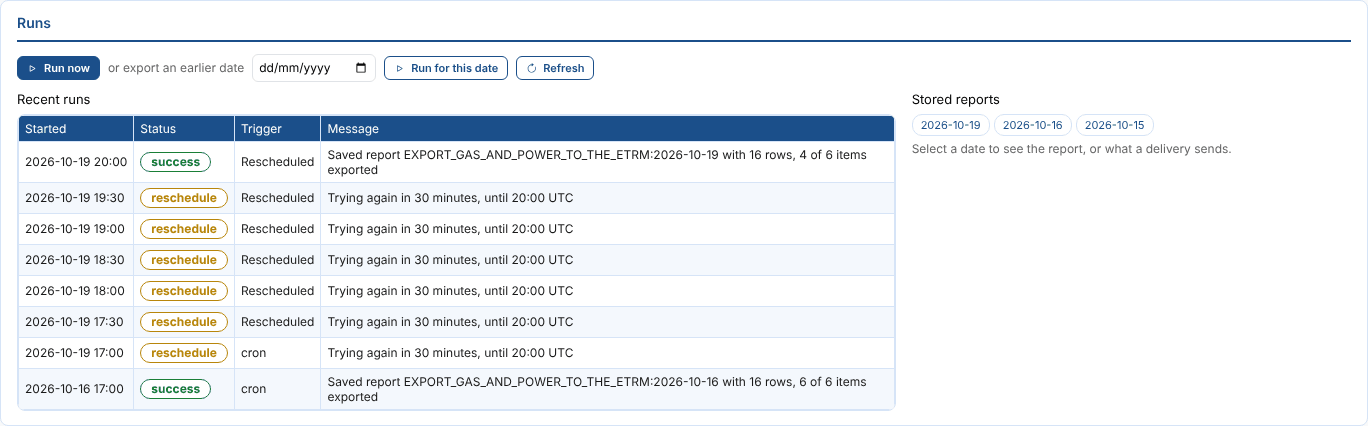
Recent runs shows each run of the process with its status, what started it (cron, manual or Rescheduled) and its message. Times are UTC. On 19 October the 18:00 UK time run (17:00 UTC) found two items without data, so it tried again every 30 minutes. At 20:00 UTC another try would have been after the retry time, so that run used the latest earlier data for the two items and stored the report.
Stored reports lists the export dates with a report. Select one to see it:
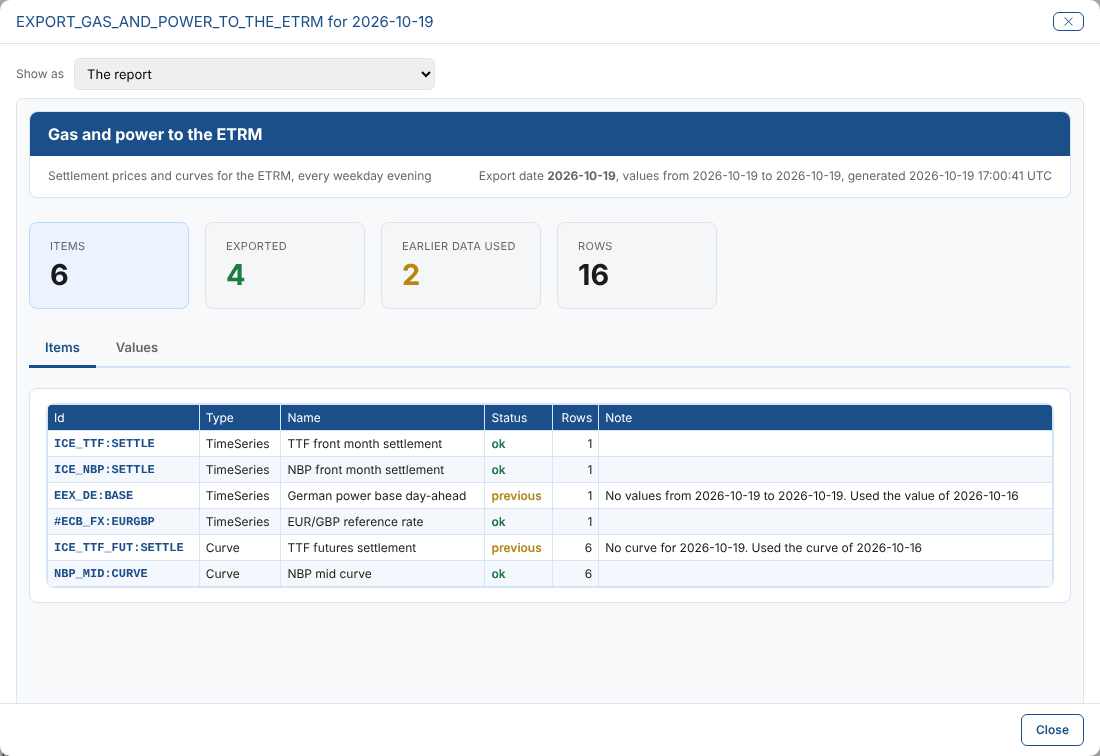
The report shows how many items were exported, how many used earlier data, are missing or failed, and on the Items tab what happened to each one and why. The same report is on the portal's Reports screen, in the category Exports.
Change, pause or delete a schedule
Select Open in the list to change a schedule, then Save. Untick Enabled to pause it. Delete removes the process, the report configuration and the schedule's deliveries. Reports already stored are kept.
Next
Handling missing data explains each rule, and Delivering exports sends each stored report to the ETRM.