Creating and changing groups
Open Group Manager from the Manage menu. The list on the left shows every group shared with you and your own, with filters for the kind, the service, static or dynamic and who can see it. Search finds text in the name, description, category and in the items, so typing a curve id finds the groups it is in. Select a group to open it on the right.
Creating a group
- Select New group.
- Choose what the group is for, then Next.
- Fill in the settings and the members.
- Select Create.
Nothing is stored until you select Create. Priya creates a list of every German power curve:
| Field | Example | Notes |
|---|---|---|
| Name | German power curves | Unique for the service, type and category |
| Description | Every German power curve, found from its master data | |
| Service | Curves, timeseries and event lists (data) | |
| Type | favourite | |
| Category | Power |
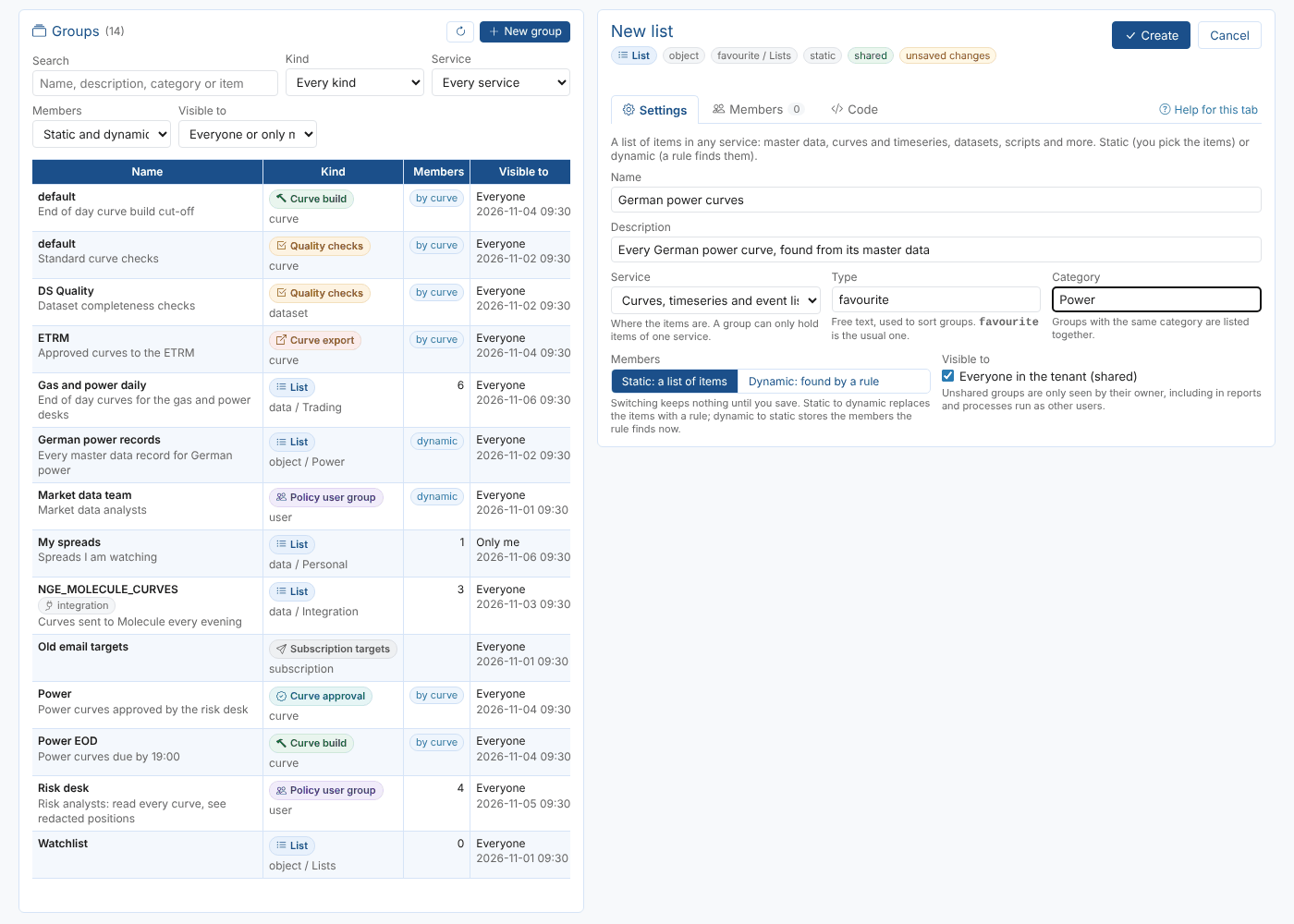
If a group with the same service, type, category and name already exists, Group Manager says so and asks for another name.
Settings
The Settings tab shows the fields for the kind of group. Changes are kept on the screen, marked unsaved changes, until you select Save; Undo changes goes back to the stored group. Every save keeps the previous version (see History).
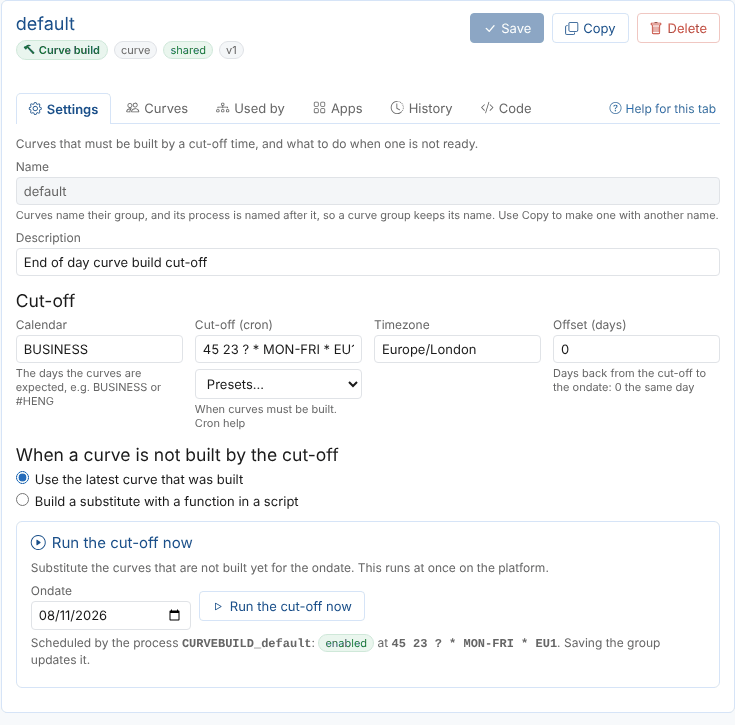
A curve build group has its cut-off, calendar and what to do when a curve is late. The Presets list fills in common cut-off times; see Cron expressions for others.
| Kind | Settings |
|---|---|
| List | Service, type, category, static or dynamic, shared |
| Policy user group | Name and description (always static and shared) |
| Curve build | Calendar, cut-off (cron), timezone, offset, latest curve or substitute script and expression |
| Quality checks | Members are curves or datasets, the script and the list of checks (name and expression) |
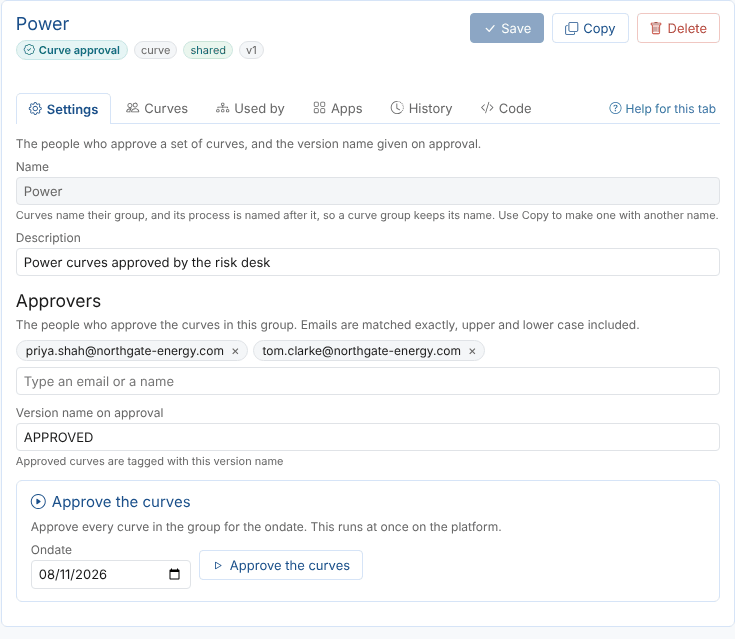
| Curve approval | Approvers (emails, with suggestions from the tenant's users) and the version name on approval |
| Curve export | Enabled, schedule (cron), calendar, offset, curve version, script and expression |
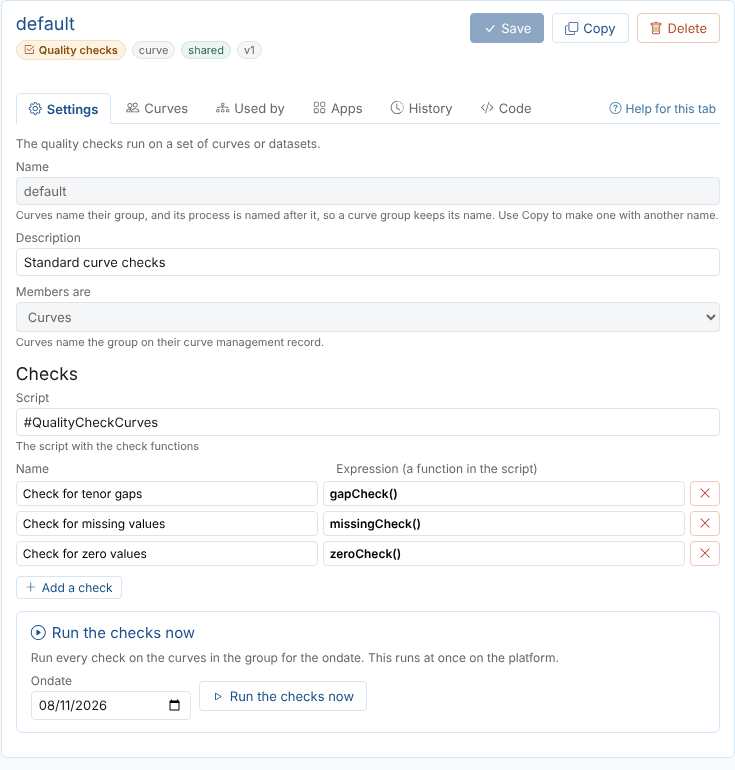
Curve groups also have a Run now panel: run the build cut-off, run the checks, export the curves or approve them for an ondate. These run at once on the platform.
Static or dynamic
A list can switch between Static: a list of items and Dynamic: found by a rule on the Settings tab.
| Switch | What happens when you save |
|---|---|
| Static to dynamic | The stored items are replaced by the rule you write on the Members tab |
| Dynamic to static | The group stores the items the rule finds now. Items that match the rule later are not added |
Renaming a policy user group
Policies name a policy user group by its name, so renaming it would leave them naming a group that no longer exists. When you save a new name, Group Manager lists the policies that name the old one and offers to update them.
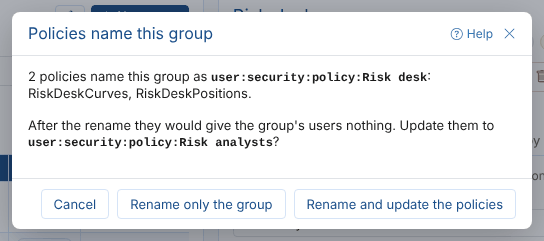
| Choice | What it does |
|---|---|
| Rename and update the policies | Saves the group, then replaces the old member with the new one in each policy, keeping their other members |
| Rename only the group | The policies keep the old name and give the group's users nothing until they are changed |
Copying a group
Copy opens a copy of the group as a new, unsaved group, with the name you give it. For lists you choose whether to copy the items; for curve groups the settings are copied but not the curves. Check the copy, then select Create.
Deleting a group
Delete shows what uses the group and asks you to type its name. The group and all its versions are deleted; this cannot be undone.
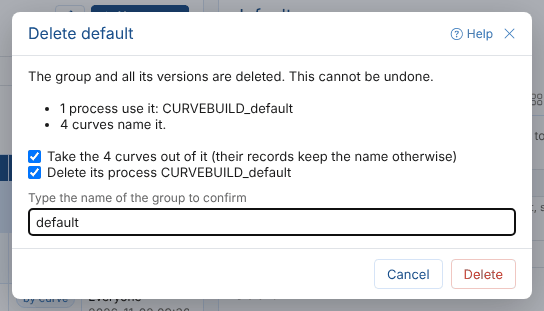
| Option | Shown when |
|---|---|
| Take it out of the policies | Policies name a policy user group |
| Take the curves out of it | Curves name a curve group (otherwise their records keep the old name) |
| Delete its process | A build or export group has a CURVEBUILD_ or CURVEEXPORT_ process |
Processes, exports and integrations that use a list by its id stop working when it is deleted. Check the Used by tab first.