Members
The Members tab (Curves or Datasets for curve management groups) shows what is in the group and how to change it.
Static members
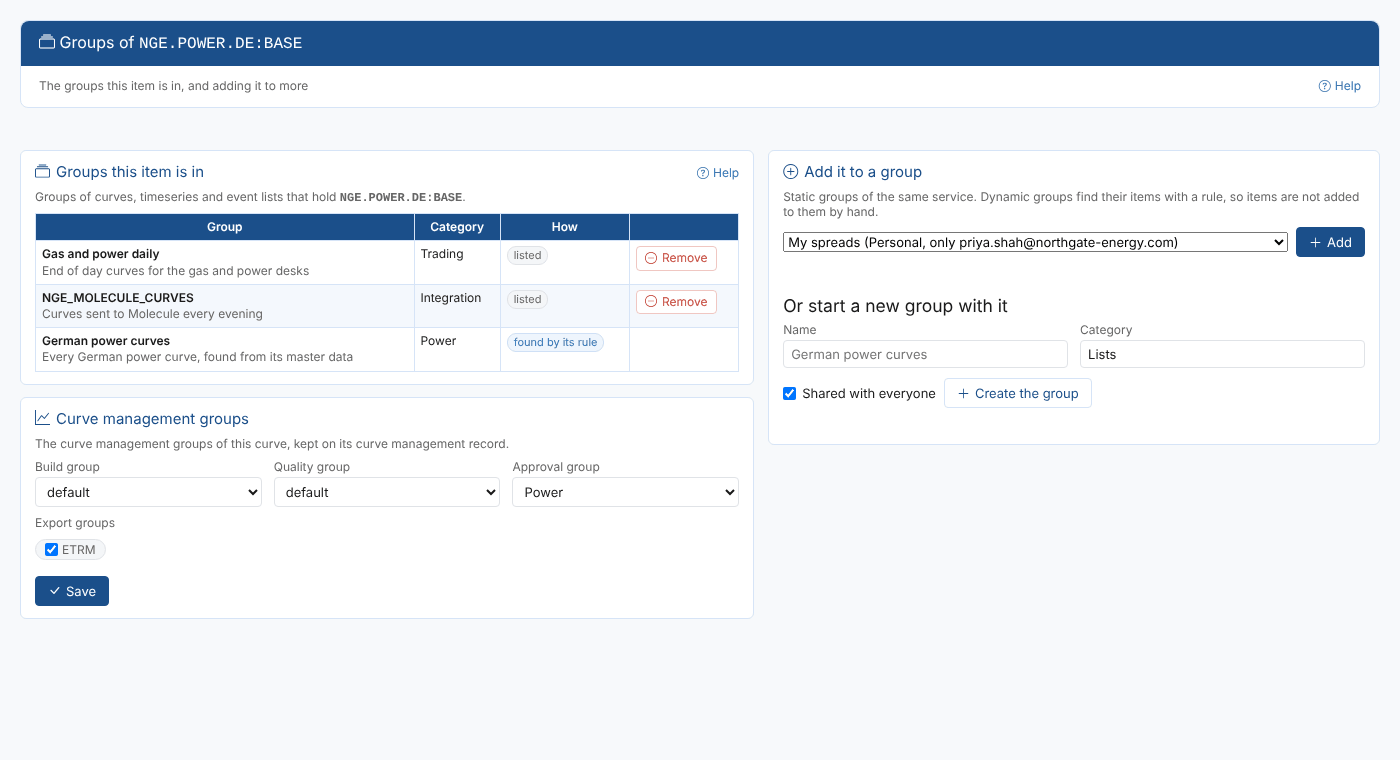
Type in the box to search the group's service by id or name and pick an item, or type a whole id and press Enter. The table lists the items with a filter box, a tick box per row, Remove selected and a remove button per item. Changes are kept on the screen until you save the group.
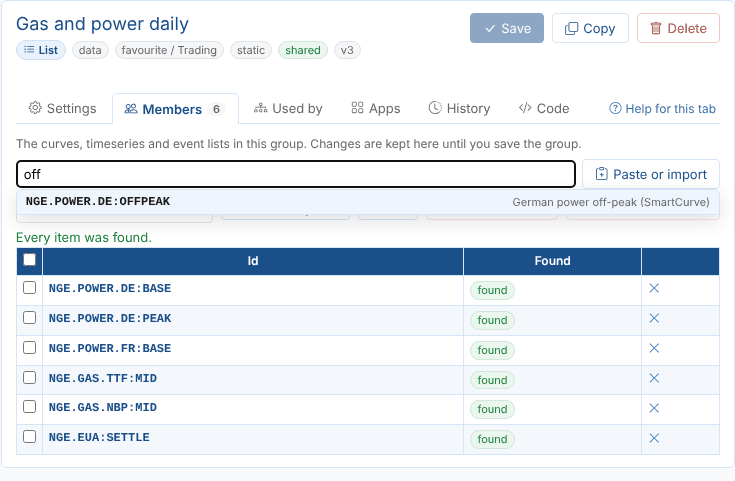
| Button | What it does |
|---|---|
| Check they exist | Looks up every item in its service and marks each one found or not found |
| Remove the N not found | Takes every item that was not found out of the group |
| CSV | Downloads the items |
For a policy user group, the box suggests the tenant's users and only accepts emails. Check they exist marks emails that do not match a user exactly, for example one typed with capitals.
Pasting a list
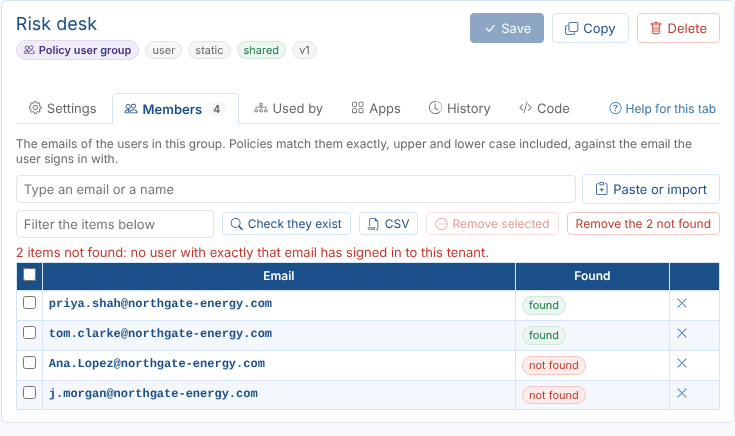
Paste or import takes a list of ids, one per line or separated by commas, or a CSV file chosen or dropped on the box. From a CSV file the column named _id (or id, name, item, and email for policy groups) is used, else the first column.
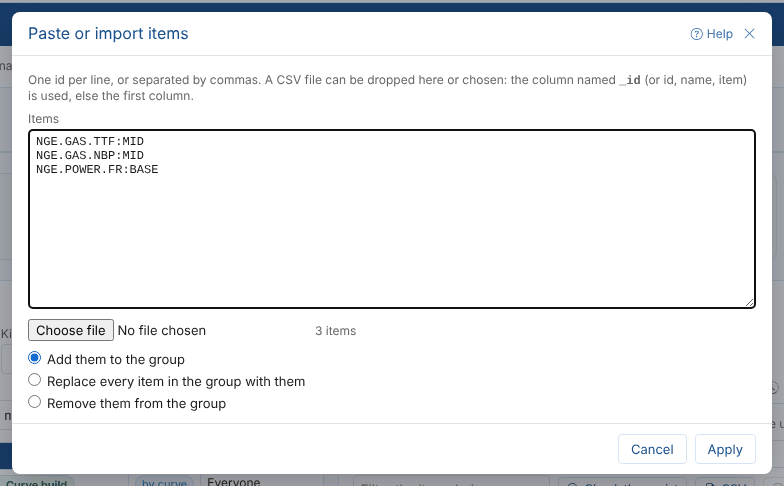
| Choice | What it does |
|---|---|
| Add them to the group | Adds the ones not already in it |
| Replace every item in the group with them | The group holds exactly the pasted items |
| Remove them from the group | Takes them out |
Dynamic rules
A dynamic group stores a rule, and the platform finds its members each time the group is used, so new curves or records that match are included without changing the group.
| Field | Notes |
|---|---|
| Find them in | The service to search, usually the group's own |
| Source | private, public or all |
| Id field | The field that holds the item id, usually _id |
| Filter | An ODSL condition on the items, for example _type = 'VarCurveDates' |
| Master data filter | For curves and timeseries: only data on master data records that match, for example region = 'Germany' |
| Aggregation | Instead of a filter, aggregation stages; each result's id field is a member |
Preview asks the platform what the rule finds before you save. Once saved, Show members runs the stored rule and offers a CSV of every member.
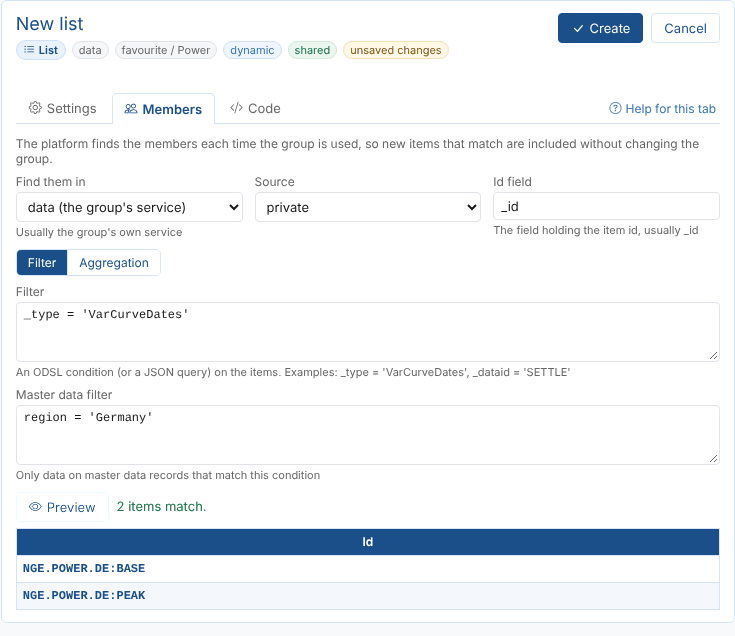
Aggregation rules can only be previewed once the group is saved.
Curve groups
The Curves tab of a build, quality, approval or export group lists the curves whose curve management record names it, with the other groups each curve is in. Search to add a curve, paste a list with Paste curve ids, or tick curves and select Remove selected. These changes are made to the curves' records at once, not when the group is saved.
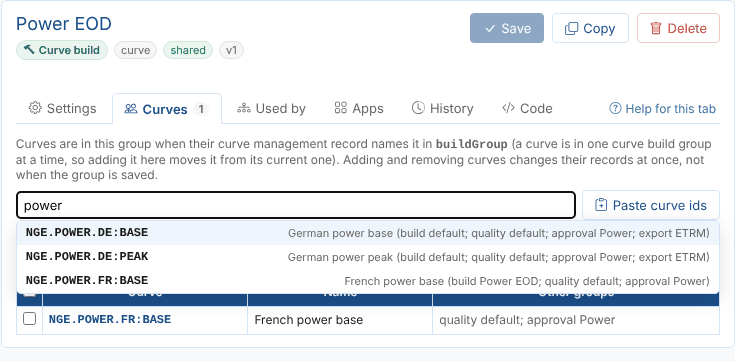
Adding a curve to a build, quality or approval group moves it out of the one it was in; an export group adds to the curve's list of export groups. Quality and export groups for datasets list the datasets that name them; set the group on the dataset itself.
From the Data and Master Data screens
The Groups tab on the Data and Master Data screens shows the groups the selected item is in: static groups that list it and dynamic groups whose rule finds it. From there you can take it out of a static group, add it to another static group of the same service, or start a new group with it. For a curve, the tab also shows its build, quality, approval and export groups, which you can change and save.