Running cells
Code cells run in a kernel, which keeps what each cell made for the cells you run after it. This page follows Priya as she runs her spark spread notebook.
The kernel
The kernel starts the first time you run a cell, and its state shows in the toolbar:

| Kernel state | What it means |
|---|---|
| No kernel | Nothing has run yet. The next run starts a kernel. |
| Starting kernel... | The kernel is starting and checking that you may run the notebook |
| Kernel idle | Ready. Its variables and functions are there for the next cell. |
| Kernel busy | A cell is running. The number in brackets is how many cells are running or waiting. |
| Kernel ended | The kernel stopped (see When the kernel ends). The next run starts a new one. |
| Replay mode | No kernel could be started, see Replay mode |
The kernel runs with your own access to the platform: a cell can read any curve, timeseries or other data that you can, and save what you are allowed to save. It is your own: colleagues with the same notebook open have kernels of their own.
Running cells
Run a cell with its run button, Ctrl+Enter or Shift+Enter (see Keyboard shortcuts). Run all runs every code cell from the top, in order.
Cells run one at a time in the order you ran them. If you run a cell while another is running, it waits, showing [ ] and an hourglass, and runs next.
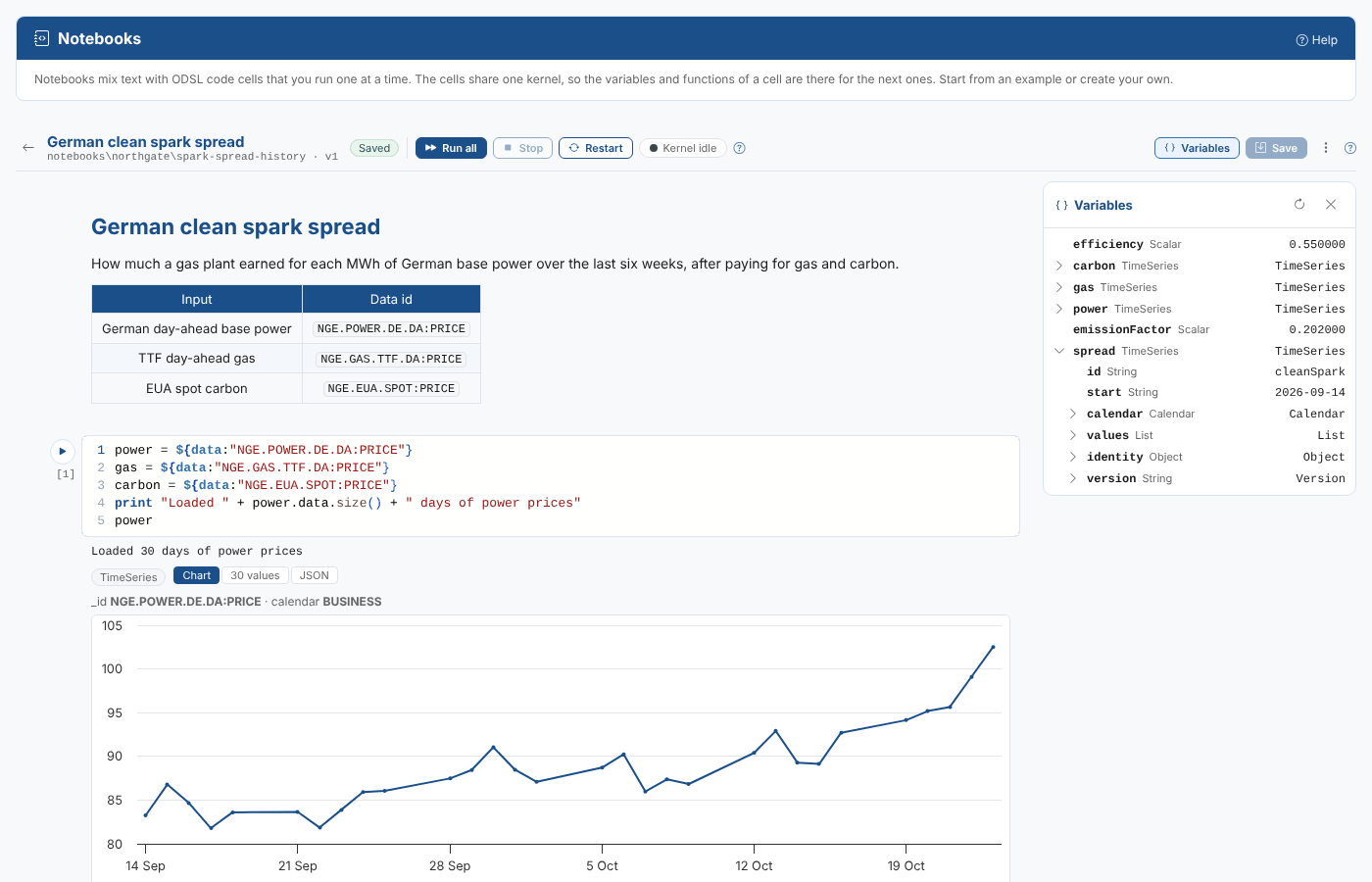
Priya runs the first cell. It loads the three price series with ${data:"ID"}, prints how many days it loaded and shows the power prices:
power = ${data:"NGE.POWER.DE.DA:PRICE"}
gas = ${data:"NGE.GAS.TTF.DA:PRICE"}
carbon = ${data:"NGE.EUA.SPOT:PRICE"}
print "Loaded " + power.data.size() + " days of power prices"
power
The three series stay in the kernel, so the next cell uses them without loading them again. It defines a function and works out the spread:
efficiency = 0.55
emissionFactor = 0.202

function cleanSpark(power, gas, carbon)
	cleanSpark = power - gas / efficiency - carbon * emissionFactor / efficiency
end

spread = cleanSpark(power, gas, carbon)
spread
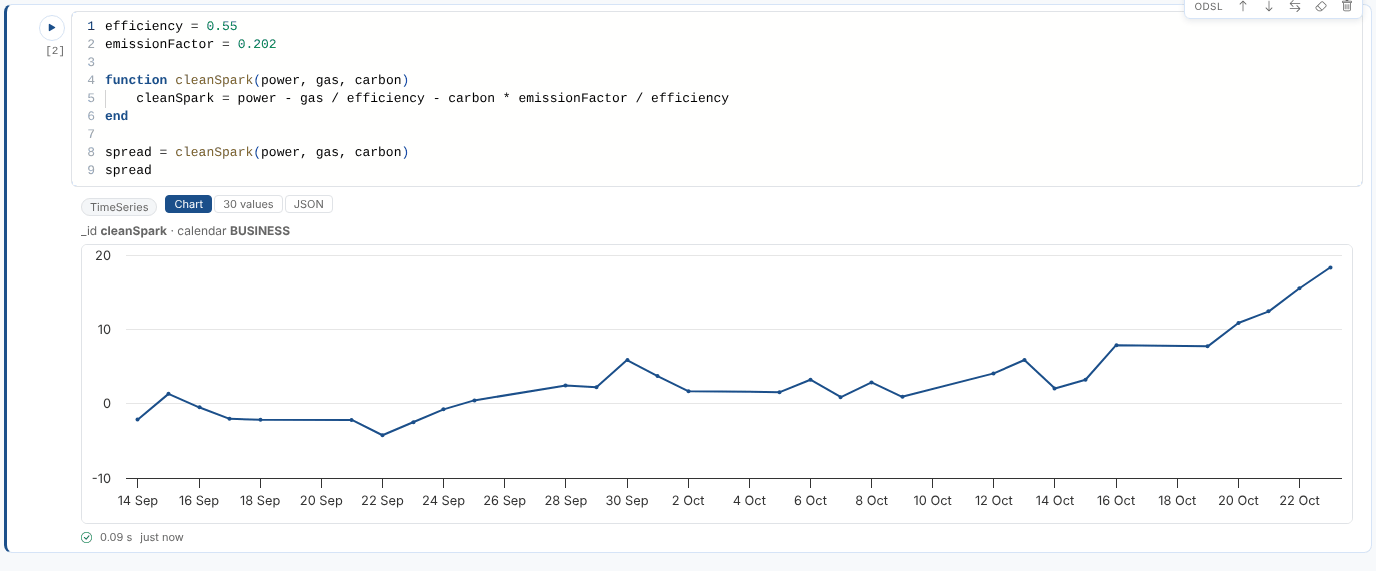
If she changes the efficiency, she runs only this cell again: the prices are already loaded. And the function cleanSpark can be called from any cell she runs after this one.
The kernel has what the cells you ran made, in the order you ran them, not what the notebook shows. If you change a cell and do not run it, the kernel still has the old values. When in doubt, Restart and Run all.
The value of a cell
As in a Python notebook, when the last line of a code cell is a value (a variable, a calculation or a function call, such as spread, mean(spread) or cleanSpark(power, gas, carbon)), its value is shown under the cell. A last line that is a statement (an assignment, print, end and so on) shows no value. A return in a cell also gives the cell's value, and ends that cell.
| Value | Shown as |
|---|---|
| A number, text or date | The value |
| A timeseries | Chart of its values, a Table of times and values, and the JSON |
| A curve | Chart of its contracts by tenor, a Table of tenors, absolute periods and values, and the JSON |
| A list of numbers | Chart, Table and JSON |
| A list of objects | A Table with a column for each property, and the JSON |
| An object | A Table of its properties, and the JSON |
Switch between the views with the buttons above the value. Drag across a chart to zoom in.
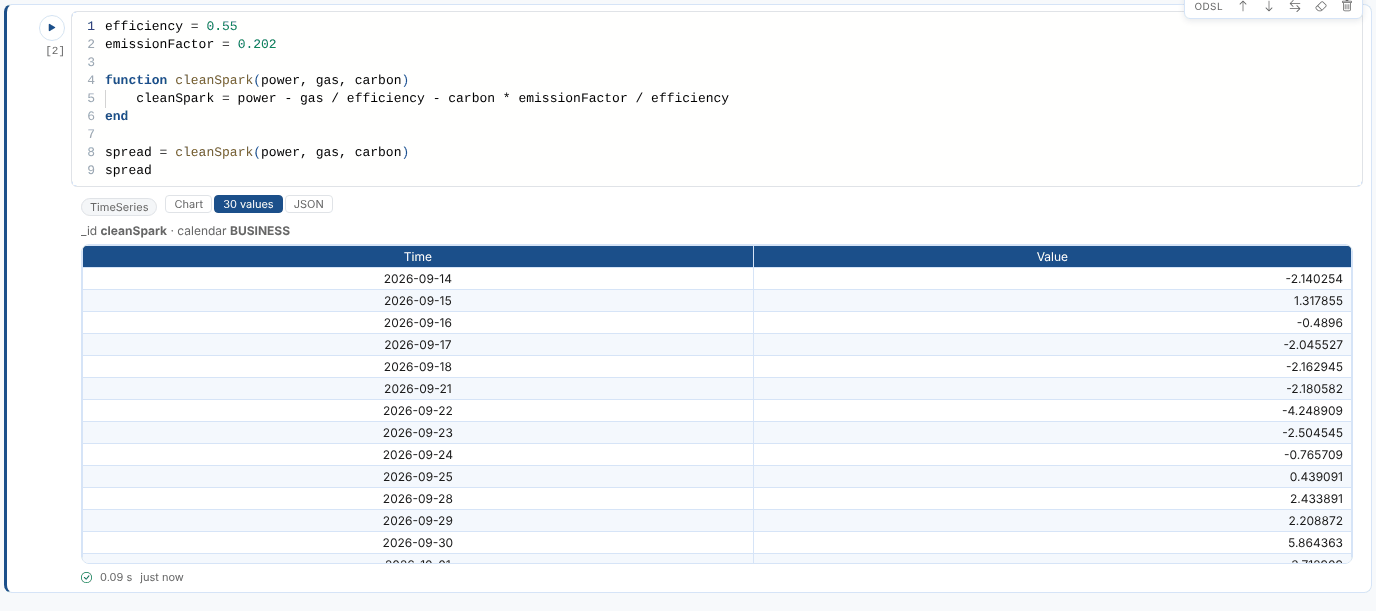
What the cell prints (print) and logs (log info, log warn, log error) shows above its value, followed by a tick (or a cross), how long it took and when it ran.
When something goes wrong
A cell that fails shows the error in red, and the line is underlined in the cell. The kernel keeps everything the cells before it made, so you fix the cell and run it again.

Here Priya called countBelow, a function she had not written yet. A cell with a syntax error is not run at all: the errors are listed, and selecting one takes you to its line.
When a cell fails, the cells waiting after it are not run (they show Not run: an earlier cell was stopped), as in a Python notebook: they would most likely fail too.
Stopping a cell
Stop stops the running cell after the statement it is on, and drops the cells waiting after it. The kernel and its variables stay. A statement that is waiting for the platform (loading a large curve, for example) finishes first.
Restarting the kernel
Restart ends the kernel: every variable and function is gone and the execution counts start again at 1. The outputs stay on the screen until you run the cells again.

Restart before Run all to check that the notebook works from the top, in order, as a colleague opening it would run it.
The variables panel
Variables opens a panel with what the kernel holds: each variable's name, type and value. Select the arrow in front of a timeseries, a curve, a list or an object to see what is inside it. The panel refreshes after each cell; Refresh reads it again.
The input variable
Input variable in the ... menu gives the notebook a JSON object as the variable input, as a process gives one to its script. For example {"ondate": "2026-10-23"} lets a cell read input.ondate. It is kept in your browser for this notebook and given to the kernel when it starts, so Restart after changing it.
When the kernel ends
A kernel ends after 30 minutes with no cell running and nothing sent from the screen, and in any case after 8 hours (your administrator may have set other limits). It also ends when you close the notebook or the screen. The next cell you run starts a new kernel, and a message says so: run the earlier cells again to set their variables.
Replay mode
If the kernel service cannot be reached (or your platform does not have notebook kernels yet), the kernel chip shows Replay mode and a message explains why.
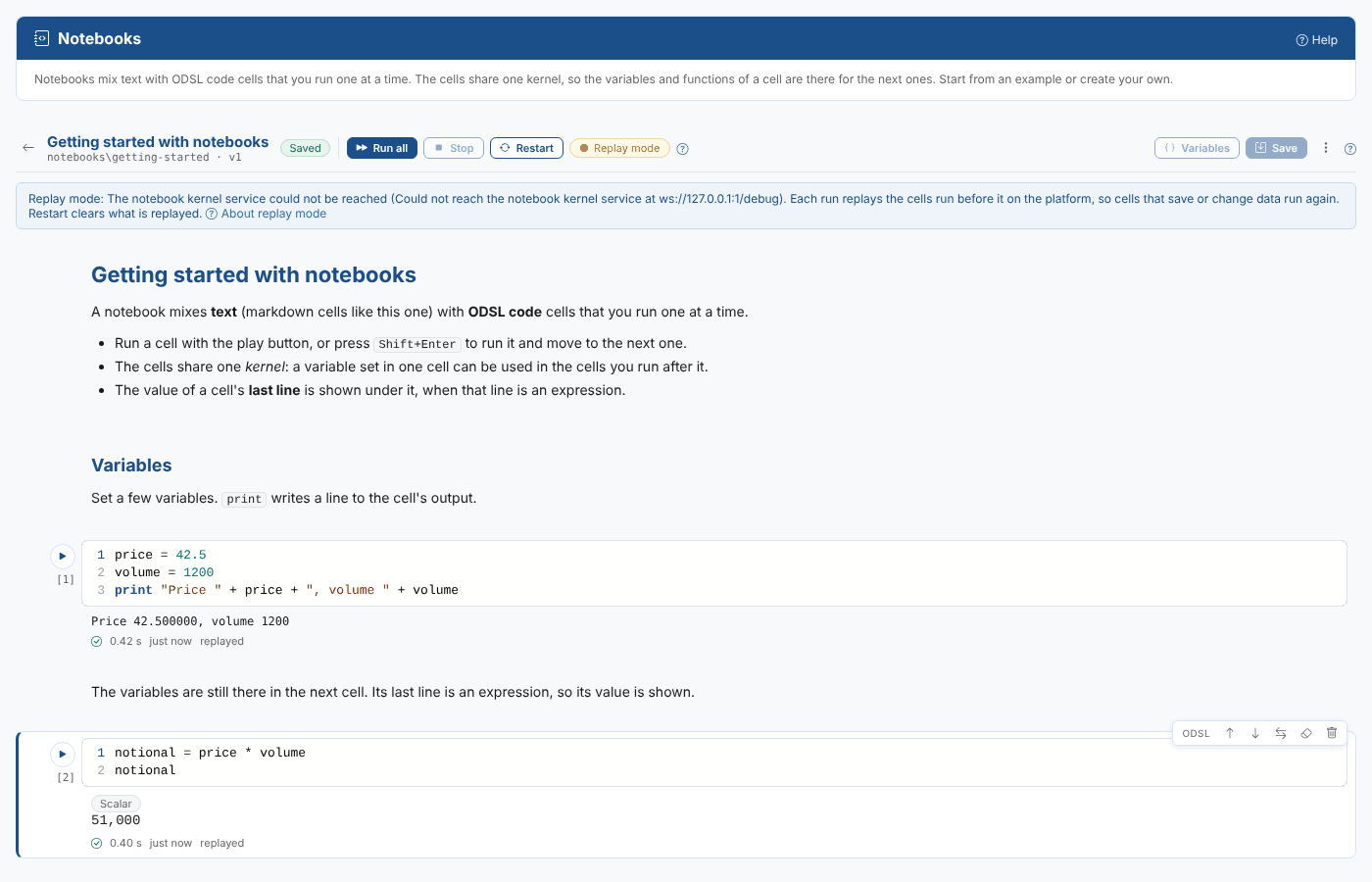
In replay mode each run sends the cells you have run so far, plus the new one, to the platform as one script. The answers are the same, but:
- every run runs the earlier cells again, so it gets slower as you go, and
- cells that save or change data run again on every replay, so be careful with cells that save, send or delete,
- there is no variables panel, and Stop only stops waiting for the answer: the run carries on on the platform.
Run all runs the whole notebook once. Restart clears what is replayed and tries to start a kernel again.
Running a notebook as a script
A saved notebook is an ODSL script, so it can run from top to bottom like any other: open it in the Script Manager and run it or schedule it. The cells run in order. The value lines are kept in the script as comments, so they do nothing there: use print, or save what the notebook makes, if a scheduled run needs to show or keep something.
Next
Example notebooks: start from a worked example, or publish your own.