What is the Script Manager?
Scripts do a lot of the work on the platform: they load prices, build curves, run checks, produce reports and render the templates of your emails and screens. Over time a company has dozens of them, written by different people and changed for different reasons. The Script Manager puts them all in one place and answers questions like:
- Where is the script that builds our spark spread curve, and what does it do?
- Can I change it safely, with help on the functions I can use, and try it before I save it?
- What changed in this script last week, who changed it, and why?
- Can I run just one function or one part of a script to check it?
- Why does the script give this answer? Can I stop it at a line and see its values?
- Can I copy a script to start a new one, or tidy our scripts into folders?
- Can this script run every weekday evening without anyone starting it?
- Can Fusion AI write the first version of a script for me, or explain one I did not write?
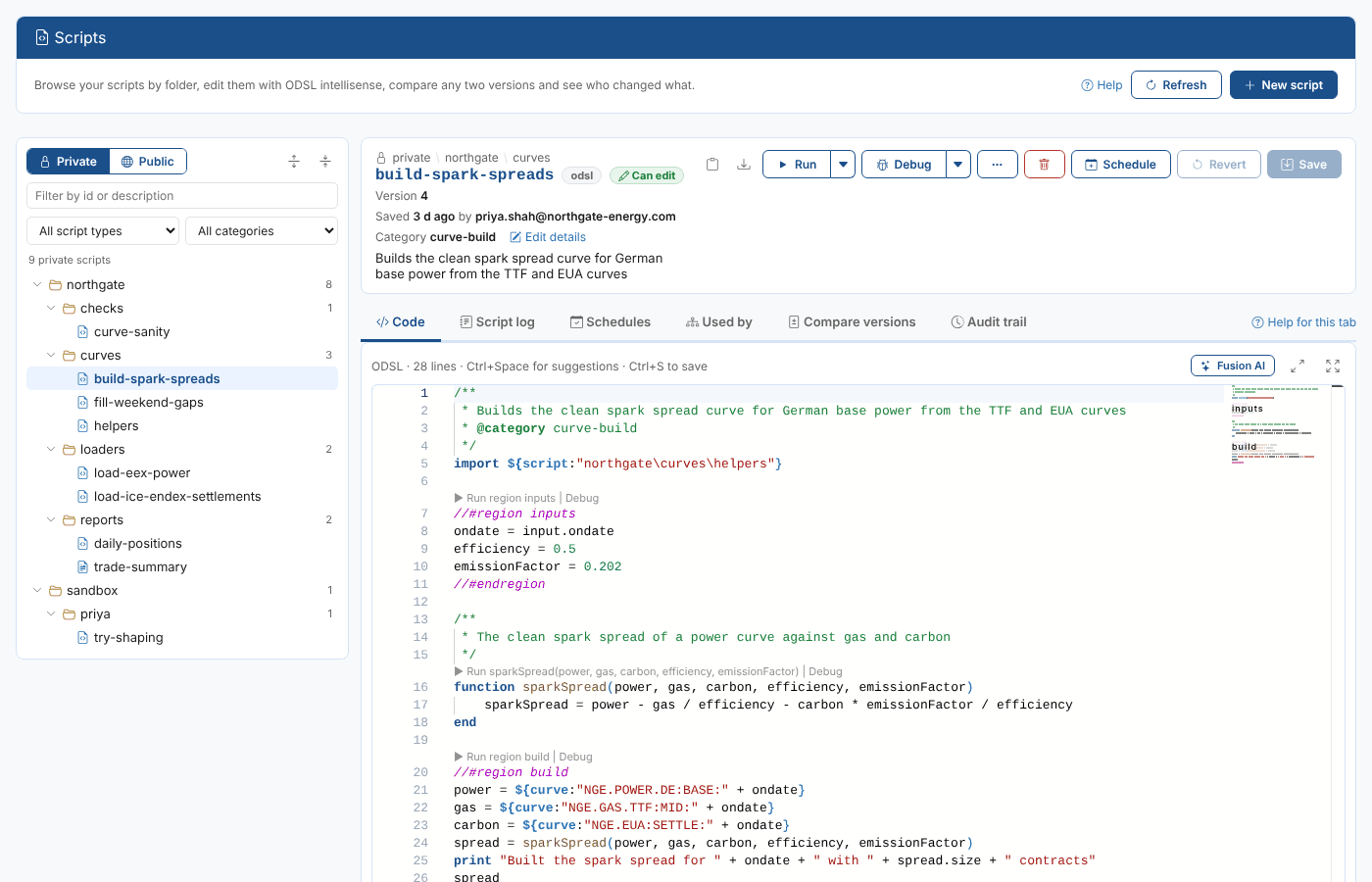
Throughout these pages we follow Northgate Energy, a fictional gas and power trader. Its market data team keeps its scripts in folders such as northgate\curves, northgate\loaders and northgate\reports. Priya Shah, a market data analyst, looks after northgate\curves\build-spark-spreads, the script that builds the clean spark spread curve for German base power from the German power, TTF gas and EUA carbon curves.
Key ideas
| Idea | What it means |
|---|---|
| Script | A stored piece of code or a template, with an id, a type (ODSL, Mustache, HTML, JavaScript and others), a category and a description. Every save keeps the earlier version. |
| Folder | A part of a script's id before a backslash. northgate\curves\build-spark-spreads is the script build-spark-spreads in the folder northgate\curves. Folders are not created separately: they come from the ids. |
| Private and public scripts | Private scripts belong to your company. Public scripts, whose ids start with #, are published by OpenDataDSL and can be read but not changed. |
| Version | Each save makes a new version of the script, with who saved it, when and the reason they gave. |
| Run | Running a script on the platform from the editor, with the result and the log shown under the code. You can run the whole script, one function or one region. |
| Debugging | Running a script so that it stops at the lines you mark (breakpoints), shows its variables and goes on a line at a time when you say so |
| Schedule | A process that runs the saved script on a cron, such as every weekday at 18:00 UK time. |
| Script log | One entry for every run of a script, from the editor, a process, an automation or the API. |
| Audit trail | Every create, change and delete of the script, with who did it, when and why. |
What you get
| Screen | Where | What it does |
|---|---|---|
| Script tree | Information, Scripts, on the left | Every script of your company (or the public ones) by folder, filtered by text, type and category |
| Code tab | Same screen, with a script open | The editor with intellisense, syntax checking, Run, Debug, the output panel and the Fusion AI panel |
| ... menu | Next to Debug, or right-click a script in the tree | Copy, rename or move the script to another folder |
| Script log tab | Same screen | Every run of the script and its log |
| Schedules tab | Same screen | The processes that run the script on a schedule, their runs, and Run now |
| Used by tab | Same screen | The processes, smart curves and timeseries, reports, aggregations, compositions and validations that use the script |
| Compare versions tab | Same screen | Any two versions side by side, and Restore |
| Audit trail tab | Same screen | Who created and changed the script, when and why |
Every screen has a Help link that opens the matching page of this guide.
What you can do with a script depends on your security policies: you need the update action on a script to change it, and the run action to run or debug it. The screen shows Can edit or Read only next to the script's name.
Where next
- Browsing and editing scripts: the tree, creating, copying, renaming and moving scripts, the editor, intellisense, details and saving.
- Running scripts: running a script, a function or a region, the output panel and the script log.
- Debugging scripts: breakpoints, stepping through a script, its variables, watches and the debug console.
- Writing scripts with Fusion AI: asking Fusion to write, change, explain or fix a script.
- Scheduling a script: running a script on a cron with a process.
- Versions and the audit trail: comparing versions, restoring or rolling back, deleting, where the script is used and who changed what.
- Script Manager reference: permissions, the REST functions, the debug service and what the extension contains.