Reviewing and pushing
The Review and push tab reads every item in the basket in your environment and in the target, and compares them. Nothing is changed until you select Push.
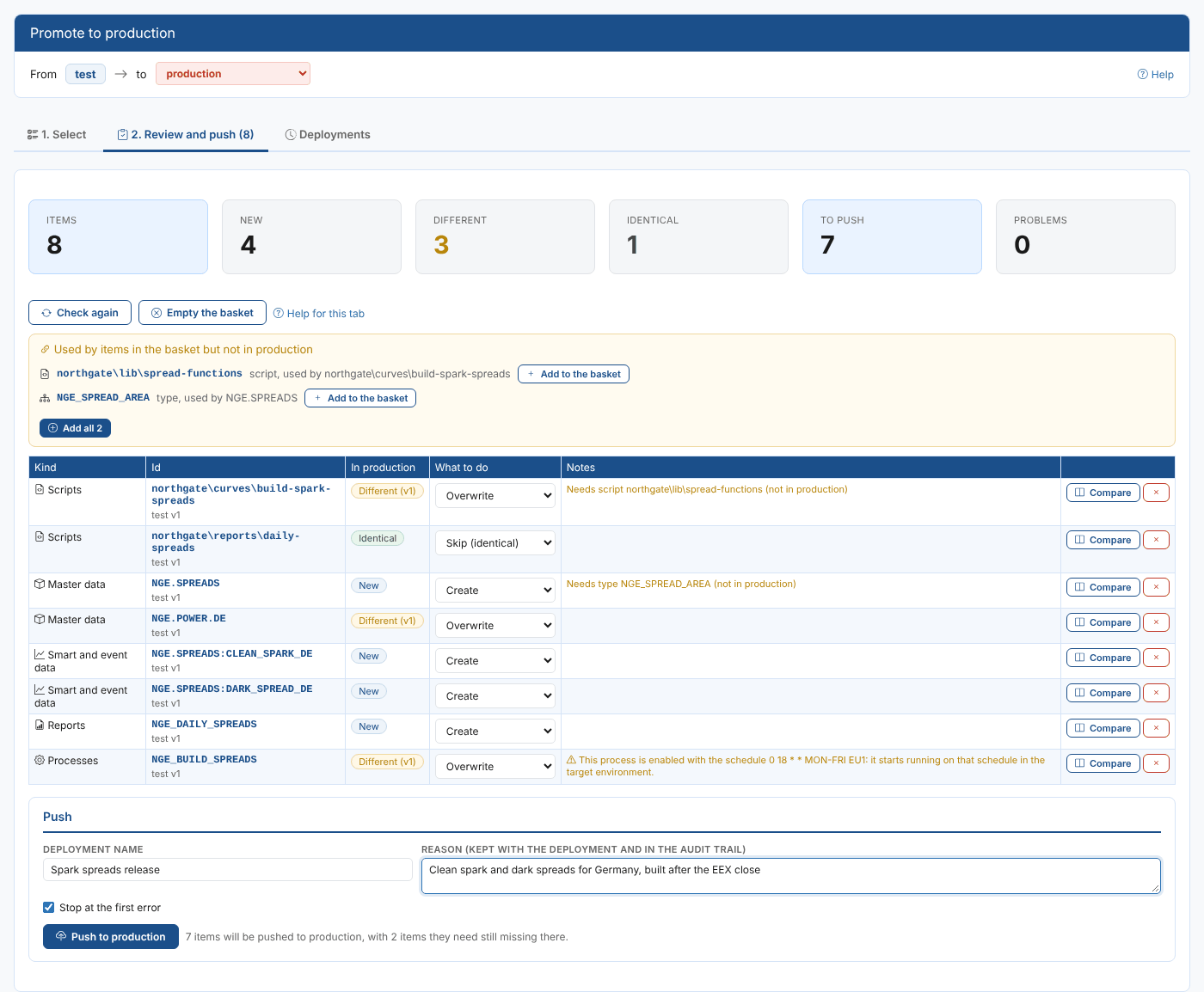
The cards at the top count the items, how many are new, different and identical, how many will be pushed, and how many have a problem. Check again compares everything again, for example after a colleague changed something in production.
What the comparison shows
| State | Meaning |
|---|---|
| New | The target has no item with this id. |
| Different | The target has the item and its content differs. The target's version is shown. |
| Identical | The content is the same. Versions, timestamps, the user who saved it and other platform fields are not compared. |
| Gone from test | The item is no longer in your environment: take it out of the basket. |
| Error | The item could not be read. The note says why. |
Comparing
Select Compare on a row to see the two side by side: on the left the item as it is in the target, on the right what the push sends. Changed lines are highlighted, added lines are green, and long runs of unchanged lines are folded. A script's text is shown as text below its other fields.
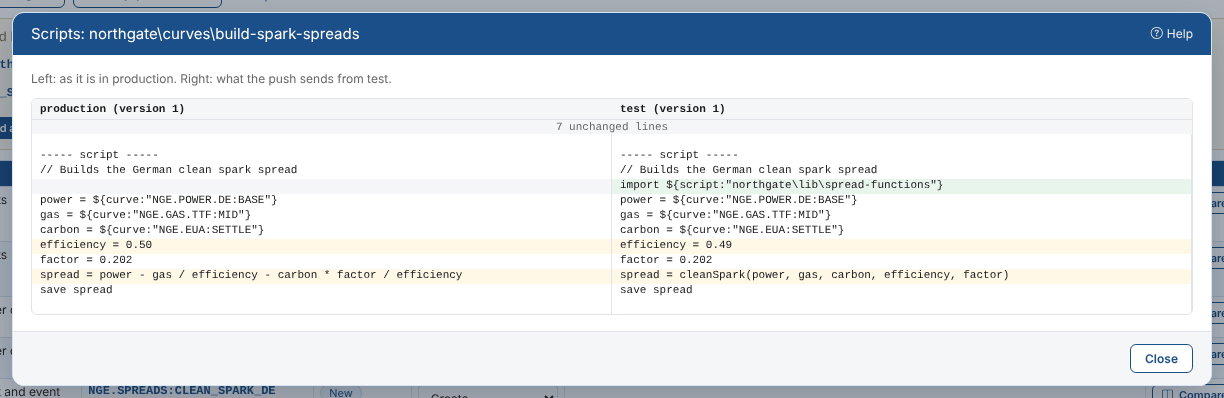
Priya's script in production still has the old efficiency of 0.50 and calculates the spread itself; the new version imports northgate\lib\spread-functions.
What to do with each item
Choose in What to do:
| Choice | Offered for | What happens |
|---|---|---|
| Create | New items | The item is created in the target with the same id. |
| Overwrite | Different items | The target's item is replaced by yours. The platform keeps the target's previous version. |
| Merge | Different master data records | Your fields are written over the target's, and fields only the target has are kept. |
| Push as a copy | Different items (not policies or automations) | The item is created in the target under another id, which you type (for example northgate\curves\build-spark-spreads_test). The target's item is not touched. |
| Push anyway | Identical items | Writes it again. Usually there is no reason to: the platform does not make a new version when nothing changed. |
| Skip | Anything | Leaves the item out of this deployment. |
The default is Create for new items, Overwrite for different items and Skip for identical ones.
Master data and its data
A master data record is pushed with its own fields only. Its links to data items (its smart curves, timeseries and event lists) are left as they are in the target, so a record that has more data in production than in test keeps it. To push a smart curve or timeseries, add it from Smart and event data: it is written onto its record in the target, which must exist there (or be in the same deployment).
Automations
Automations do not have the same id in two environments, so Promotion looks in the target for an automation that does the same thing: the same automation target, the same conditions and the same settings. When it finds one the push replaces it; otherwise it creates a new one.
Items the basket needs
Promotion looks at what each item uses: the type of a master data record, the record and script of a smart curve, the scripts a script imports, the script and template of a report, the script of a process, the automation target of an automation, and so on. Anything your environment has that the target does not, and that is not in the basket, is listed in a yellow panel above the table, with the items that use it.
Select Add to the basket (or Add all) to include them. They are pushed first: a deployment always pushes types, calendars and scripts before master data, master data before its smart data, and reports and processes after the scripts they run.
Items the target lacks but your environment does not have either (public items, data loaded by a process) are not listed.
Notes and warnings
The Notes column warns you before you push:
| Note | Why |
|---|---|
| This process is enabled with a schedule | It starts running on that schedule in the target as soon as it is pushed. |
| A security policy changes who can do what | Policies decide what people can see and change in the target. |
| An automation starts acting on events | An enabled automation runs in the target from the moment it is pushed. |
| A stored timeseries is pushed with all of its values | Values that only the target has are kept. |
| Needs ... (not in production) | See Items the basket needs above. |
| Your security policies do not allow you to create or change it | Your policies in the target refuse it: the push of that item will fail. The Problems card counts these. |
Pushing
Give the deployment a name (optional) and a reason (required: it is kept with the deployment and written into the audit trail of every change it makes). Leave Stop at the first error ticked to stop when an item fails, or clear it to carry on with the others.
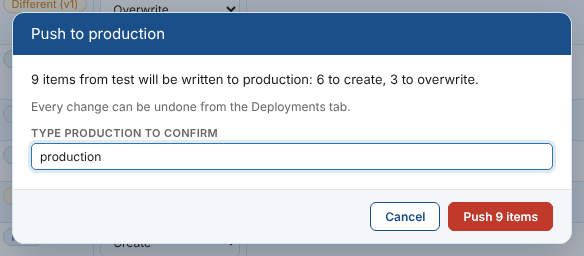
Select Push to production. The confirmation lists how many items will be created, overwritten, merged or copied, and any items they need that are still missing. For production you type production to confirm.
The items are pushed one at a time, in order, with a progress bar and a log:
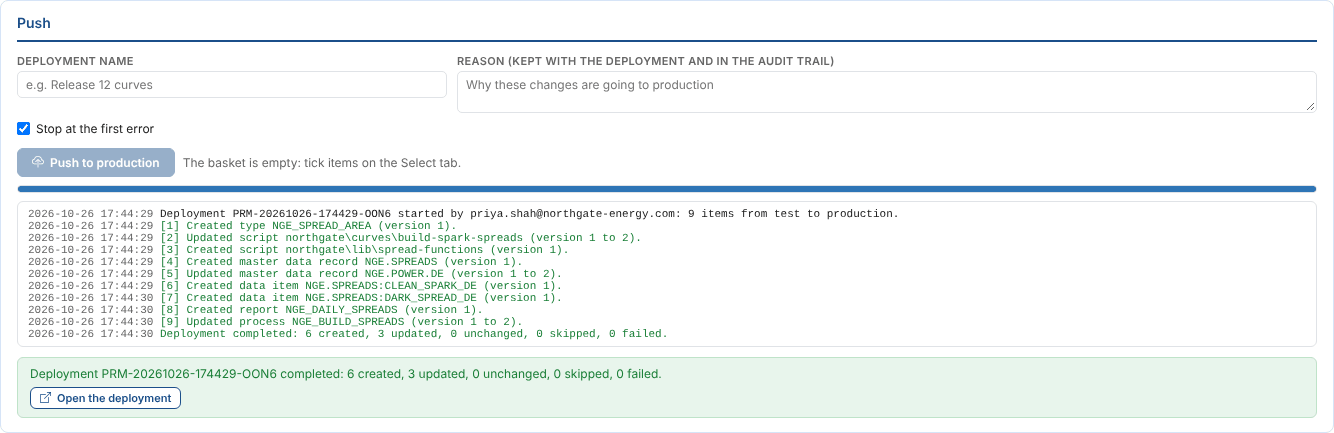
For each item Promotion:
- reads it again in your environment and in the target, in case either changed since the review,
- keeps a copy of the target's item and its version, before anything is written,
- writes the item, with the deployment id and your reason as the reason of the change,
- reads the target again and records the version the push made: created, updated or unchanged.
An item that was not in the target at review time but is there by the time it is pushed is not overwritten: it fails, and you review it again.
Pushed items leave the basket. Items that failed, or were not run because the deployment stopped, stay in it, so you can fix the problem and push them again.
Pushing is a real change to production, made with your permissions. Review the comparison of anything marked Different before you push it.