Schedule and email
A report is most useful when nobody has to remember to run it. Northgate Energy's report runs at 18:00 each weekday, and each time it is stored the market data team gets it by email, with the late and missing deliveries at the top.
To change a report, open it again: on the Aggregator's Reports tab select its row, or in the workspace select Reports and then the report.
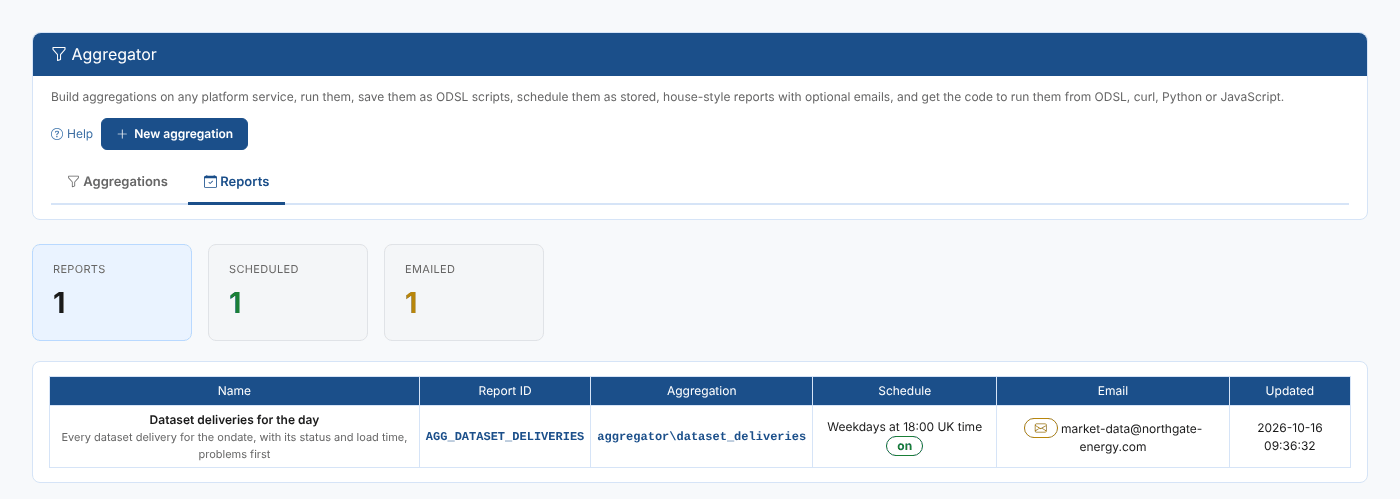
Schedule
Tick Run on a schedule and store the result for each date and choose When:
| When | Cron |
|---|---|
| Weekdays at 08:00 UK time | 0 8 * * MON-FRI * EU1 |
| Weekdays at 07:00 Central European time | 0 7 * * MON-FRI * EU2 |
| Weekdays at 18:00 UK time | 0 18 * * MON-FRI * EU1 |
| Every day at 06:00 UTC | 0 6 * * * * UTC |
| Mondays at 08:00 UK time | 0 8 * * MON * EU1 |
| The first of each month at 08:00 UK time | 0 8 1 * * * EU1 |
Or choose Custom... and write the cron yourself: minute, hour, day of the month, month, day of the week, year and time zone (UTC, EU1 for UK time, EU2 for Central European time). See CRON expressions.
Untick the box to stop the schedule. The report and its stored dates are kept, and Build this date still works.
Default range
The Default range sets the start and end dates, #START and #END, that the @{start} and @{end} placeholders take, for example from(2026-01-01) or last(7). Leave it empty for all dates. Northgate Energy's aggregation only uses @{ondate}, the date the report runs for, so its range is empty.
Email
Tick Email the report each time it is stored, then fill in:
| Field | Example | Notes |
|---|---|---|
| To | market-data@northgate-energy.com | One or more addresses, separated by commas. Recipients must be in your organisation's email domain unless your organisation allows others. |
| Subject | Dataset deliveries ${date:dd MMM yyyy} | ${date:dd MMM yyyy} is replaced with the report date, here 15 Oct 2026. Any Java date format works. |
| Use the report columns | Ticked | Untick to choose different columns for the email |
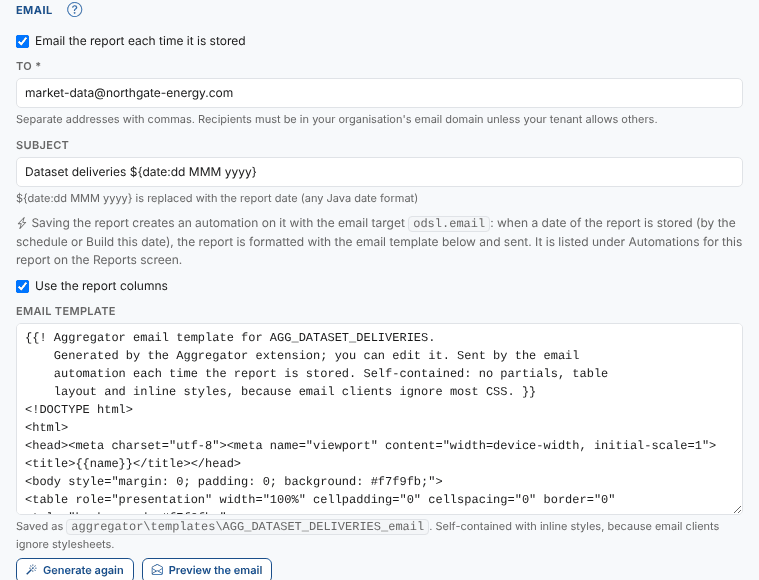
The email has its own generated template, saved as the script aggregator\templates\AGG_DATASET_DELIVERIES_email. It uses tables and inline styles, because email clients ignore most stylesheets, so it looks the same in Outlook, Gmail and on a phone. You can edit it, and Preview the email shows it with the test date's rows.
Select Save report to save the email with the report.
How the email is sent
Saving the report creates an automation on it with the platform's email target, odsl.email. The automation runs whenever the report is updated, which is each time a date is stored. It formats the stored report with the email template and sends it to the recipients, with the subject.
Each weekday the platform then does this:
- At 18:00 UK time the schedule runs the report for the day.
- The report runs
aggregate_dataset_deliveriesand stores the rows for that date. - Storing the report fires the automation, which formats it with the email template and sends it.
Build this date stores a date in the same way, so it sends the email too.
The automation is listed under Automations for the report on the Reports screen, where you can turn it off for a while. To stop the email for good, untick Email the report each time it is stored and save the report: the automation is removed.
The Aggregator only changes the email automation it created. Automations you add to the report yourself, for example a second email to another team, are left alone.
Check the recipients before you build old dates. Each date you build is emailed, so building a month of history sends a month of emails.
Next
The Reports screen tab: see a report's aggregation, schedule, email and stored dates from the Reports screen.