Finding and changing automations
The Automations tab lists every automation of your company in the environment you are signed in to, whoever created it and from whichever screen. Open it from Operations, Automations, then select the Automations tab.
On Wednesday morning Priya sees three failures on the Overview: the forward curves for German and French power could not be sent to the queue etrm-curves, because the ETRM team has disabled it while they move to a new queue. She uses this tab to find every automation that sends to that queue.
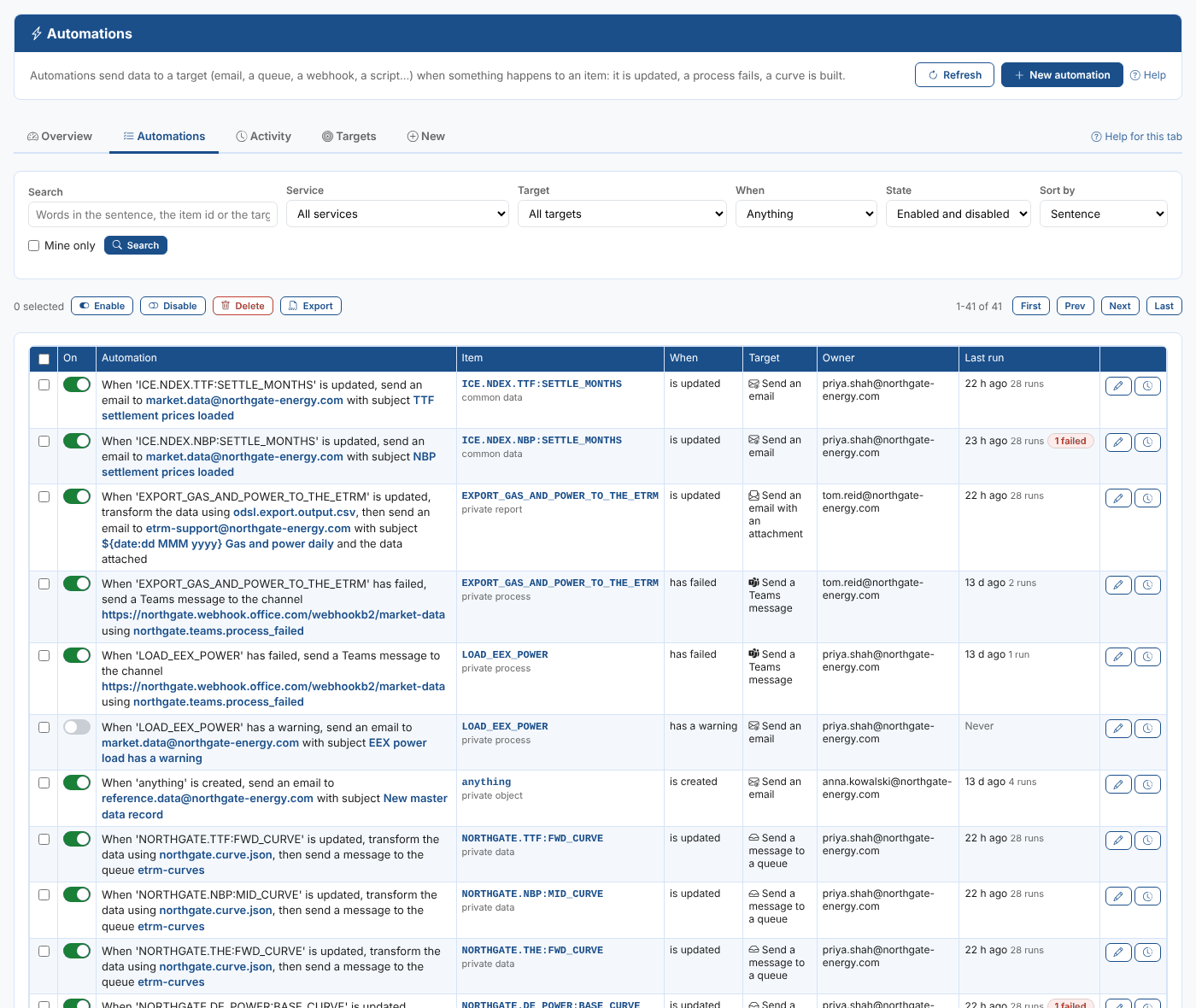
Reading the list
Each row is one automation:
| Column | What it shows |
|---|---|
| Tick box | Selects the automation for a bulk change |
| On | Whether the automation is enabled. Select the switch to turn it on or off |
| Automation | The automation as a sentence, with its settings in blue. Select it to open the editor |
| Item | The item that triggers it (anything for an automation on any item), with its source and service |
| When | What has to happen to the item: is updated, is created, has failed and so on |
| Target | What the automation does |
| Owner | The person it runs as |
| Last run | When it last ran, how many runs the automation log holds, and how many of them failed |
The pencil button opens the editor. The clock button opens the Activity tab with only this automation's runs.
An automation with more than one trigger is listed once for each trigger. Most automations have one.
The list shows 50 automations a page. Use First, Prev, Next and Last to move between pages.
Finding automations
| Filter | What it does |
|---|---|
| Search | Finds the words in the sentence, the item id or the target id, in any case. Press Enter or select Search |
| Service | Only automations triggered by items of one service, such as data or processes |
| Target | Only automations that send to one target |
| When | Only automations for one action, such as has failed |
| State | Enabled, disabled, or both |
| Sort by | Sentence, item, target or service |
| Mine only | Only the automations you own |
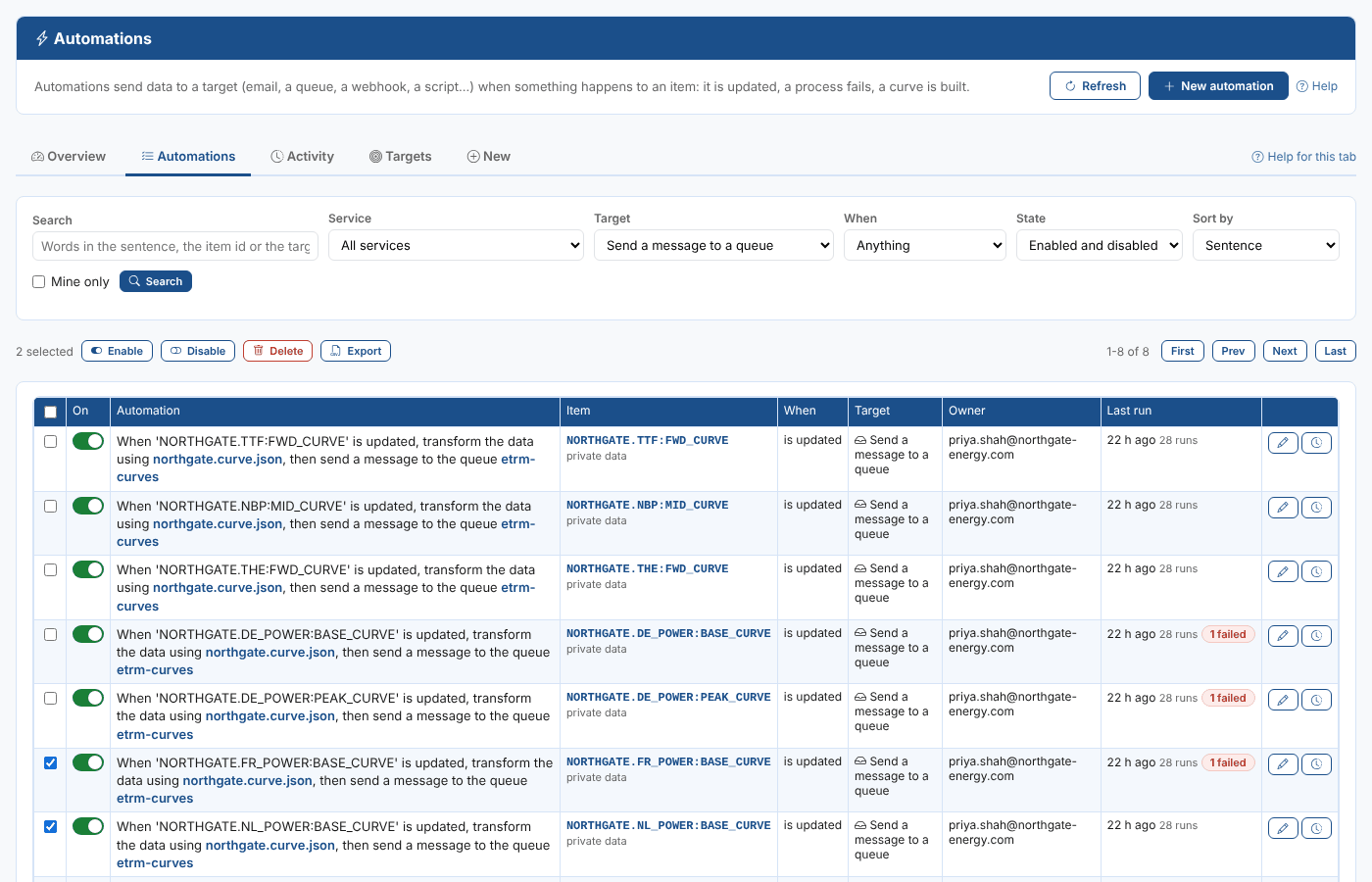
Priya chooses Send a message to a queue in Target: eight automations send the forward curves to etrm-curves, one of them already switched off.
On the Overview, select a row of Automations by target or Automations by service to open this tab with that filter set.
Turning automations on and off
Select the switch in the On column. The change is saved straight away and a message under the filters confirms it. A disabled automation stays in the list with its settings; it simply does not run until you switch it back on.
Switching an automation on or off saves it, and saving an automation makes you its owner. See Ownership before changing automations other people own.
Changing several automations at once
Tick the automations, or tick the box in the header to select the whole page, then select:
| Button | What it does |
|---|---|
| Enable | Switches the selected automations on |
| Disable | Switches the selected automations off |
| Delete | Deletes the selected automations, after asking. They cannot be brought back |
| Export | Downloads every automation that matches the filters (all pages, not only the selected ones) as a CSV file |
The changes are made three at a time, with a progress message. If some fail, the message lists them with the reason.

Priya ticks the automations for the curves the ETRM team is moving first and selects Disable, so the platform stops sending to the disabled queue. When the new queue is ready she will change their queue and switch them back on.
The automation editor
Select an automation's sentence or its pencil button to open the editor.
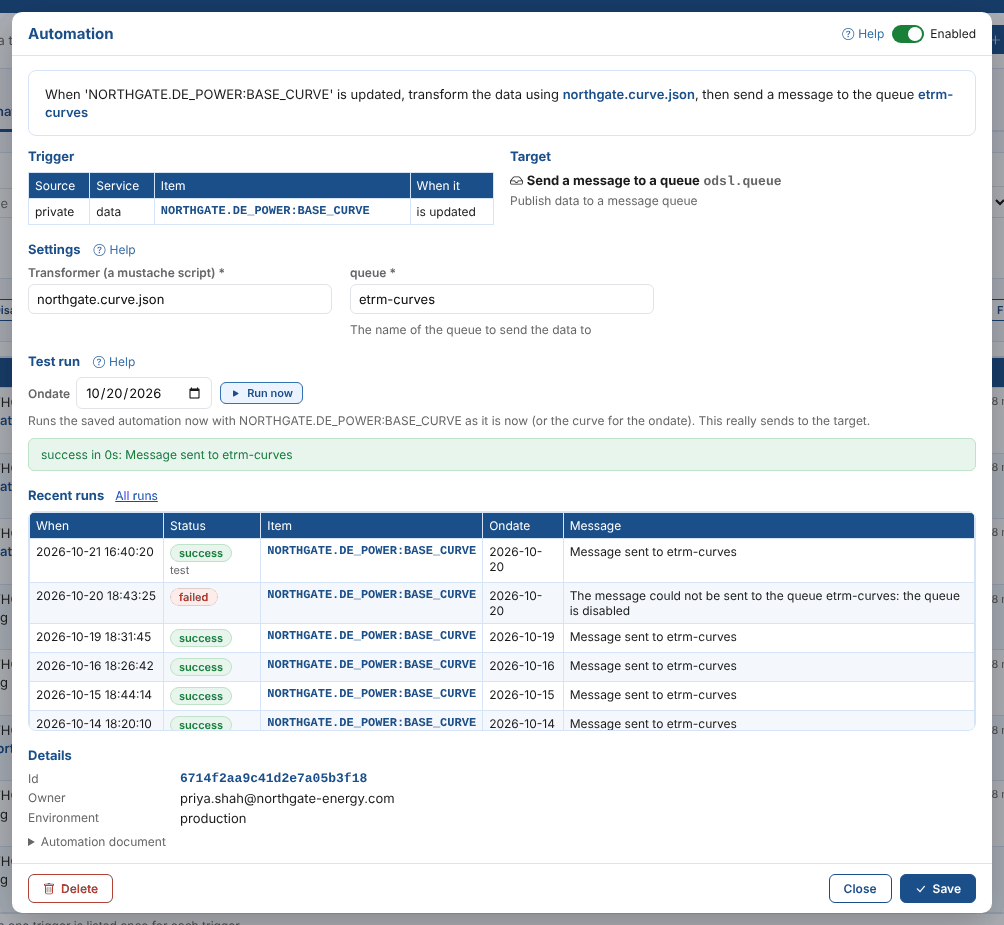
| Part | What it shows |
|---|---|
| Sentence | What the automation does, with the current settings filled in. It changes as you type |
| Enabled | The switch at the top right. It is saved with Save |
| Trigger | The source, service and item of each trigger and what has to happen to it. For an event curve or event timeseries, the trigger is the event list it is built from and the curve is shown as "built from it" |
| Target | The target's name, id and description. If the target no longer exists, the editor says so: the automation fails every time it runs |
| Settings | A field for each setting (see below) |
| Test run | Runs the automation now (see Test runs) |
| Recent runs | The last 15 runs from the automation log. Select a run to see all of it, or All runs for the Activity tab |
| Details | The automation's id, owner and environment, and the whole automation document |
Changing the settings
The editor shows a field for every setting of the automation:
- The settings in the sentence (shown in square brackets, such as
[queue]) are required, marked with*. - Any other setting the target accepts, with the target's description under it.
- Any other property already stored on the automation.
| Setting | What it is |
|---|---|
| Transformer (a mustache script) | For automations that transform the data first: the mustache script that turns the item into what the target sends. Start typing to pick from your mustache scripts |
| Property name and Property value | For automations that only fire when a property has a value: the property and the value (* for any change) |
| Target settings | What the target needs, such as to and subject for an email or queue for a queue. See Automation targets |
Change the fields, then select Save. Numbers and structured values keep their type when they are saved.
Priya changes queue from etrm-curves to etrm-curves-v2 for the German power base curve, switches it on and saves.
The sentence and the trigger cannot be changed in the editor. To make the same automation for another item, or for another action, create a new one and delete the old one.
Test runs
A test run runs the saved automation now, without waiting for its item to change:
- For a curve or timeseries, choose an Ondate to send the curve for that date. Leave it empty for the item as it is now (the latest curve).
- Select Run now.
The result (status, time taken and the target's message) appears under the button, and the run is added to Recent runs, marked test. In the automation log the run's reason is Test Run.
A test run really sends to the target: the email goes out, the message goes on the queue, the process runs. It runs the saved automation, so save your changes first.
Test runs are not possible for automations on any item (anything), because there is no item to send. See Test runs in the reference for the details.
Deleting an automation
Select Delete in the editor, or tick automations in the list and select Delete. You are asked to confirm, and a deleted automation cannot be brought back. Its runs stay in the automation log.
If you might need an automation again, switch it off instead of deleting it.
Some automations are kept automatically by other extensions, such as Run validation checks (Validation, one for each validation configuration) and Build composition (Composer). Change those from their own extension rather than here, so the extension and its automations stay in step.