Schedules
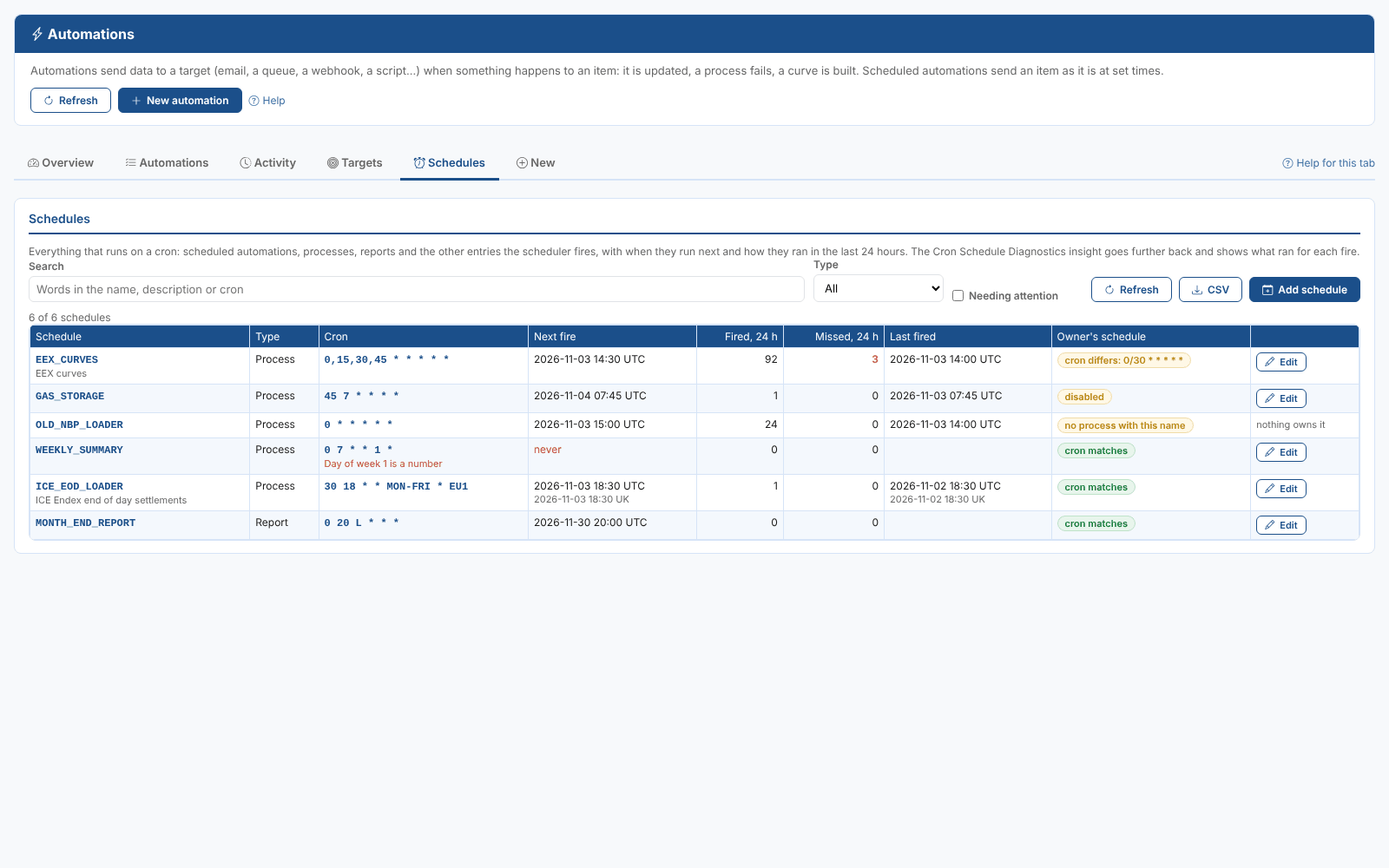
Scheduled automations are not the only things that run on a cron. Processes, reports, Fusion AI playbook tasks and agents can have schedules too, and all of them are fired by the same scheduler. The Schedules tab lists every one of them, says when each runs next and how it ran in the last 24 hours, and lets you add, change and remove the schedules of processes and reports, and of scheduled automations through the automation editor.
At Northgate Energy, Priya Shah checks the tab when she changes a loader's timing, to see the new times straight away and to make sure nothing missed a run overnight.
How schedules are kept
Each schedule is a crontab entry: the scheduler's copy of the cron. You never edit an entry directly. The platform writes it from whatever owns the schedule, and keeps the two in step:
| Owner | Where its schedule is kept | When the entry exists |
|---|---|---|
| A scheduled automation | The Schedule (cron) setting of the automation | While the automation is enabled |
| A process | The process's cron | While the process is enabled |
| A report | The report configuration's cron | While the report is enabled |
| A Fusion AI playbook task or agent | The task or agent | Change these in Fusion AI |
So adding, changing or removing a schedule on this tab changes its owner, and the platform rewrites, creates or removes the entry for you.
The schedule summary on the Overview tab
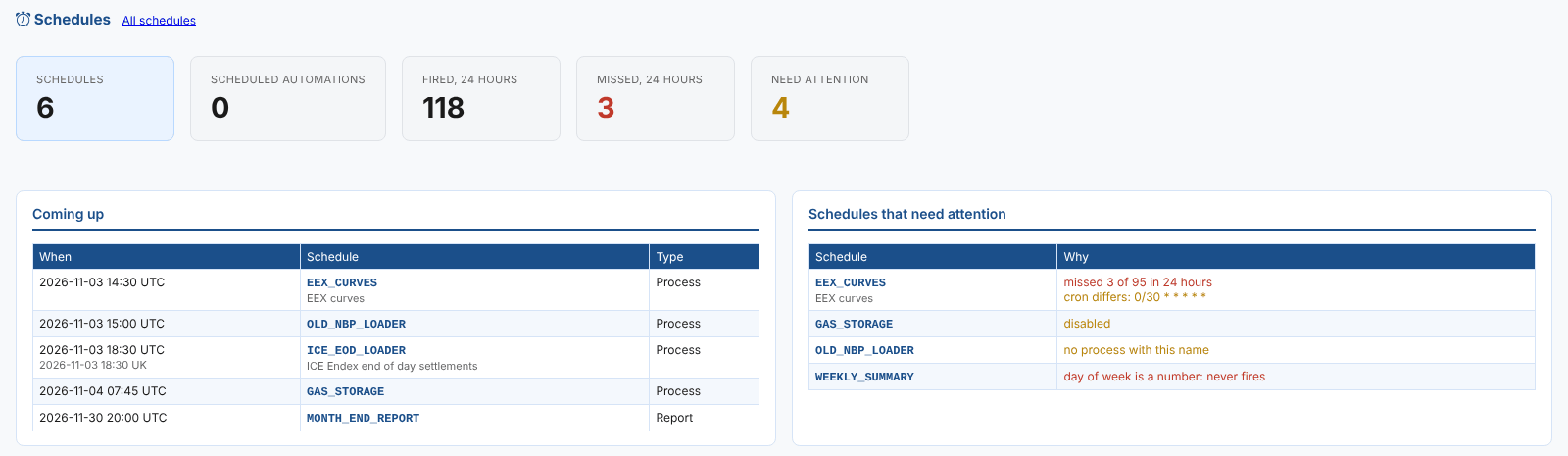
The Overview tab has a Schedules section under the automation reports:
| Card | What it shows |
|---|---|
| Schedules | The crontab entries of your company in this environment |
| Scheduled automations | How many of them are scheduled automations |
| Fired, 24 hours | How many times the scheduler fired them in the last 24 hours |
| Missed, 24 hours | Times a schedule was due in the last 24 hours but was not fired. Red when there are any |
| Need attention | Schedules that missed a fire, never fire, or do not match what owns them |
Below the cards, Coming up lists the next schedules due, and Schedules that need attention says why each one is listed. Click a row to open it on the Schedules tab.
Reading the list
Schedules that need attention come first.
| Column | What it shows |
|---|---|
| Schedule | The entry name: the process name, the report id, or automation: and the automation id, with the description or the automation's sentence under it |
| Type | Automation, Process, Report, Playbook task, Agent and so on |
| Cron | The schedule. A day of week written as a number, which never matches, is pointed out in red |
| Next fire | When it runs next, in UTC and, for EU1 and EU2 schedules, local time. never in red when it has no time in the next 400 days |
| Fired, 24 h and Missed, 24 h | How many times it was fired in the last 24 hours, and how many times it was due but not fired |
| Last fired | When the scheduler last fired it in the last 24 hours |
| Owner's schedule | cron matches, or what is wrong: cron differs (the owner was changed but the entry was not rewritten), disabled, no cron, no process with this name (an orphan entry) or no crontab entry (an enabled owner with a cron that never runs) |
Use Search, Type and Needing attention to narrow the list, and CSV to download it.
Changing a schedule
Select Edit on a row.
- For a scheduled automation, the automation editor opens: change its Schedule (cron) setting there.
- For a process or report, a dialog shows its cron and whether it is enabled. As you type, the line under the field checks the cron and shows the next three times it will run. Select Save.
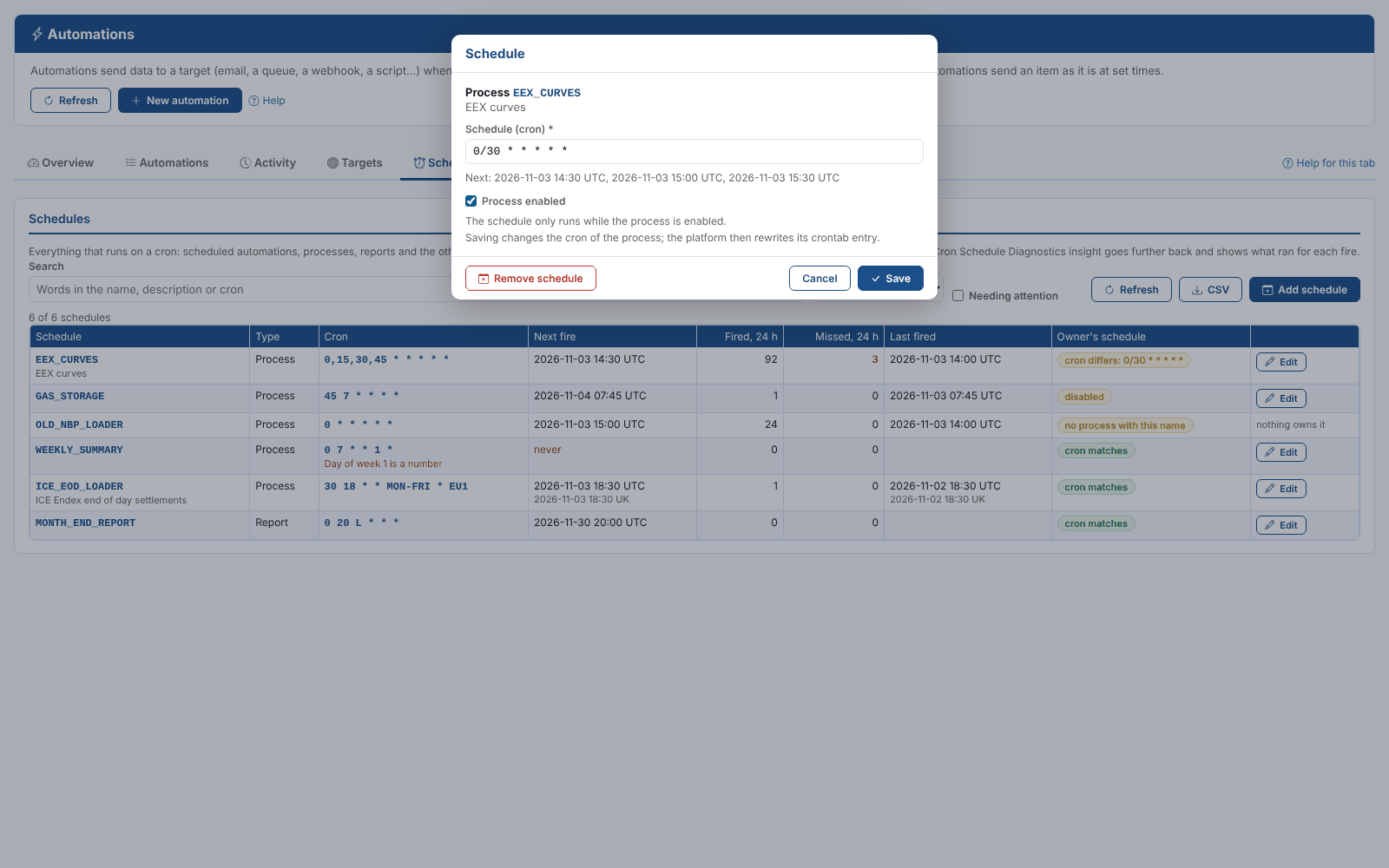
Saving also fixes a cron differs row: the platform rewrites the entry from the saved cron. Tick enabled to switch on a disabled process or report, since its schedule only runs while it is enabled.
To stop a process or report running on a schedule, select Remove schedule in the same dialog and confirm. Its cron is removed; it can still be run by hand or by automations.
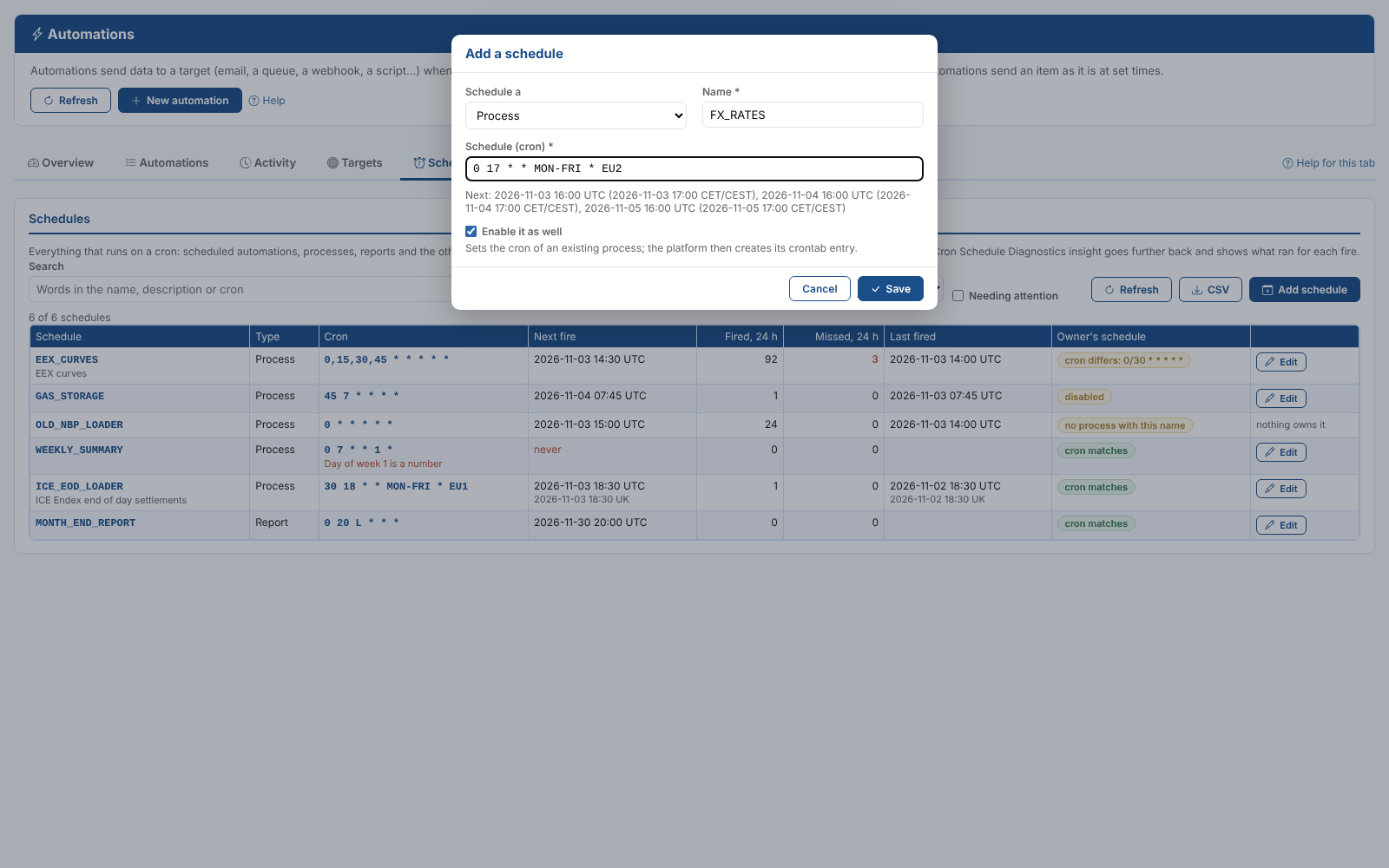
Write the days of the week as names (MON-FRI), and increments as start and step (0/15, not */15). The dialog will not save a cron the platform cannot run.
Adding a schedule
Select Add schedule and choose what to schedule:
| Schedule a | What happens |
|---|---|
| Process | Type or pick the process name, enter the cron, and Save. The process must already exist. Tick Enable it as well to switch it on |
| Report | The same for a report configuration, by its id |
| Scheduled automation | Save opens the New tab: choose the item, then runs on a schedule in When. See Scheduled automations |
Next
- Cron Schedule Diagnostics: what ran for each fire, further back than 24 hours
- Creating an automation
- CRON expressions