Importing events from a CSV file
Any CSV file with a header line can be loaded as events: each row becomes one event. Northgate's operations team sends Priya the daily output of its two German wind farms as a spreadsheet, wind-output-november.csv:
Date;Site;Output MW;Availability %
01/11/2026;Nordsee West;212,4;98,5
01/11/2026;Brandenburg;61,8;97,2
02/11/2026;Nordsee West;287,9;99,1
...
03/11/2026;Nordsee West;n/a;71,0
The October readings are already in the list NGE.WIND.DE:OUTPUT. This page adds the November ones.
1. Drop the file
Drop the file anywhere on the Event Data screen: the drop area on the left lights up while you drag. You can also click the drop area to choose a file, or select Import CSV in the header of an open list to add the file to that list.
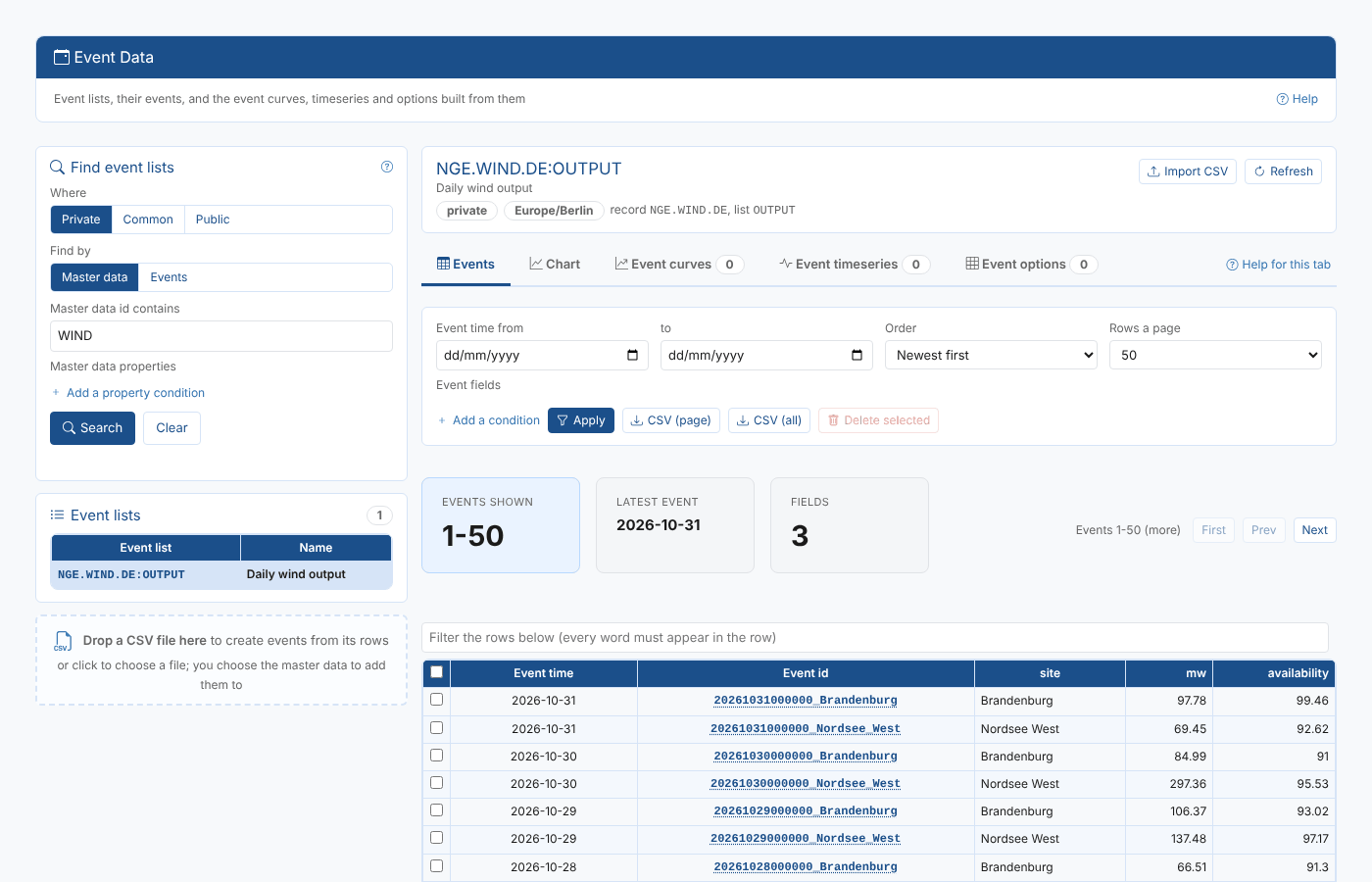
The file can be separated by commas, semicolons, tabs or |, and values can be in double quotes. The first line must hold the column names.
2. Map the columns
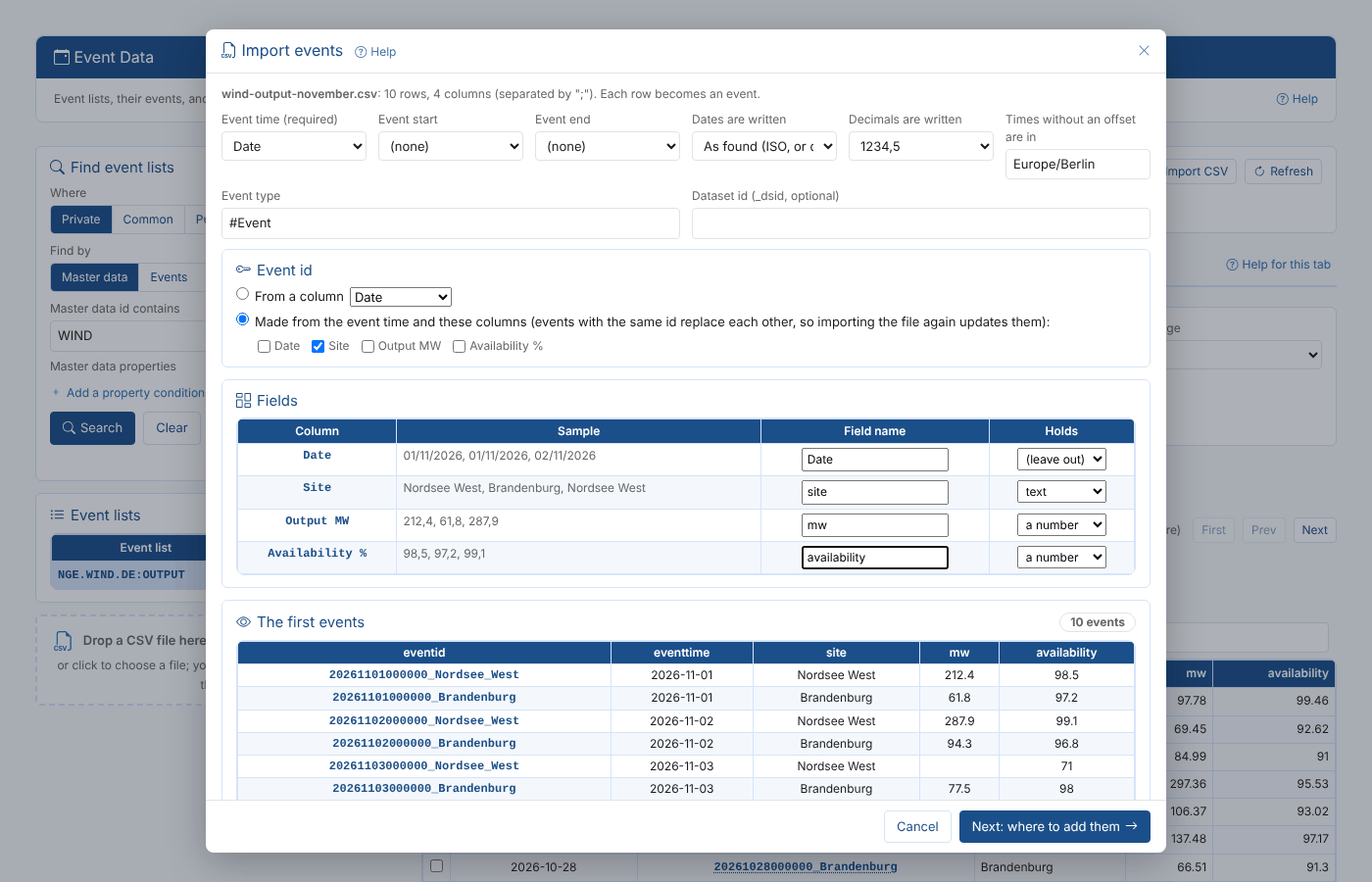
The Import events window shows what was found in the file and how each column will be read. Everything is guessed from the column names and values; check it and change what is wrong.
| Field | What it does |
|---|---|
| Event time (required) | The column with the time of each event. Columns called eventtime, time, timestamp, date and similar are chosen first, then the first column of dates. |
| Event start and Event end | Optional columns for the period each event is about, such as a delivery period. When not set, the platform uses the event time. |
| Dates are written | As found reads ISO dates (2026-11-01, 2026-11-01T16:30) and dates with slashes, day first unless the day cannot be first. Choose dd/MM/yyyy or MM/dd/yyyy to be sure. |
| Decimals are written | 1234.5 or 1234,5. A file separated by semicolons with numbers such as 212,4 is read with decimal commas. |
| Times without an offset are in | The timezone of the times in the file. It is also stored on each event. Times with an offset, such as 2026-11-01T16:30:00Z, keep it. |
| Event type | The type of the events, #Event unless you have your own event type. |
| Dataset id | Optional: a dataset id stored on each event as _dsid. |
Event id decides how each event is identified:
| Option | When to use it |
|---|---|
| From a column | The file has its own unique id for each row, such as a trade id. |
| Made from the event time and these columns | The id is the event time (yyyyMMddHHmmss, in the timezone above) followed by the ticked columns. The columns that tell apart rows with the same time are ticked for you: here Site, because both farms report for each day. |
The Fields table lists every other column with a sample of its values:
| Column | What it does |
|---|---|
| Field name | The name of the event field. Spaces, dots and $ are replaced with _. Priya renames Output_MW to mw and Availability_ to availability. |
| Holds | a number, text, a date, or (leave out). Columns used for the event time, start and end are left out. |
The first events shows the first 8 events as they will be saved, and any problems below it, line by line. Here line 6 has n/a in Output MW: the event is saved without an mw value. Rows without a valid event time are not imported.
Select Next: where to add them.
3. Choose where the events go
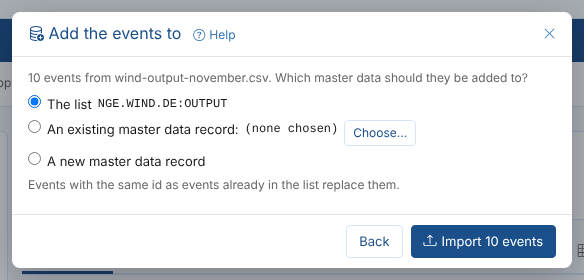
Next, choose which master data the events are added to.
| Option | What happens |
|---|---|
| The list | Shown when a private list is open: the events are added to it. |
| This record | On the Master Data tab: the events go in a list on the record you are looking at. |
| An existing master data record | Select Choose... to search your private master data by id, then pick a record. |
| A new master data record | Enter its id, name and type (#Object unless you have your own type). The record is created with the events. |
For a record, enter the Event list name: the property of the record that holds the events, such as OUTPUT. It must start with a letter and hold only letters, digits, _ or -. It is filled in from the file name.
Select Import. The events are saved 500 at a time, with a progress bar; Cancel stops after the current batch.

4. Check the result
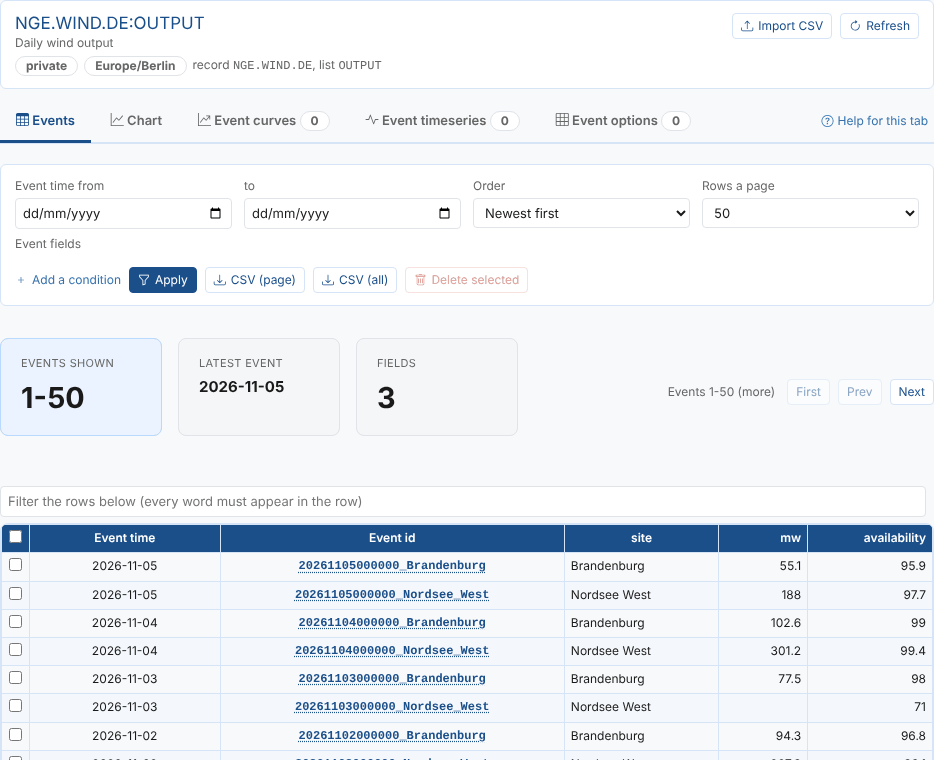
Select Close. The list opens on the Events tab, with the new events at the top.
Event ids and importing again
An event saved with the same id as one already in the list replaces it. So when the ids are made from the time and the right columns, importing a corrected file again updates the events instead of adding copies. Choose the columns with care:
| Id made from | Effect |
|---|---|
| The time and every column that tells rows apart (here Site) | One event per row, updated when the file is imported again. |
| The time only, when rows share a time | Rows with the same time replace each other: only the last one is kept. The problems list warns about it. |
| A column with a unique id | One event per id, updated when the file is imported again. |
Events are not removed by an import. To take readings out of a list, delete them on the Events tab.