Editing rules
The Editor tab has the calendar's details at the top, the Rules on the left and the Test panel on the right.
The details
| Field | What it is |
|---|---|
| ID | The calendar id. It can only be set for a new calendar. |
| Name, Description | How the calendar is shown in lists |
| Trading calendar | Expiry calendars only. The holiday or business calendar the expiry rules move on: go back 2 days using calendar counts its business days. Pick one from the list or type its id. |
| Delivery calendar | Expiry calendars only, optional. The calendar the delivery rules move on. Leave it empty to use the trading calendar. |
The header buttons are Test, Save, Save as copy, History, Delete and Close. Buttons you cannot use for this calendar are hidden.
Rules checked as you type
Each rule is a line with a number, a status icon and its text. While you type, the platform checks every rule against its grammar (the holiday rule grammar or the expiry rule grammar) and the icon shows the result:
| Icon | Meaning |
|---|---|
| Green tick | The rule follows the grammar |
| Red cross | It does not: the problem is shown under the rule |
| Hourglass | Being checked |
| Padlock | A stored rule that is not plain English (an embedded calendar or a rule created in code). It is kept as it is. |
Under a valid rule you see what the platform understood: the kind of rule (actual, ordinal, last, every, named; or expiry, delivery start, delivery end), the holiday name, the years it is valid for, the tenor an expiry rule is for, and its time limit. After a test, it also shows how many holidays the rule gives in the test range, or how many contracts use it. A rule that gives no holidays in the test range is marked: check its years, or whether another rule already gives the same date.
Errors
Under a rule that does not follow the grammar you see:
- the message, such as Unexpected 'Mai': expected a month name;
- the rule with the mistake marked where it is (or a mark at the end when the rule stops too early);
- Expected: the words the grammar accepts at that point. Click one to put it in the rule, in place of the mistake or at the end.
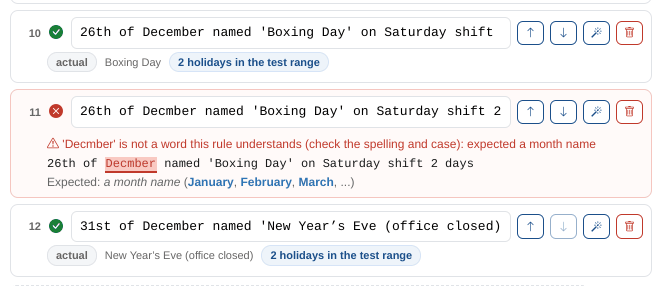
Common mistakes:
| Mistake | Example | Fix |
|---|---|---|
| A word in capitals | Named 'Boxing Day' | Grammar words such as named, in, of, shift, go, then are written in small letters |
| An apostrophe in a holiday name | named 'New Year's Day' | The name ends at the second quote. Use a typographic apostrophe (U+2019) or leave it out. The rule builder does this for you. |
| A misspelt month or day | 25th of Decmber | Month and day names start with a capital or small letter and are spelt in full |
| A missing then after an exception | ... unless the month is 12 go back 5 days | unless the month is 12 then go back 5 days |
| Two rules on one line | One rule a line |
The check reads the whole rule, not only the start. A rule with a typo that was stored before the Calendar Manager existed may have been stored half understood: the Calendar Health Check finds them.
Adding rules
Type in the box under the rules and press Enter or select Add. While you type, a list suggests what can come next, worked out from the grammar: the next words it accepts (with the month and day names, and the periods, written out) and whole example rules that start the same way. Use the arrow keys and Tab or Enter to pick one. Under the box you see whether the rule is valid yet.
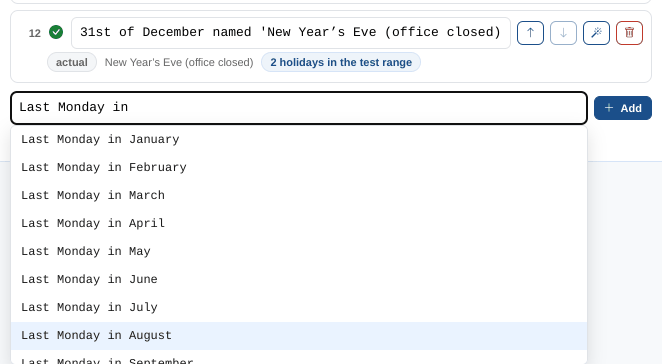
Each rule has buttons to move it up or down, open it in the rule builder and remove it.
Edit as text
Select Edit as text to edit all the rules in a text box, one a line, for example to paste a list from a spreadsheet. Errors are listed under the box by line. Select Edit as a list to go back. Stored rules that are not plain English are kept, after the text rules.
The Syntax guide
The Syntax button opens the Syntax guide tab. The + button next to each example adds it to the calendar open in the editor.
The rule builder
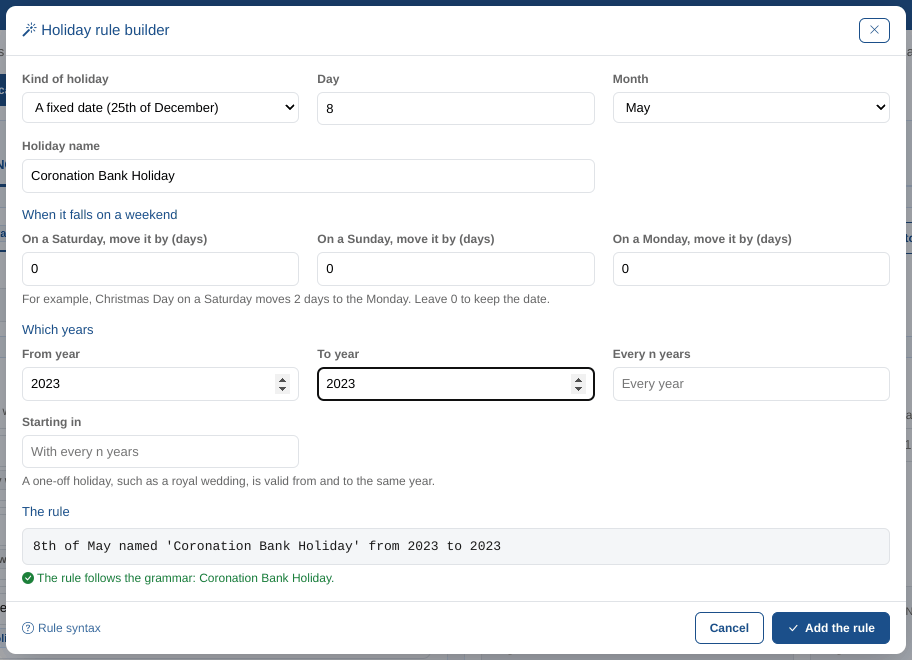
Select Rule builder to write a rule from choices. The builder shows the rule it writes and checks it as you change the choices. Select Add the rule, or Replace the rule when you opened it from a rule's builder button.
Holiday rules
| Choice | What it writes |
|---|---|
| Kind of holiday | A fixed date (25th of December), the nth weekday of a month (First Monday in May), the last or last but one weekday of a month, an Easter related holiday (Good Friday, with an optional number of days to move it) or a weekly closure (Every Saturday) |
| Holiday name | named '...', with any apostrophe made safe |
| When it falls on a weekend | on Saturday shift 2 days, on Sunday shift 1 day, on Monday shift ... |
| Which years | from 2026, to 2026, repeating every 4 years starting 2024 |
At Northgate Energy, Priya adds the bank holiday for the coronation: a fixed date, 8 May, named Coronation Bank Holiday, from 2023 to 2023, which writes 8th of May named 'Coronation Bank Holiday' from 2023 to 2023.
Expiry and delivery rules
| Choice | What it does |
|---|---|
| The rule works out | The expiry (last trading day), when delivery starts or when delivery ends |
| For contracts of | Every tenor, or one: days, weekends, weeks, months, quarters, seasons, half years, years, balance, all |
| Only for contracts starting | At any time, or before or after a date (before 2026-01-01), for when a market changes its rules |
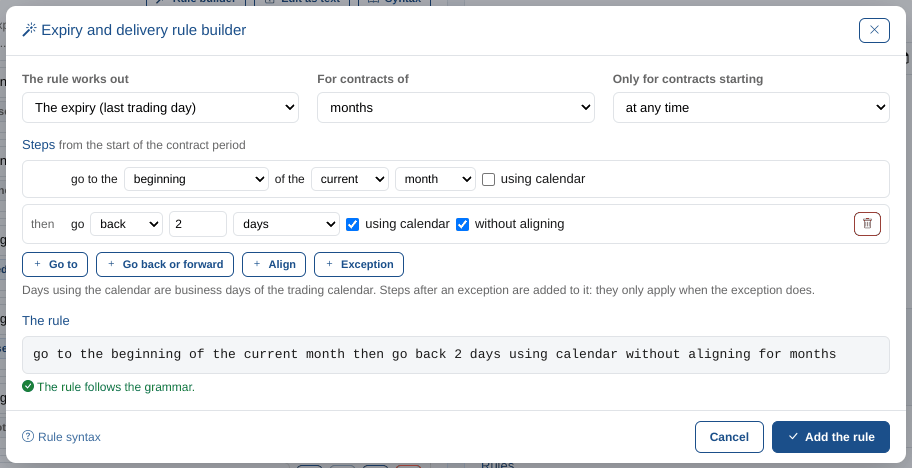
| Steps | From the start of the contract period: Go to the beginning, end, nth day, last weekday, last but one weekday or last trading day of the previous, current or next period; Go back or forward a number of periods, optionally using the calendar (business days) and without aligning; Align to the previous or next business day |
| Exception | except if or unless there is a holiday or a non-business day within some days before or after, the last or first day of a period is a given weekday, or the contract month is a given month; then the steps that apply when it does |
For example, the TTF month contract expires two business days before the first day of the delivery month, counting from the first even when it is a holiday: Go to the beginning of the current month, then Go back 2 days using calendar without aligning, for months, which writes go to the beginning of the current month then go back 2 days using calendar without aligning for months.
When business days are counted from a date that is not a business day, the platform first moves back (or forward) to the nearest business day and counts from there, unless the step says without aligning. See Rule syntax.
To count business days, the builder writes days in the plural with using calendar, even for one day (go back 1 days using calendar): that is the form the platform counts business days for.
Saving
Select Save. The Calendar Manager checks the rules first: if any rule does not follow the grammar, nothing is saved and the rules in red need fixing. The platform checks them again when it saves, so a calendar with a broken rule can no longer be stored.
Each save makes a new version. The title shows the version number. When you save a new calendar with the id of a calendar that already exists, you are asked whether to save over it as a new version.
OpenDataDSL users can also save public calendars; you are asked to confirm, because every tenant uses them. See Public calendars.
A combined holiday calendar is saved as a holiday calendar with the same rules. The platform keeps the rules of an expiry calendar grouped by tenor, so after saving they are shown in that order: balance, days, weekends, weeks, months, quarters, seasons, half years and years, then the rules for every tenor.
History
Select History to see every version of the calendar with when it was saved and by whom. Click a version to compare its rules with the editor, line by line: lines only in that version in red, lines only in the editor in green. 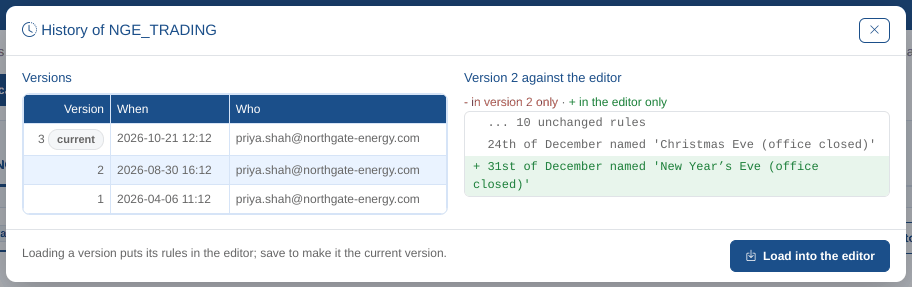
Load into the editor puts that version's rules (and, for an expiry calendar, its trading and delivery calendars) in the editor, and the test runs; select Save to make them the current version.
The Calendar Changes insight shows the changes of every calendar in a period.