Managing calendars
Open Manage, Calendars from the portal menu. The Calendar Manager opens on the Calendars tab.
The Calendars tab
The tab lists every holiday calendar, expiry calendar and other calendar you can read, private and public, in one table.
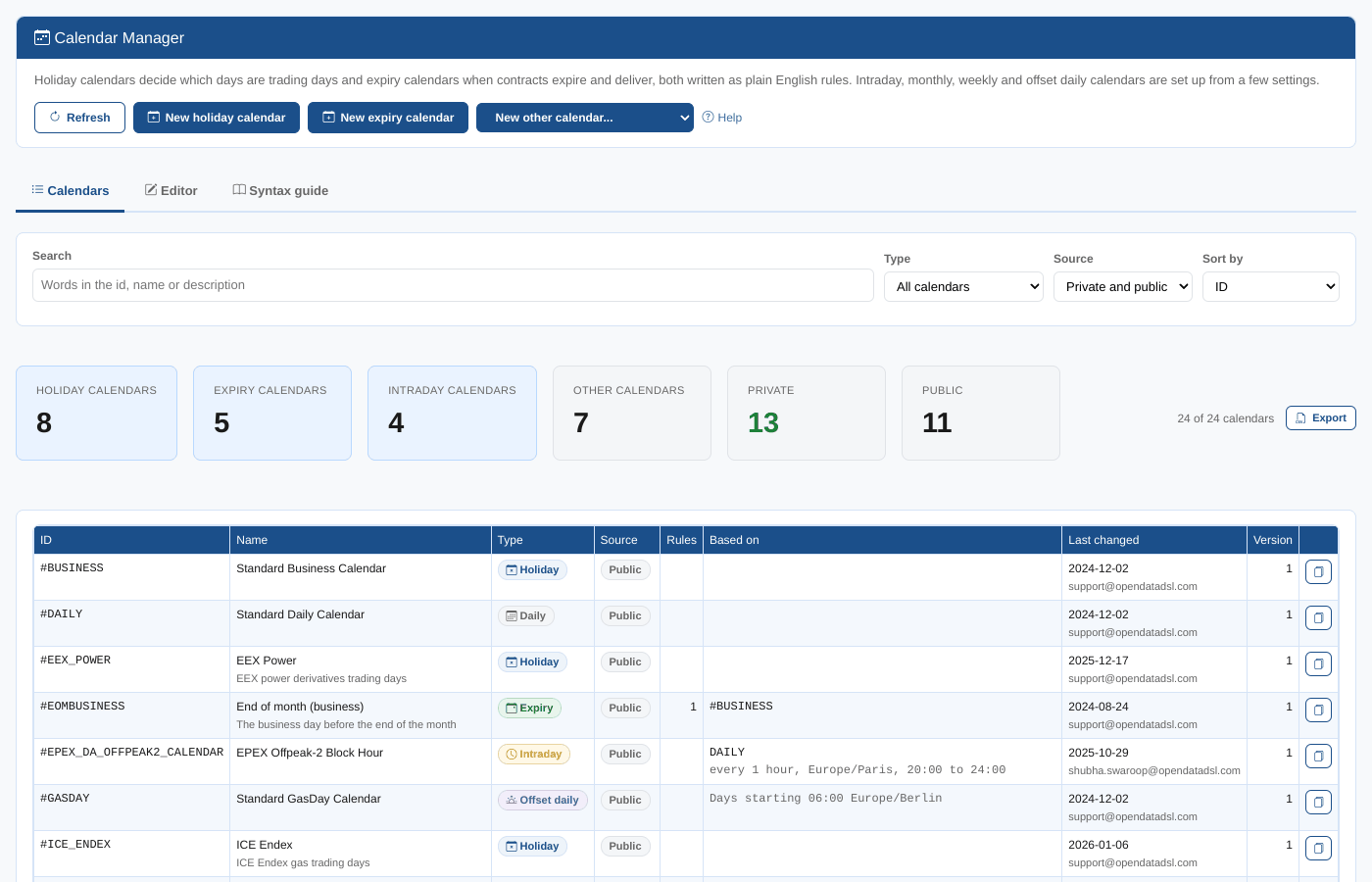
| Control | What it does |
|---|---|
| Search | Shows the calendars whose id, name or description contains the words you type |
| Type | All calendars, holiday, expiry, financial expiry, intraday, monthly, weekly or offset daily calendars, or other calendars (daily, sparse...) |
| Source | Private and public, private only or public only |
| Sort by | ID, name, or the last changed first |
| Export | Downloads the calendars that match the filters as CSV |
| Refresh | Reads the lists again |
Summary cards
| Card | What it shows |
|---|---|
| Holiday calendars, Expiry calendars, Intraday calendars, Other calendars | How many of each you can read. Other calendars counts monthly, weekly, offset daily and the rest. |
| Private | Your company's own calendars, which you can change |
| Public | Calendars maintained by OpenDataDSL |
Columns
| Column | What it shows |
|---|---|
| ID | The calendar id. Public ids start with #. |
| Name | The name, with the description under it |
| Type | Holiday, Expiry, Financial expiry, Intraday, Monthly, Weekly, Offset daily, or the kind of other calendar (Daily, Sparse...) |
| Source | Private or Public |
| Rules | How many rules an expiry calendar has (the calendar lists do not include the rules of holiday calendars: open one to see them) |
| Based on | For an expiry calendar, the calendar its rules move on, and the delivery calendar when it is different. For a financial expiry calendar, its trading calendar, the spot offset and its other calendars. For an intraday, monthly, weekly or offset daily calendar, its holiday calendar and its settings in a few words. |
| Last changed | When the current version was saved, and by whom |
| Version | The current version number |
Click a row to open the calendar in the Editor tab. The copy button at the end of a row opens the calendar as a new private copy.
Opening a calendar
When you open a calendar, the editor shows its rules, checks each one against the grammar and runs the test, so you see its dates straight away.
| Calendar | What you can do |
|---|---|
| A private holiday or expiry calendar | Edit, test, save, save as a copy, delete, history |
| A public calendar | Test, save as a copy, history. A note explains it is maintained by OpenDataDSL. OpenDataDSL users can also edit, save and delete it: see Public calendars. |
| A private financial expiry calendar | Edit its trading, cross and base calendars and its spot offset, test, save, save as a copy, delete, history. See Financial expiry calendars. |
| A private intraday calendar | Edit its interval, time zone, hours and holiday calendar, test, save, save as a copy, delete, history. See Intraday calendars. |
| A private monthly, weekly or offset daily calendar | Edit its settings, test, save, save as a copy, delete, history. See Monthly, weekly and offset daily calendars. |
| Another calendar (daily, sparse...) | See its dates and definition |
Creating a calendar
Select New holiday calendar or New expiry calendar in the header, or choose Intraday, Monthly, quarterly or yearly, Weekly, Offset daily or Financial expiry (FX, money markets) in the New other calendar... menu.
- A new holiday calendar starts with
Every SaturdayandEvery Sunday. - A new expiry calendar starts with a common month rule:
go to the end of the previous month then go back 1 days using calendar. Choose its Trading calendar before you test it. - A new intraday calendar starts as every hour of every day in UK time.
- A new financial expiry calendar starts with spot T+2: choose its three calendars before you test it.
- A new monthly calendar starts as monthly on the 1st, a new weekly calendar as every Monday, and a new offset daily calendar as the German gas day (06:00, Europe/Berlin).
Give it an ID (letters, digits, dots, underscores and dashes; no spaces and no #, which is for public calendars and only OpenDataDSL users can use), a Name and a Description, write the rules and select Save. See Editing rules.
At Northgate Energy, Priya creates NGE_TRADING with the weekend rules, the UK bank holidays and two office closures:
Every Saturday
Every Sunday
1st of January named 'New Year Holiday' on Saturday shift 2 days and on Sunday shift 1 day
Good Friday
Easter Monday
First Monday in May named 'Early May Bank Holiday'
Last Monday in May named 'Spring Bank Holiday'
Last Monday in August named 'Summer Bank Holiday'
24th of December named 'Christmas Eve (office closed)'
25th of December named 'Christmas Day' on Saturday shift 2 days and on Sunday shift 2 days
26th of December named 'Boxing Day' on Saturday shift 2 days and on Sunday shift 2 days
31st of December named 'New Year Eve (office closed)'
Copying a calendar
Select Save as copy in the editor, or the copy button in the list. The copy is a new, unsaved private calendar with the same rules, an id ending in _COPY and the name followed by (copy). Change the id if you want, then select Save.
This is how you change a public calendar: copy it, change the copy, and point your timeseries, curves or expiry calendars at the copy.
Public calendars
Public calendars are maintained by OpenDataDSL. Users of the OpenDataDSL tenant (and users with the platform's admin role, who manage all public data) can change them in the Calendar Manager like a private calendar: edit, test, Save, Delete and History all work, in the public calendars. For everyone else a public calendar is read only.
A note at the top of the editor warns that every tenant uses the calendar, so a save applies to every timeseries, curve and expiry calendar on it, in every tenant. Save and Delete ask you to confirm for a public calendar.

To create a public calendar, start a new calendar and give it an id that starts with #, such as #EPEX_DA_PEAK_HOURS: the title shows Public and the calendar is saved in the public calendars. An id cannot move between private and public once saved; copy the calendar instead.
Test a change to a public calendar before you save it. The Changes tab shows exactly which dates or contracts move, and Calendar Usage Across Services shows everything that uses the calendar.
Deleting a calendar
Select Delete in the editor of a private calendar and confirm. Timeseries, curves and expiry calendars that use the calendar no longer find it, so check Calendar Usage Across Services first.
Deleting cannot be undone from the Calendar Manager.
Unsaved changes
The title shows Changed once you change anything. Opening another calendar, closing the editor or leaving the page asks you to confirm before your changes are lost.