Debugging scripts
When a run gives an answer you did not expect, the debugger lets you stop the script where you choose and look inside it. You see every variable, step through the script a line at a time, follow it into its functions, and try out expressions while it waits.
You can debug a whole ODSL script, one of its functions or one of its regions. Debugging needs the run action on the script in your security policies, as running does.
Setting breakpoints
A breakpoint marks a line where the script stops. Click in the margin left of the line number, or put the cursor on the line and press F9. A red dot shows the breakpoint, and the same click or F9 removes it.
Right-click the margin for more choices:
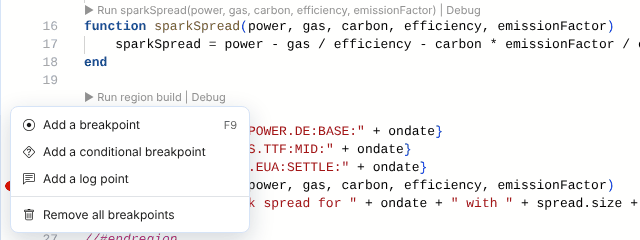
| Choice | What it does |
|---|---|
| Add a breakpoint | Stops the script every time it reaches the line |
| Add a conditional breakpoint | Stops only when a condition is true |
| Add a log point | Writes a message to the debug console, without stopping |
| Remove all breakpoints | Removes every breakpoint of the script |
Breakpoints are kept in your browser for each script, and they move with their lines while you edit. When the debugger starts it checks them: a breakpoint on a comment, a blank line or an end shows as a hollow grey circle, because the script never stops there.
Conditional breakpoints
A conditional breakpoint stops only when its condition is true, for example i == 10 in a loop, or ondate == "2026-10-23". The condition is an ODSL expression, worked out each time the script reaches the line. Leave it empty to stop every time.
A conditional breakpoint shows a red dot with two white lines. If the condition cannot be worked out, the script stops there anyway and the debug console says why, so you can correct it.
Log points
A log point writes a message to the debug console each time the script reaches its line, and the script carries on. It is a quick way to follow a script without stopping it and without adding print statements you have to remove later.
Put an expression in braces to show its value. Priya adds a log point on the line that reads the TTF curve:
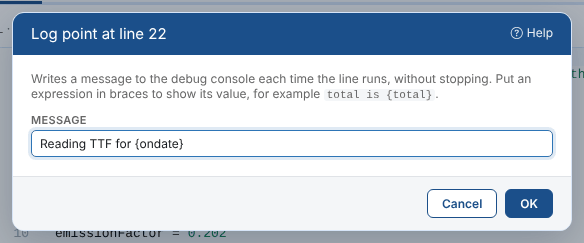
A log point shows as a red diamond.
Starting the debugger
Select Debug, or press F5 in the editor. The script runs on the platform as you, and stops at the first breakpoint it reaches.
| To debug | Do this |
|---|---|
| The whole script | Debug, or F5 |
| One function | The arrow next to Debug, then the function, or the Debug link above the function in the editor. The Script Manager asks for the arguments, as when you run a function. |
| One region | The arrow next to Debug, then the region, or the Debug link above the //#region line |
As with Run, your unsaved changes are debugged as they are, without saving them, and the script's input from the output panel is passed to it. A script with syntax errors is not debugged: correct them first.
The first time you debug, the platform checks that you may run the script and reads it, which can take a few seconds. The debug console says Checking your rights and preparing the script... meanwhile.
Here Priya debugs her spark spread script with a breakpoint on line 24, where it calls sparkSpread. She uses Fill the view so the editor and the debugger take the whole screen:
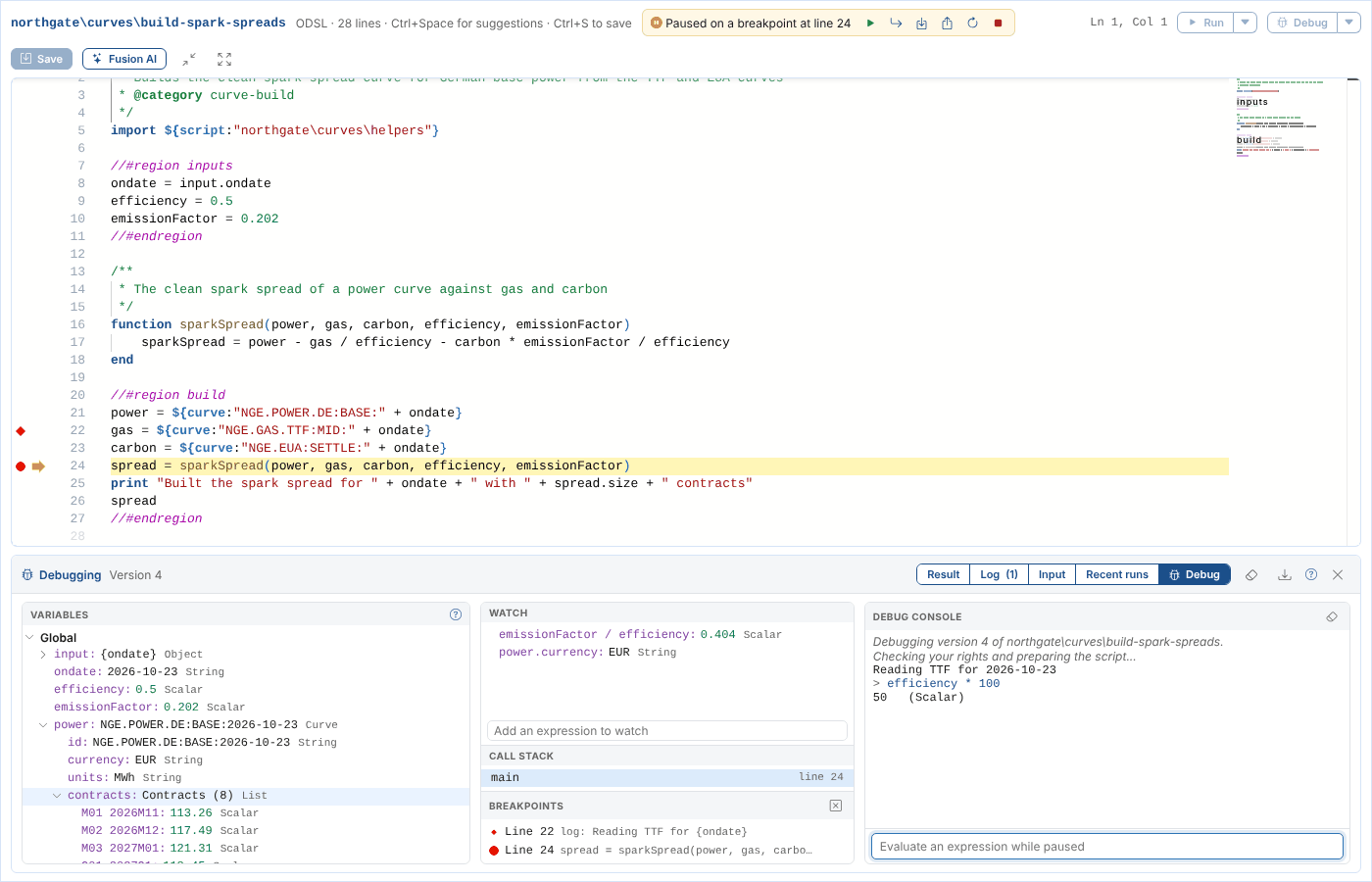
The yellow arrow and the highlighted line show where the script is waiting: it has not run line 24 yet. While you debug, the editor is read only.
The debug bar
While you debug, the bar above the editor shows where the script is and the buttons that move it on.

| Button | Key | What it does |
|---|---|---|
| Continue | F5 | Runs on to the next breakpoint, or to the end |
| Pause | F6 | Stops the running script at the next line |
| Step over | F10 | Runs the line, including any function it calls, and stops at the next line |
| Step into | F11 | When the line calls a function of the script, or of a script it imports, stops at the first line of that function. Otherwise as Step over. |
| Step out | Shift+F11 | Runs to the end of the current function and stops at the next line of the script that called it |
| Restart | Ctrl+Shift+F5 | Stops the run and starts it again from the beginning |
| Stop | Shift+F5 | Stops the run |
While a debug session runs, these keys work for the debugger: F5 continues instead of reloading the page, and F11 steps into instead of going full screen.
Variables, watch and the call stack
The Debug tab of the output panel shows what the script holds at the line where it stopped.
| Part | What it shows |
|---|---|
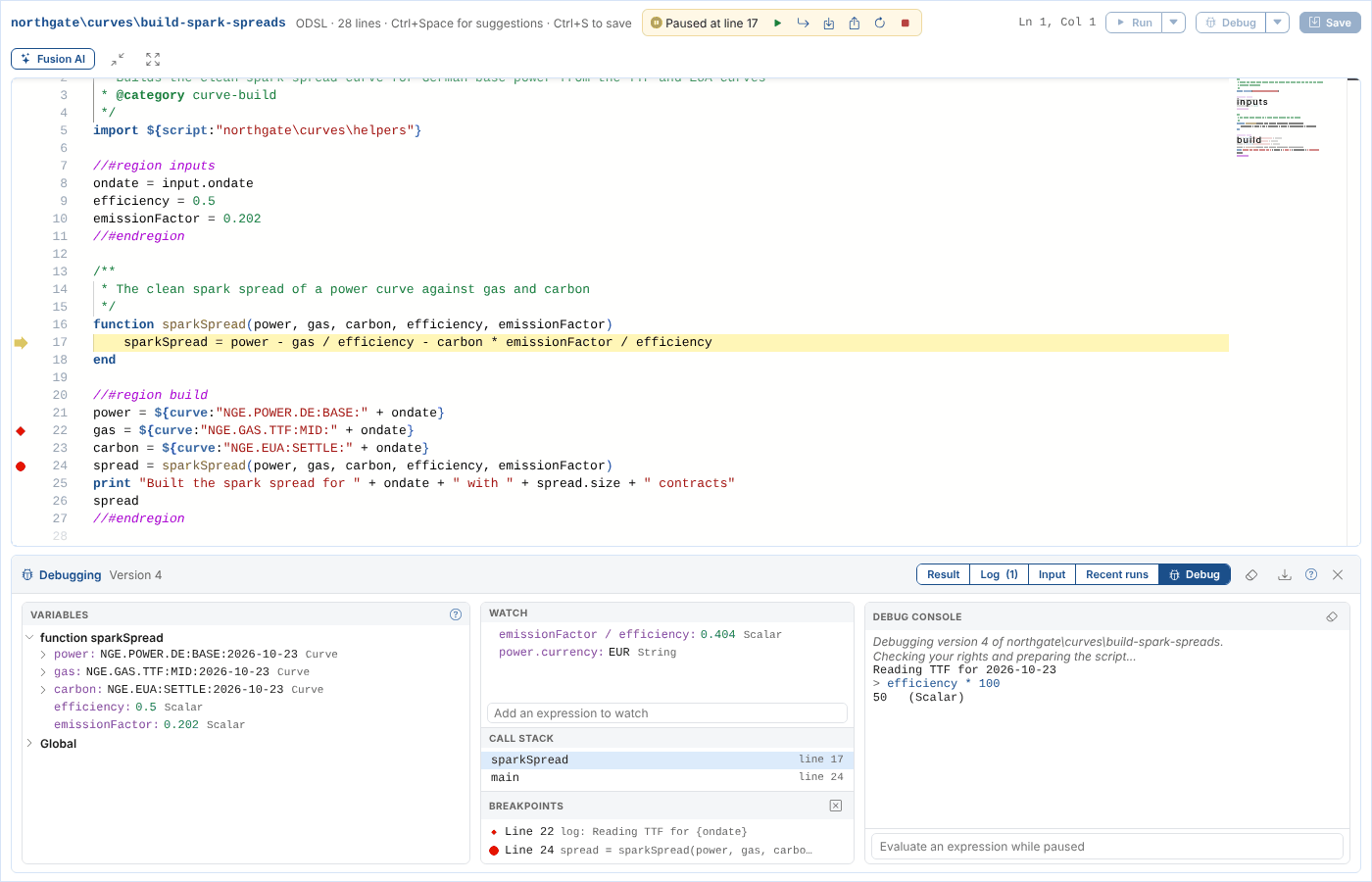
| Variables | The variables of the function the script is in, then the script's global variables. Select the arrow next to an object, a list or a curve to see what it holds, such as a curve's currency, units and contracts. What you open stays open at the next stop. |
| Watch | Expressions you want to follow, such as emissionFactor / efficiency or power.currency, worked out again at every stop. They are kept in your browser for each script. |
| Call stack | The functions the script is in, the innermost first. Select one to see the line that called it, highlighted in green. |
| Breakpoints | The script's breakpoints, conditions and log points. Select one to go to its line. |
| Debug console | The output of print and log, the messages of log points, and the result of any expression you type in the box at the bottom while the script is paused. Up and down bring back the expressions you typed before. |
You can also hold the mouse over a variable in the editor to see its value.
Priya steps into sparkSpread with F11. The variables now show the function's own arguments, and the call stack shows that sparkSpread was called from line 24:
When the script ends
When the script ends, the output panel shows its result and log as for a run, with Debug before the version. The Debug tab keeps the console of the session.
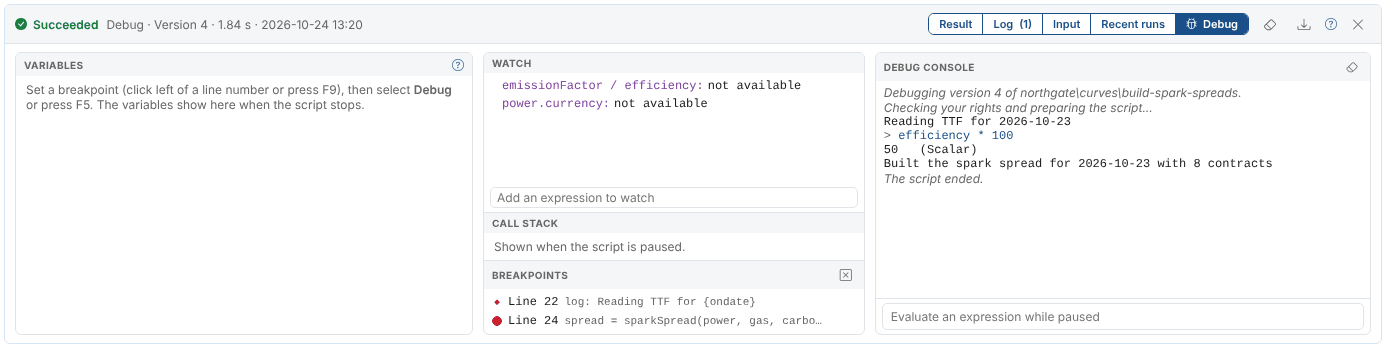
If you stop the session, the panel shows Stopped, not Failed.
Good to know
| What can be debugged | ODSL scripts. JavaScript scripts can be run but not debugged. |
| Data | A debug run is a real run: it reads and writes data as you. A save after the line where the script stopped has not happened yet; Stop ends the run there. |
| Script log and automations | Debug runs are not in the script log, and do not trigger the script's automations |
| One session at a time | Starting a debug session in another tab or browser ends the one you had. Opening another script stops the debugger. |
| Time limits | A session ends after 15 minutes without anything from you, and after an hour in all |
Next
Writing scripts with Fusion AI: ask Fusion to write, change, explain or fix the script.