Versions and the audit trail
Every save of a script makes a new version and keeps the earlier ones. The Script Manager shows what changed between any two versions, lets you go back to one, and lists who changed the script, when and why.
Comparing versions
The Compare versions tab lists the versions of the script, newest first, with who saved each one and when. Under the list, two versions are shown side by side, with removed lines in red and added lines in green.
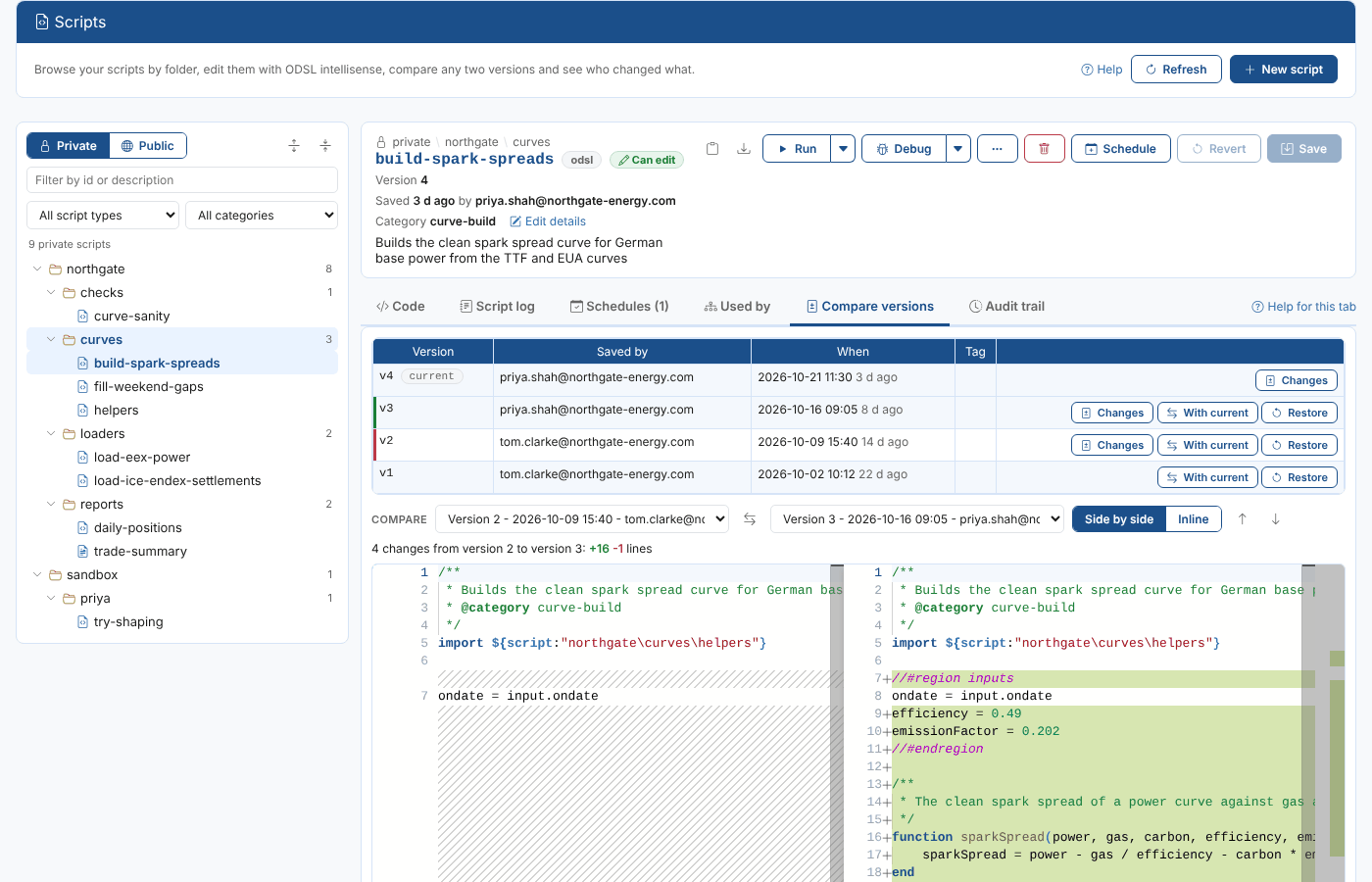
| Control | What it does |
|---|---|
| Changes | Compares a version with the one before it: what that save changed |
| With current | Compares a version with the current one (or with the editor when you have unsaved changes) |
| Compare lists | Any two versions, or a version and The editor with your unsaved changes |
| Swap | Swaps the two sides |
| Side by side and Inline | Two columns, or one column with the removed and added lines one after the other |
| Up and down arrows | Go to the previous or next change |
Above the comparison you see how many changes there are and how many lines were added and removed.
Here Priya compares version 2 with version 3, where she moved the inputs into a region and wrote the formula as the function sparkSpread.
Restoring a version
Select Restore on an earlier version to make it the current one again. The Script Manager puts that version's text in the editor and saves it as a new version, with the reason Restored version 2 (which you can change). The versions in between are kept, so you can restore those too.
Restoring replaces the text in the editor, including any unsaved changes. The Script Manager warns you first.
Rolling back and deleting
The bin button next to Schedule rolls the script back or deletes it, as in the Smart Data extension. It needs the delete action on the script.
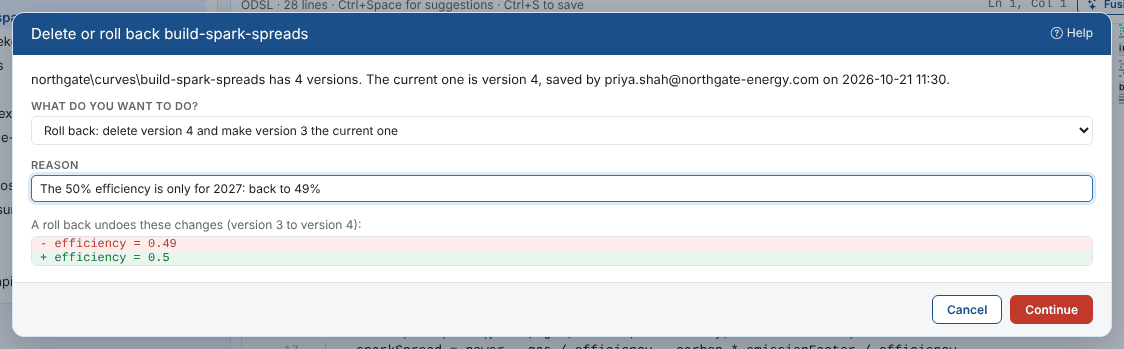
| Choice | What happens |
|---|---|
| Roll back | Deletes the current version: the version before it becomes the current one again. The dialog shows what a roll back undoes. |
| Delete it completely | Deletes every version of the script |
A script with one version can only be deleted. Each roll back or delete asks for a reason, kept in the audit trail.
| Roll back | Restore | |
|---|---|---|
| What it does | Deletes the current version | Saves an earlier version's text as a new version |
| The versions in between | The current one is gone | All kept |
| Use it for | A save that should never have happened | Going back to earlier code while keeping the history |
Before deleting a script completely, the Script Manager checks where it is used. While anything uses it, it is not deleted: the dialog lists what uses it, so you can change or delete those first. Then it asks once more, because a delete cannot be undone.
A roll back or delete cannot be undone, and your unsaved changes are lost. Restore keeps the history, so prefer it when you are not sure.
Where the script is used
The Used by tab lists everything on the platform that uses the script, so you know what a change affects before you save it.
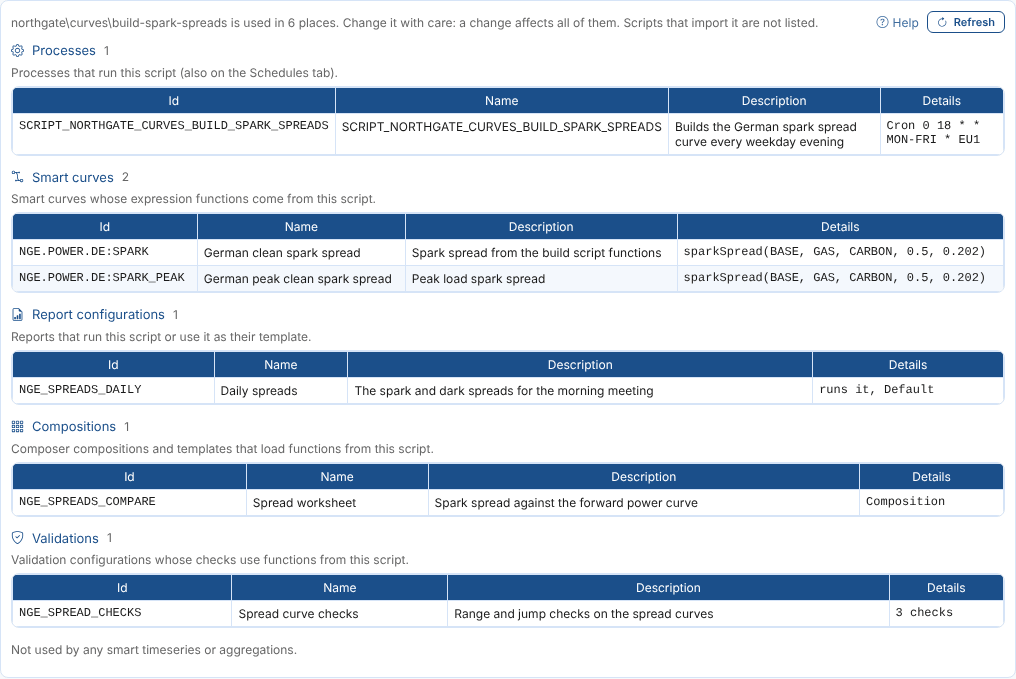
| Kind | Uses the script when |
|---|---|
| Processes | The process runs it (its schedules are also on the Schedules tab) |
| Smart curves and Smart timeseries | Their expression functions come from the script |
| Report configurations | The report runs the script or uses it as its template |
| Aggregations | An Aggregator aggregation is built on the script |
| Compositions | A Composer composition or template loads functions from the script |
| Validations | A validation configuration's checks use functions from the script |
The tab shows how many places use the script, and Refresh looks again. Only your company's (private) items are searched.
Scripts that import this script, with import ${script:"id"} or a Mustache partial, are not listed: finding them needs the text of every script.
The audit trail
The Audit trail tab lists everything done to the script, newest first.
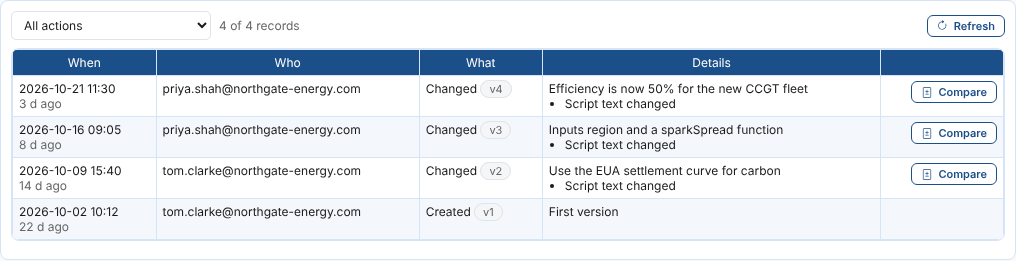
| Column | What it shows |
|---|---|
| When | When it happened |
| Who | Who did it |
| What | Created, Changed, Rolled back, Tagged, Renamed or Deleted, with the version it made |
| Details | The reason given when it was saved, and what changed: Script text changed, or other fields such as the description |
| Compare | Opens the version before and the version this change made on the Compare versions tab |
When a script is renamed or moved, the audit trail records Renamed under both ids: "Renamed to" under the old id and "Renamed from" under the new one. The changes made before the rename stay under the old id.
Filter by action to see only the changes, for example. The reasons are what each person typed when they saved, so a good reason, such as Efficiency is now 50% for the new CCGT fleet, saves the next person from reading the code.
Next
Script Manager reference: permissions, the REST functions and what the extension contains.