Running scripts
You can run an ODSL or JavaScript script from the editor and see what it returns, without leaving the screen and without saving first. Running needs the run action on the script in your security policies. To stop an ODSL script at a line and look at its values, debug it instead.
Running a script
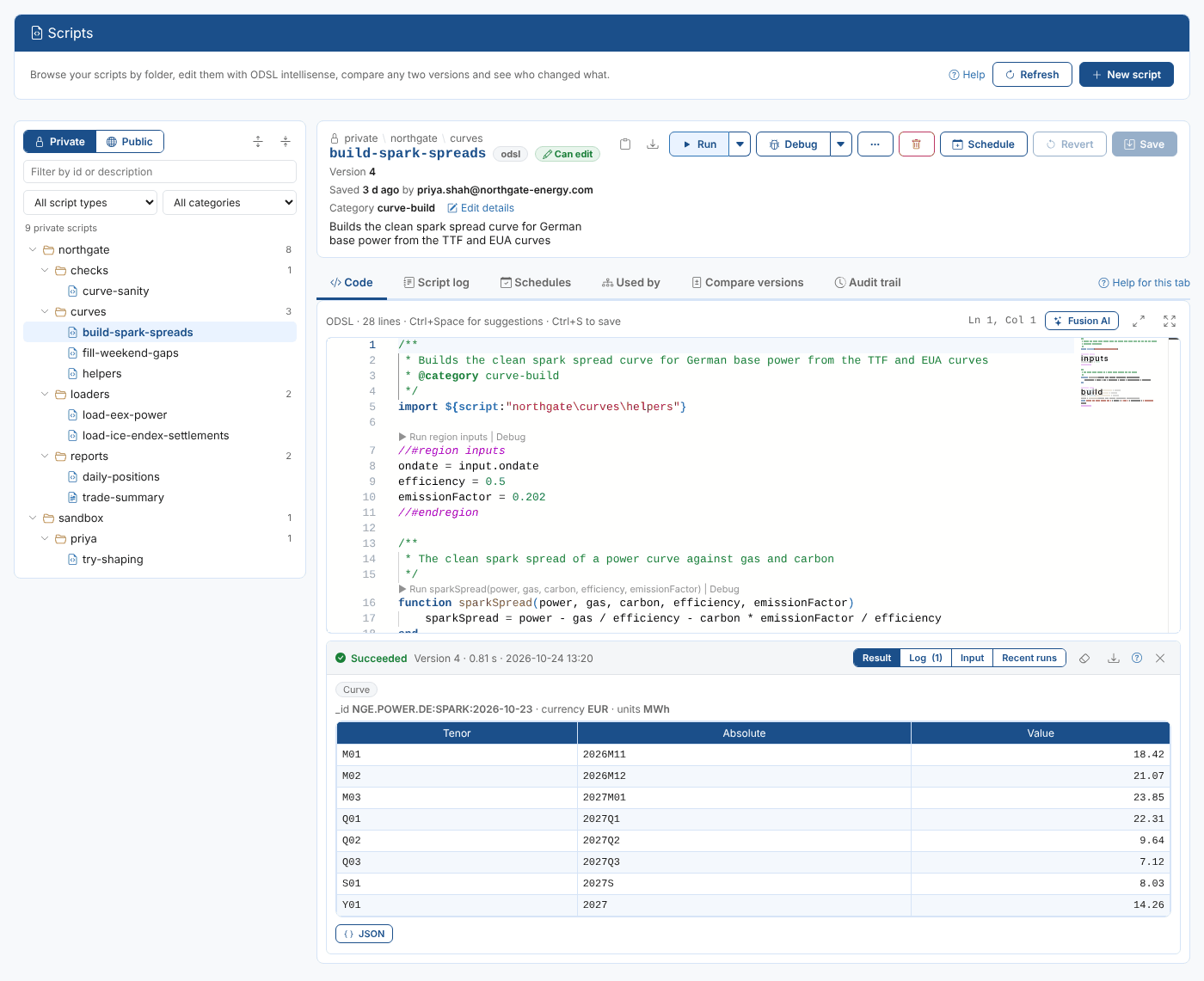
Select Run or press Ctrl+Enter. The script runs on the platform as you, and the output panel opens under the editor.
| You have | What runs |
|---|---|
| No unsaved changes | The saved version. The output says Version 4. |
| Unsaved changes | The text in the editor, as it is, without saving it. The button says Run unsaved and the output says Unsaved text. |
The result of a script is the value of its last statement, or what it returns. Priya's script ends with spread, so its result is the spread curve.
A script runs with your access, so it reads and writes what you can. Running a script that saves data saves it for real, even when you have not saved the script.
An ODSL script with syntax errors is not run: the output lists the errors, and you can select one to go to it. The platform would otherwise run only the part of the script it could read.
Stop stops waiting for the result. The run carries on on the platform, and shows in the script log when it ends.
Running a function
Each function of the script has a Run link above it in the editor, and the arrow next to Run lists the functions and regions of the script.
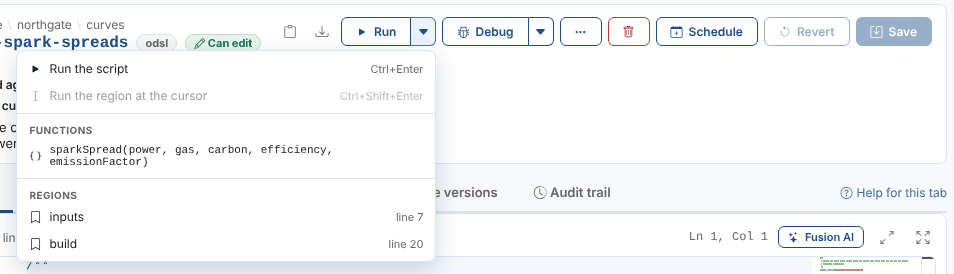
When you run a function, the Script Manager asks for its arguments. Each argument is an ODSL expression: a number, text in quotes, a list, or data such as ${curve:"NGE.POWER.DE:BASE:2026-10-23"}.
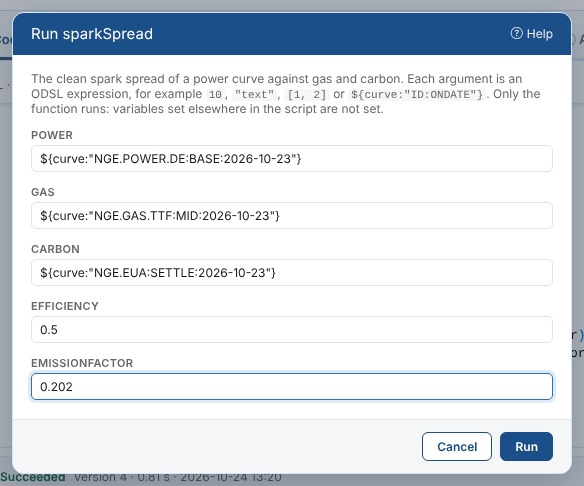
Only that call runs, with the script's other functions and its imports available. The rest of the script does not run, so variables the script sets outside the function are not set. The arguments are remembered for the next time.
Running a region
A region is a block of the script between //#region name and //#endregion. Each region has a Run region link above it, and Ctrl+Shift+Enter runs the region the cursor is in.
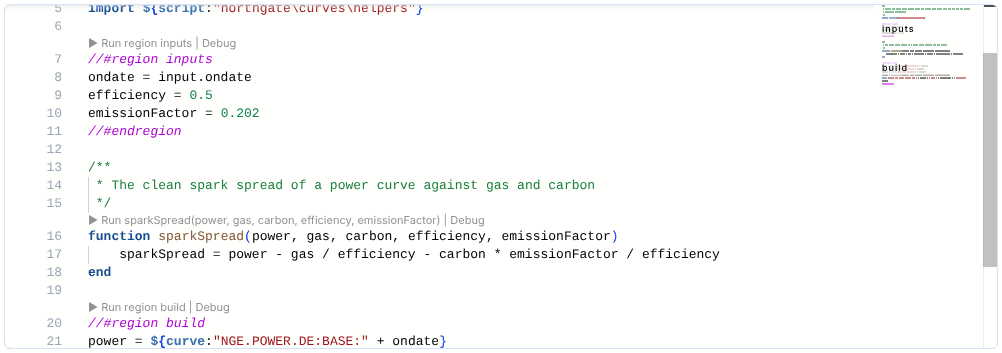
Only the region runs, with the script's functions and imports available. Its result is the value of its last statement. Regions are a good way to split a script into steps you can try one by one, such as inputs and build in Priya's script.
Only regions at the top level of the script can be run. A region inside another region runs as part of the outer one.
The output panel
The output panel shows the latest run: whether it succeeded, what ran (the saved version or unsaved text, the function or region), how long it took and when.
| View | What it shows |
|---|---|
| Result | What the script returned: a single value, a list, a table of objects, a curve's contracts (tenor, absolute period, value), a timeseries' values, or an object's fields. JSON shows the result as the platform returned it. |
| Log | Every line the script wrote with print or log, with the time and level |
| Input | An optional JSON object passed to the script as the variable input, as a process passes its input |
| Recent runs | The latest runs of the script, from the script log |

Priya's script reads the ondate from input.ondate, so she sets the input to build the curve for a given day:

The input is kept in your browser for each script. The eraser button clears the result and the log (the input is kept), and the download button saves the run as a JSON file. A failed run shows the platform's error message in red.
The script log tab
The Script log tab lists every run of the script, newest first: from the editor, from the API, from automations and from other scripts.
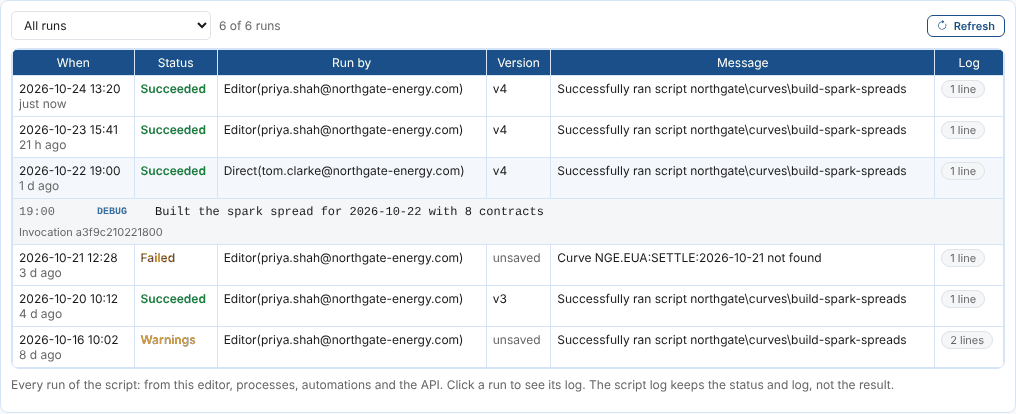
| Column | What it shows |
|---|---|
| When | When the run started |
| Status | Succeeded, Warnings (the script logged a warning) or Failed |
| Run by | Editor(...) for a run from the Script Manager, Direct(...) for a run through the API, Automation(...) for a run by an automation |
| Version | The saved version that ran, or unsaved for text run from the editor |
| Message | The platform's message, such as the error of a failed run |
| Log | How many lines the run logged. Select the run to see them. |
Filter by status to find the failed runs. The script log keeps the status and log of each run, not its result.
Runs from the editor are recorded in the script log but do not trigger the script's automations. Runs of a schedule are listed on the Schedules tab, as runs of its process.
Next
Debugging scripts: stop the script at a line, step through it and see its variables.