Writing scripts with Fusion AI
Fusion AI can write a script from a description, change a script the way you ask, explain a script you did not write, and fix errors. It works in a panel next to the editor and never saves anything itself: you review each change, apply it to the editor, try it and save it as usual.
Opening Fusion AI
Select Fusion AI in the bar above the editor. The panel opens at the right of the editor, and stays open when you open another script.
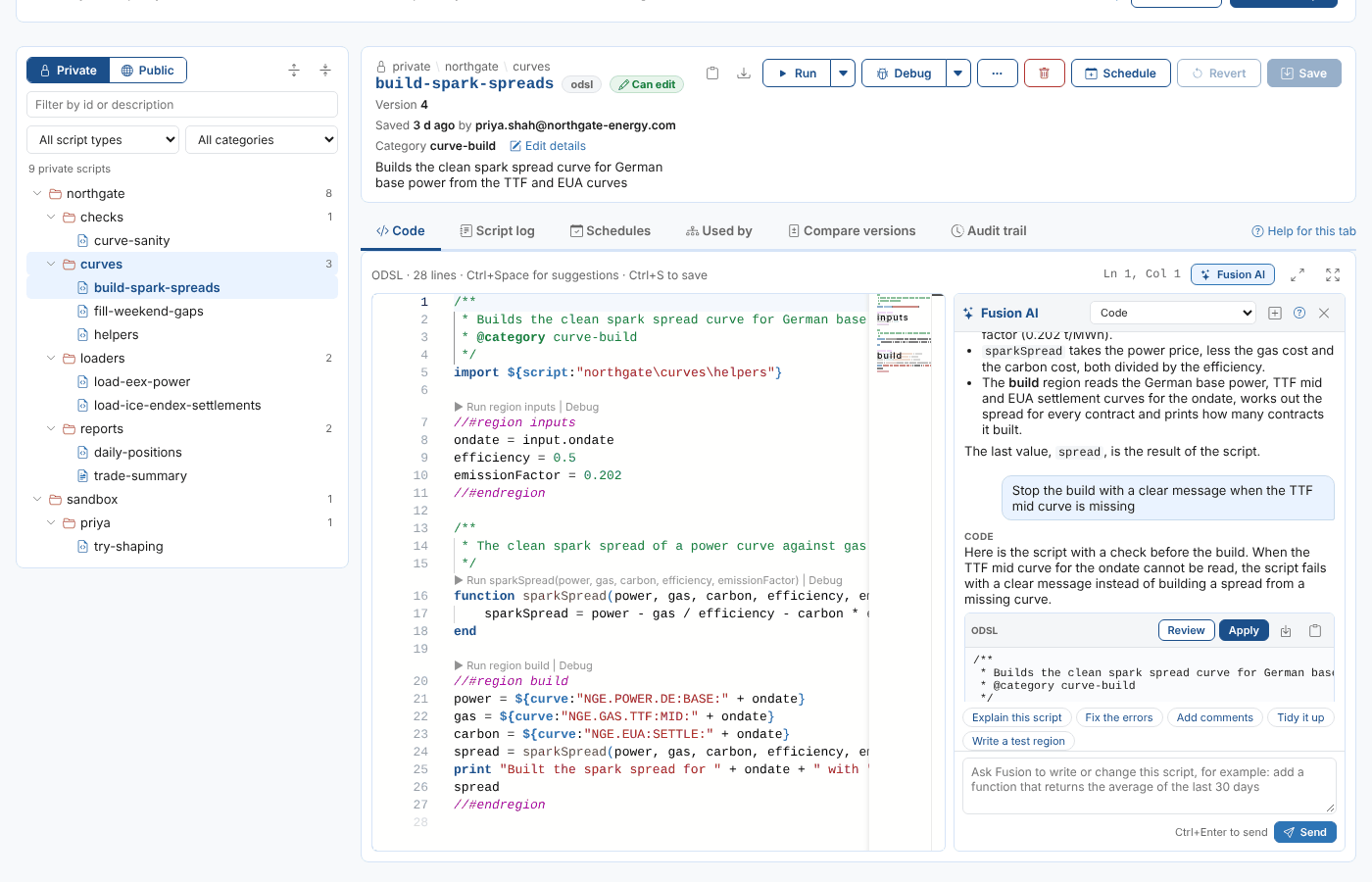
| Control | What it does |
|---|---|
| Assistant | The Fusion assistant that answers. The code assistant is chosen for you; Automatic lets Fusion choose. Your choice is remembered. |
| New conversation | Starts again, without the earlier questions |
| Quick asks | Explain this script, Fix the errors, Add comments, Tidy it up and Write a test region |
| Only the selection | Appears when you select lines in the editor: Fusion changes only those lines |
| Send | Sends your request. Ctrl+Enter sends it too. |
Asking for a change
Write what you want in plain words, such as Stop the build with a clear message when the TTF mid curve is missing, and select Send.
With each request, Fusion sees:
- the script's id, type and description, and whether you can change it
- the script as it is in the editor, including unsaved changes (or only the selected lines, with the whole script for reference)
- the syntax errors in the editor
- the result and log of your last run
So Fix the errors works on the error you just got, and you do not need to paste the script or the error. Fusion is asked to look up real curve, timeseries and script ids with its tools rather than invent them, and to say when it cannot find something.
Each conversation is per script, and is kept in your Fusion AI chat history in the category scripts.
Reviewing and applying a change
When Fusion changes code, its reply has a code block with these buttons:
| Button | What it does |
|---|---|
| Review | Shows the editor and the change side by side, then Apply to the editor |
| Apply | Replaces the script in the editor with Fusion's version, or only the selected lines when you asked about a selection |
| Insert | Inserts the code at the cursor |
| Copy | Copies the code |
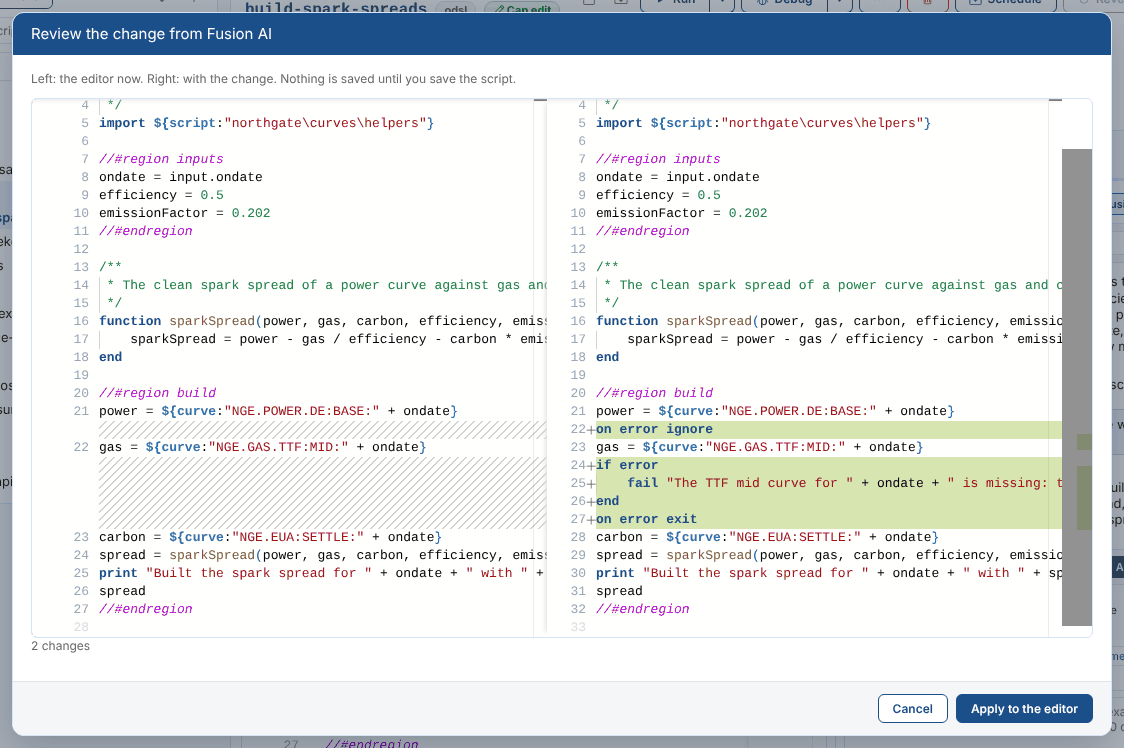
Applying a change does not save it. Read it, run it, then save it: the reason starts as Fusion AI: and your request. Ctrl+Z undoes an applied change.
Fusion can be wrong. Check the ids it uses and run the script before you save it, especially for a script that writes data or runs on a schedule.
If you can read the script but not change it, Fusion still explains it and suggests changes, but the apply buttons are off.
Writing a new script with Fusion AI
In the New script dialog, describe what the script should do in Ask Fusion AI to write it. The Script Manager creates the script, opens it and sends your description to Fusion, which writes the script in the panel. Review it, apply it and save it.
For example, Priya creates northgate\curves\build-dark-spreads and asks: Like build-spark-spreads, but for coal: use the API2 coal curve NGE.COAL.API2:MID, an efficiency of 38% and an emission factor of 0.341.
Good to know
| Topic | What to know |
|---|---|
| Cost | Fusion AI usage counts towards your company's Fusion AI tokens, like any other conversation |
| Long scripts | Only your latest request carries the script, to keep each request small |
| Saving | Nothing is saved until you select Save |
| History | The conversation is in the Fusion AI chat history, and the reason of the save says what you asked for |
Next
Scheduling a script: run the script on a cron.