Designing a workflow
The Design tab has three parts: the palette on the left, the canvas in the middle and the side panel on the right, which shows the settings of whatever is selected.
The palette
- Flow: a Gateway (a decision in code), a Success end and a Failed end.
- Actions: every public and private action, grouped by category. Hover over one to see its description, inputs and exits.
- Workflows: your other workflows, to run as sub-workflows.
Type in the search box to find an action or workflow by id, description or category.
To add an activity, drag it onto the canvas. Drop it on an activity that has an unconnected exit and it is connected to that exit. You can also click an item: it is added after the selected activity and connected to its first unconnected exit, which is the quickest way to build a chain of steps.
The canvas
| To | Do this |
|---|---|
| Connect an exit | Drag from the exit's port (the circle under the exit, along the bottom of the activity) to the next activity, which it joins at the top |
| Add the next step while connecting | Drop the connection on empty canvas, then choose Success end, Failed end or Gateway |
| Move an activity | Drag it (it snaps to a 10 pixel grid) |
| Select a connection | Click the line |
| Delete the selection | Press Delete, or click Delete in the toolbar |
| Pan | Drag the background |
| Zoom | Use the mouse wheel, or the zoom buttons |
| See the whole workflow | Click the fit button |
| Lay it out again | Click Tidy up: the activities are placed top to bottom in the order they run, one row per step |
| Undo or redo | Ctrl+Z and Ctrl+Y, or the toolbar buttons |
The diagram runs from top to bottom: each activity has its input at the top and its exits side by side along the bottom. A connection that goes back up to an earlier activity (a loop) curves out to the side. An exit that is not connected is shown in amber. Every workflow starts at the Start at the top: drag from its port to the first activity.
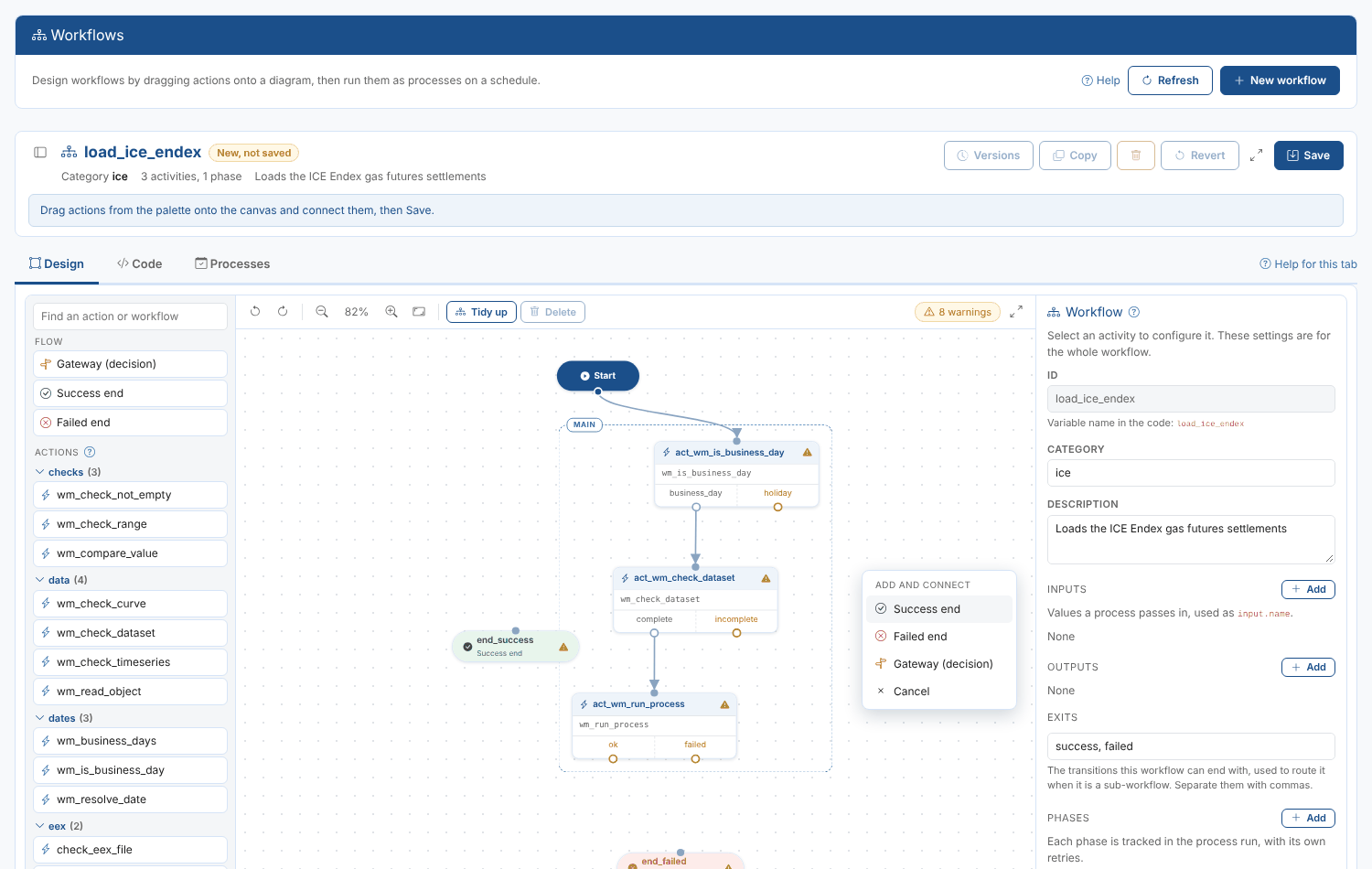
Tom starts a new workflow load_ice_endex from a blank diagram. He clicks wm_is_business_day, wm_check_dataset and wm_run_process in the palette: the first is connected to the Start, and each of the others is added below the step before it, connected to its first open exit. He then drags the holiday exit of the first step to an empty part of the canvas and chooses Success end.
Actions
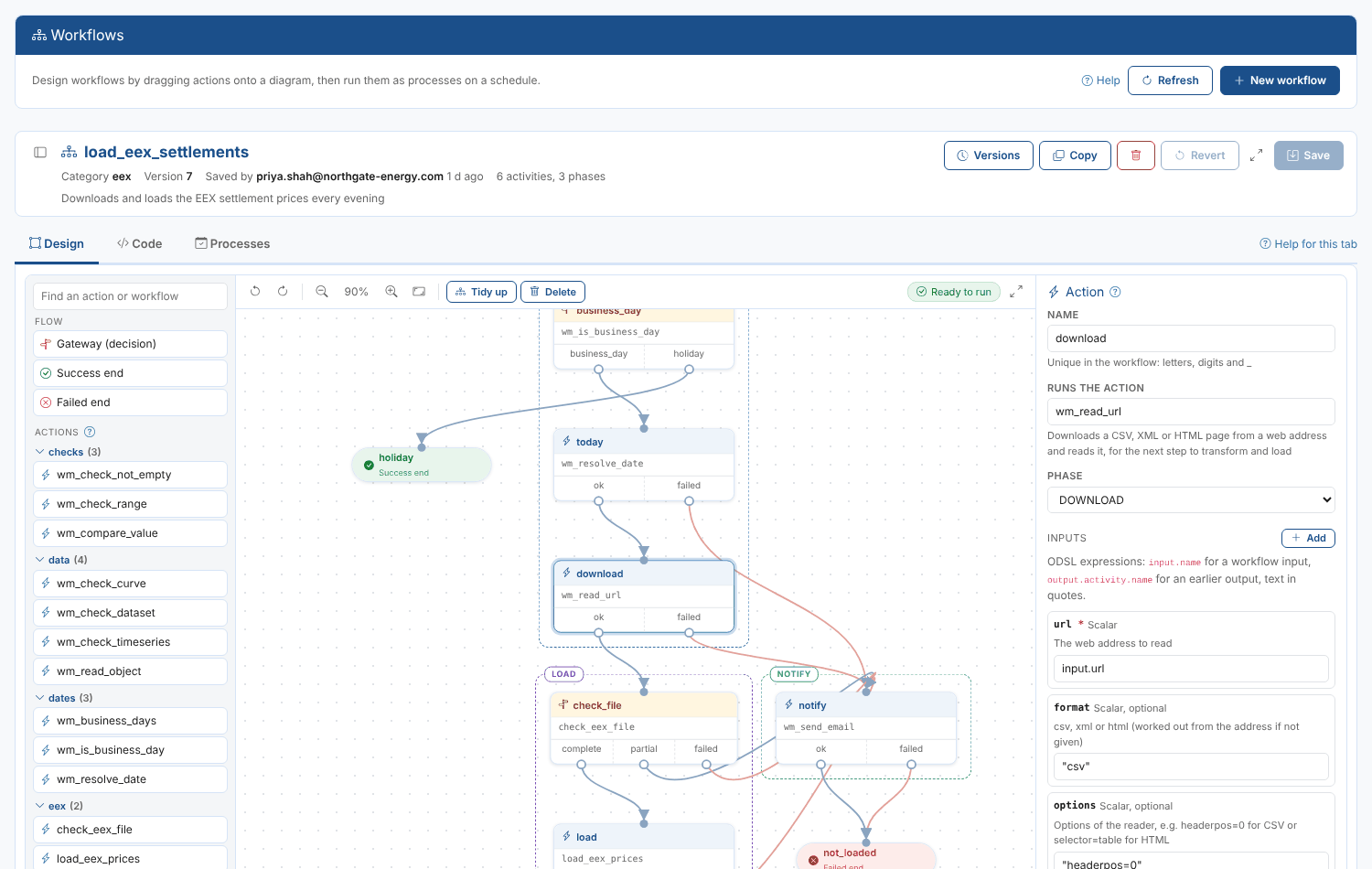
Select an action to configure it in the side panel:
-
Name: unique in the workflow, letters, digits and
_. Renaming it updates every connection to it. -
Runs the action: the action id. Choosing another action brings in its inputs and exits.
-
Phase: the phase it belongs to (see Phases).
-
Inputs: one row for each input of the action. Required inputs are marked with a red star, and outlined in amber while they are empty. Each value is an ODSL expression:
input.urlfor an input of the workflowoutput.download.filefor an output of an earlier activity (outputs are kept under the activity's name)"EEX"for text,10for a number,${date:"today"}for a date
The suggestions list the workflow inputs and the outputs of the other activities. Add sets an input by name that the action does not declare.
-
Exits and routing: each exit of the action and the activity it leads to. You can route an exit here instead of dragging on the canvas.
-
Outputs: what the action returns, as you would read it in a later activity. Click one to copy it.
-
Advanced: the input variable name, the result variable, and code that runs before or after the action.
Duplicate copies the activity with its inputs, without its connections.
Gateways
A gateway is a decision. Drag Gateway (decision) from the palette, then either:
- choose a gateway action in Runs the action, whose result is the exit taken, or
- leave it empty and write the Decision code: ODSL assignments, where the value of the last assignment is the exit taken.
Only assignments are allowed in a workflow block (no if or loops), so a decision that needs more than one line belongs in a gateway action.
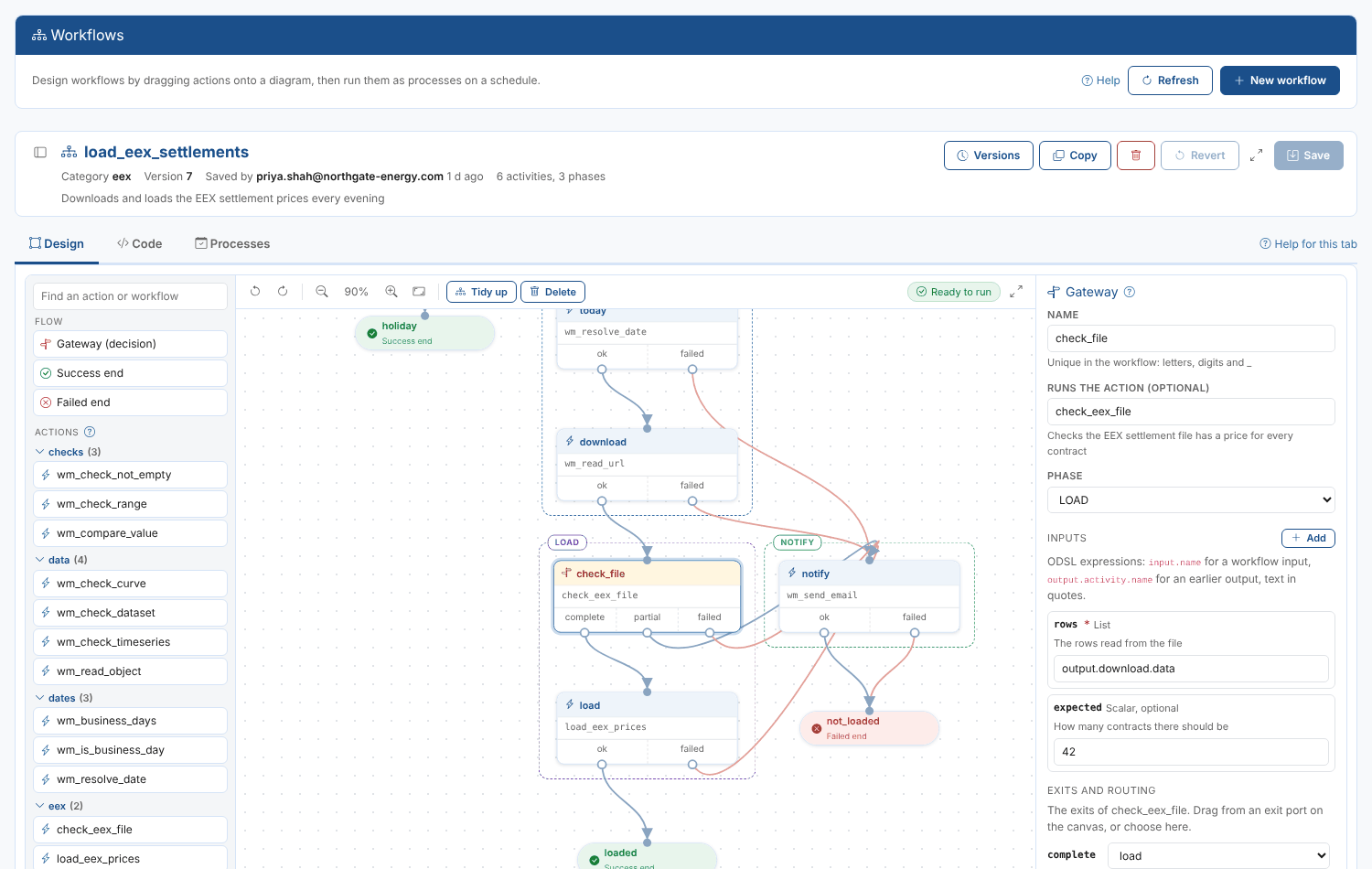
Priya's check_file gateway runs her own gateway action check_eex_file, which counts the rows of the file: rows is output.download.data (what the download step read) and expected is 42. Its exit complete goes on to load, and partial and failed go to notify.
With decision code instead, the gateway starts with the exits yes and no: change them with Add and the remove buttons under Exits and routing, then connect each one. For example result = output.check.status, after a step check whose status output is complete or partial, with the exits complete and partial.
Sub-workflows
Drag a workflow from the Workflows section of the palette to run it as one step. Its inputs are the inputs of that workflow and its exits are that workflow's exits, so you can route its success and failed separately.
End events
An end event finishes the workflow:
- Ends the workflow as: Success or Failed. A process run that ends at a failed end event is marked failed, so the usual alerts and automations fire.
- Returns: the exit the workflow ends with. When the workflow is used as a sub-workflow, this is the exit the parent routes.
- Code: assignments run before it returns, for example
output.message = "No file today"to set a workflow output.
Phases
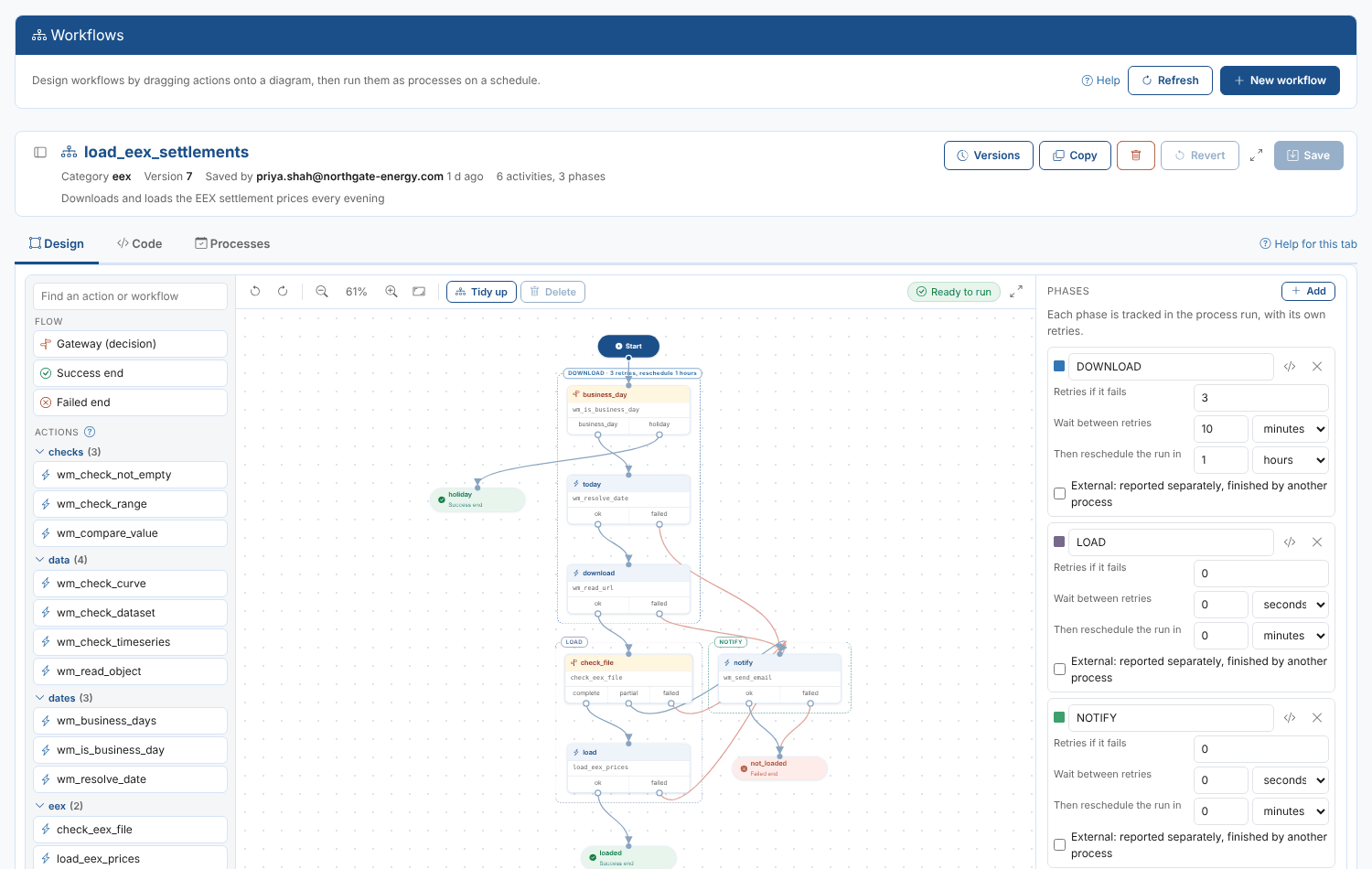
A phase groups activities so that a process run reports them separately, and retries them if they fail. Each phase is drawn as a dashed box around its activities, in its own colour, with its name and options on the label.
Phases are set in the workflow settings (click the empty canvas):
| Setting | What it does |
|---|---|
| Retries if it fails | How many times the phase is run again after an activity in it fails |
| Wait between retries | How long to wait before each retry |
| Then reschedule the run in | When the retries are used up, run the whole workflow again after this long |
| External | The phase is finished by another process and reported separately |
| Code (the code button) | ODSL statements the phase runs before its activities, such as log lines or variables |
Priya puts the download in a phase DOWNLOAD with 3 retries, 10 minutes apart, then a reschedule in 1 hour, because the EEX file is sometimes late.
Removing a phase moves its activities to the first remaining phase. Actions, gateways and sub-workflows must always be in a phase; end events can be in a phase or after all of them.
Workflow settings
Click an empty part of the canvas to see the settings of the whole workflow:
- Category and Description
- Inputs: the values a process passes in, with a type and a description. Mark an input Optional when the workflow works without it. Inside the workflow they are
input.name. - Outputs: values the workflow returns, set by its activities.
- Exits: the exits the workflow can end with, used when it runs as a sub-workflow.
- Phases: see Phases.
Checks
The chip at the right of the toolbar shows the result of the checks, such as 2 errors, 1 warning, or Ready to run. Click it to list them, and click one to go to the activity it is about. Activities with a problem show a red or amber mark.
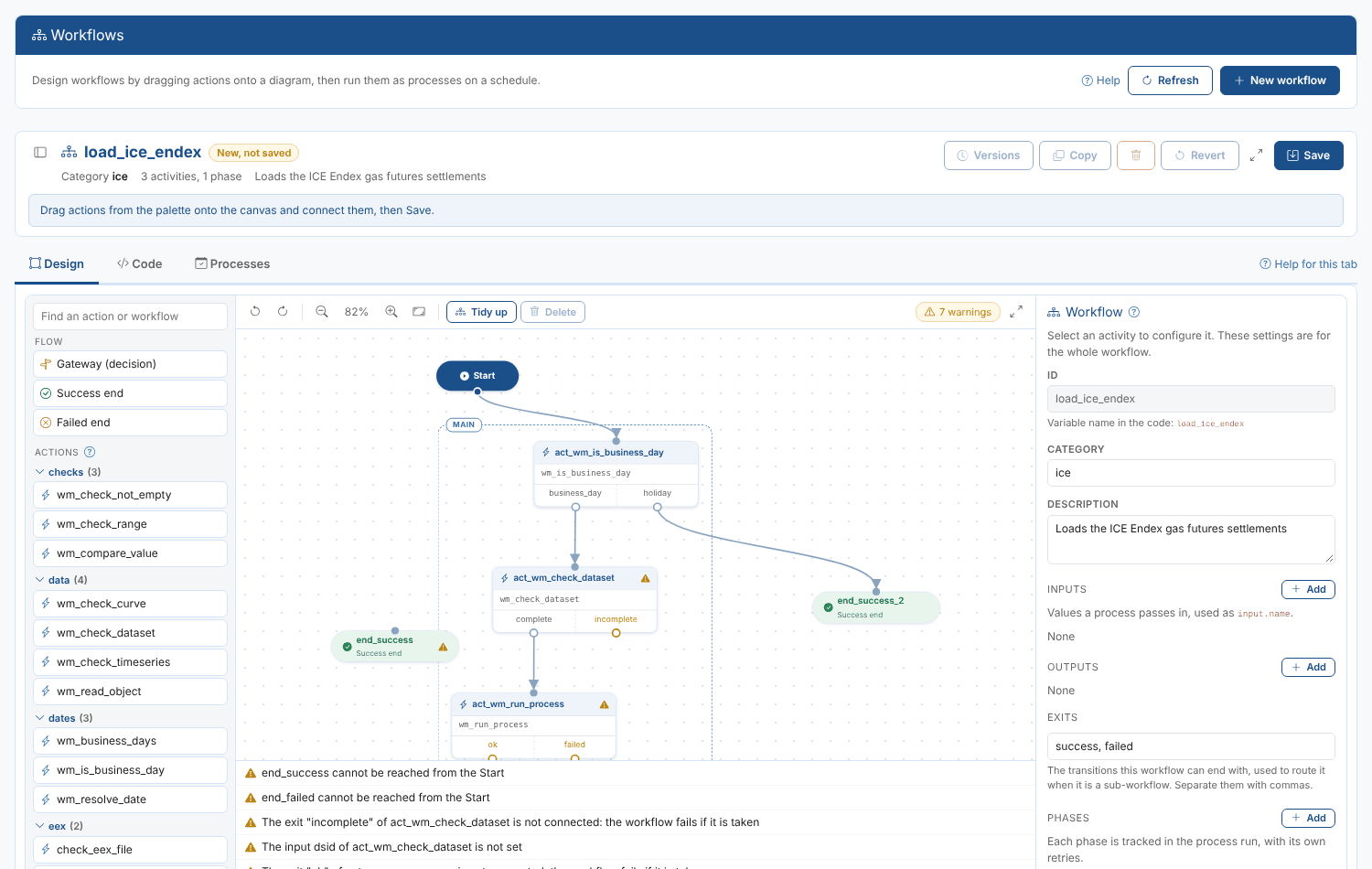
Errors stop the workflow from running: no Start connection, no end event, an action that is not chosen, an activity outside a phase, a name used twice, a connection to an activity that does not exist. Warnings are worth a look: an exit that is not connected (the run fails if it is taken), a required input that is not set, an activity that cannot be reached from the Start, an action that was not found.