Starting from a sample workflow
New workflow opens a gallery. On the left is Blank workflow and the sample workflows, grouped by category. Click one to see, on the right:
- a preview of its diagram, with its phases, steps and connections (hover over a step to see what it runs);
- the inputs a process gives it;
- its steps, in the order they run.
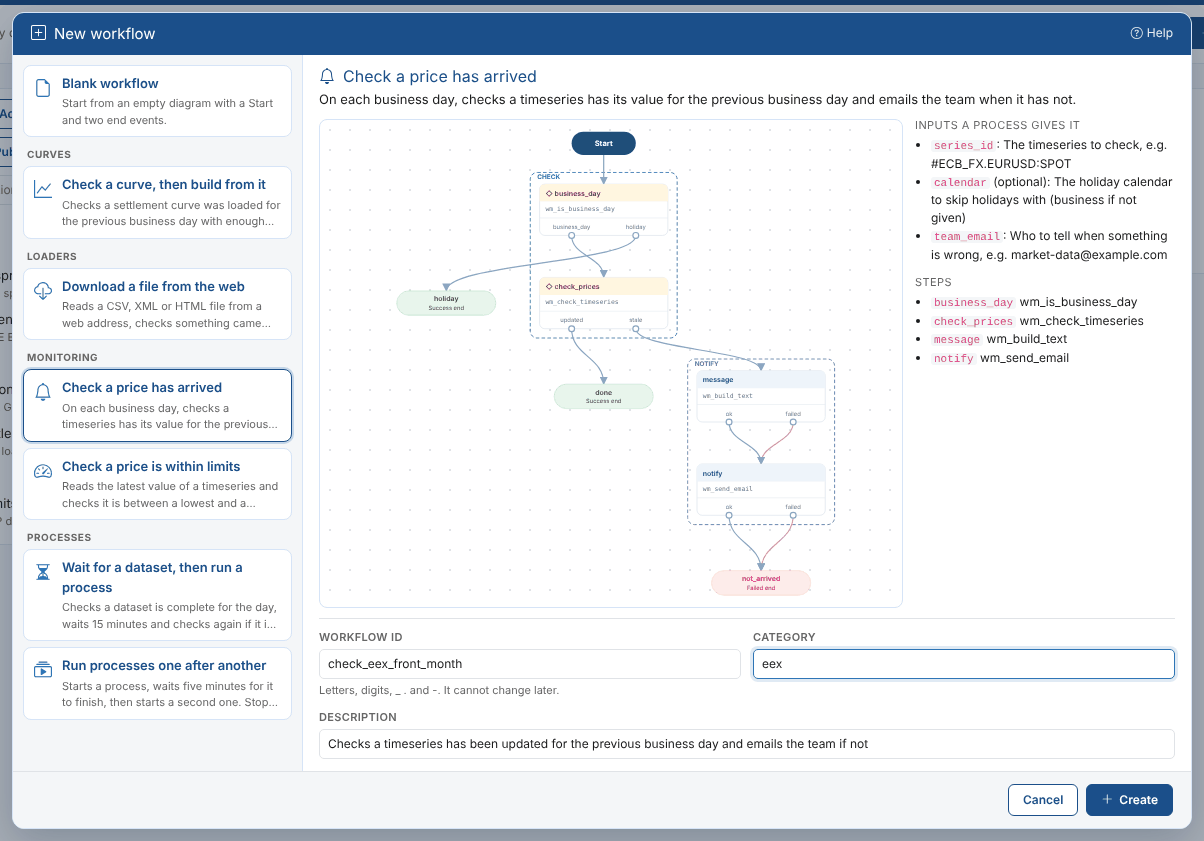
Below the preview, enter the workflow id, the category and the description. They start with the sample's own and follow your choice until you type in them. Click Create (or double click a sample) and the workflow opens in the designer, not saved yet. Check each step in the side panel, change what you need, then Save and add a process to run it.
The samples use the action library the extension installs. If an action a sample needs is not in your environment, the gallery says which: install or upgrade the extension to add the library.
The samples
| Sample | What it does |
|---|---|
| Check a price has arrived | On each business day, checks a timeseries has its value for the previous business day, and emails the team when it has not. |
| Check a price is within limits | Checks the latest value of a timeseries is up to date and between a lowest and a highest value, and emails the team when it is not. |
| Download a file from the web | Reads a CSV, XML or HTML file from a web address on business days, checks something came back, and emails the team when the download fails. Add your transform and load steps after check_data. |
| Wait for a dataset, then run a process | Checks a dataset is complete for the day, waits 15 minutes and checks again if it is not, then starts the process that uses it. Emails the team when the dataset is late. |
| Run processes one after another | Starts a process, waits five minutes, then starts a second one. Change the wait to suit your processes. |
| Check a curve, then build from it | Checks a settlement curve was loaded for the previous business day with enough contracts, then starts the build process with that date. Emails the team when the curve is not ready. |
Each sample takes what it needs as workflow inputs (such as series_id and team_email), so you can usually use it as it is and set the values on the process. For example, Priya creates Check a price has arrived as check_eex_front_month, saves it, and adds a process WF_CHECK_EEX_FRONT_MONTH that runs weekdays at 19:00 with series_id set to her front month settlement and team_email to the market data team.
Blank workflow starts with an empty diagram: a Start and a Success and a Failed end.