Running workflows as processes
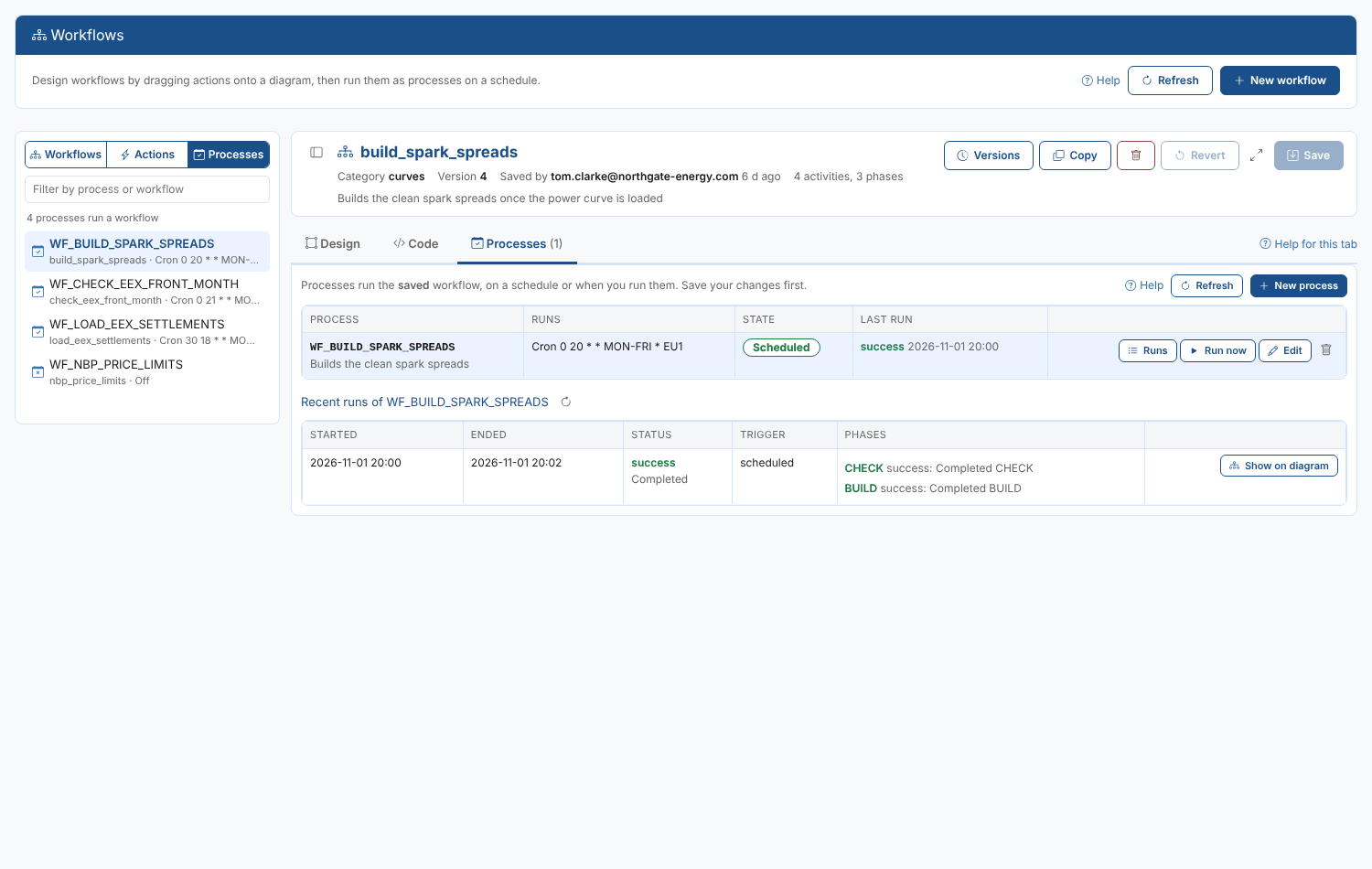
A workflow does nothing on its own: a process runs it, with an input, on a schedule or when you run it. The Processes tab lists every process that runs the open workflow, including ones made elsewhere, with its schedule, whether it is switched on and how its last run went.
Processes run the saved workflow. Save your changes before you run it. A new workflow must be saved before it can have a process.
Creating a process
- Open the workflow and the Processes tab, then click New process.
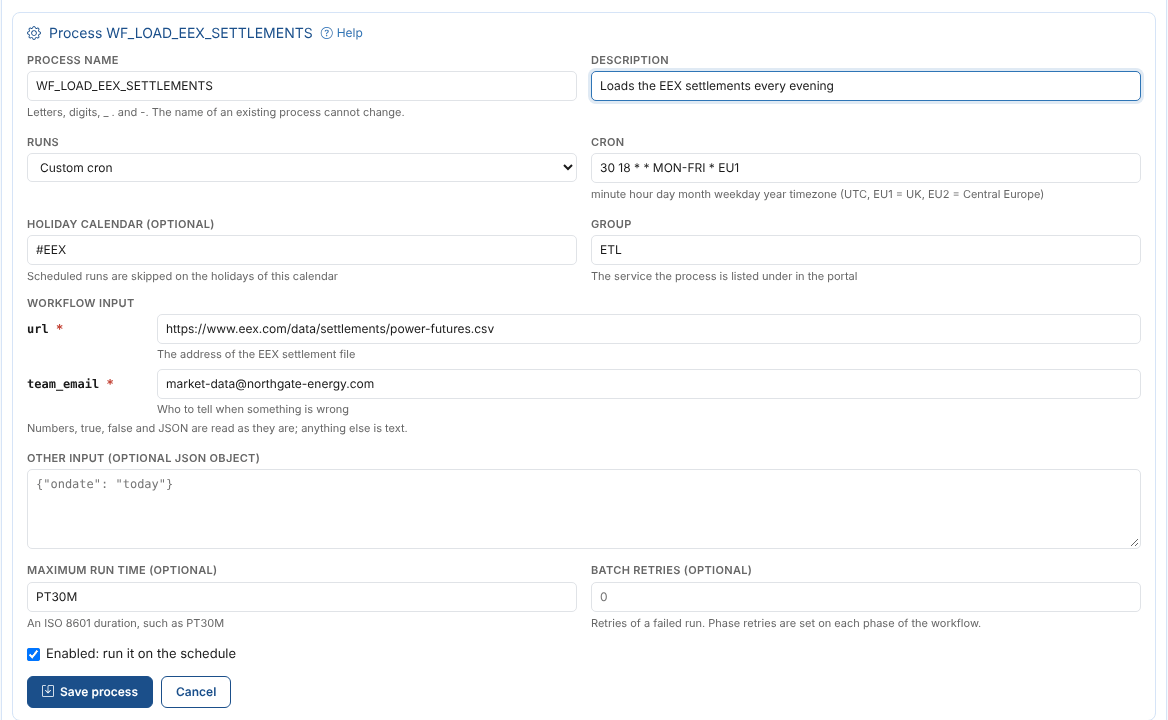
- Fill in the form:
| Field | What it is |
|---|---|
| Process name | Letters, digits, _, . and -. It starts as WF_ and the workflow id in capitals, and cannot change once the process is made. |
| Description | What the process is for |
| Runs | A schedule from the list, a Custom cron, or Not scheduled to run it only when you start it |
| Cron | For a custom schedule: minute hour day month weekday year timezone, such as 30 18 * * MON-FRI * EU1 (EU1 is UK time, EU2 Central European time) |
| Holiday calendar | Optional: scheduled runs are skipped on the holidays of this calendar |
| Group | The service the process is listed under in the portal, ETL by default |
| Workflow input | One field for each input of the workflow; required inputs are marked with a red star. Numbers, true, false and JSON are read as they are, anything else as text. |
| Other input | Any other values, as a JSON object |
| Maximum run time | Optional: how long a run may take, such as PT30M |
| Batch retries | Optional: how many times a failed run is started again. Retries of one part of the workflow are set on its phases. |
| Enabled | Switch the schedule on or off without deleting the process |
- Click Create process.
Priya's process WF_LOAD_EEX_SETTLEMENTS runs on the custom cron 30 18 * * MON-FRI * EU1 (weekdays at 18:30 UK time), skips the holidays of #EEX, gives the workflow the address of the EEX file as url and the market data team as team_email, and may run for at most 30 minutes.
Edit changes a process; the fields the form does not show are kept. The bin button deletes it (the workflow stays).
Running a process now
Run now starts the process straight away. The dialog shows the process input, which you can change for this run only, for example to load an earlier day.
Following the runs
Runs lists the latest runs of a process: when they started and ended, the status and message, how they were started (scheduled, manual or by an automation), and the status of each phase. Click log next to a phase to read what it logged. A run that is still going is refreshed every few seconds.
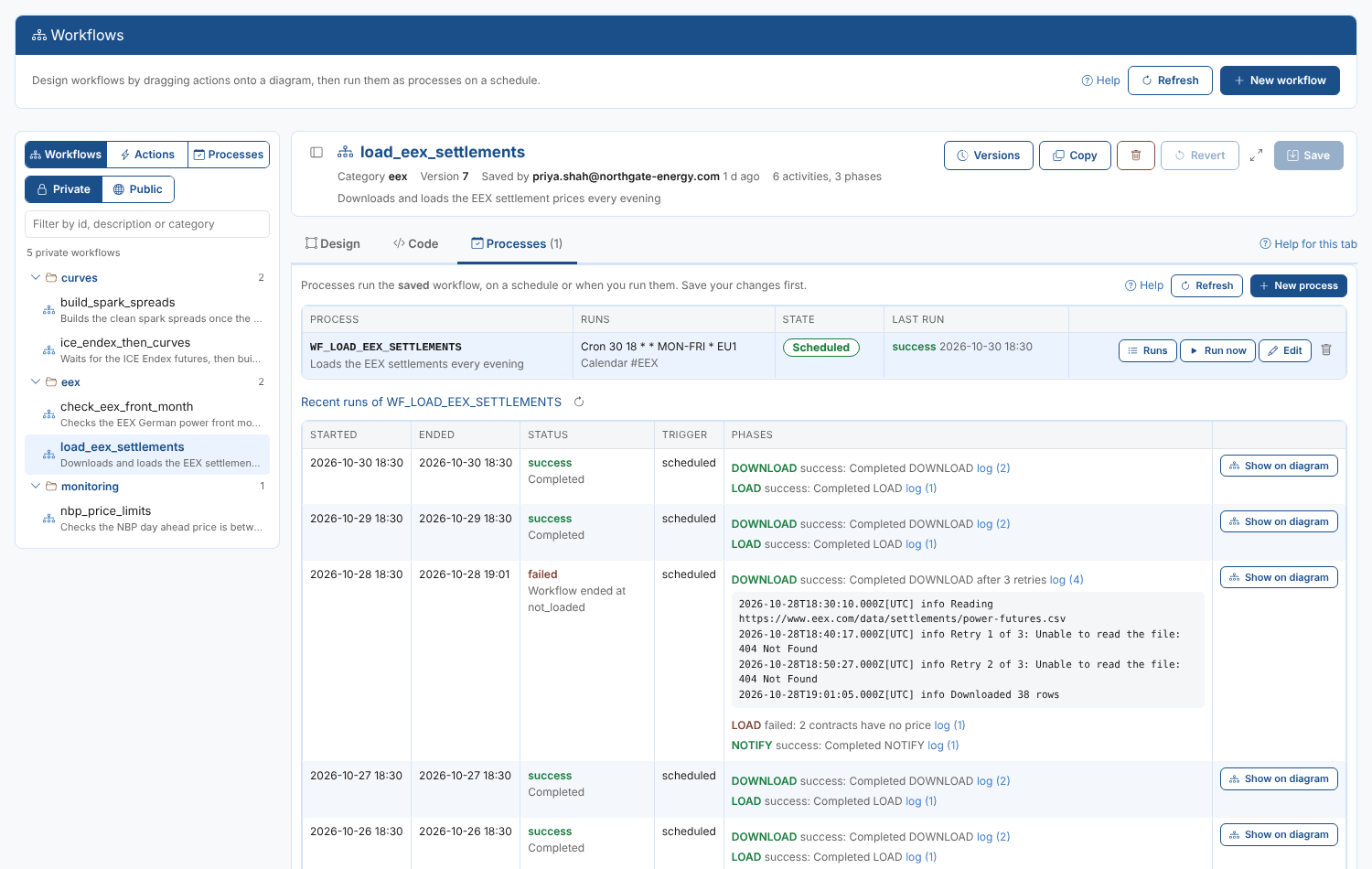
Show on diagram colours the phase boxes on the Design tab with that run: green for a phase that succeeded, red for one that failed, blue for one still running. Click Clear run on the status line to remove the colours.
All workflow processes
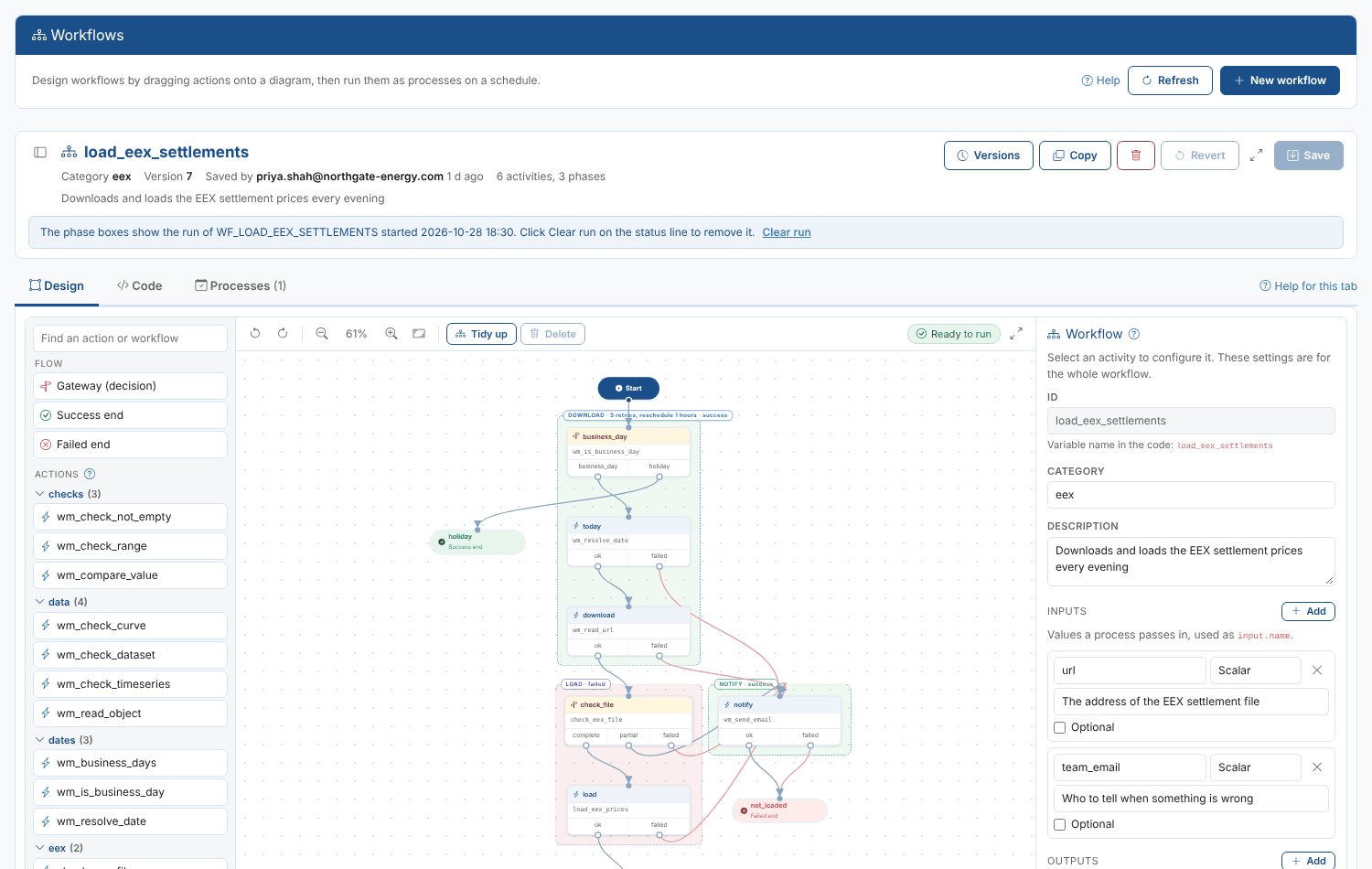
Switch the list on the left to Processes to see every process that runs a workflow, with the workflow and its schedule. Click one to open its workflow at the Processes tab, with its runs shown.