What is the Workflow Manager?
A workflow is a set of steps the platform runs in order: download a file, load the prices, check them, build a curve, send an email. Each step is an action, and the workflow decides which step comes next from the way each step ends (ok, failed, or any other exit the action has). A process runs a workflow, on a schedule or when you start it.
Until now workflows were written in ODSL code, with blocks such as WF_START, WF_ACTION and WF_EVENT. The Workflow Manager lets you draw them instead: drag actions onto a canvas, connect each exit to the next step, and fill in the inputs in a side panel. The ODSL is written for you, and kept in step if you prefer to change the code.
It answers questions like:
- Which workflows do we have, and what does each one do, step by step?
- What happens when the download fails: does it retry, and who is told?
- Which processes run this workflow, when do they run, and did last night's run work?
- Which phase of the run failed, and what did it log?
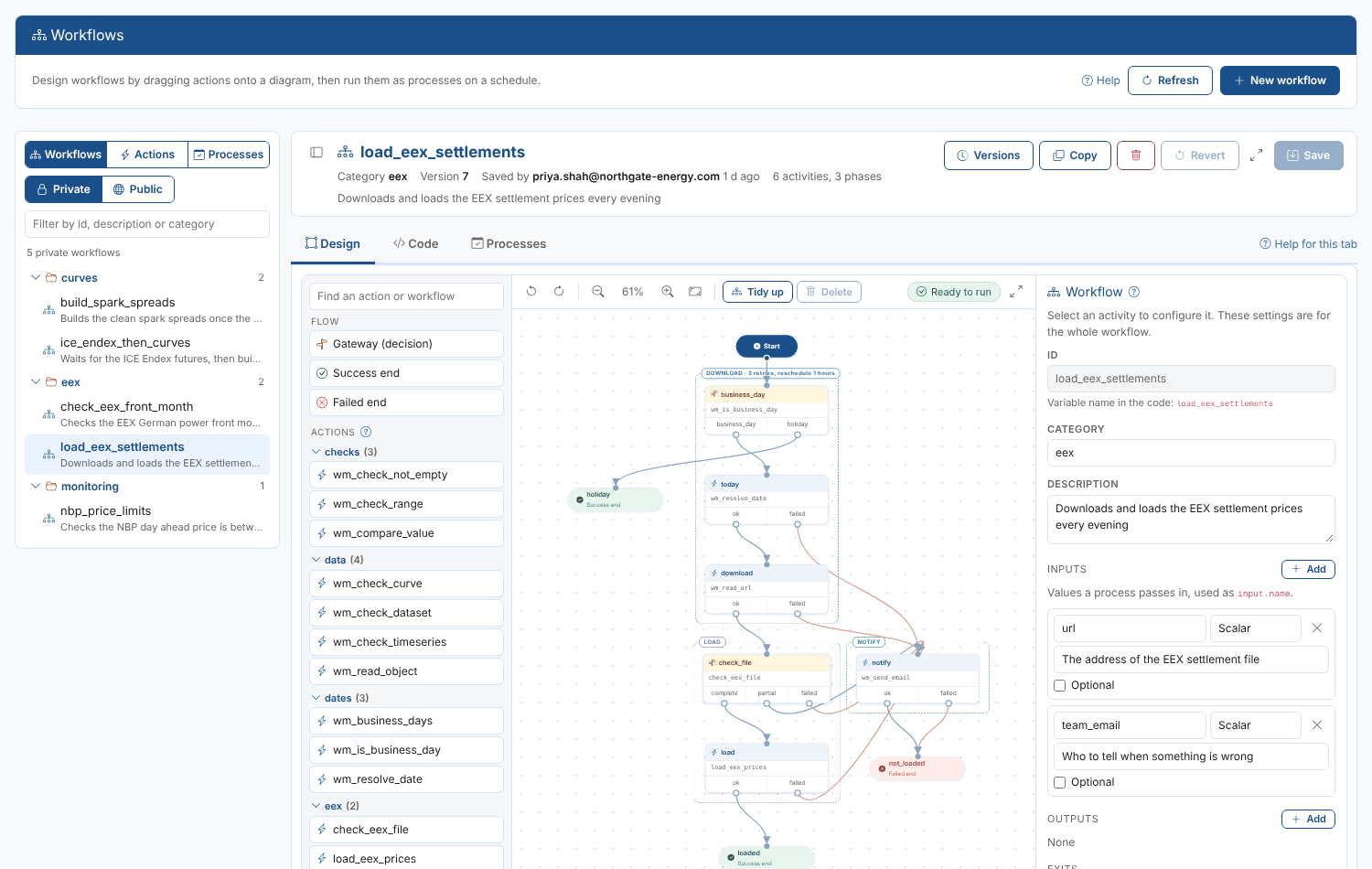
Throughout these pages we follow Northgate Energy, a fictional gas and power trader. Priya Shah, a market data analyst, builds a workflow load_eex_settlements that downloads the EEX settlement file every evening, loads the prices, checks them, and ends as failed (so the team is alerted) when the file is missing.
Key ideas
| Idea | What it means |
|---|---|
| Workflow | A diagram of steps, stored in the workflow service with its ODSL code. Each save makes a new version. |
| Activity | A box on the diagram: an action, a gateway, a sub-workflow or an end event. Each has a name that is unique in the workflow. |
| Action | A reusable step stored in the action service, with inputs, outputs and exits. Public actions (ids start with #) are maintained by OpenDataDSL; private actions are your company's. |
| Exit | How an activity ended, such as ok or failed. Each exit is connected to the activity that runs next. |
| Gateway | A decision: it runs a gateway action or a few lines of code, and its result picks the exit. |
| Sub-workflow | Another workflow run as one step. Its exits are the exits of that workflow. |
| End event | Where the workflow finishes, as success or failed. A process run that ends at a failed end event is marked failed. |
| Phase | A group of activities that is tracked separately in a process run, with its own retries. Each phase is drawn as a box around its activities. |
| Process | Runs a workflow with an input, on a cron schedule or when you run it now. Each run is recorded with the status of each phase. |
Opening the Workflow Manager
Open Manage > Workflows in the portal. The list on the left shows your Private workflows grouped by category; Public shows the workflows published by OpenDataDSL, which you can open, read and copy but not change.
Switch the list to Actions to write, run and debug the actions that workflows use (see Writing and testing actions).
Switch the list to Processes to see every process that runs a workflow, with its schedule. Clicking one opens its workflow at the Processes tab.
A workflow opens in three tabs:
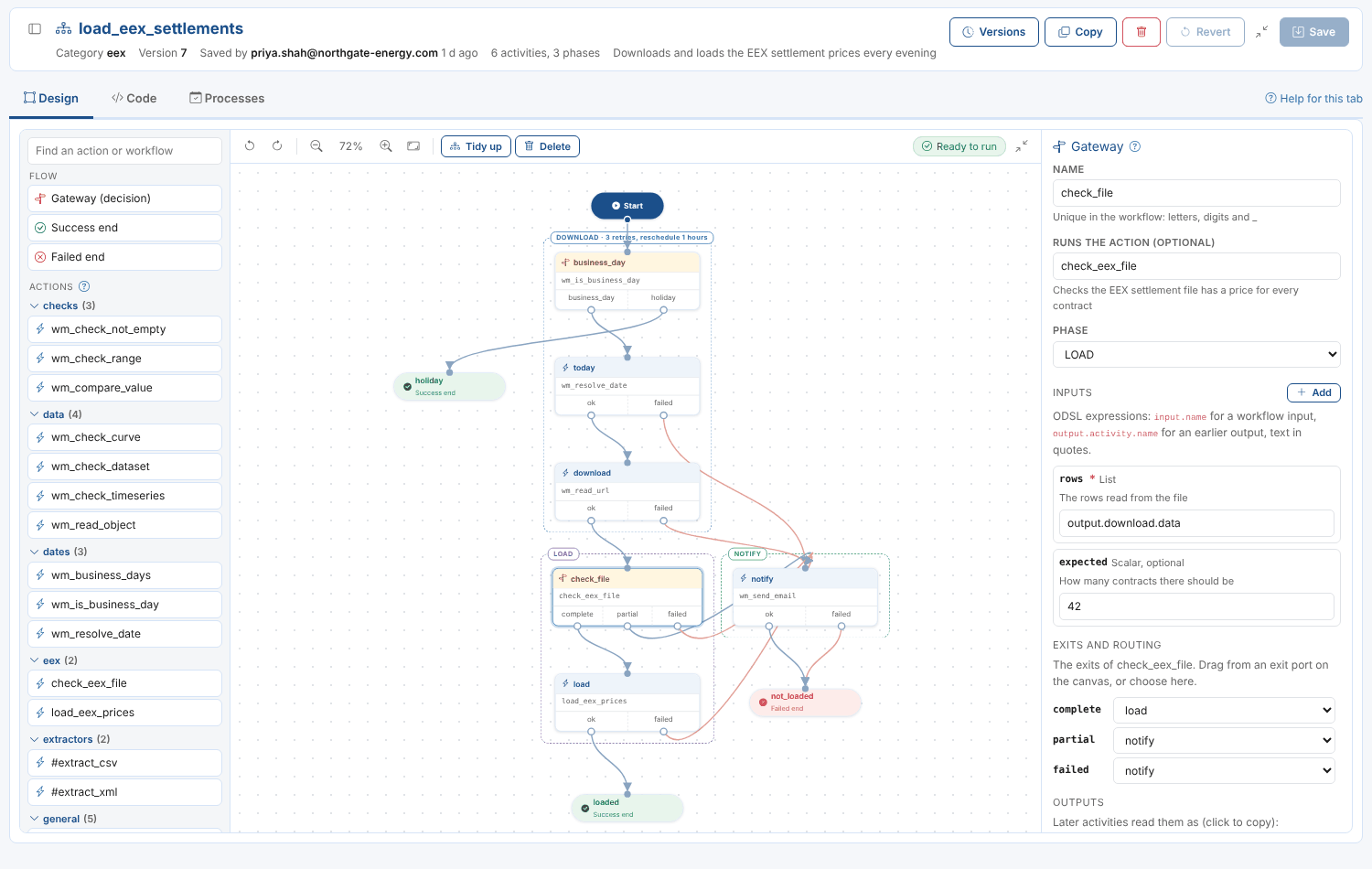
- Design: the diagram, with the palette on the left and the settings of the selection on the right. See Designing a workflow.
- Code: the ODSL the diagram is written as. See The workflow code.
- Processes: the processes that run the workflow, their schedules and their runs. See Running workflows as processes.
The button at the left of the title hides the list, to give the diagram more room. The expand button (at the right of the diagram's toolbar, and next to Save) makes the open workflow fill the whole portal frame; click it again or press Esc to go back. It works the same way for an open action.
Creating a workflow
- Click New workflow.
- Choose Blank workflow, or one of the sample workflows to start from: the gallery shows a preview of each diagram.
- Enter an id (letters, digits,
_,.and-; it cannot change later), a category and a description. Priya entersload_eex_settlementsin the categoryeex. - The workflow opens in the designer. A blank workflow has a Start and two end events, Success and Failed: drag actions onto the canvas and connect them (see Designing a workflow).
- Click Save (or press Ctrl+S).
Copy saves a copy of the open workflow under a new id. For a public workflow the button is Copy to private, the quickest way to start from an OpenDataDSL workflow.
Saving
Save stores a new version of the workflow. Before it saves, the Workflow Manager:
- checks the diagram (the same checks shown in the toolbar, see Checks). If there are errors you can still save, to finish the workflow later, but a process cannot run it until they are fixed;
- checks the ODSL syntax with the platform's parser.
The inputs, outputs, exits and phases stored with the workflow are worked out from the diagram, as the ODSL save command does.
Revert undoes every change since the last save.
Versions
Versions lists every saved version, with who saved it and when. Open shows an earlier version in the designer; save it to make it the current version again, or click Revert to go back.
Deleting a workflow
The bin button deletes the workflow and all its versions. A workflow cannot be deleted while a process runs it: delete or change those processes first.