Writing and testing actions
Every step of a workflow runs an action: a short piece of ODSL with inputs, outputs and exits. OpenDataDSL publishes public actions (ids start with #); your company can write its own. Switch the list on the left to Actions to see them by category, and open one to edit, run or debug it. The extension also installs a library of general actions, with ids starting wm_.
Priya needs a step that OpenDataDSL does not publish: one that checks the EEX file has a price for every contract, and ends with complete or partial. She writes it as a private action and tests it before she adds it to her workflow.
What an action looks like
check_eex_file = action in "eex"
    // Checks the EEX settlement file has a price for every contract
    in rows as List "The rows read from the file"
    in expected as Scalar "How many contracts there should be" optional
    out missing as Scalar "How many contracts have no price"
    exit "complete", "partial", "failed"

    count = 40
    if input.expected != null
        count = input.expected
    end
    output.missing = count - input.rows.size
    if output.missing > 0
        return "partial"
    end
    return "complete"
end
- The first line names the action and its category. Write
gatewayinstead ofactionfor a step that only decides which way the workflow goes. - The first comment is its description.
inlines are its inputs (addoptionalwhen it works without one), read asinput.name.outlines are its outputs, set asoutput.name. A workflow reads them asoutput.<activity name>.<output>.exitlists its exits. Eachreturnends the action with one of them, and the workflow routes it.
The header above the code (title, category, inputs, outputs and exits) is read from this text, and saved with it.
Creating an action
- Switch the list to Actions and click New action.
- Enter an id (letters, digits,
_,.and-; it cannot change later), choose Action or Gateway, and enter a category and description. - The editor opens with a small working example to change. The editor has ODSL highlighting, completion of functions and variables, and marks errors as you type.
- Click Save (Ctrl+S). Saving checks the header and the ODSL syntax, and warns when the action declares no exits.
The action then appears in the Actions section of the designer's palette.
Copy saves a copy under a new id; for a public action the button is Copy to private, a good way to start from an OpenDataDSL action. Revert undoes your changes since the last save.
Running an action
-
Open the Input tab below the editor. It has a field for each input the action declares (required ones are marked with a red star), and a box for any other values as JSON. Numbers,
true,falseand JSON are read as they are; anything else is text. The input is kept for the action in your browser.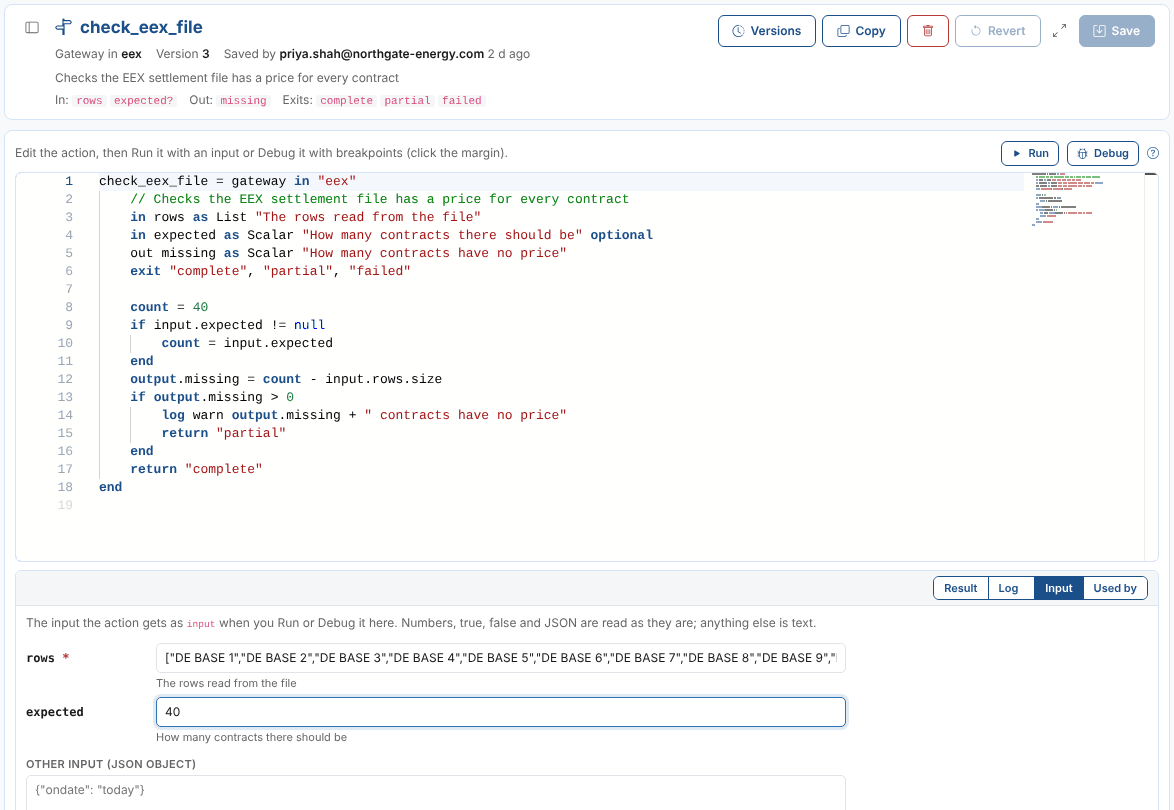
-
Click Run (Ctrl+Enter). Unsaved changes are run as they are, without saving them.
-
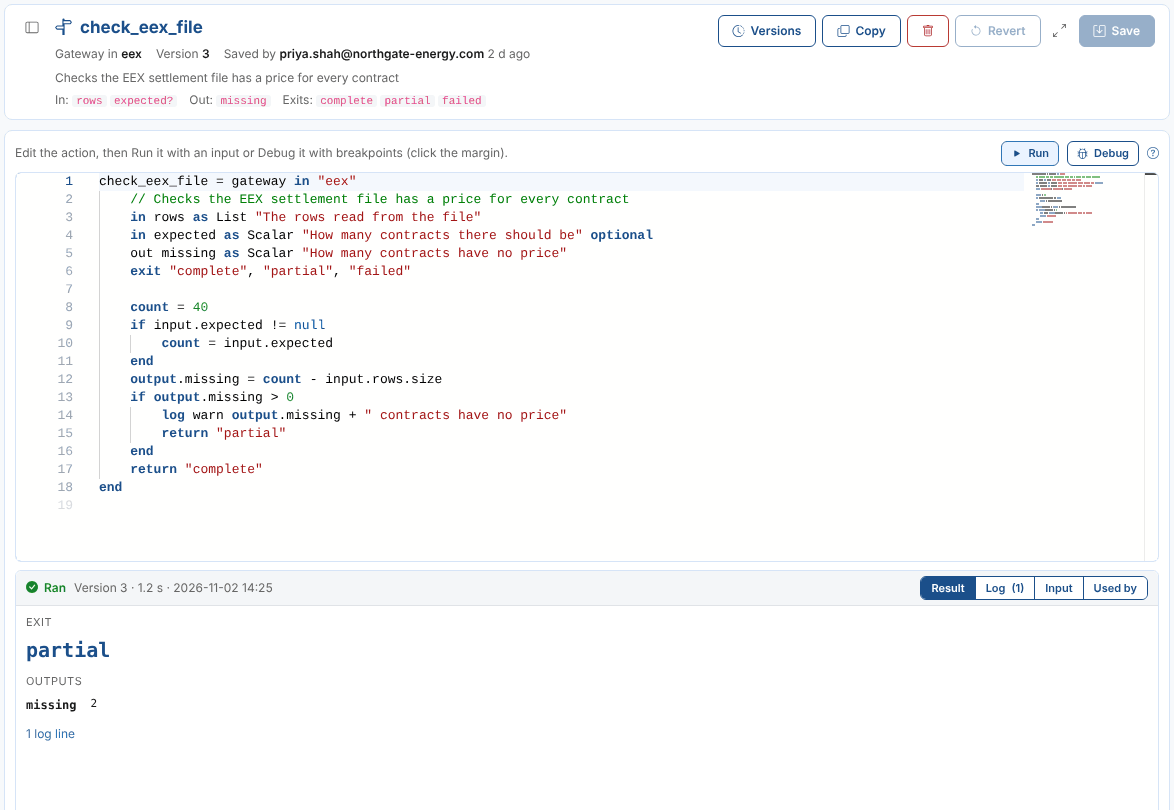
The Result tab shows the exit the action returned and the outputs it set. A warning shows when the exit is not one the action declares, because a workflow could not route it. Log shows what it printed and logged.
Errors are listed with their line; click one to go to it in the editor.
Priya sets rows to a list of 38 rows and expected to 40, runs the action, and sees the exit partial with missing = 2.
Debugging an action
Click in the margin to the left of a line number to set a breakpoint, then click Debug (F5). The action runs with the input and stops at the breakpoint. The debug bar above the editor steps through it (Continue F5, Step over F10, Step into F11, Step out Shift+F11, Stop Shift+F5), and the Debug tab shows the variables (including input and output), watch expressions, the call stack and a console to evaluate expressions while paused. Right-click a breakpoint for a condition or a log point.
The debugger is the one in the Script Manager: see there for the details. Breakpoints and watches are kept for each action.
When debugging, the action's body runs as a script of its own, so the debugger can stop in it. Its result is the exit it returns.
Used by
The Used by tab lists your private workflows that run the action, with a button to open each one. An action cannot be deleted while a workflow runs it.
Workflows run the saved version of an action, so a change takes effect in their next run.
Versions
Versions lists every saved version of the action. Open shows one in the editor; save it to make it the current version again.
How runs work
Running and debugging need a private script to run under: the Workflow Manager creates workflow_manager\action_runner the first time, and sends the action's text with each run. You can see it in the Script Manager; do not delete it while you test actions (it is made again if it is missing).