Groups and automations
Adding to a group
Select Add to group on an opened item, or tick items in the results and select Add to group.
- An existing group: the static groups of data (or of master data, for records) that you can see. Filter them and choose one; items already in it are kept once.
- A new group: a name, a category (default
Lists), a description, and whether to share it with everyone in the company.
A group holds either data or master data, so select one or the other. The group is pinned on the finder's shelf afterwards. Dynamic groups are not offered: their rule finds their members.
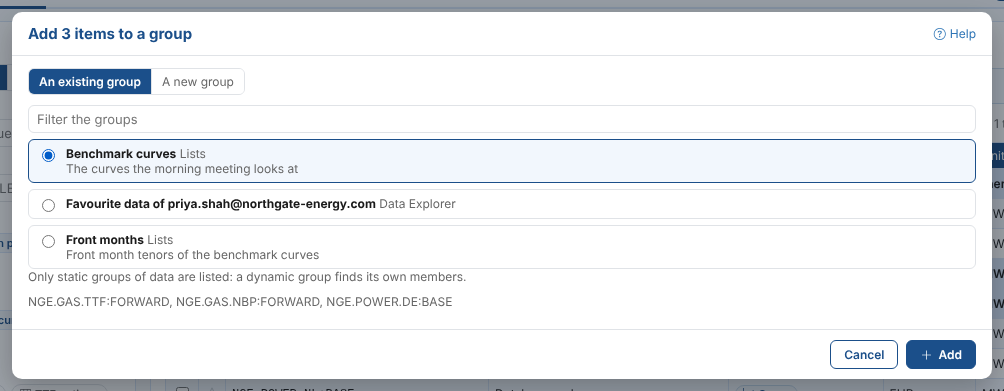
A new group's name must not be in use already by a group of the same kind and category, by anyone: the dialog says so if it is.
Dynamic groups
A dynamic group's members are whatever its rule finds each time it is used, so new data that matches joins it. Make a dynamic group makes one from the finder: the source, the kinds, Id contains and the filters. Give it a name and a category, and choose whether to share it. The rule shows what is saved.
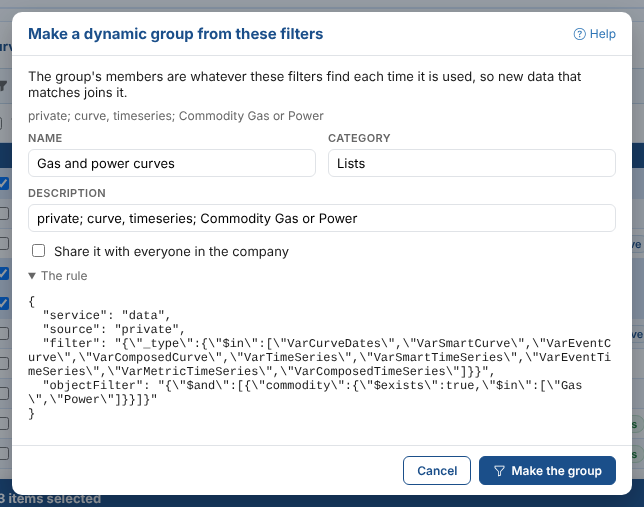
The search text cannot be part of a group's rule: only the filters, kinds and Id contains are kept, and the dialog says so. With no filters in Master data, the group would hold every record.
To change a group's members or rule later, or to see what uses it, open it in Group Manager.
Automations
Add an automation on an opened item opens the Automations panel, the same one the portal shows. Each card is something the platform can do when the item changes: send an email, put it on a queue, run a script, post to Teams and so on, depending on the automation targets you have. Its sentence shows the item and the settings it needs, and who publishes it (ODSL or your own team).
| Part | What it does |
|---|---|
| In use | Only the automations already set up for the item |
| Filter | Narrows the cards by name, sentence, description or publisher; * matches anything |
| Tags | Only the cards with every tag chosen. Update is chosen at first; your choice is remembered |
| Refresh | Reads the automations again |
When the item has automations, they are listed first under In use and the rest under Ready to use. An automation in use is offered again under Ready to use, so you can add another of the same kind. The colour down the side of a card in use says how it stands:
| Colour | Means |
|---|---|
| Green | On, with every setting filled in |
| Amber | On, but a setting has no value |
| Red | It needs settings and has none |
| Grey | Turned off |
To set one up:
- Select Configure... on its card. Its settings open over the list, with the sentence at the top filling in as you type.
- Fill in the Parameters. A script, queue, process, report or group offers a list to choose from; a curve, timeseries, matrix, event list or master data setting has ... to find one.
- Untick Enabled to save it turned off, and select Save.
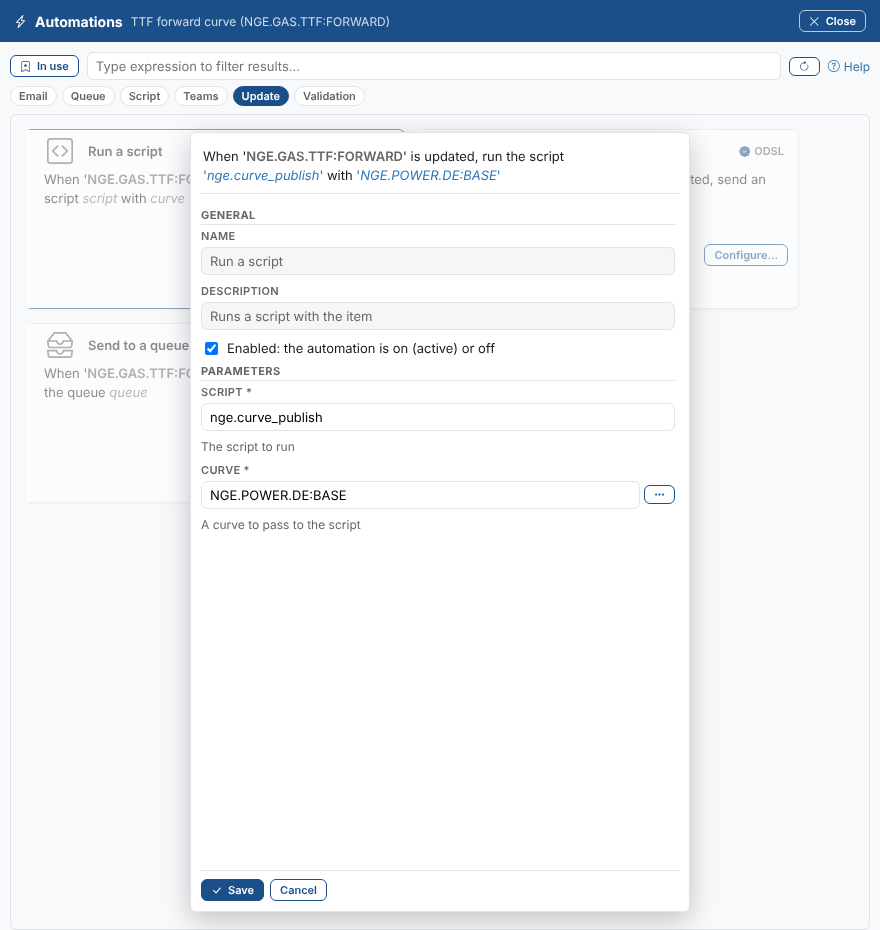
The card then moves to In use. Configure... on it changes its settings or turns it off, and the x on it deletes it, once you confirm.
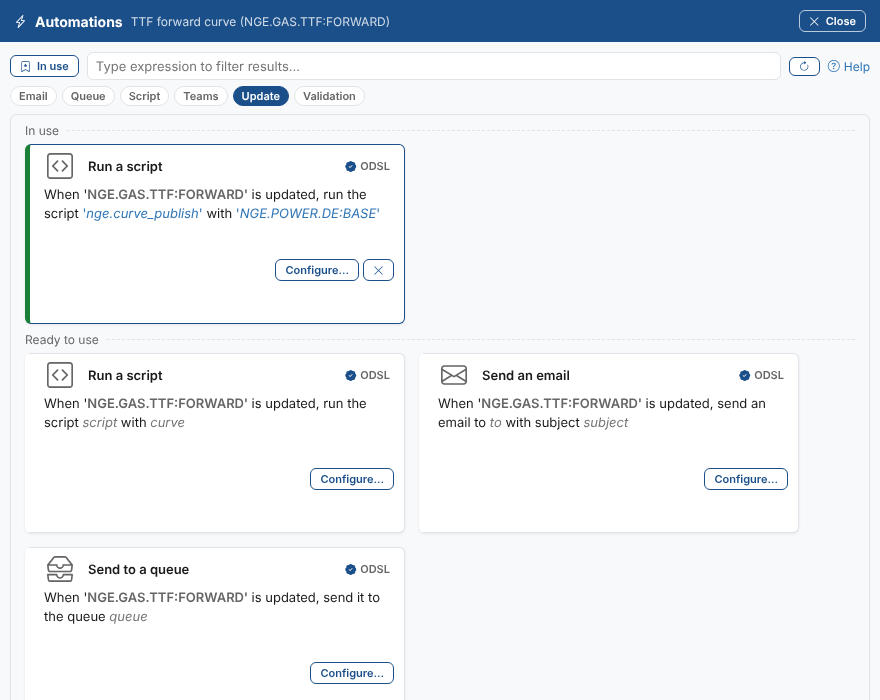
The automation runs as you (saving it makes you its owner). For test runs and the run log, use the Automations screen.