Administration
This page is for tenant administrators, and for anyone building extensions that use Fusion AI.
Enabling Fusion AI
Fusion AI is a premium feature. It is enabled for a tenant by OpenDataDSL, which sets the tenant's AI API key. Until then, the Studio shows Fusion AI is not enabled instead of the chat.
Tenant settings and properties
| Name | Kind | What it does |
|---|---|---|
AI_API_KEY | Setting | Enables Fusion AI for the tenant. Set by OpenDataDSL. |
AI_INCLUDED_TOKENS | Setting | The bundles of 10M tokens included each month before billing starts. Set by OpenDataDSL from your agreement. |
AI_TOKEN_BUDGET | Property | The monthly budget, in bundles on top of the included ones. Set on the Billing insight. |
AI_TOKEN_LIMIT | Property | The monthly limit, in bundles on top of the included ones. When it is reached, no new Fusion sessions are allowed. Set on the Billing insight. |
AI_TOKEN_NOTIFY | Property | User emails and user groups emailed at the budget and the limit, separated by commas. Set on the Billing insight. |
AI_PLAYBOOK_SELF_APPROVAL | Property | Set to true to let the person who started a playbook run approve its gates. By default they cannot. |
Who can use what
The extension installs feature policies, which decide who sees each tab, and access policies, which decide who can read and write the data behind them. All of them include everyone by default. Narrow the members to the users or groups who should have access.
Feature policies
| Policy | Controls |
|---|---|
extension.odsl.fusion-ai | The Fusion AI extension: the Studio, Agents, Assistants, Tools and Architecture tabs |
extension.odsl.fusion-ai.playbooks | The Playbooks tab, for people who write playbooks |
extension.odsl.fusion-ai.tasks | The Tasks tab, for people who run playbooks and approve runs |
For example, to let only your data team write playbooks while everyone can run them, limit extension.odsl.fusion-ai.playbooks to the data team's group and leave extension.odsl.fusion-ai.tasks open to everyone.
Access policies
| Policy | Service | Access |
|---|---|---|
FusionAI | aistudio, the Fusion conversations | Full |
FusionAIPlaybooks | aiplaybook, your tenant's own playbooks | Full |
FusionAITasks | aitask, playbook tasks | Full |
FusionAIRuns | airun, playbook runs | Read only. Runs are written by Fusion. |
The library playbooks are readable by every tenant.
What Fusion can do
Fusion acts as the person using it. Every tool it calls reads and writes with that person's own access rights, so Fusion can never see or change more than they could themselves. A scheduled playbook task runs as the person who saved the schedule.
Where Fusion keeps its data
| Service | Holds |
|---|---|
aistudio | Conversations, including agent runs and playbook runs |
aiagent | Agents |
aiassistant | Custom assistants (built-in assistants have ids starting with #) |
aitool | Custom tools |
aiplaybook | Playbooks: your own, and the library (ids starting with #). Every save is a new version. |
aitask | Playbook tasks |
airun | Playbook runs |
feedback | Feedback on answers |
aiusage | Token usage, one record per conversation per day. Read only. |
Using the chat in your own extension
The Fusion chat is a reusable partial, so an extension can include a chat set up for its own subject: its own name and icon, fixed to its own assistant, with its own suggestions, and listing only its own conversations.
In the extension's view, set window.FUSION_CHAT_CONFIG in a script block and include the chat partial:
<script>
window.FUSION_CHAT_CONFIG = {
    brand: 'EPR Assistant',
    brandIcon: 'recycle',
    assistant: 'EPR',
    category: 'EPR',
    allowSaveAgent: false,
    storageKey: 'epr',
    suggestions: [
        { icon: 'question-circle', label: 'What are my obligations?', query: 'What are my EPR obligations this year?' }
    ]
};
</script>
{{> odsl-extensions\extensions\fusion-ai\odsl.fusion-ai.chat}}
| Key | Default | What it does |
|---|---|---|
brand | Fusion AI | The name at the top of the sidebar |
brandIcon | hexagon-fill | The Bootstrap icon in the sidebar and the welcome |
subtitle | (Fusion's) | The line under the greeting on a new chat |
placeholder | How can I help you today? | The message box placeholder on a new chat |
assistant | none | Fixes the chat to one assistant and hides the picker |
category | none | Tags new conversations with this category, and lists only conversations in it |
suggestions | Fusion's examples | A list of suggestions for a new chat, each with icon, label and query |
allowSaveAgent | true | Shows the Save as agent button |
storageKey | fusion | The prefix used to remember whether the sidebar is open |
List odsl.fusion-ai.chat, odsl.fusion-ai.style and odsl.fusion-ai.common in the extension's script resources. The assistant is usually a custom assistant shipped in the same extension.
Playbooks in extensions
An extension can install playbooks too, listed under the aiplaybook service in its resources. See Playbooks in extensions.
Publishing library playbooks
This section is for OpenDataDSL administrators, who maintain the library.
The library playbooks are kept as markdown files. To publish new or changed ones, open Fusion AI > Playbooks as an administrator, and on the Library tab select Publish to library. Choose the files, or their folder, or drop them on the page. Each file is checked and compared with the library:
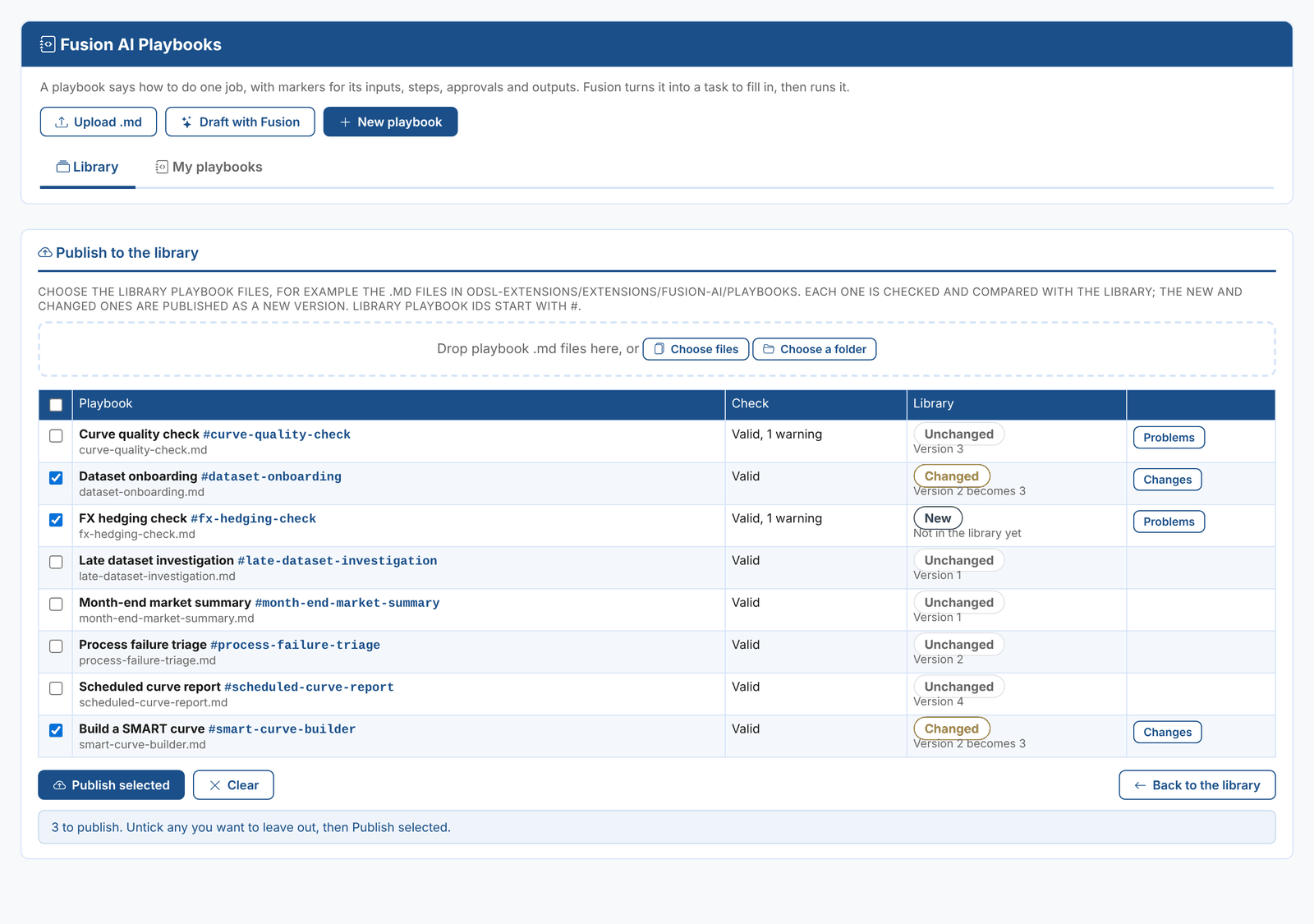
| Status | Meaning |
|---|---|
| New | Not in the library yet. Ticked to publish. |
| Changed | Different from the library. Changes shows the line differences. Ticked to publish as the next version. |
| Unchanged | The same as the library, ignoring line endings and trailing spaces. Not ticked. |
| Has problems | Errors in the playbook, an id that does not start with #, or two files with the same id. Cannot be published. |
Publish selected publishes the ticked playbooks, each as a new version, and shows the version each one now has. Tenants with a copy of a changed playbook then see that the library has moved on.