Creating a smart curve
In this walk-through Priya creates Northgate's German clean spark spread: German base power less the cost of the TTF gas and the EUA carbon allowances a gas plant at 49% efficiency needs to make each MWh. She starts from an example in the library, checks the result in the preview, saves it in the smart data area NGE_SPREADS and builds it for the ondates of October.
| What | Id |
|---|---|
| German base power, the base | NGE.POWER.DE:BASE |
| TTF gas | NGE.GAS.TTF:MID |
| EUA carbon | NGE.EUA:SETTLE |
| The new smart curve | NGE_SPREADS:CLEAN_SPARK_DE |
1. Open Smart Data
Choose Information, Smart Data. The Smart data tab lists your company's smart curves; the Library tab has the examples. There are three ways to start:
| Start with | When to use it |
|---|---|
| Library | A calculation like one of the 44 examples: spreads, blends, curve building, moving averages, currency conversion and more |
| New | Anything else: you choose the kind (smart curve or smart timeseries) and a name, and fill in the rest |
| Create with Fusion AI | You describe it in your own words and Fusion AI finds the data and writes the expression (see Smart data with Fusion AI) |
2. Choose an example
On the Library tab the examples are grouped by kind and purpose. Type in Search the examples, or choose a kind and a group, to narrow the list.
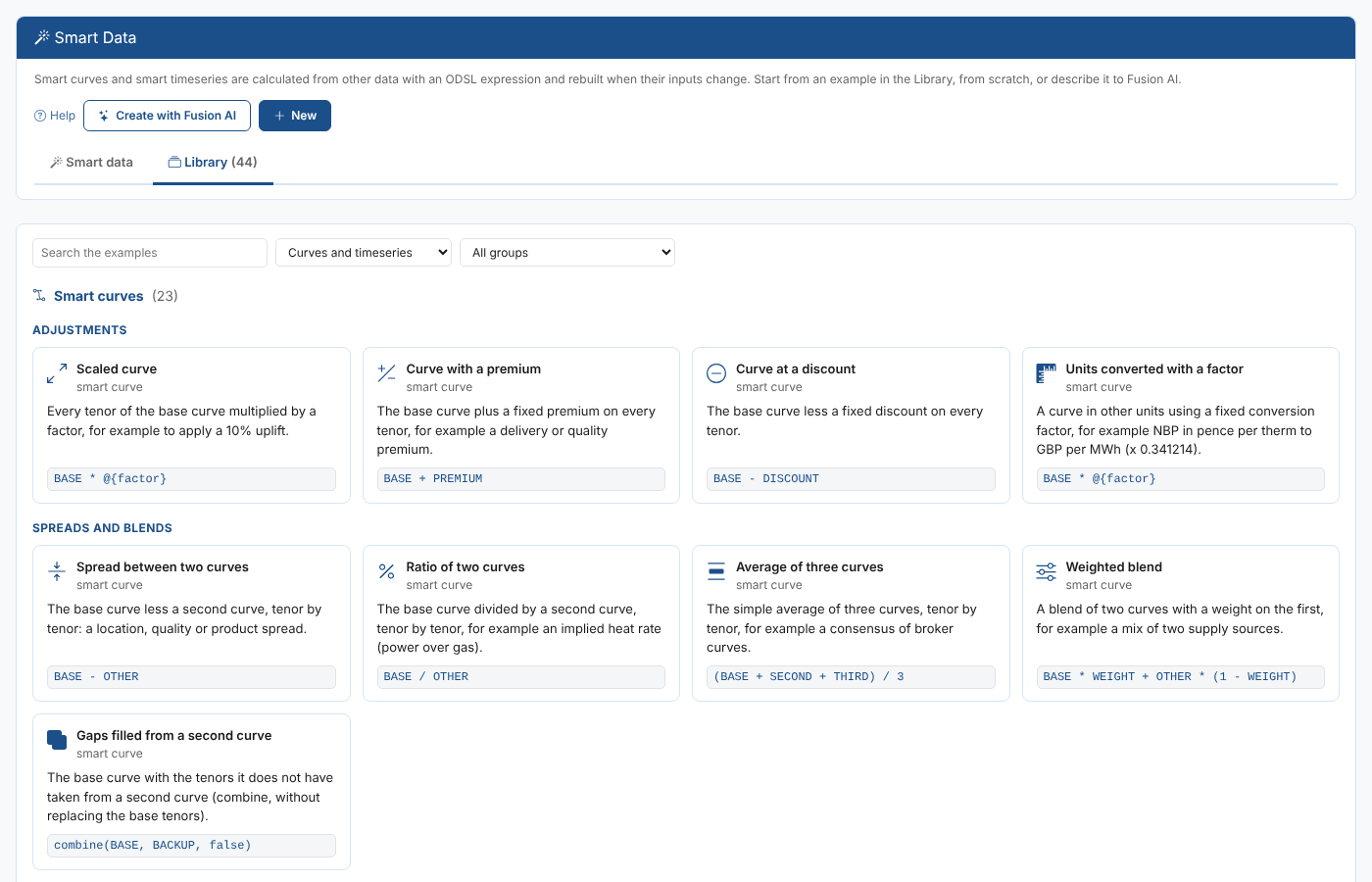
Priya opens Clean spark spread in the Power and fuels group. The example's page shows what it calculates, the expression, the data it needs and the parameters with their defaults.
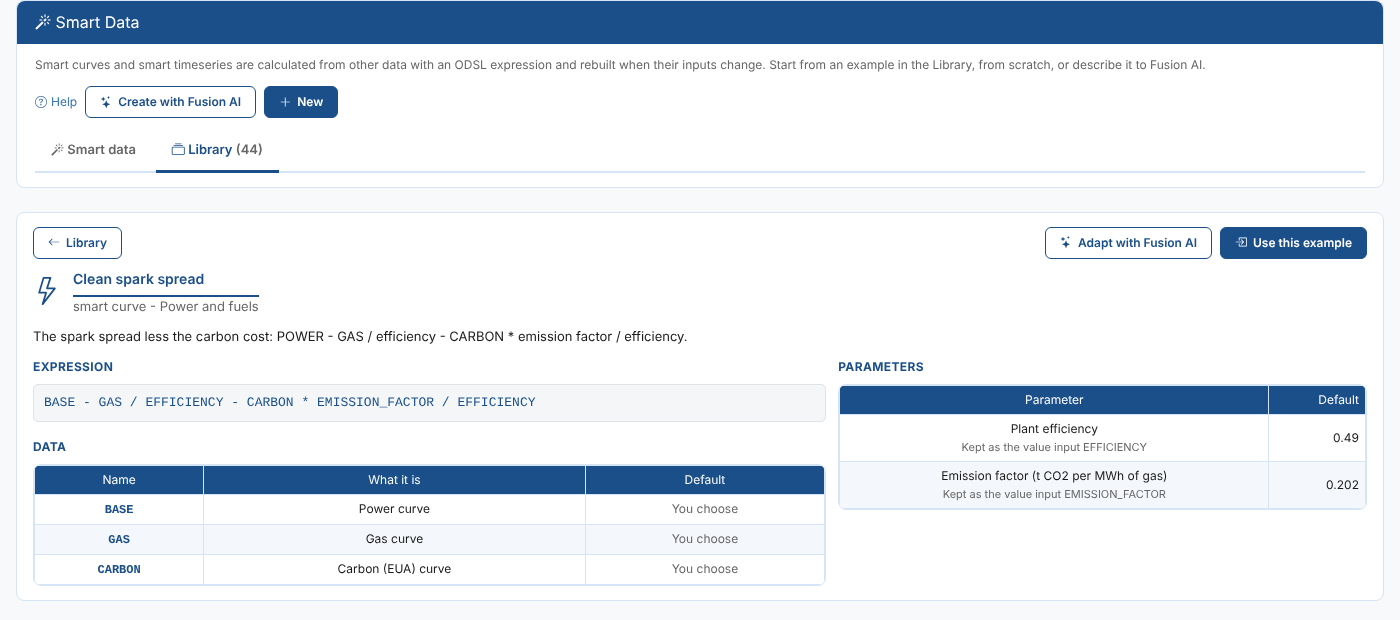
Select Use this example. (Adapt with Fusion AI asks Fusion to change the example for you first.)
3. Fill in the data
The example asks for a name, the curve to use for each of its data inputs and a value for each parameter.
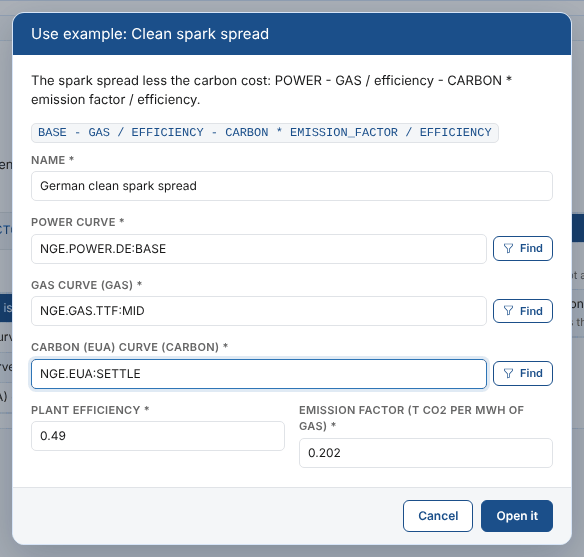
| Field | Example | Notes |
|---|---|---|
| Name | German clean spark spread | The name shown in the list and on charts |
| Power curve | NGE.POWER.DE:BASE | The base, called BASE in the expression |
| Gas curve (GAS) | NGE.GAS.TTF:MID | Becomes the input GAS |
| Carbon (EUA) curve (CARBON) | NGE.EUA:SETTLE | Becomes the input CARBON |
| Plant efficiency | 0.49 | Becomes the value input EFFICIENCY |
| Emission factor (t CO2 per MWh of gas) | 0.202 | Becomes the value input EMISSION_FACTOR |
Type an id, or select Find to look for it.
Finding data
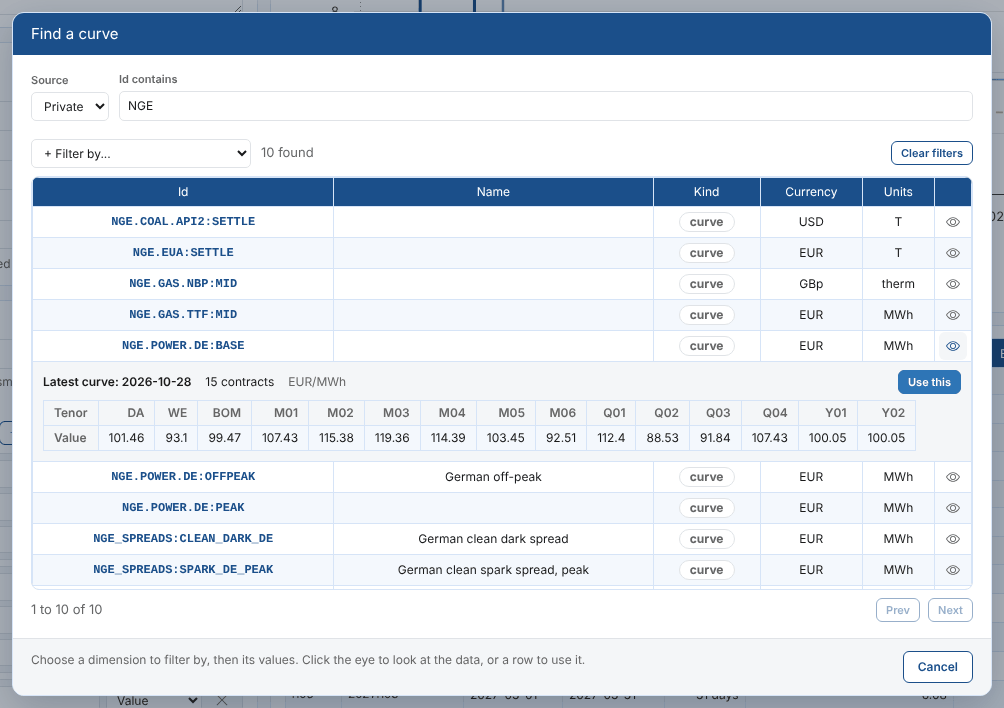
Find opens the data finder: choose the source (private or public), type part of the id and filter by dimensions such as commodity or location. Select the eye on a row to see its latest curve, then Use this or select the row to use it.
Select Open it. The new smart curve opens in the workspace, not saved yet, and the platform builds a preview at once.
4. Check the preview
The preview is built by the platform from your unsaved definition, for the ondate in the toolbar: by default the last weekday before today. On the right you see the result and the base on a chart by delivery period, and below it a grid with every contract.
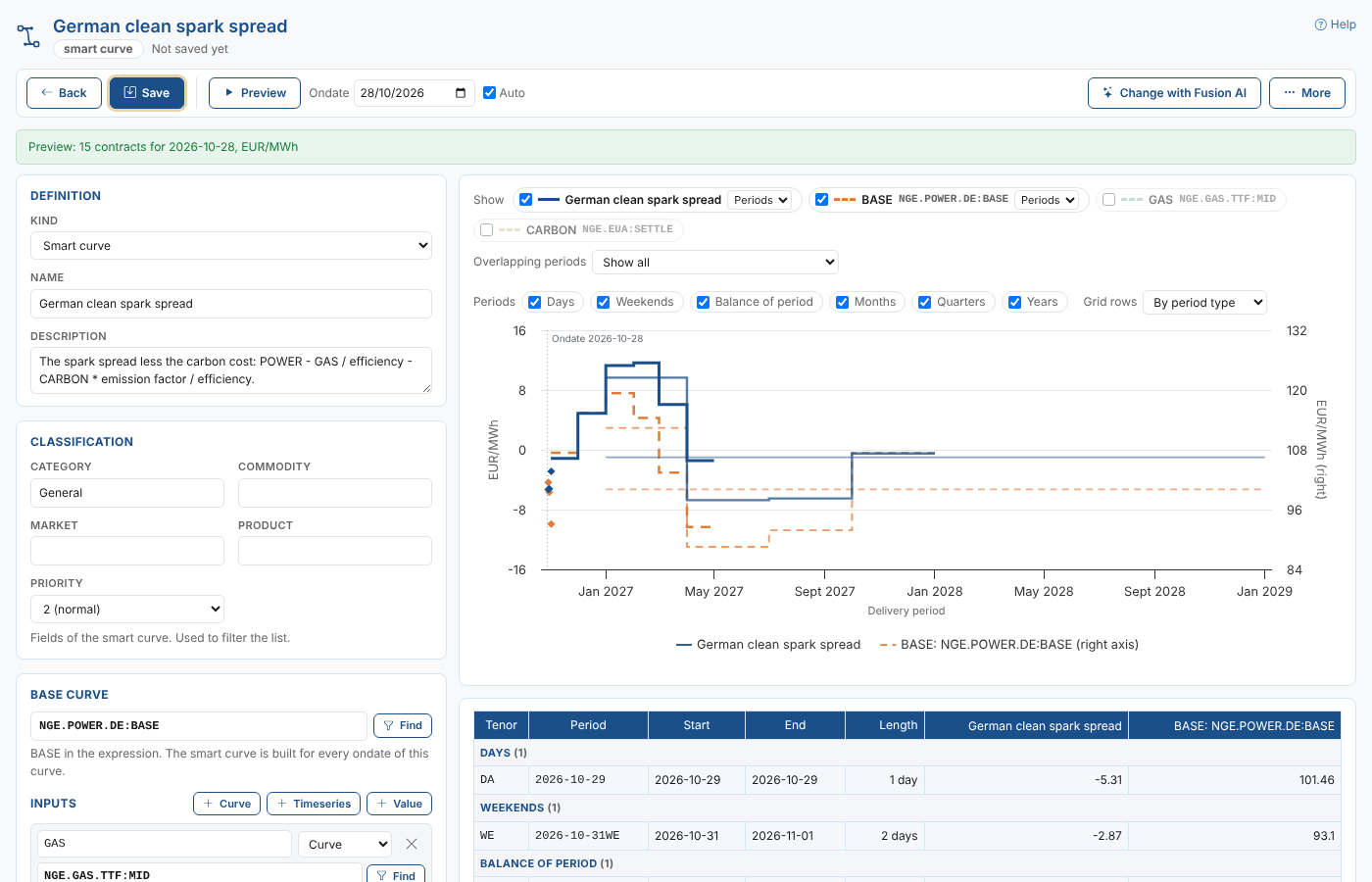
Priya checks that the result makes sense: a few euros a MWh in the winter months, when power is dear, and below zero in the summer, when the gas plant would lose money. The status above the tabs says what was built: Preview: 15 contracts for 2026-10-28, EUR/MWh.
With Auto ticked the preview is built again a moment after every change. Press Ctrl+Enter in the expression, or select Preview, to build it at once.
5. Check the base and inputs
The Base curve and Inputs cards hold the data from the example. Each curve input has an Ondate option; Same ondate is right here, because Northgate's gas and carbon curves are updated every day with the power curve. Value inputs can be changed here at any time.
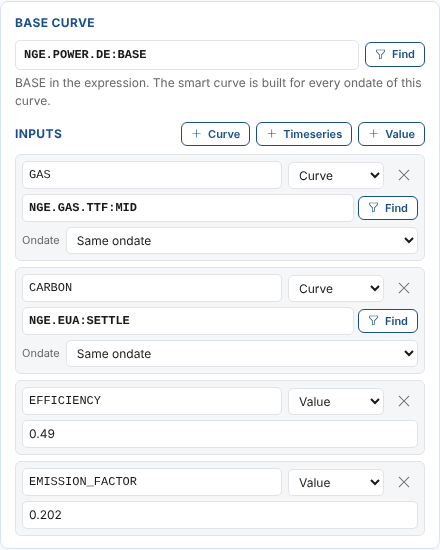
Use + Curve, + Timeseries and + Value to add inputs, and the cross to remove one.
6. Describe and convert it
- In Definition, Priya adds the description
German base power less the gas and carbon cost of a gas plant. - In Classification she sets Category
Spreads, CommodityElectricity, MarketDE, ProductBaseand Priority1 (high), so the curve is easy to find in the list. - In Conversion she sets Currency
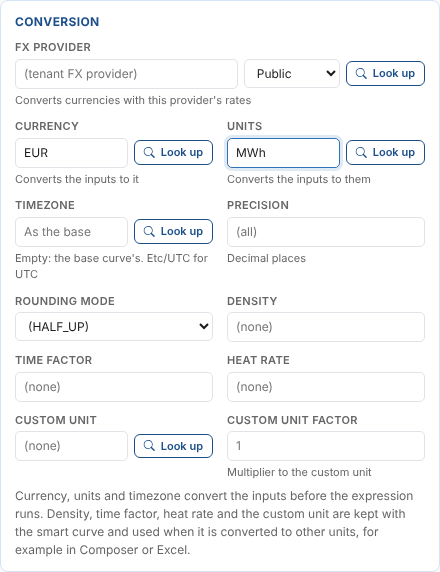
EURand UnitsMWh, so the result is in EUR/MWh whatever units the inputs come in.
7. Save it
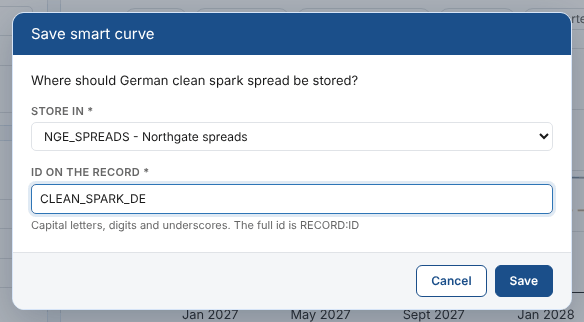
Select Save and choose where to store it.
| Field | Example | Notes |
|---|---|---|
| Store in | NGE_SPREADS - Northgate spreads | A smart data area, a record you used before, A new smart data area, or Another master data record... |
| Id on the record | CLEAN_SPARK_DE | Capital letters, digits and underscores. The full id is NGE_SPREADS:CLEAN_SPARK_DE |
The status confirms it: Saved as NGE_SPREADS:CLEAN_SPARK_DE. It is built for each new ondate of its base when its inputs are updated. From now on the platform builds the spread every evening as soon as the power, gas and carbon curves for the day are in.

8. Build the past ondates
The platform builds a new smart curve for new ondates. For its history, Priya builds the ondates of October: she selects Build in the toolbar, sets From ondate to 1 October and keeps To ondate at the last weekday, 28 October.
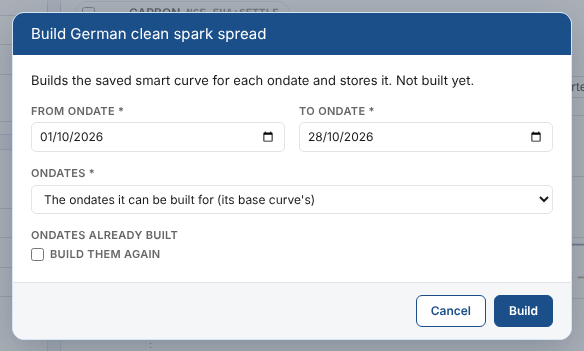
The progress shows each ondate as it is built, and the summary says how many were built: Built 20 of 20 ondates. The Build card now lists the stored builds.

The clean spark spread is ready: reports, Composer, Excel and scripts can read NGE_SPREADS:CLEAN_SPARK_DE like any other curve, for any ondate from 1 October.
Making a smart timeseries
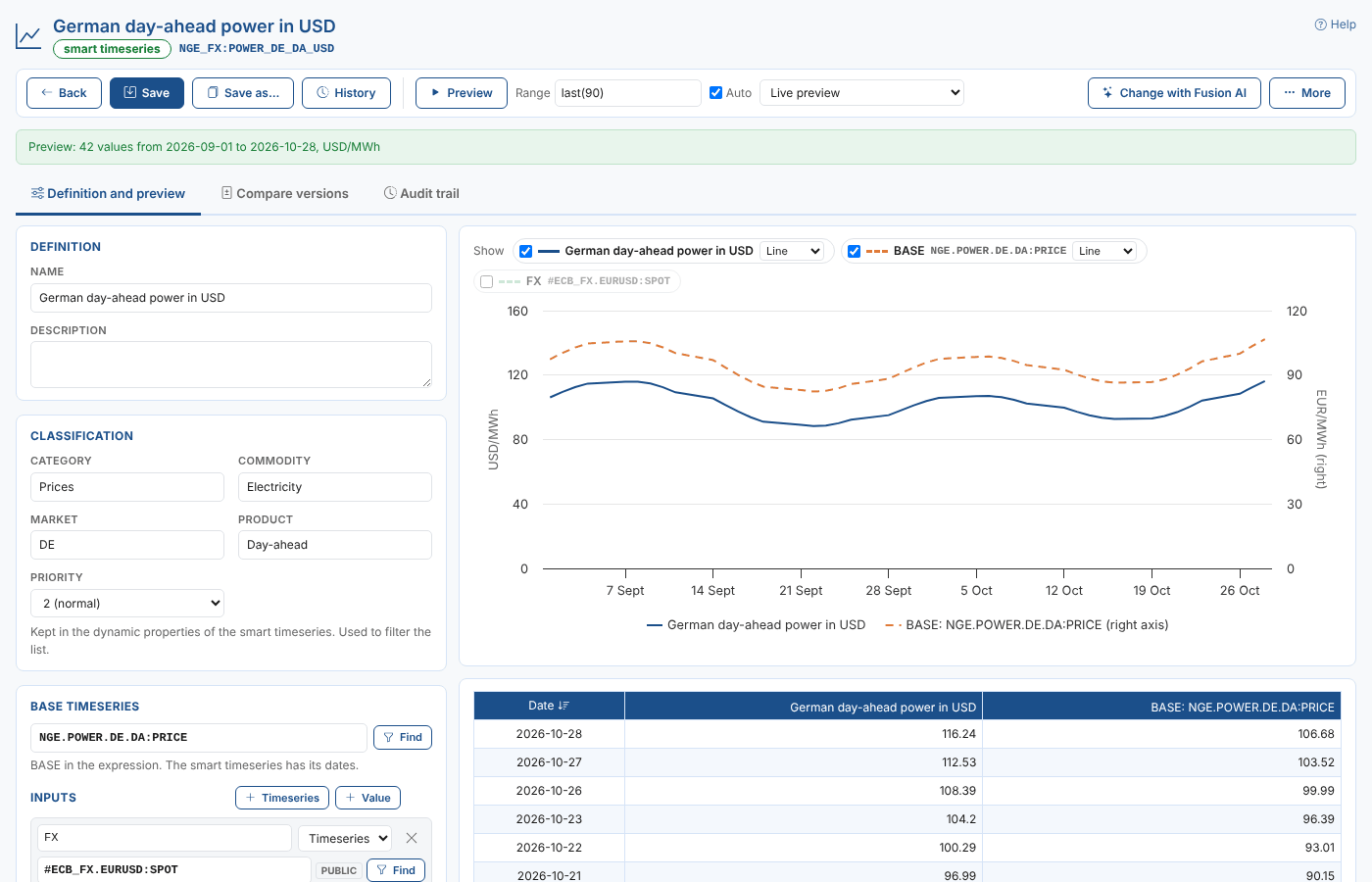
A smart timeseries is made the same way. Tom Clarke, in the same team, needs the German day-ahead power price in dollars. He selects New, chooses A smart timeseries and the name German day-ahead power in USD, and fills in:
| Part | Value |
|---|---|
| Base timeseries | NGE.POWER.DE.DA:PRICE, the day-ahead price in EUR/MWh |
Input FX (Timeseries) | #ECB_FX.EURUSD:SPOT, the public ECB rate |
| Expression | BASE * FX |
| Currency and Units | USD and MWh |
The preview shows a Range instead of an ondate: last(90) (the last 90 values) by default, or for example from(2026-09-01) or between(2026-09-01, 2026-09-30).
Next
Finding and organising smart data: the list of smart curves and timeseries and what you can do with several at once.