Scripts
Some calculations are too long or too important to write in one expression. Write them once as a function in an ODSL script, give the function a name that says what it does, and call it from the expression. Several smart curves can then use the same function, and the calculation is tested and versioned on its own.
Northgate's peak spread NGE_SPREADS:SPARK_DE_PEAK uses the script NGE_SPREAD_FUNCTIONS, which has two functions:
/**
 * The clean spark spread of a gas plant: power less the gas and carbon it burns for each MWh
 */
function cleanSpark(power, gas, carbon, efficiency, emission)
    fuel = gas / efficiency
    co2 = carbon * emission / efficiency
    cleanSpark = power - fuel - co2
end
and cleanDark for coal plants. Its expression is cleanSpark(BASE, GAS, CARBON, EFFICIENCY, EMISSION_FACTOR).
Choosing the script
The Script card lists the scripts in the category curve-build (for smart curves) or timeseries-build (for smart timeseries), private and public. Type any other script id under the list. The card shows the functions of the script, and the expression suggests them with their descriptions as you type.

To have a script offered here, give it the category in its first comment, as NGE_SPREAD_FUNCTIONS does with @category curve-build. The comment above each function becomes the help shown for it.
Creating a new script
To start a script from scratch, select New script on the Script card. Tom does this for the clean dark spread, to move its calculation into a function.
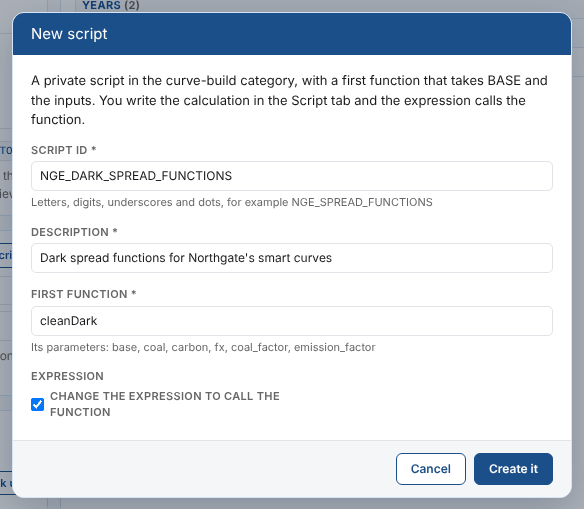
| Field | Example | Notes |
|---|---|---|
| Script id | NGE_DARK_SPREAD_FUNCTIONS | Letters, digits, underscores and dots. It must not be the id of an existing private script |
| Description | Dark spread functions for Northgate's smart curves | Written in the script's first comment, with the category curve-build (or timeseries-build) |
| First function | cleanDark | The function to write. Its parameters are base and the inputs, in lower case |
| Expression | Ticked | Changes the expression to call the function with BASE and the inputs. Ticked by default when the expression is empty or just BASE |
Select Create it. The script is saved at once as a private script, chosen in the Script card, and opened in the Script tab. The function returns base until you write it: a comment for each parameter says which curve, timeseries or value it gets.
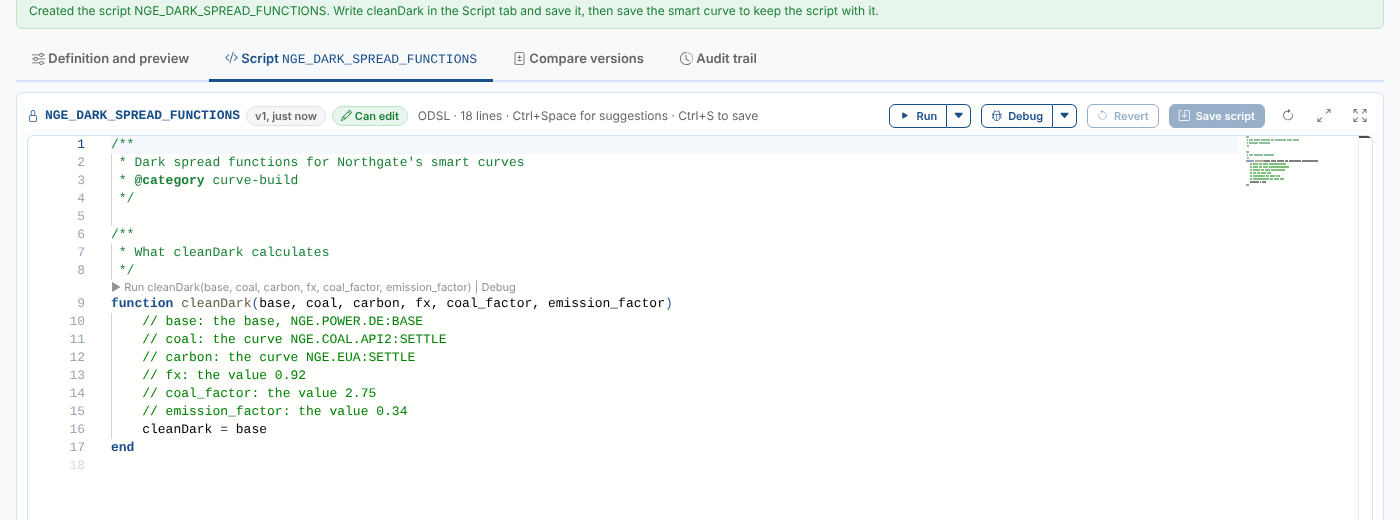
Write the calculation, test it with Run (the arguments are filled in from the smart curve, see below), and select Save script. Then save the smart curve itself, which now uses the script.
The script is created even if you do not save the smart curve. Delete it in the Script Manager if you no longer need it.
The Script tab
When the smart data uses a script, the workspace has a Script tab with the script's id. It is the Script Manager's code editor, runner and debugger, so you can change and test the script without leaving the smart curve.
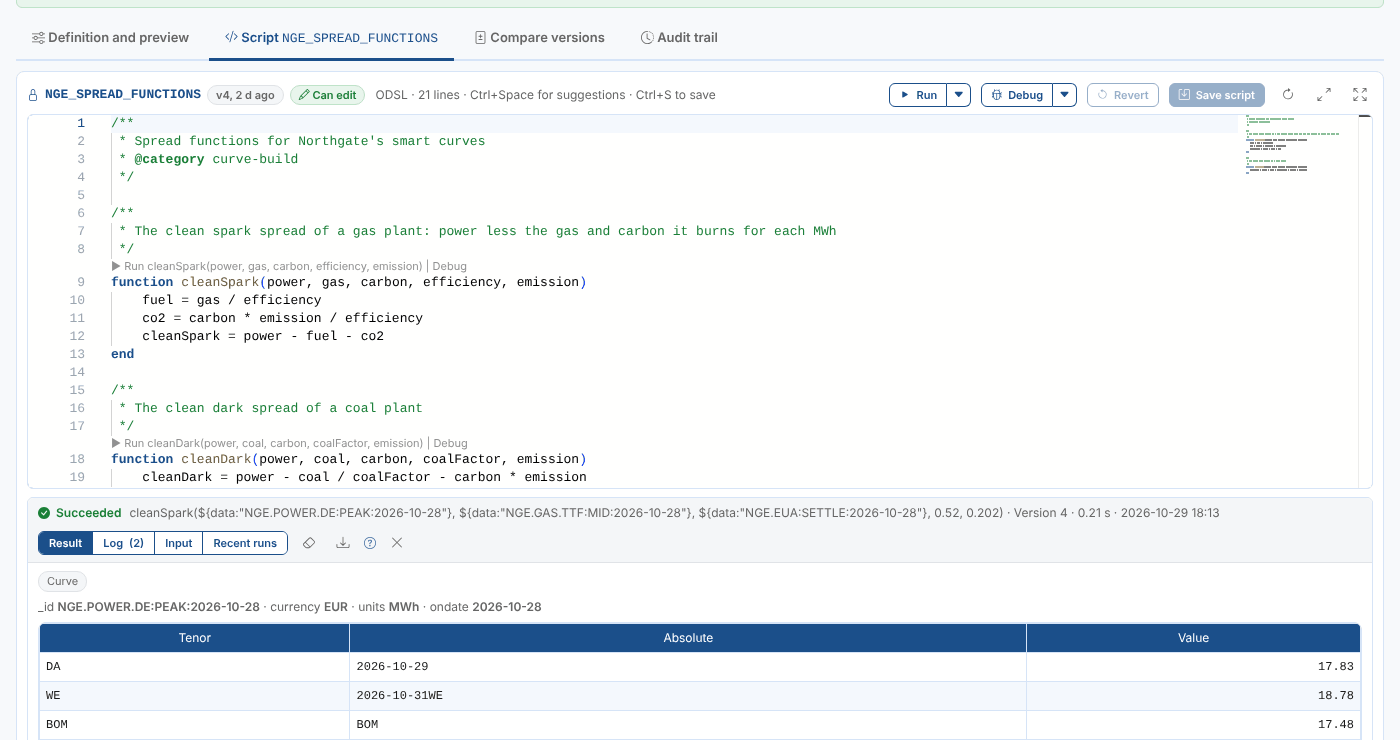
| Part | What it does |
|---|---|
| Title | The script's id, its version and when it was saved, and Can edit or Read only |
| Editor | ODSL with intellisense, syntax checking and a Run and Debug link above each function |
| Run | Runs the script; the arrow next to it runs one function or one //#region |
| Debug | Debugs the script, a function or a region: it stops at your breakpoints |
| Revert | Undoes your changes since the last save |
| Save script | Saves the script as a new version, with the reason you give |
| Refresh | Reads the script again, for example after someone else saved it |
| Fill the view, full screen | The editor covers the view or the screen. Esc goes back |
| Output panel | Result, Log, Input and Recent runs of the last run, and the debugger's views when debugging |
The tab shows a star when the script has unsaved changes, and you are asked before leaving the workspace with them.
Public scripts (ids starting with #) are read only: you can run and debug them but not save them.
Running a function with the smart curve's data
To test a function, open the arrow next to Run and choose it; the functions the expression calls are marked in the expression. You are asked for its arguments, and they are filled in from the smart curve:
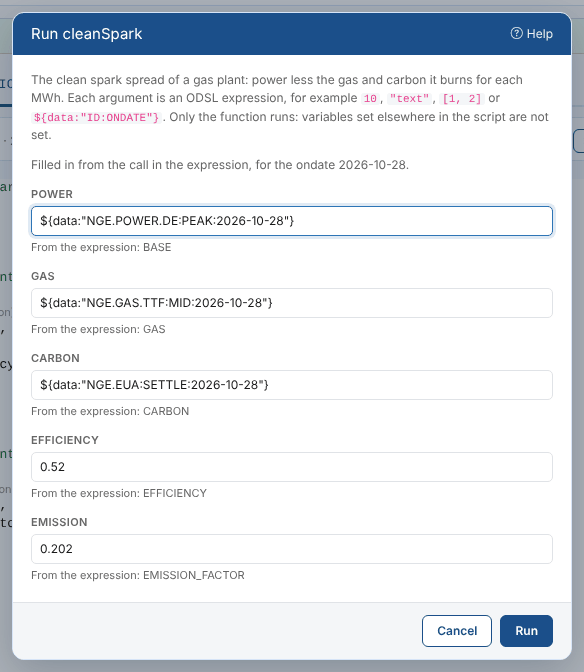
| In the smart curve | Becomes the argument |
|---|---|
BASE and curve inputs | The curve for the ondate of the preview, for example ${data:"NGE.POWER.DE:PEAK:2026-10-28"}. An input's ondate option is kept |
| A timeseries input of a smart curve | Its value for the ondate, as the build uses it |
BASE and inputs of a smart timeseries | The timeseries for the range of the preview |
| A value input | Its value, such as 0.52 |
When the expression calls the function, the arguments come from that call. For a function the expression does not call, a parameter with the name of an input (or base) gets that input, and the first parameter gets BASE. Every field also lists BASE and the inputs to pick from, and you can type any ODSL expression. Arguments you change are kept for the next run until the expression or the ondate changes them.
The run's result is shown in the output panel: here the peak spread for each contract of 28 October.
Debugging works as in the Script Manager: click in the margin to set a breakpoint, choose Debug or a function's Debug link, and step through with the debug bar. See Debugging scripts. Breakpoints, run inputs and function arguments are shared with the Script Manager.
Saving the script
Select Save script (or Ctrl+S) and give a reason. The script is saved as a new version; then its functions are read again, so the expression's suggestions and checks know about a function you added, and the preview is built again if Auto is ticked.
The preview and the platform's builds always use the saved script. Changes in the Script tab are not in the preview until you save them, and saving changes every smart curve and timeseries that uses the script: check which ones do in the Script Manager's Used by tab first.
Stored builds of past ondates are not built again when the script changes. Build them again if they should use the new script (see Building smart curves).
Next
Building smart curves: when the platform builds smart curves, and building past ondates.