Finding and organising smart data
The Smart data tab lists your company's smart curves or smart timeseries, so you can find one, see at a glance what it is built from, and change or build several at once.
The list
Choose Smart curves or Smart timeseries at the top. The list shows 50 at a time, with Prev and Next below it and the number found beside the kind.
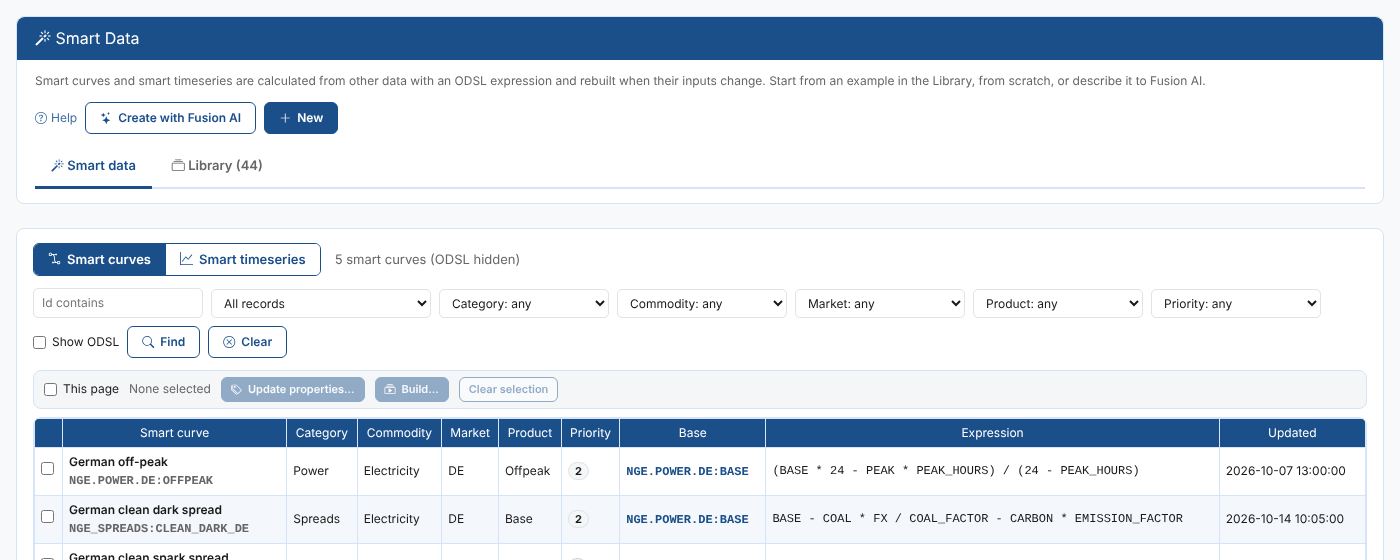
| Column | What it shows |
|---|---|
| Smart curve or Smart timeseries | Its name, and its id under the name |
| Category, Commodity, Market, Product, Priority | Its classification |
| Base | The base curve or timeseries |
| Expression | The expression |
| Updated | When it was last saved |
Select a row to open it in the workspace.
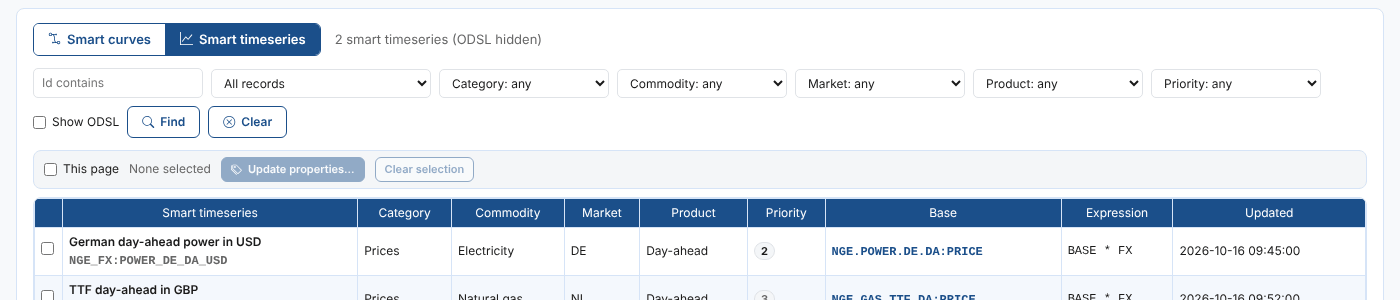
Filters
| Filter | What it does |
|---|---|
| Id contains | Only the ones whose id contains the text. Press Enter or Find |
| Record | All records, Any smart data area, one smart data area, or Another record... with a master data record id (type it or find it) |
| Category, Commodity, Market, Product, Priority | any, not set, or one of the values in use |
| Show ODSL | Also show smart data in the category ODSL, made by OpenDataDSL, which is hidden by default |
| Clear | Clears every filter |
The kind, the record filter and Show ODSL are remembered in your browser for the next time.
Working with several at once
Tick the rows you want, or This page for every row on the page. Select all matching selects every one the filters find, on every page.
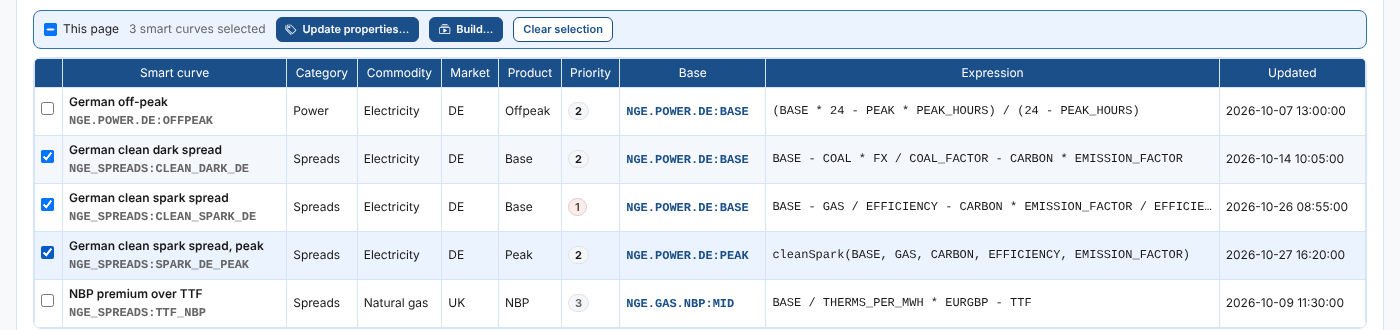
| Button | What it does |
|---|---|
| Update properties... | Changes the classification of every selected one |
| Build... | Builds every selected smart curve for a range of ondates (smart curves only, see Building several smart curves) |
| Clear selection | Unticks them all |
Updating the classification
For each field choose Keep (leave it as it is), Set to (and the new value) or Clear. Typing in a field sets it to Set to.
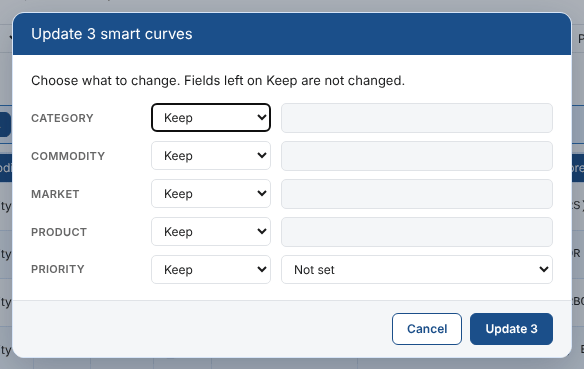
Priya uses it when the risk team asks for every German spread to have priority 1: she filters on Market DE and Category Spreads, selects all matching, and sets Priority to 1 (high).
Only the classification is changed. The base, inputs, expression and build settings of each one are kept as they are, and each update makes a new version.
The Smart Data tab on a master data record
The Master Data screen has a Smart Data tab that lists the smart curves and timeseries stored on the selected record, such as NGE.POWER.DE:OFFPEAK on the German power record.
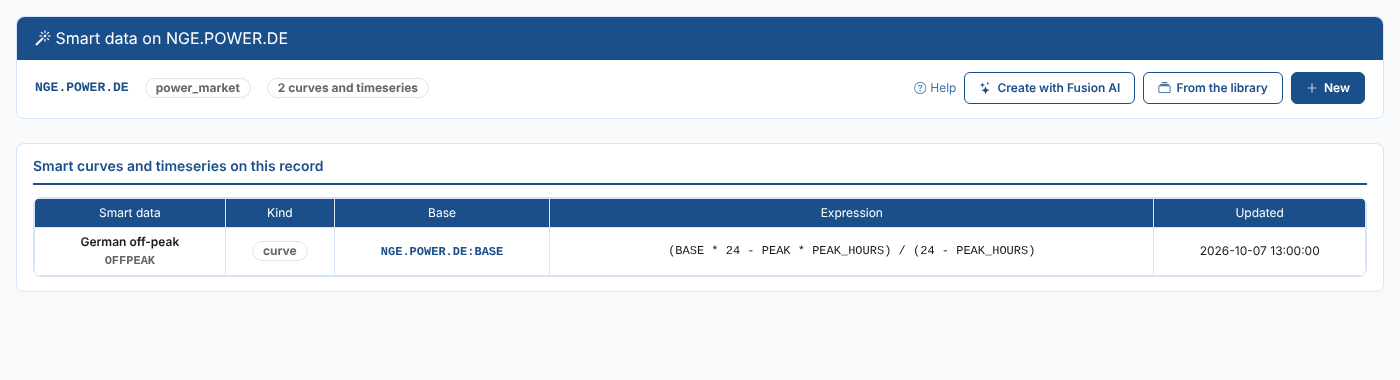
| Button | What it does |
|---|---|
| New | A new smart curve or timeseries stored on this record, with the record's own curve (or timeseries) as the base |
| From the library | Starts from a library example, stored on this record |
| Create with Fusion AI | Has Fusion AI design one, stored on this record |
Select a row to open it in the workspace. On a public record (an id starting with #) smart data can be previewed but not saved: smart data is always stored on your private master data.
Next
The workspace: everything about editing and previewing smart data.