The workspace
Opening or creating a smart curve or timeseries shows the workspace: its definition on the left and a live preview on the right, built by the platform from what you see on the left, saved or not.
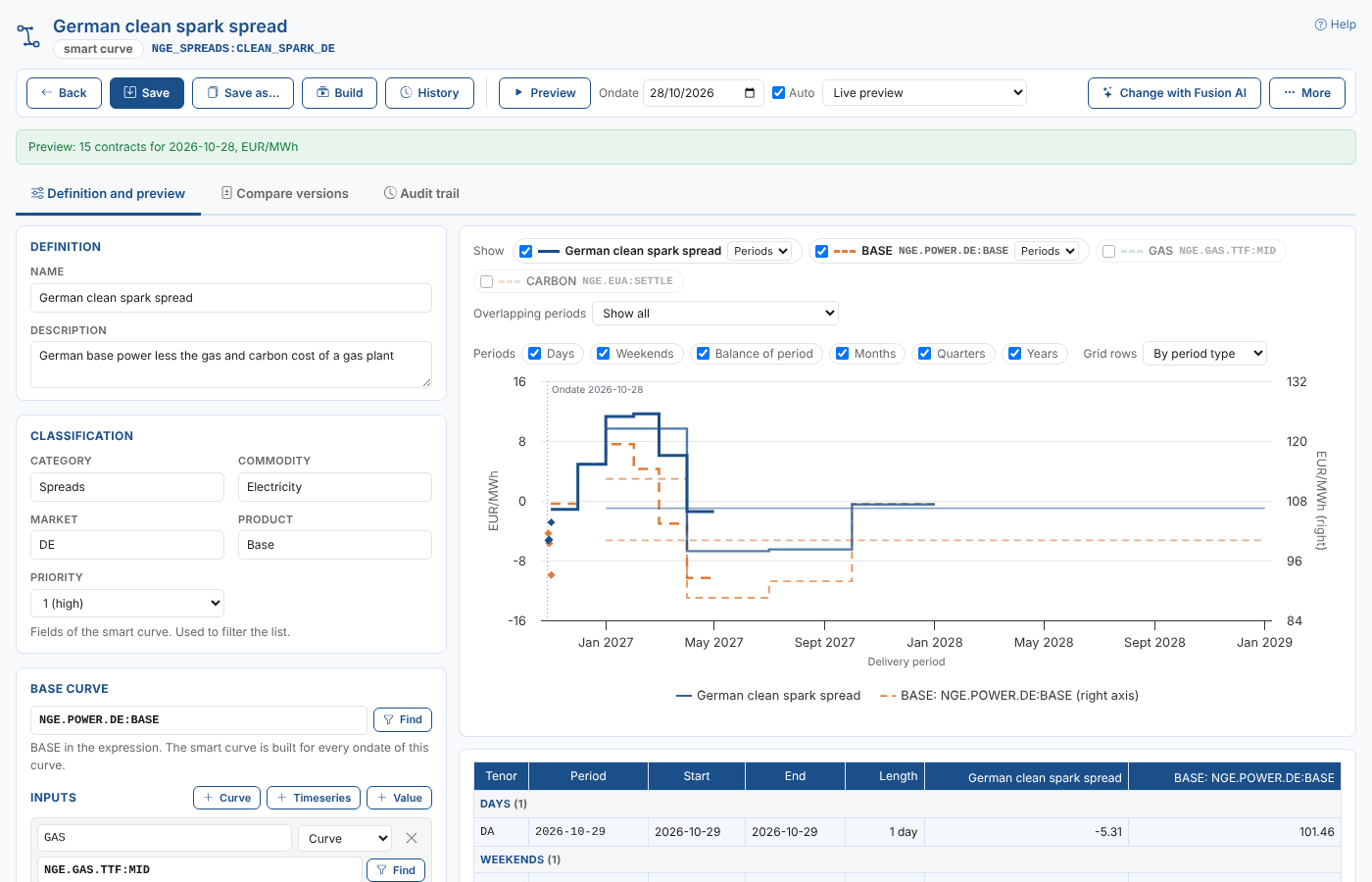
The toolbar
| Control | What it does |
|---|---|
| Back | Back to the list. You are asked first when there are unsaved changes |
| Save | Saves it as a new version (the first save asks where to store it). Highlighted when there are unsaved changes |
| Save as... | Saves it, with your changes, as a new smart curve or timeseries. The one you opened is left as it was |
| Build | Builds the saved smart curve for a range of ondates (see Building smart curves) |
| History | Opens the Audit trail tab |
| Preview | Builds the preview now |
| Ondate (curves) or Range (timeseries) | What the preview is built for: an ondate, or a range such as last(90), from(2026-09-01) or between(2026-09-01, 2026-09-30) |
| Auto | Builds the preview again a moment after each change |
| Live preview or Saved, as the platform builds it | The preview of what is on the screen, or the saved version as the platform reads it (once saved) |
| Change with Fusion AI | Asks Fusion AI to change it (see Smart data with Fusion AI) |
| More | Duplicate, revert, download, delete or roll back (see The More menu) |
Under the name you see the kind, the id once it is saved, and Unsaved changes when there are any.
The tabs
| Tab | When it shows | What it is |
|---|---|---|
| Definition and preview | Always | The definition and the preview, described on this page |
| Script | When it uses a script | The script in the Script Manager's editor (see Scripts) |
| Compare versions | Once saved | Its versions side by side (see Versions and the audit trail) |
| Audit trail | Once saved | Who changed it and its script, and what |
The definition
The cards on the left, from the top:
| Card | What it holds |
|---|---|
| Definition | The kind (for a new one), the name and a description |
| Classification | Category, commodity, market, product and priority, used to filter the list |
| Base curve or Base timeseries | The base, called BASE in the expression, with Find |
| Inputs | The curves, timeseries and values the expression uses, with + Curve, + Timeseries and + Value |
| Expression | The formula, with intellisense |
| Script | The script whose functions the expression can use, the functions it has, and New script to create one |
| Conversion | FX provider, currency, units, timezone, precision and conversion factors |
| Build (curves) or Calendar (timeseries) | When the platform builds and stores it, and its stored builds; or the calendar of a smart timeseries |
| Stored document | The definition as it will be stored, for checking |
How smart data works explains each part.
Writing the expression
The expression box suggests names as you type: BASE, the inputs, the functions of the script and the built-in functions for the kind of smart data. Inside a function call it shows the function's parameters, with the one you are typing highlighted, and their types and descriptions.
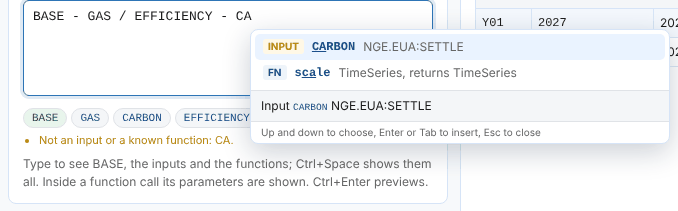
| Key | What it does |
|---|---|
| Ctrl+Space | Shows every suggestion |
| Up and Down, Enter or Tab | Choose and insert a suggestion |
| Esc | Closes the suggestions |
| Ctrl+Enter | Builds the preview |
After a name and a dot, such as BASE., the suggestions are the members of a curve or timeseries: for a curve contracts, ondate, size, currency, units, timezone and contains(tenor); for a timeseries getLast(date), last(n), range(start, end), from(start) and others.
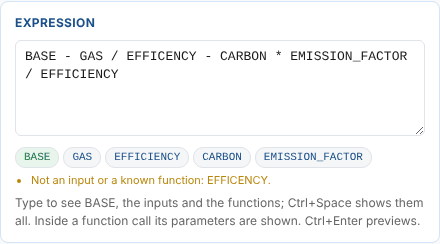
The chips under the box insert BASE and the inputs. Below them the editor warns about anything it cannot match, such as a misspelt name, and about unbalanced brackets or quotes.
The preview
The preview is built by the platform, so it shows exactly what the saved smart data will give. For a curve it is built for the Ondate in the toolbar; when the base has no curve for that ondate the latest one before it is used, and the status says so.
What the chart shows
The Show row has a chip for the result, BASE and each data input. Tick a chip to draw it; the result and BASE are drawn at first. Each chip has a style:
| Curves (by delivery period) | Timeseries |
|---|---|
| Periods: a flat line over each delivery period (the default) | Line (the default) |
| Line: through the middle of each period | Column |
| Column: a column over each period | Area |
| Area: filled to zero | Steps: each value held until the next one |
| Points: a point in the middle of each period | Points |
Here the spread is drawn as columns, with the German power and TTF gas curves as lines on the right axis:
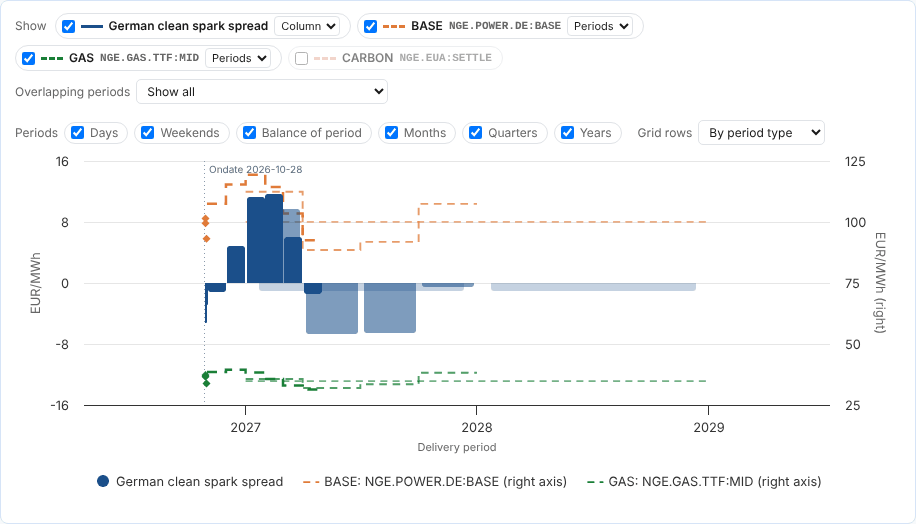
A series in other currency or units, or of a very different size, is drawn on a second axis on the right. The styles are remembered in your browser.
Curve options
| Option | What it does |
|---|---|
| Overlapping periods | Show all, or Hide those covered by shorter periods: hides a quarter, season or year whose months are all on the curve |
| Periods | Ticks to show or hide each type of period: days, weekends, balance of period, months, quarters, years and others |
| Grid rows | By period type (days, then weekends, months, quarters and so on) or By delivery start |
The grid
Under the chart, the grid lists every contract (curves) or date (timeseries), with a column for each series on the chart. For a curve it shows the tenor, the absolute period, the delivery start and end and the length of each contract.
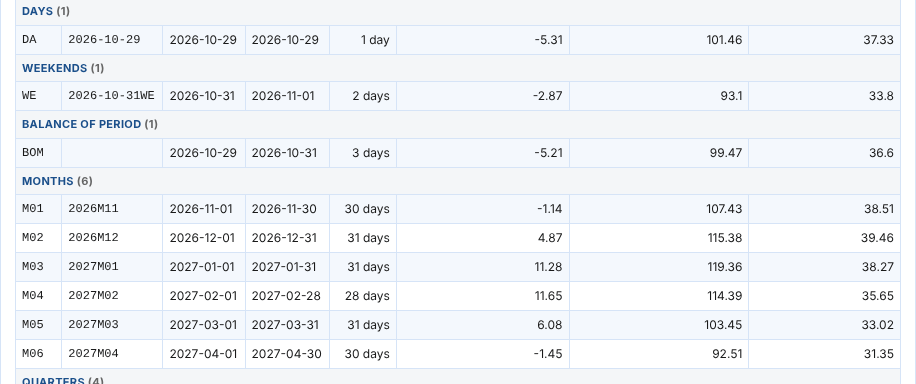
For a timeseries the dates are newest first; select the Date heading for oldest first. The grid is as tall as the cards on the left, and scrolls.
The saved view
Once saved, choose Saved, as the platform builds it to see the saved version as the platform reads it for that ondate or range: the stored build when there is one. Use it to compare with your unsaved changes, or to check what a report will show.
When the preview fails
The status shows the platform's message, with a hint, and Ask Fusion AI to fix it under it. Fusion AI looks at the error and the definition and suggests a change, shown as a difference to apply.

| Message | What to check |
|---|---|
Unknown variable | A name in the expression that is not BASE or an input. Names are case sensitive |
Unknown function | A function that does not exist, or that is in a script the smart data does not use |
| Not found | An input has no curve for this ondate, or an id is wrong |
| The expression returned no values | The inputs have no tenors in common with the base, or have no values for this ondate, or the expression divides by zero or filters out every contract |
Saving
Save saves it as a new version. The first save asks where to store it (see Save it); a new smart data area is created for you if you choose A new smart data area.
Save as... saves a copy with your changes under another name and id; the one you opened is not changed. Use it to try a variant, for example the same spread at another efficiency, without touching a curve others use.
Each save of a smart curve makes the platform build it for new ondates with the new definition. Stored builds of past ondates are not changed: build them again if they should use the new definition (see Building smart curves).
The More menu

| Item | What it does |
|---|---|
| Duplicate | Opens a copy, not saved, to save under a new id |
| Revert to the saved version | Discards your changes (shown when there are any) |
| Download the definition (.json) | The definition as it is stored |
| Download the preview (.csv) | The values of the preview, as shown in the grid |
| Delete or roll back... | Rolls back to the version before, or deletes it (see Versions and the audit trail) |
Next
Smart data with Fusion AI: having Fusion design, adapt, change and fix smart data.