Smart data with Fusion AI
Fusion AI knows the functions smart data can use and can look up your data. Describe what you want in your own words and it finds the curves and timeseries, writes the expression and explains what it did. Nothing is saved until you have checked the result in the preview and selected Save.
Creating one with Fusion AI
Select Create with Fusion AI on the Smart Data screen (or on a record's Smart Data tab), describe what you want and choose what to make.
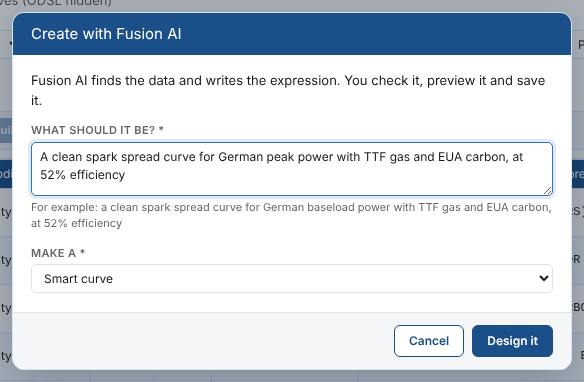
| Field | What to give |
|---|---|
| What should it be? | What it calculates and from what: the market, the products, the numbers. The more precise, the better |
| Make a | Smart curve, Smart timeseries, or Let Fusion decide |
Select Design it. Fusion looks up the data, which can take a minute, then the result opens in the workspace, not saved, with Fusion's notes above it and the preview built.
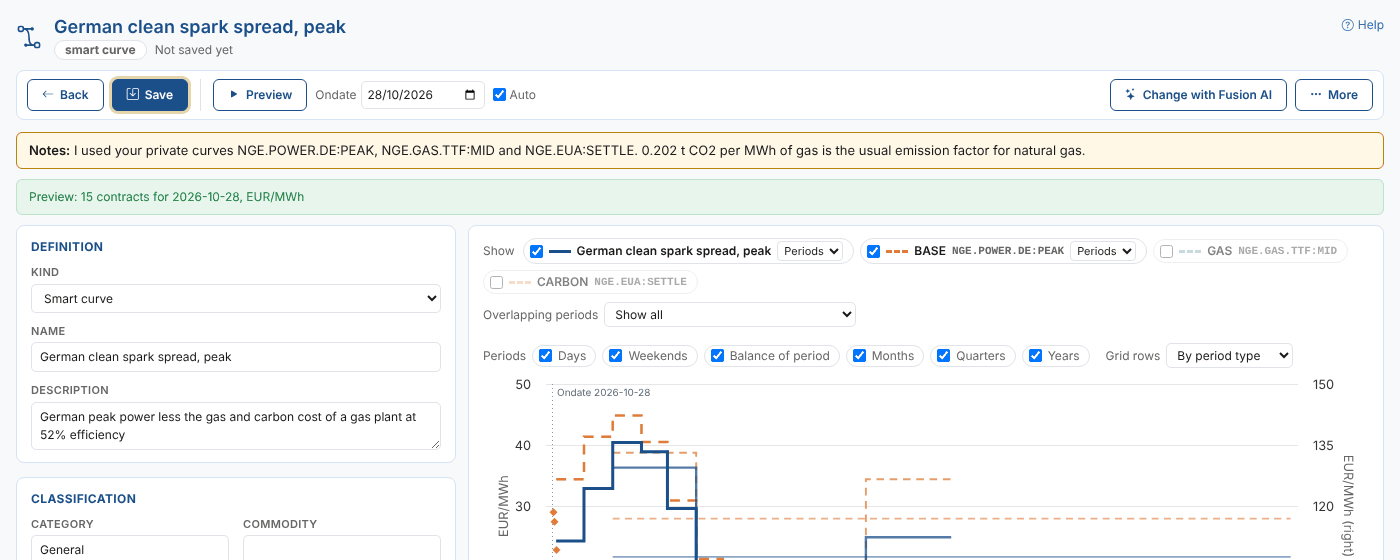
Check the notes, the ids it chose and the preview before you save: Fusion is told never to invent an id, but it can choose a curve you did not mean.
Adapting a library example
On an example's page in the library, select Adapt with Fusion AI and say how to change it, for example use the German power baseload curve and TTF gas, with 52% efficiency. Fusion starts from the example and fills in your data.
Changing one
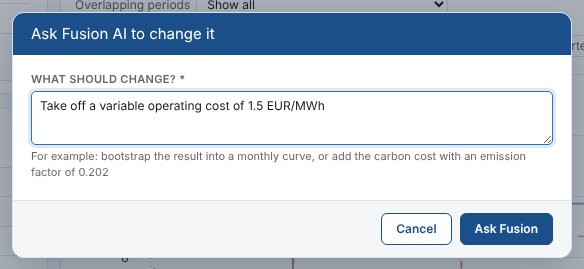
In the workspace, select Change with Fusion AI and say what should change.
Fusion answers with the whole definition as it would be, shown as a difference: as it is now in red, with the change in green, and its notes above.
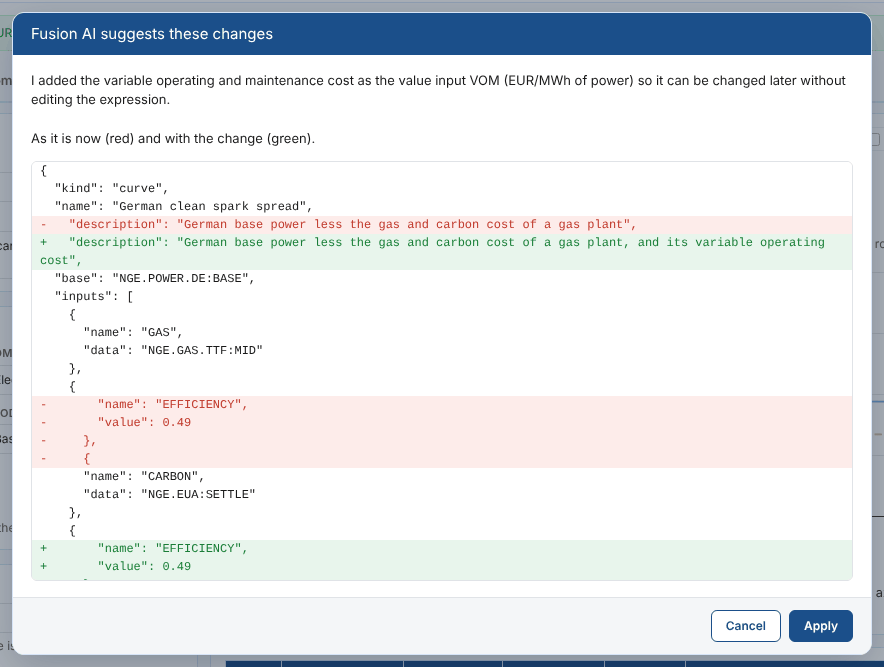
Select Apply to put the change in the workspace (it is not saved yet), or Cancel to leave it as it was. Ask again to refine it: Fusion keeps the conversation, so make it 2 EUR/MWh instead works. The kind of a saved smart curve or timeseries is never changed.
Fixing a failed preview
When the preview fails, Ask Fusion AI to fix it appears under the message (see When the preview fails). Fusion is given the error, the ondate or range and the definition, and suggests a change in the same way, to apply or not.
When Fusion writes a script function
When no function does what is needed, Fusion can write one in a new private script (an id such as SD_MY_FUNCTIONS) and use it in the expression. You are shown the script and asked whether to save it, in the category curve-build or timeseries-build. Until it is saved the preview fails. You can then edit and test the script in the Script tab.
Fusion AI is described fully in the Fusion AI guide.
Next
Scripts: script functions in the expression, and the Script tab.