Getting started with a plug-in
This walk-through sets up Northgate Energy's morning curves for Molecule: the group Gas and power curves, with the TTF and NBP gas curves and the German, Dutch and UK power base curves, sent every weekday at 08:00 for the previous business day.
1. Install the plug-in and add the system
Open Operations, then Integrations. The screen opens on its home page: what the extension does, your systems, the plug-ins you can install and the ways to build your own. With no systems yet, it starts with how an integration is set up.
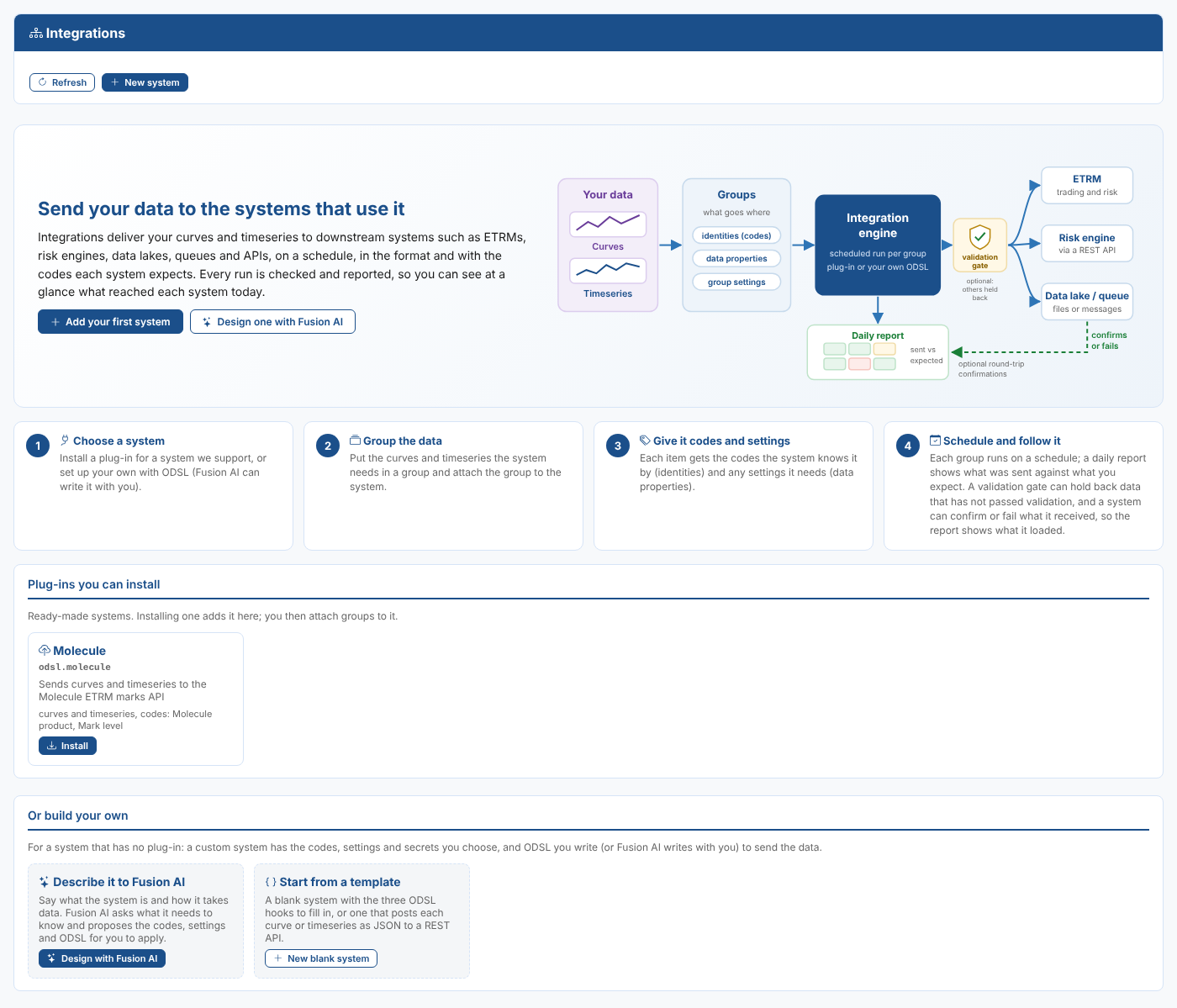
Select Install on Molecule. Installing a plug-in installs the Integration extension too when it is missing. The New system dialog then opens with Molecule chosen under Sends with: the plug-in is how the data is sent, and the system is where it goes. You can also select New system at the top of the screen at any time; it lists the plug-ins that are not installed yet under Plug-ins you can install.
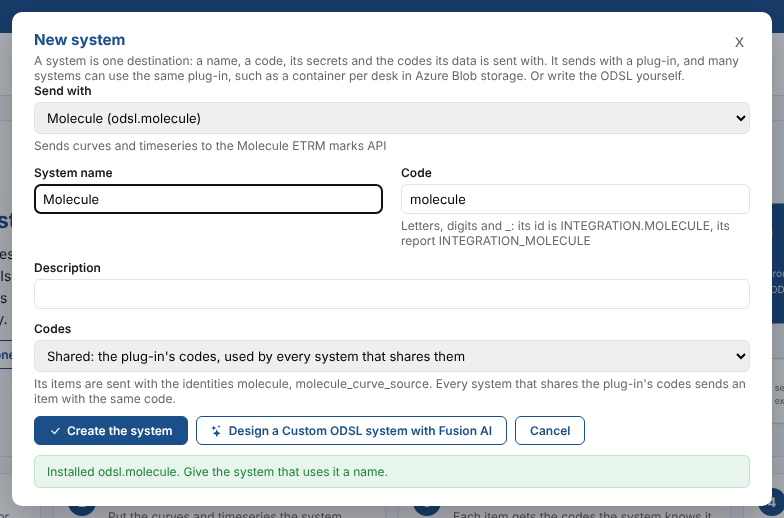
| Field | Northgate | Notes |
|---|---|---|
| Sends with | Molecule (odsl.molecule) | An installed plug-in, or Custom ODSL to write the ODSL yourself (see Custom systems). |
| System name | Molecule | How the system shows on the screens and in its daily report. |
| Code | molecule | Filled in from the name. Letters, digits and _. The system's id is INTEGRATION.MOLECULE and its report INTEGRATION_MOLECULE. It cannot be changed later. |
| Description | Optional. | |
| Codes | Shared: the plug-in's codes | For the first system on a plug-in. A second system on the same plug-in can have its own codes; see The codes a system sends with. |
Select Create the system. The screen opens on the new system's System setup tab. To send to a second Molecule account, or to split Molecule power from Molecule gas, add another system on the same plug-in later: the plug-in is installed once.
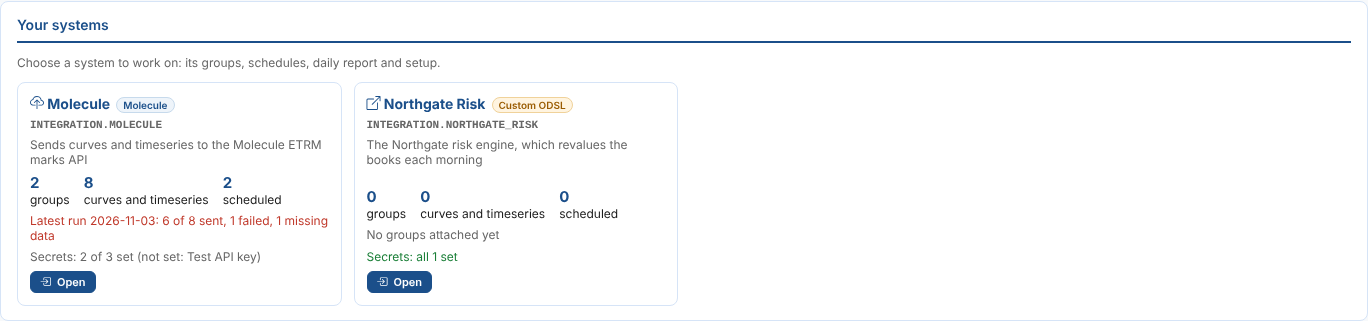
Once you have systems, the home page lists them, each with its groups, curves and timeseries, schedules, latest run and secrets. Select a system to work on it. All systems at the top of the screen goes back to the home page.
2. Set the secrets
Molecule needs a user and an API key. On the System setup tab, the Secrets part lists each secret the plug-in reads, the secret record the system keeps its value in, and whether it is set.
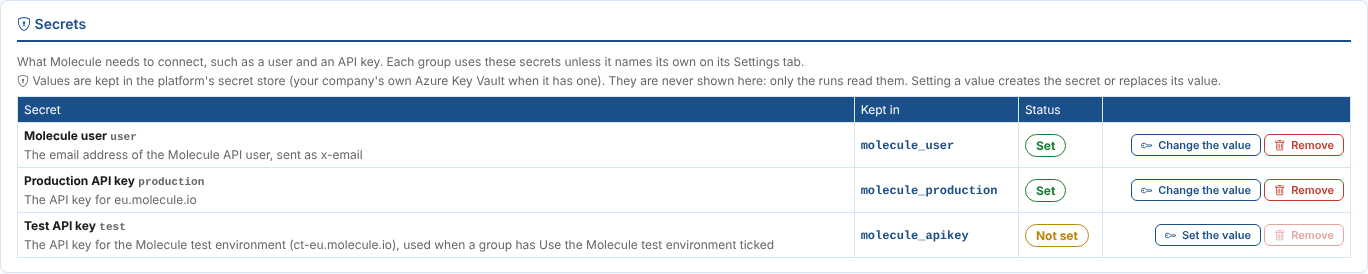
Select Set the value, type the value and select Save the value (or press Enter). The eye button shows what you typed. Setting a value creates the secret or replaces its value; Remove deletes it after a second click. Values are never shown back.
| Secret | Kept in | Northgate |
|---|---|---|
| Molecule user | molecule_user | The email address of Northgate's Molecule API user. |
| Production API key | molecule_production | The key for Molecule production. |
| Test API key | molecule_apikey | Not set: Northgate does not use the Molecule test environment. |
These are the same secrets the earlier Molecule export scripts read, so a company that already sends curves to Molecule has them set already.
3. Attach a group
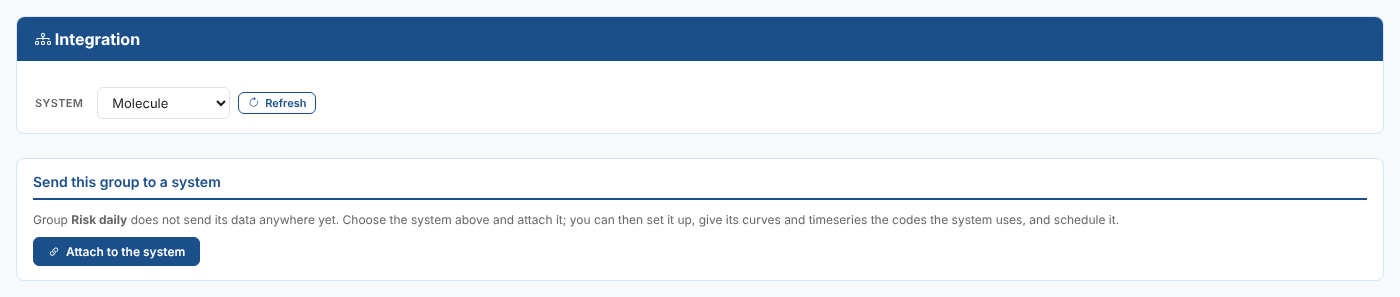
Make the group on the Groups screen first, as a group of data, with the curves and timeseries to send. Then, on the Groups tab of the Integrations screen, choose it under Attach a group and select Attach to Molecule.
Only groups of data (curves and timeseries) that do not send anywhere yet are offered; groups of master data objects, events or other services are not. You can also attach a group from the Groups screen: open the group, then Apps, then Integration, and select Attach to the system.
4. Choose the settings
The group opens on its Settings tab, with the settings the system needs at the top, the system's secrets, and the settings every group has below.
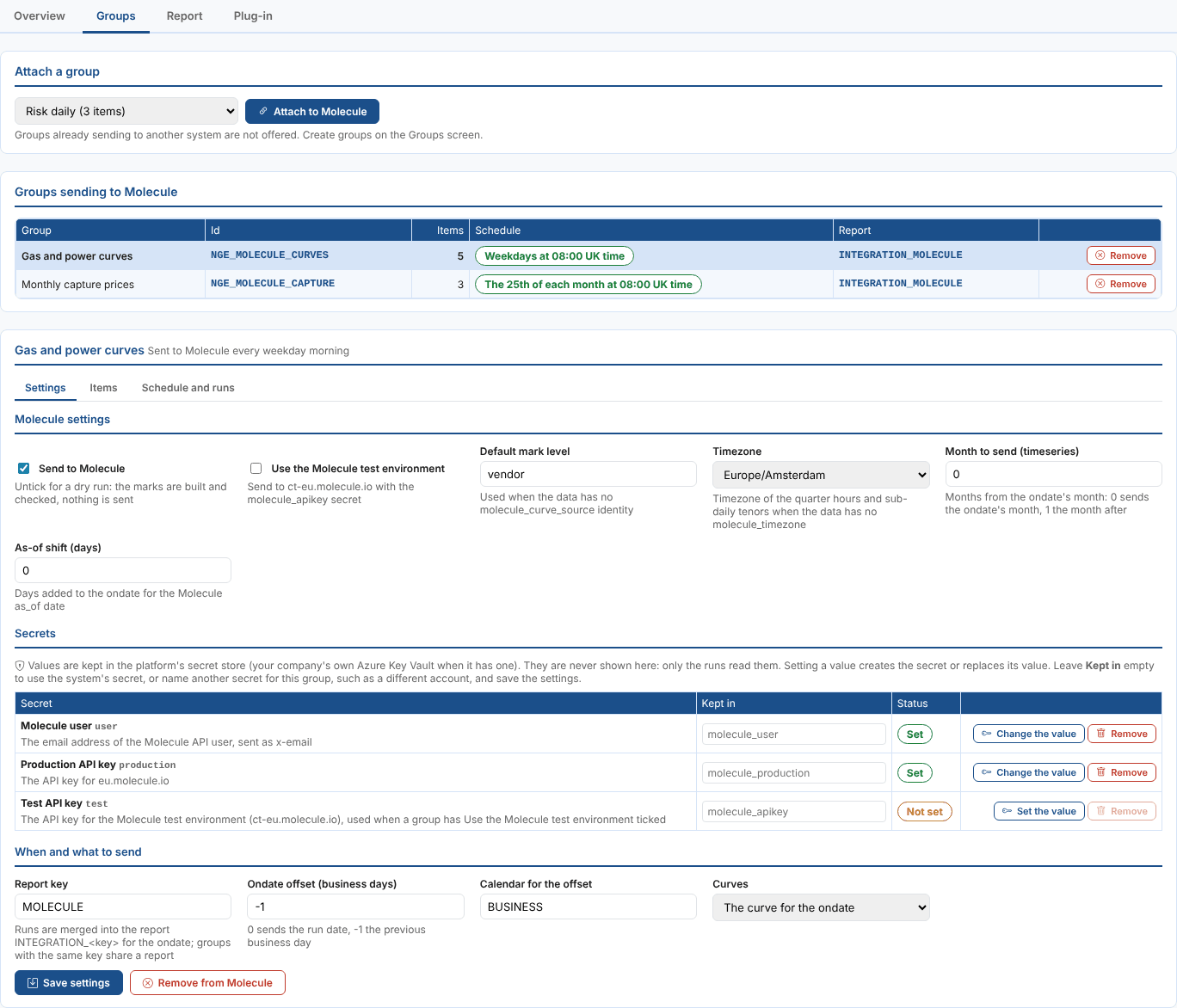
Northgate uses:
| Field | Example | Notes |
|---|---|---|
| Send to Molecule | ticked | Untick it for a dry run: the marks are built and checked, nothing is sent, and every item shows as skipped. |
| Use the Molecule test environment | not ticked | Tick it while trying the integration out. |
| Default mark level | vendor | Used for curves that have no mark level of their own. |
| Timezone | Europe/Amsterdam | The clock the quarter hours and sub-daily tenors are counted in. |
| Ondate offset (business days) | -1 | The run starts at 08:00 and sends the previous business day's curves. |
| Curves | The curve for the ondate | A curve that has not been built for the date shows as missing. |
Under Secrets, leave Kept in empty for the group to use the system's secrets. To use other ones for this group, such as a second Molecule account, type the name of another secret record, set its value with Set the value, and save the settings.

Select Save settings. Remove from Molecule stops sending the group: see Removing a group from a system.
5. Give each item its codes
Open the Items tab. Each curve and timeseries in the group is a row, with a column for each code the system uses and each data property it reads, plus the two properties the daily report counts by.
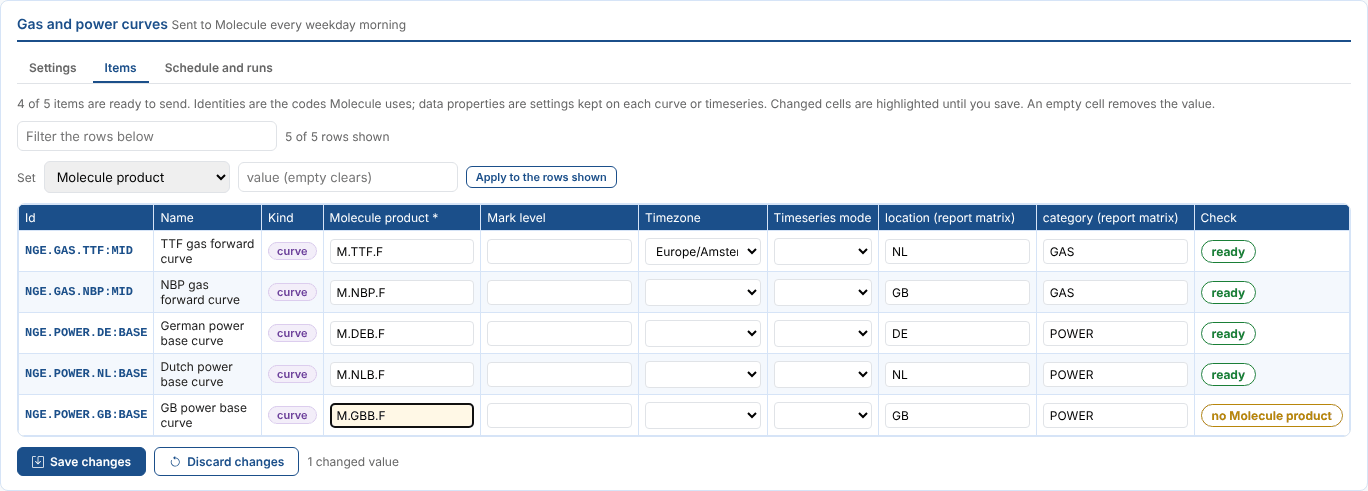
- Type in a cell to change it; changed cells are highlighted until you select Save changes. An empty cell removes the value.
- To give many rows the same value, type in Filter the rows below to show them, choose the column next to Set, type the value and select Apply to the rows shown.
- The Check column says whether each item is ready to send. no Molecule product means a required code is missing; the item would fail. Public data is shown as read only.
Here the GB power curve has no Molecule product yet, and its new code M.GBB.F is waiting to be saved.
6. Schedule it
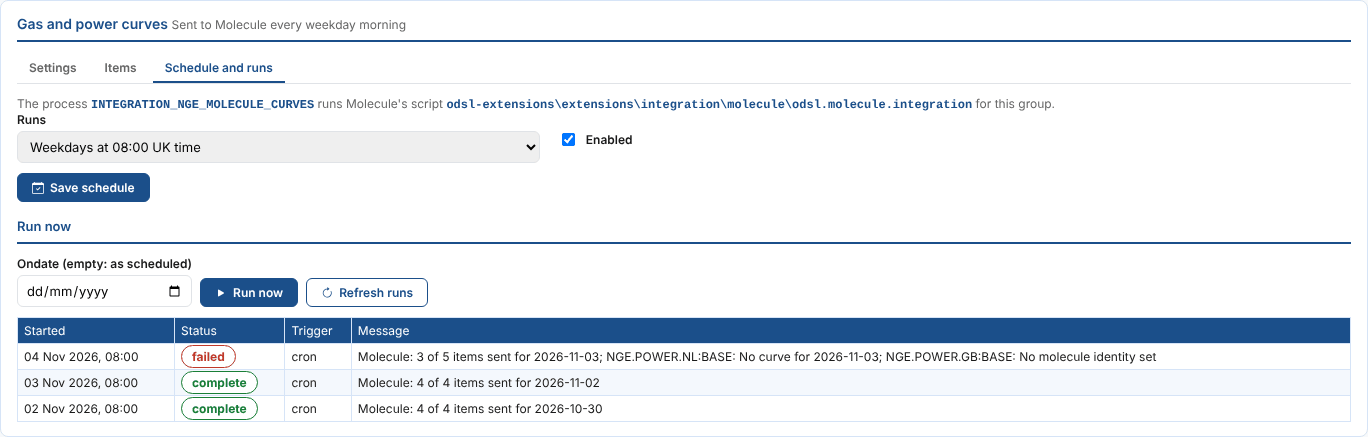
Open the Schedule and runs tab. Choose when the group runs under Runs and select Save schedule (or Create the process the first time).
| Runs | Cron |
|---|---|
| Weekdays at 08:00 UK time | 0 8 * * MON-FRI * EU1 |
| Weekdays at 18:00 UK time | 0 18 * * MON-FRI * EU1 |
| Weekdays at 23:00 UK time | 0 23 * * MON-FRI * EU1 |
| Weekdays at 20:00 Central European time | 0 20 * * MON-FRI * EU2 |
| Every day at 06:00 UTC | 0 6 * * * * UTC |
| The first of each month at 08:00 UK time | 0 8 1 * * * EU1 |
| The 25th of each month at 08:00 UK time | 0 8 25 * * * EU1 |
Custom cron takes any platform cron expression (see Cron expressions). Not scheduled keeps the process for Run now only. Untick Enabled to pause the schedule.
To send now, select Run now. Leave the date empty to send the date the schedule would, or choose an ondate to send an earlier date again, for example once a late curve has arrived. Refresh runs updates the list of runs; each run's message lists what was not sent and why.
7. Check the result
Open the Overview tab. It shows the number of groups, curves and timeseries and scheduled groups, any secrets that are not set, and the latest daily report with its matrix. A required secret that is not set shows in red: the runs stop until it is set.
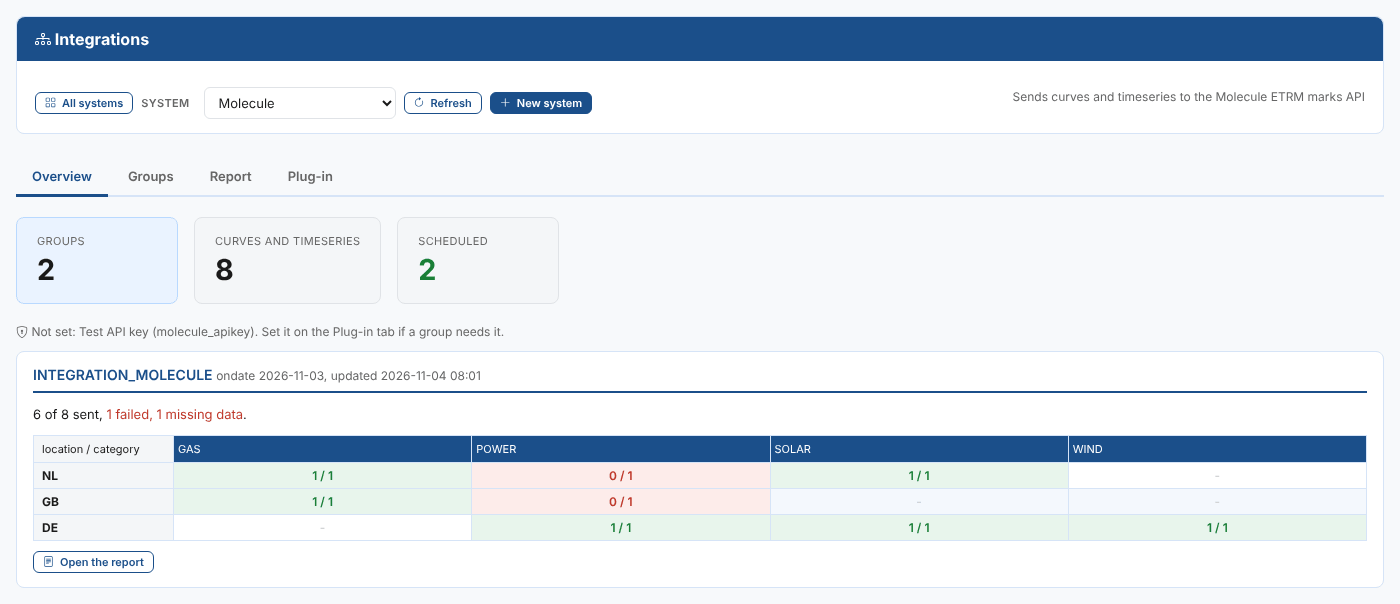
On 4 November Northgate's report for 3 November shows 6 of 8 items sent: the Dutch power curve had not been built (missing) and the GB power curve had no Molecule product (failed). The daily report explains the matrix and how to set what you expect.
Next
The daily report: the matrix, the expectations behind it and the stored reports.