Documenting a system
A system usually outlives the memory of the person who set it up. Each system has a Documentation tab for what the next person needs to know: what the system is for, where the data goes, who to contact and how to check it is working. You can add more documents beside it, such as a runbook for the morning send or notes from a meeting with the system's owner.
Writing the first document
Open the system and choose the Documentation tab. Until something is written, the tab offers Write the documentation.

Write the documentation opens a document called About followed by the system's name. It starts from what the screen already knows about the system:
- a table of its name, code, system id, the plug-in or ODSL it sends with, its codes, its daily report and its secrets (the names of the records that keep their values, never the values);
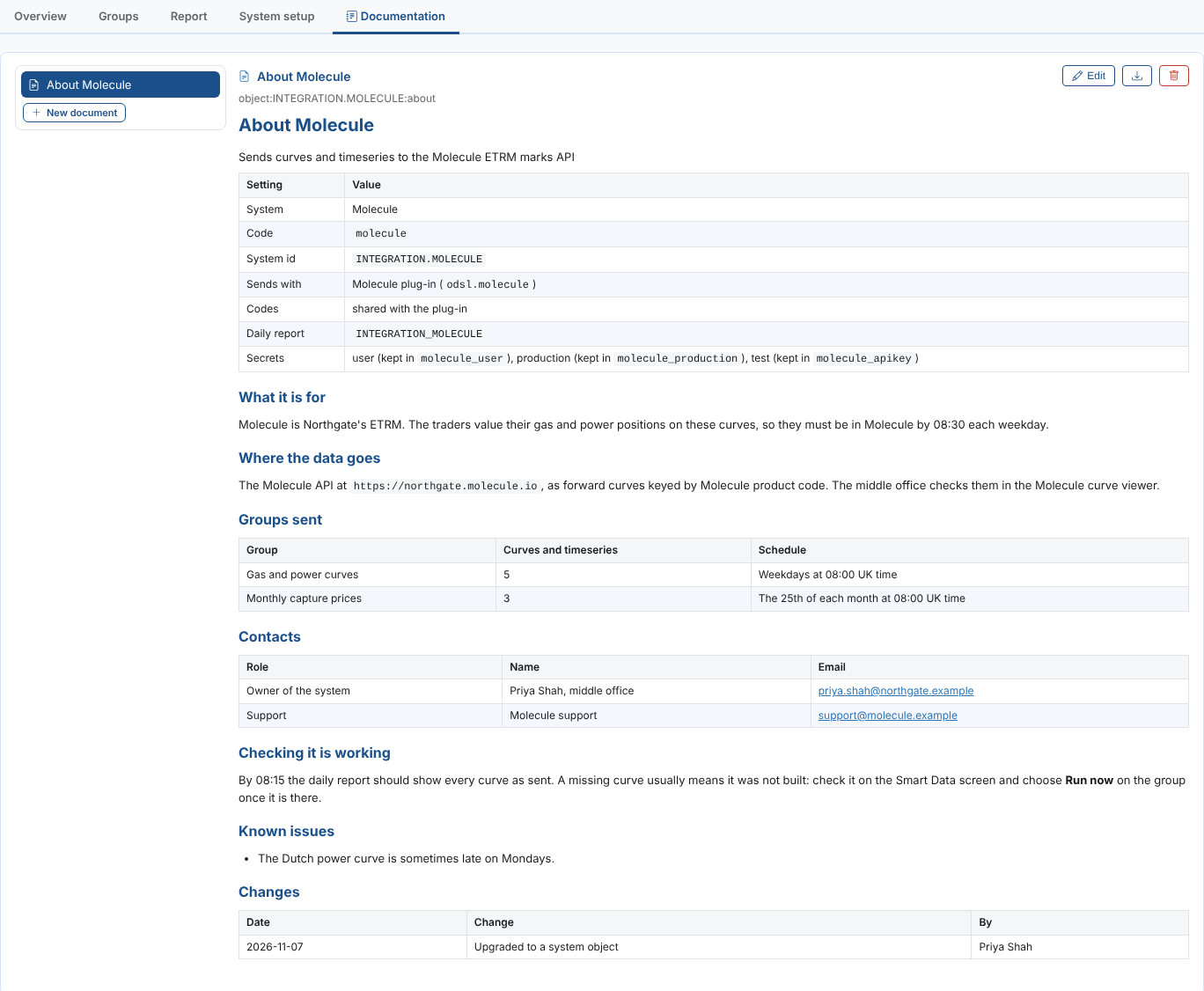
- the groups that send to it, with how many curves and timeseries each holds and its schedule;
- headings to fill in: What it is for, Where the data goes, Contacts, Checking it is working, Known issues and Changes.
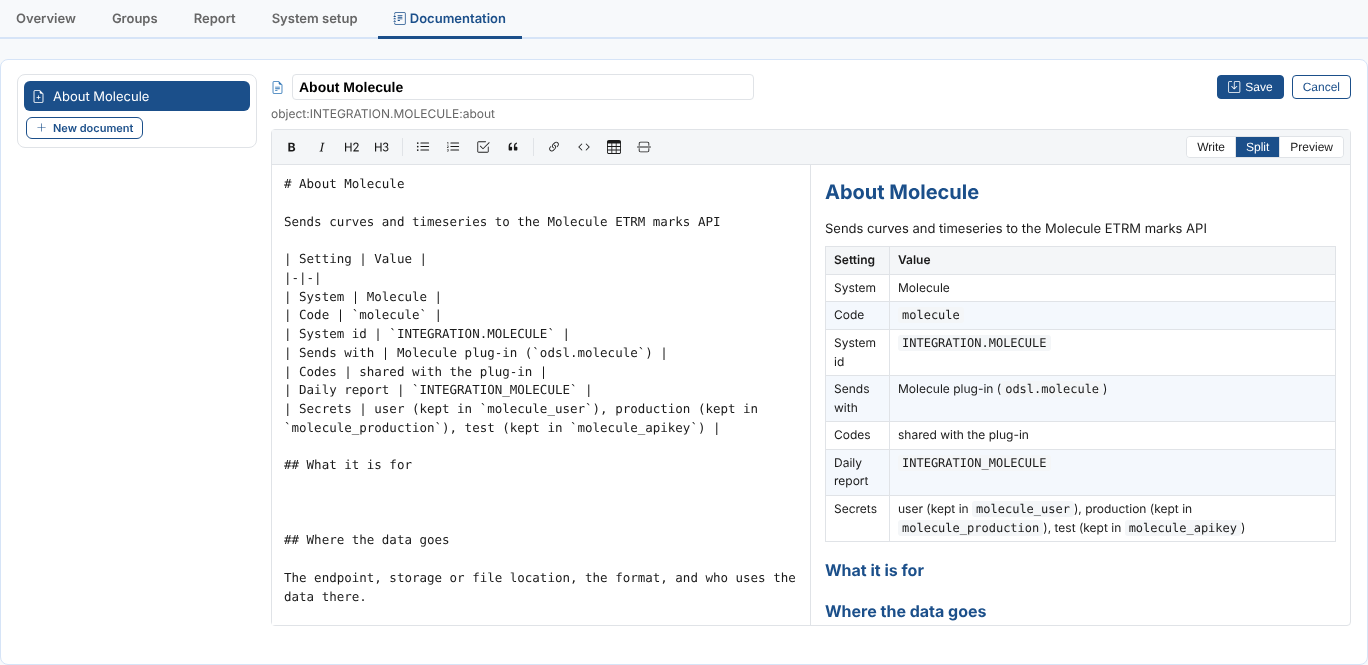
The document is written in markdown. The toolbar adds bold, italics, headings, lists, task lists, quotes, links, code, a table and a divider. Write, Split and Preview choose between the text, the text with a live preview beside it, and the preview alone. Ctrl+S saves, and Enter in a list starts the next item. Select Save when you are done; Cancel asks before it throws changes away.
The table and the list of groups are written when the document is created. They are not updated later, so change them by hand when the system changes, and note it under Changes.
Northgate's document for Molecule, once filled in:
More documents
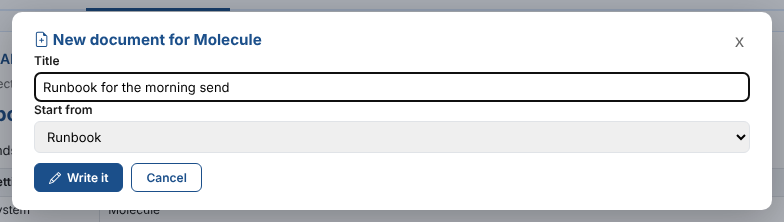
Select New document under the list of documents, give it a title and choose what it starts from:
| Start from | What you get |
|---|---|
| About the system | The system's own template, as above. |
| Blank | Only the title. |
| Notes | Summary, details and next steps. |
| Meeting notes | Date, attendees, agenda, notes, decisions and a table of actions. |
| Requirements | Background, scope, a table of requirements and acceptance criteria. |
| Design | Overview, a table of the data, how it works and open questions. |
| Runbook | What it does, the schedule, checks, what to do when it fails, and contacts. |
The list shows the system's documents, the About document first and then the others by title. Choose one to read it. Edit changes it, the download button saves it as a markdown file, and the bin deletes it after asking.

If you leave a document with unsaved changes, by choosing another document, another tab, another system or All systems, the screen asks first. Closing or reloading the page while you edit warns you too.
Where the documents are kept
Each document is a record in the platform's documentation service:
| Field | Value |
|---|---|
| Scope | object |
| Entity | The system's id, such as INTEGRATION.MOLECULE |
| Name | about for the About document; for the others, the title in lower case with dashes, such as runbook-for-the-morning-send |
| Language | en |
The service links each document to the system's object, so the documents also show where the system's object is opened, for example in the Data Explorer. The screen lists a system's documents from these links.
You need the right to read documentation to see the documents, and the right to update documentation to write them.
Systems set up before systems were objects
A system set up before systems were kept as objects has no object to link documents to. Its Documentation tab says so: upgrade it first with Upgrade to systems on the home page (see Systems set up before 2026-11-07).
When a system is deleted
Delete the system, on the System setup tab, lists the system's documents with Also delete its documentation, which is ticked. Untick it to keep them in the documentation service. A new system with the same code does not show documents kept this way, because their links were on the deleted system's object.