Using Fusion AI
Fusion AI can design a custom system with you: you say what the system is and how it takes data, it asks you about anything it cannot decide for you, and it proposes the codes, settings, secrets and ODSL. Nothing is saved until you apply its proposal, and you can keep talking to change it first.
Northgate wants its Northgate Lakehouse to get the day's curves and timeseries each morning, through an ingest API that takes JSON.
Designing a new system
Select New system, then Design a Custom ODSL system with Fusion AI (or Design with Fusion AI on Describe it to Fusion AI on the home page). Type what the system is and how it takes data, and select Send (or press Ctrl+Enter).
When Fusion AI needs a decision that is yours to make, it asks a question with a few choices, under a short note on what led to it.
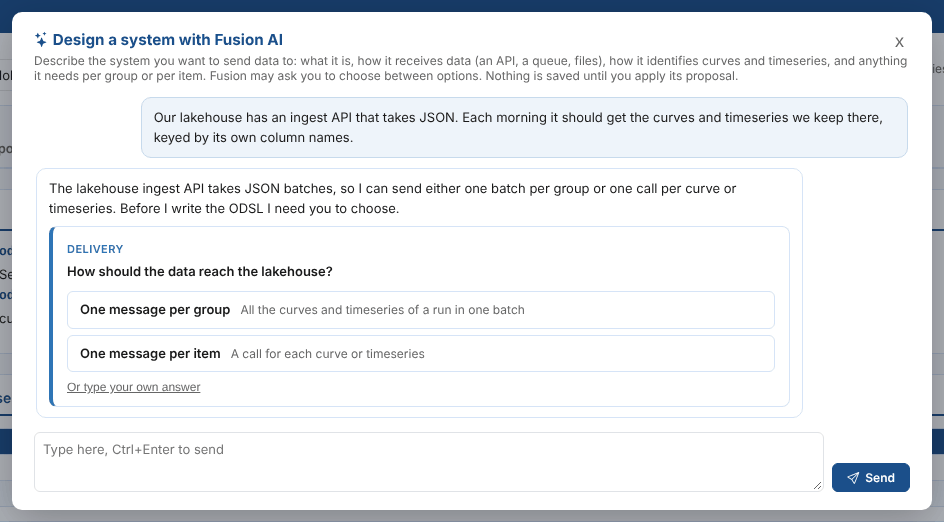
Select a choice to answer. When you may pick more than one, tick them and select Send. Or type your own answer puts the cursor in the text box for an answer of your own. An answered question shows what you chose.
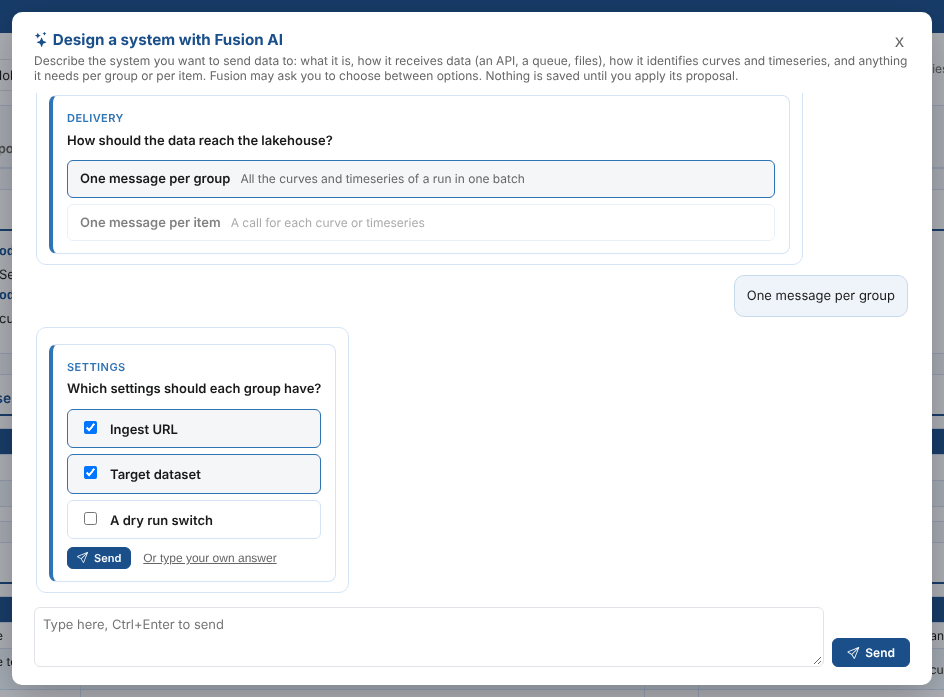
When it has what it needs, Fusion AI sums up the system and proposes it.
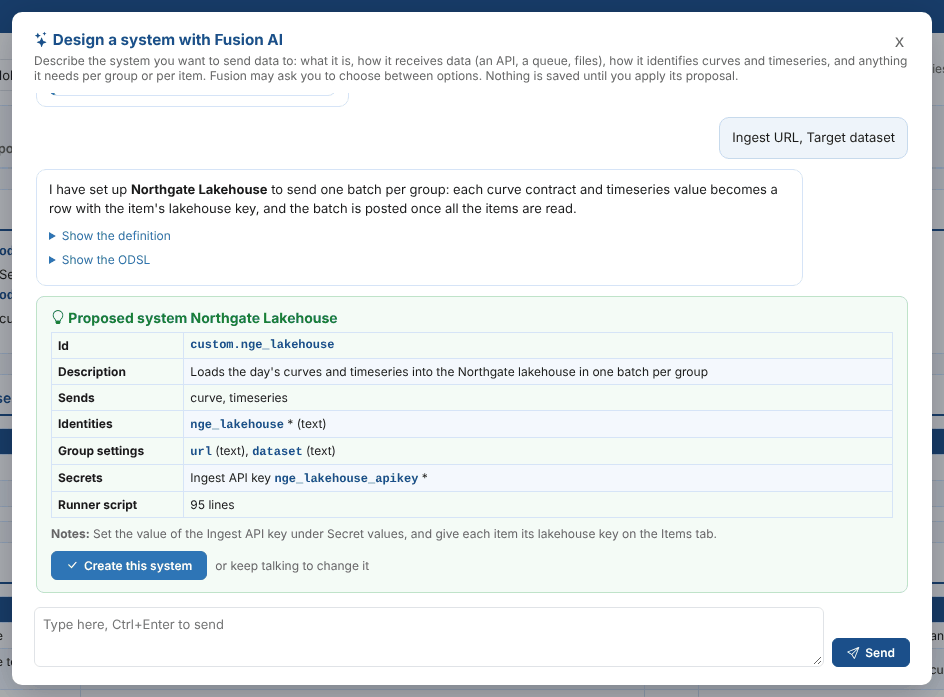
The proposal shows the system's id, description, what it sends, its identities, group settings, data properties and secrets (with the secret record each one is kept in, * for required), the length of its ODSL and any notes. Fusion AI names the secrets the system needs but never asks for their values: you set them yourself once the system is created. Show the definition and Show the ODSL in Fusion AI's answer show them in full.
The screen checks the proposal before you apply it: the names and types, the choices of each choice setting, that the ODSL imports the integration engine, has the three hooks and hands over to the engine with the system's id, and that it reads secrets with intSecret and only the secrets the system has. Anything wrong is listed in amber on the proposal; ask Fusion AI to fix it, or apply it anyway with a second click.
Select Create this system. The ODSL is checked for syntax errors first. If it has any, they are listed with Ask Fusion AI to fix them, which sends them back to Fusion AI, or you can apply it with the errors. The system is then created and opens on its System setup tab, with Fusion AI's notes at the top. Set the values of its secrets under Secret values (see Custom systems), then attach groups to it.
Changing a system
On a custom system's System setup tab, select Change with Fusion AI, and say what should change. Fusion AI is given the system's current codes, settings and ODSL, and asks what it needs to know.
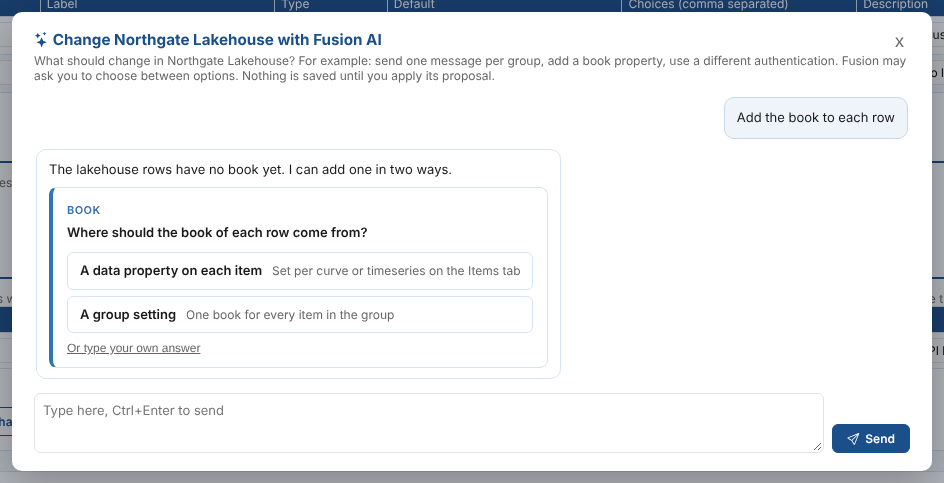
Its proposal holds the whole changed system. Apply the changes saves it the same way, keeping the system's code, with the reason Changed with Fusion AI on the script's new version, which you can compare with the earlier one in the Script Manager. A later answer replaces an earlier proposal, so only the latest one can be applied.
Good to know
| Topic | What happens |
|---|---|
| History | The conversation is saved in the Fusion AI chat history, category integration. |
| What Fusion AI is told | How the integration engine calls the hooks, the ODSL rules on the Custom systems page, and the REST API template as an example. |
| Tokens | Conversations count towards your Fusion AI usage like any other (see Fusion AI billing). |
| Testing | Fusion AI does not run the new ODSL. Set the group to a test environment or a dry run where the system has one, and use Run now before scheduling it. |
Next
Plug-ins: the systems with a ready-made plug-in, such as Molecule.