Documents
Requirements, designs, meeting notes and runbooks belong with the project. The Documents tab keeps them as markdown documents in the platform's documentation service, and links each one to the tasks it is about.
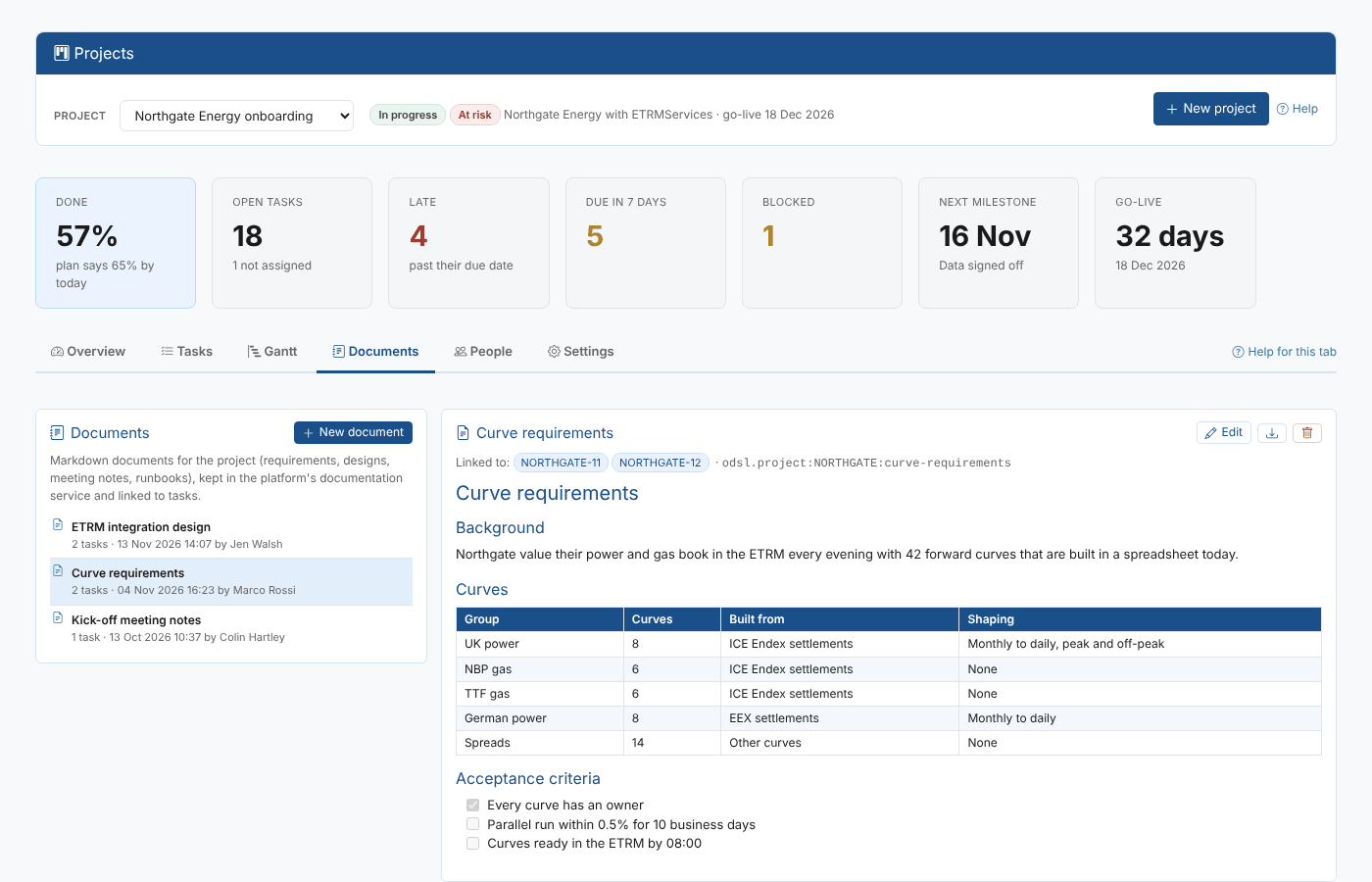
Creating a document
- Choose the project and open the Documents tab.
- Select New document.
- Give it a title and choose what to Start from: Blank, Notes, Meeting notes, Requirements, Design, Runbook or Evidence. The Evidence template is for documents that show a task is done; see Evidence and sign-off.
- Select Create. The document opens for editing.
You can also create a document from a task: select New document in the task panel, and the new document is linked to the task. Save the task to keep the link.
Editing a document
Select a document, then Edit. Write markdown on the left; the right shows how it will look as you type. Select Save (or press Ctrl+S) when you are done, or Cancel to leave it as it was.
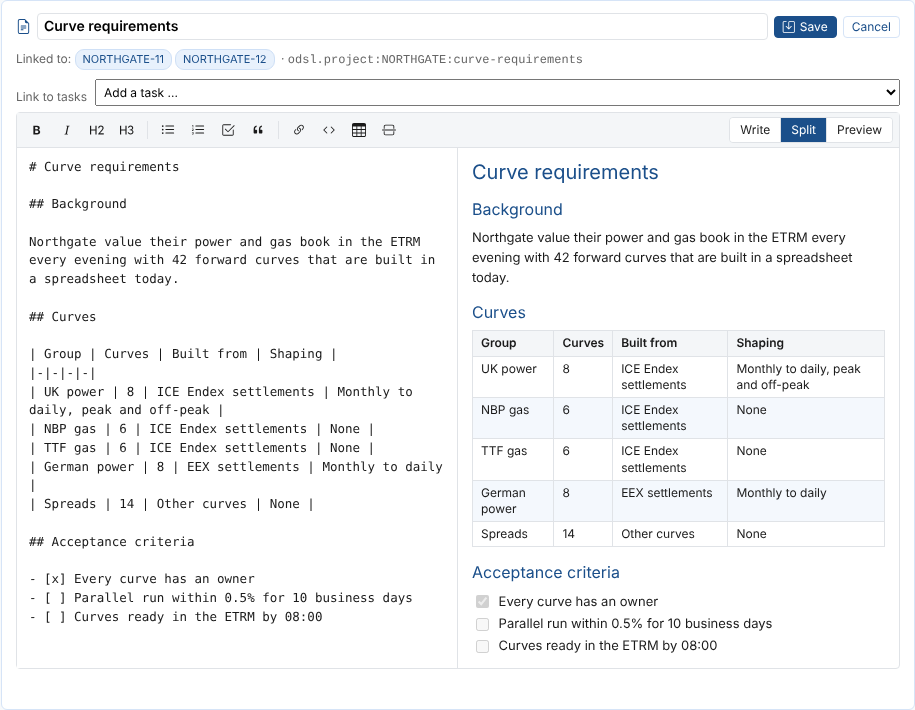
The toolbar above the text adds the markdown for you: bold, italic, headings, bulleted, numbered and check lists, quotes, links, code, a table and a divider. Select some text first to format it. Write, Split and Preview at the right choose whether you see the text, both, or only how it will look.
| Key | Does |
|---|---|
| Ctrl+S | Saves the document |
| Ctrl+B, Ctrl+I, Ctrl+K | Bold, italic, a link |
| Enter in a list | Starts the next item (the next number in a numbered list); Enter on an empty item ends the list |
| Tab, Shift+Tab in a list | Indents or outdents the item |
| Markdown | Gives |
|---|---|
# Title, ## Section | Headings |
**bold**, *italic* | bold, italic |
- item | A bullet list |
- [ ] step and - [x] step | A check list |
A row of | a | b | lines, the second |-|-| | A table |
[text](https://...) | A link |
The download button saves the document as a markdown file.
Linking documents and tasks
- While editing a document, choose a task in Link to tasks; the link is saved at once.
- In the task panel, choose a document in Link a project document, then save the task.
The document shows the tasks it is linked to, and the task panel lists its documents: select one to read it there. Linking and unlinking are written in the task's activity log.
Where documents are kept
Each document is a documentation record in your private documentation service, with the scope odsl.project, the project code as its entity and the document name as its name, for example odsl.project:NORTHGATE:curve-requirements. Deleting a document removes it from the documentation service and unlinks it from its tasks. If a document was removed from the documentation service some other way, opening it says so.